
MP4 is a common multimedia format that lets you combine music and video into one file. But there are times when you only need the sound, like when you're editing music, recording a podcast, or doing sound processing for work. WAV is the greatest format for these instances because it gives you high-quality audio that isn't compressed and works with a lot of audio editing software and professional processes.
In this post, you'll learn about numerous ways to extract audio from an MP4 file and save it as a WAV file. These include desktop software, web converters, and audio editing tools.
What makes you desire to change MP4 to WAV?
Let's first discuss why WAV is usually better than other formats:
- WAV files don't lose any audio quality when they are compressed, which makes them perfect for making, mixing, and editing music.
- WAV files are better for editing because they preserve the raw audio data, making it easier to edit and process without compromising sound quality.
- WAV is the standard format for professional projects since many professional audio workstations (DAWs) and editing programs can read it without any problems.
- The quality of an MP4 file can go down when you transform it to an MP3 or other compressed format. WAV files, on the other hand, maintain all the sound characteristics of the original.
A Few Good Ways to Change MP4 Files to WAV Files
People who require reliable and high-quality conversions should use desktop applications. Desktop software don't depend on internet speed, let you convert a lot of files at once, and usually provide you more control over output settings than online tools do.
1. Open UniFab Video Converter
With UniFab, it's straightforward and quick to pull audio out of MP4 files and turn them into WAV files. It can convert several files at once, do it rapidly, and let you customize the audio settings.
How to Change an MP4 File to a WAV File How to Use UniFab
- Download and install UniFab Video Converter on your computer.
- Click "Add Files" to add your MP4 file to the program.
- Choose WAV as the output format under “Audio.”
- To achieve the optimum quality, you may need to modify the bitrate, sampling rate, and channels.
- Click Start to begin the conversion.
- Once the conversion is done, you may find the WAV file in the output folder and utilize it however you need to.
2: Change MP4 files to WAV files with online converters
If you don't want to install software, online tools provide a quick way to obtain audio from MP4 files. You can upload an MP4 file to these sites, choose WAV as the output format, and then retrieve the modified file.
How to Change MP4 Files to WAV Files Online
- Use an online converter like CloudConvert or Online Audio Converter.
- Click Upload to add your MP4 file.
- Select WAV as the format you want to save.
- If you can, change the settings for things like bitrate, sample rate, and audio channels.
- Click "Convert," and after the process is done, you will have the WAV file.
Here are some things you can't do when you change MP4 to WAV online:
- Processing can take longer if the speeds are slower.
- You can only upload a particular amount of data with many free programs.
- Files that you provide to web sites can not be 100% protected.
3: Use an Audio Editing Tool to Change MP4 Files into WAV files.
Professionals who make music, podcasts, or edit sound can use Audacity and other audio editing software to get sound out of MP4 files and make it better.
How to Use Audacity to Change MP4 Files to WAV
- Go to File and choose Import to launch Audacity.
- Pick the MP4 file you want to edit.
- When the audio waveform appears, choose File and then Export.
- Choose Export as WAV and then set the quality settings.
- Put the file where you want it to go.
Limitations of this software include:
- To open MP4 files, you need the FFmpeg plugin.
- A bit harder than simple converters.
4: The best way to change MP4 files to WAV files
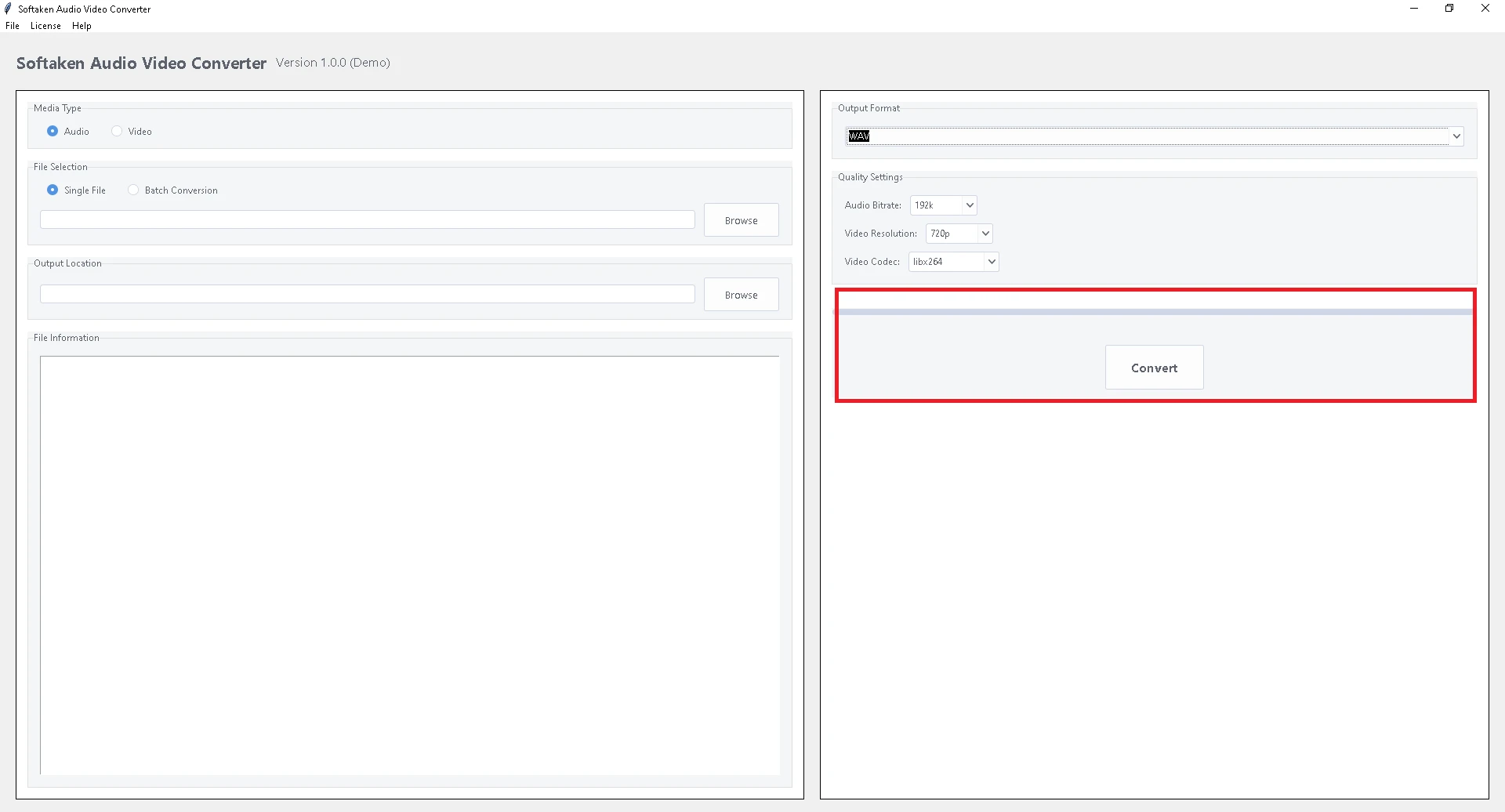
You can use a multitude of free software to change MP4 files into a WAV files. But it can be boring to work with a lot of files. It takes a long time to convert files by hand, especially if you have to adjust the settings for each one. That's when Softaken Audio Video Converter has batch conversion capability comes in. It helps with this issue by letting you change a lot of files at once. You may quickly and easily alter the format of audio and video files with this powerful and easy-to-use application. It works great for batch processing, helping people convert a lot of MP4 files to WAV files at the same time. This software will work with all versions of Windows.
Key Features to Know About This Converter Software
- It can change a lot of MP4 files to WAV format all at once in a short amount of time.
- It can switch between MP4, AVI, MOV, MKV, MP3, WAV, FLAC, and many other formats.
- Check that the sound quality stays the same during the conversion.
- You can change the audio bitrate, sample rate, and channels to match your needs.
- You don't need to know anything about technology to use the interface; it's easy for everyone to use.
- Optimized for speed, which means you can quickly convert large files without crashing or slowing down.
How to Change MP4 to WAV with This Converter:
- Download the tool and click "Add Files" to bring in your MP4 files.
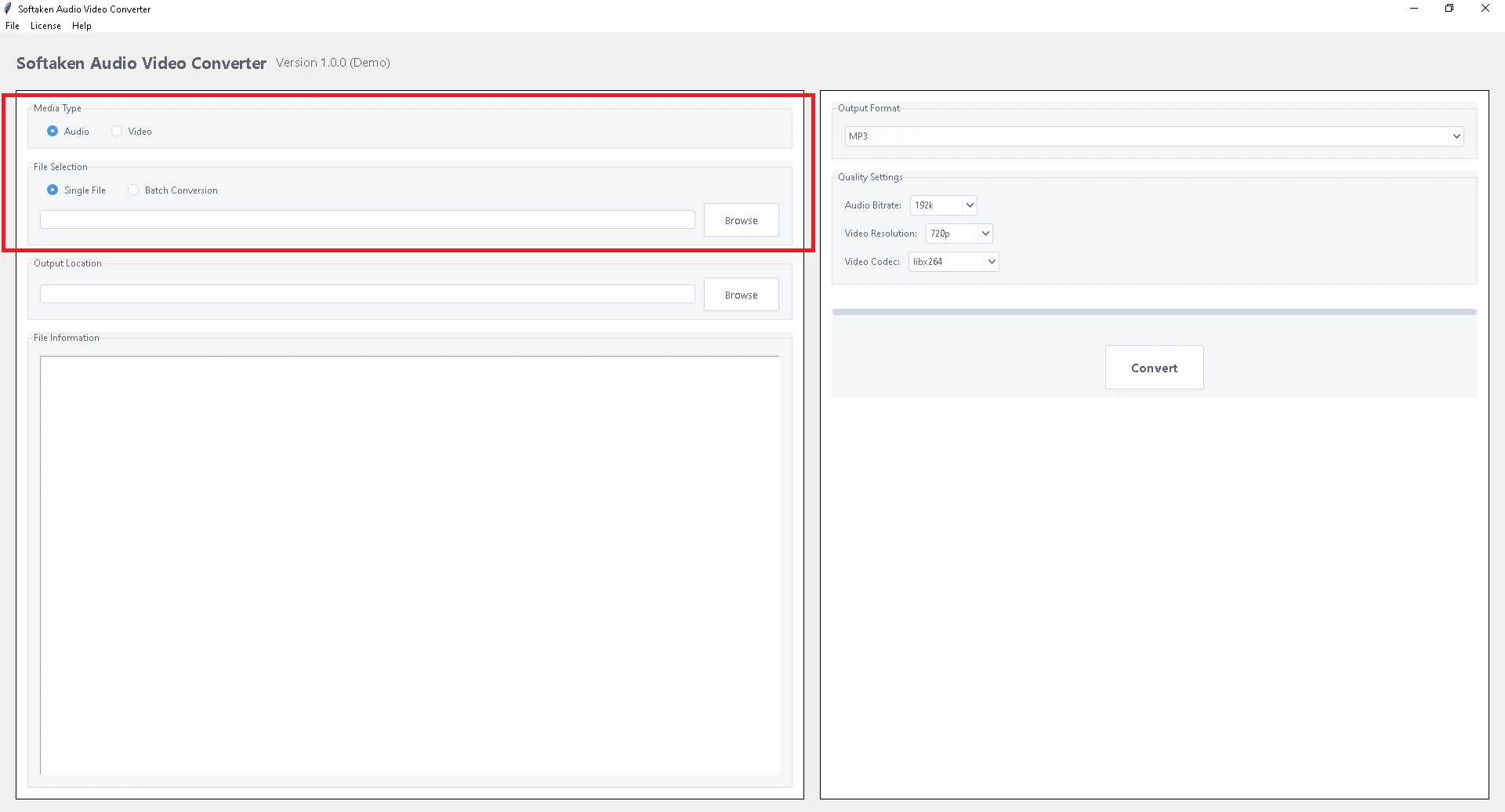
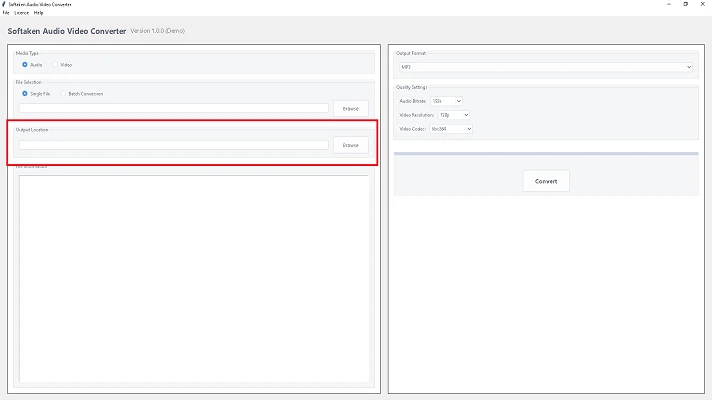
- Select the output location to save converted files.
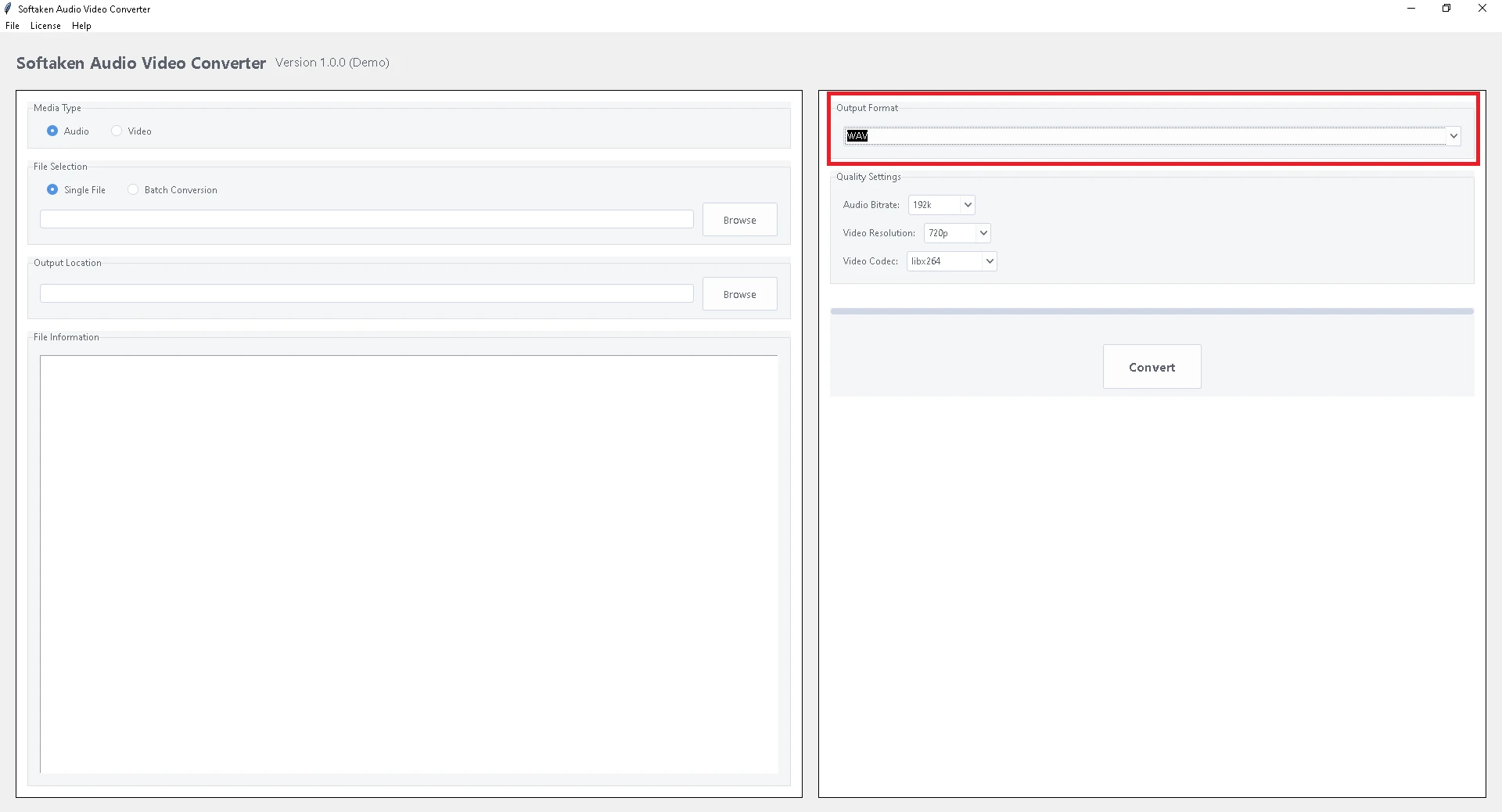
- Choose WAV from the list of output formats.
- To start the batch conversion, click the Convert button.
In the end
You need to change MP4 to WAV if you need high-quality, lossless audio for editing, mixing, or listening back. You can pick one of the following based on what you need: You can use this Audio Video Converter and other desktop utilities to do quick, dependable, and high-quality conversions. You don't have to install anything to use online converters quickly and conveniently. Audacity and other advanced audio editing and changing apps. Each approach has its own benefits and cons, so the best one for you will depend on the file size, how quickly you need to convert it, and how much you need to change it. It's easy to pull audio out of MP4 files and save it as a WAV file for personal or business use if you know how.

























Sign in to leave a comment.