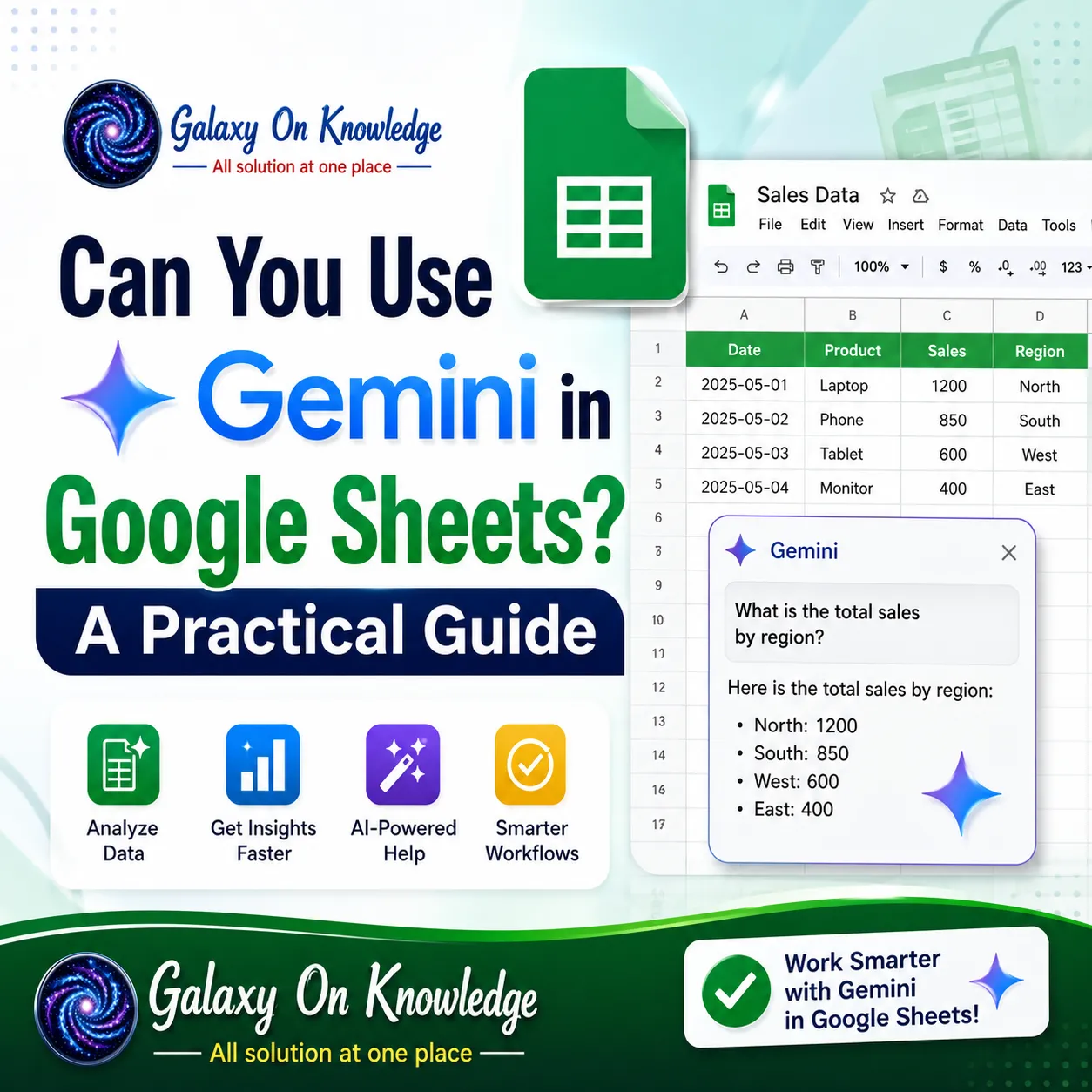

Yes, Gemini can work in Google Sheets on supported desktop accounts as of July 2026. You may see the Ask Gemini side panel, an AI or Gemini cell function, and Fill with Gemini tools.
Access depends on your plan, Workspace settings, rollout status, language, and usage limits. Below, you'll find practical setup steps, prompt examples, free-access facts, mobile limits, troubleshooting help, and alternatives.
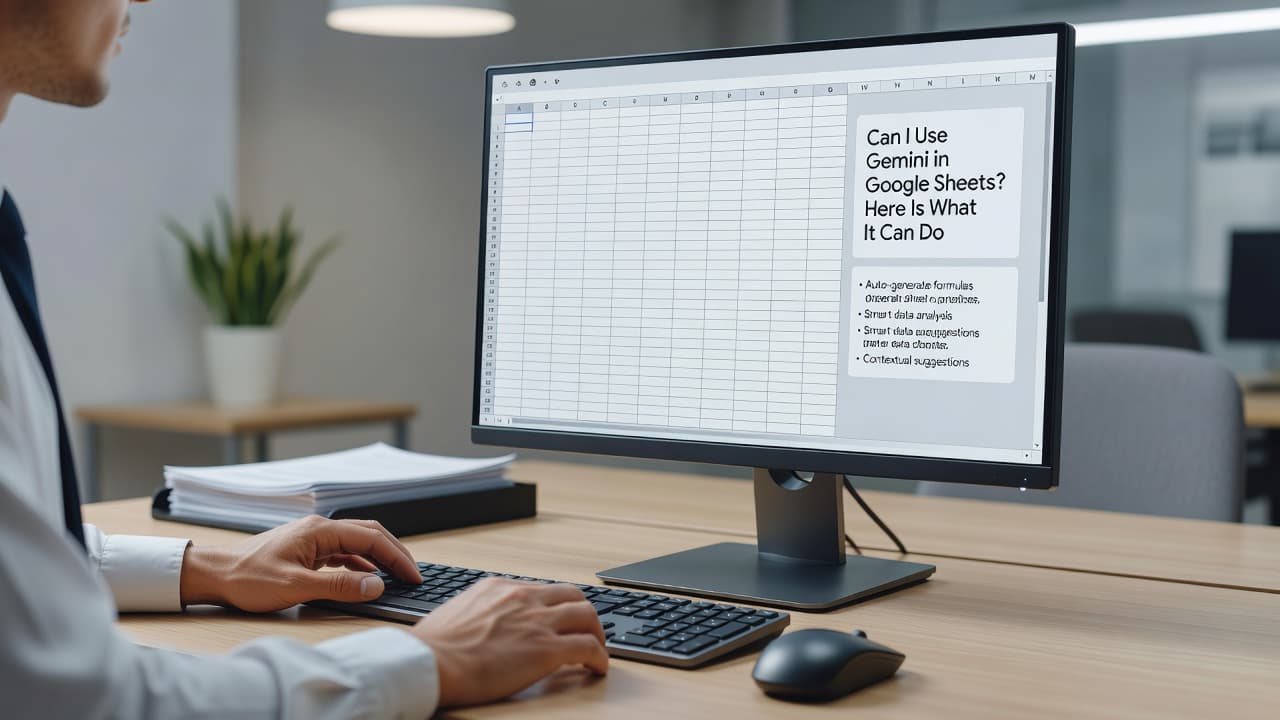
Can I Use Gemini in Google Sheets? Here Is What It Can Do
Gemini works in Sheets in two main ways. The Ask Gemini side panel can build or edit parts of a spreadsheet after you describe the job. Cell-level AI tools can generate text, analyze selected data, or fill an empty range.
For example, Gemini can help write formulas, summarize rows, sort data, create charts, build pivot tables, apply conditional formatting, and suggest a basic dashboard. It can also spot patterns in sales data or turn a pile of comments into usable labels.
 The tool is useful for filling blank cells with categories, summaries, or sentiment labels. Still, treat every answer as a draft. A polished-looking formula can contain a wrong reference, and a neat summary can miss an important exception.
Gemini in Sheets is also different from Google AI Studio. AI Studio is a workspace for testing Gemini models and building with APIs, while Sheets keeps the AI work inside a spreadsheet.
Can Gemini Fill In a Google Sheet?
Yes. Fill with Gemini can turn a blank column into structured content when your source data is clear.
Select an empty range or drag across the cells you want to fill. Then open the Gemini prompt option, describe the output, review the sample, and insert it. You can refresh the result if the first attempt misses the mark.
For instance, a store could turn long product descriptions into short categories such as "kitchen," "outdoor," or "office." A support team could label customer feedback as positive, neutral, or negative. Clean column headers and consistent source data give Gemini a much better target.
How to Use a Gemini Prompt in Google Sheets
Useful prompts name the task, source range, desired format, and limits. Vague wording often produces uneven results across rows.
Try requests such as:
- "Summarize A2:A50 in one sentence per row."
- "Create a formula that calculates monthly revenue growth."
- "Identify duplicate email addresses in column C."
Some supported accounts also show an AI function, such as =AI("Summarize this feedback", A2). Your interface may instead show =Gemini(), so confirm the function name and support details in Sheets before building a large workflow.
How to Use Gemini in Google Sheets on Desktop and Mobile
To use Gemini in Google Sheets, open a spreadsheet in a desktop browser and look for Ask Gemini in the upper-right corner. Choose a suggested Build option or type a custom request. Gemini can propose formulas, formatting, tables, charts, and edits. Review the proposal, then insert only the changes you trust.
This is a desktop feature. People searching for Gemini in Google Sheets mobile or Gemini in Google Sheets Android may not see the same controls in the app. You can still edit a spreadsheet on your phone, but native Gemini tools may be unavailable there.
Basic Sheets access is generally free with a Google account. Gemini features, however, can require an eligible Google AI plan or Google Workspace plan. The same pattern appears in other Google products, including Gemini features in Gmail, where AI access depends on account eligibility.
Can I Use Gemini in Google Sheets for Free?
Using Google Sheets for free and using Gemini inside it are different things. A free Google account lets you create and share spreadsheets, but it doesn't promise Gemini access.
Supported Google AI or Workspace subscriptions, administrator approval, enabled smart features, language availability, and per-user limits can all affect access. Free trials and limited promotions may appear, yet they can change without notice.
Gemini in Google Sheets pricing varies by region, account type, and plan. Don't assume that "free AI for Google Sheets" means unlimited native Gemini features. Third-party tools may offer free tiers, but they use separate rules and permissions.
How Can I Use AI in My Google Sheets Without Gemini?
If Gemini isn't available, built-in formulas, Explore features, smart suggestions, Apps Script, and reputable Workspace Marketplace add-ons can still help. Some teams also connect spreadsheet workflows to Firebase and Google AI services when they need an app beyond a single sheet.
Third-party add-ons may charge separately and request access to spreadsheet data, so review permissions first. Gemini may help create spreadsheet content, but it doesn't automatically create a native Microsoft Excel file. Export a Google Sheet as .xlsx when needed.
Excel and Sheets each fit different work styles. Excel may suit advanced desktop analysis, while Sheets excels at shared browser-based work. Neither service is unlimited, since storage, cell, file-size, and service limits still apply.
Why Is Gemini Not Showing Up in Google Sheets?
A missing Ask Gemini button usually points to access settings, not a broken spreadsheet. Common causes include an unsupported account or plan, administrator restrictions, a gradual rollout, unsupported language or country, mobile use, disabled smart features, an outdated browser, or a reached usage limit.
First, open Sheets on a computer and confirm that you're signed into the eligible account. Refresh the page, then try a current supported browser. If you use a work or school account, ask your Workspace administrator to check Gemini and smart-feature settings.
A feature announcement doesn't mean every eligible account receives the control on the same day.
Rollout timing can delay access, even after your plan includes Gemini. If the side panel appears but refuses a request, reduce the range size and check whether you reached a daily or monthly limit.
What Gemini Cannot Reliably Do in a Spreadsheet
Gemini can misread messy tables, invent values, choose the wrong formula, or confuse date formats. It may also change several tabs if your request is broad.
Keep a backup copy, verify formulas and totals, and protect sensitive data. Basic Google Docs use is generally available without payment, but claims that Google Docs is free forever should never be treated as a promise that every AI feature is included.
Final Thoughts
Gemini can create, edit, explain, and analyze spreadsheet content through its side panel and cell tools. Yet availability depends on your plan, administrator settings, desktop access, rollout timing, and usage limits.
Open Sheets on a desktop, look for Ask Gemini, and test it with a small non-sensitive table. Verify every formula and output before relying on it. Gemini is a helpful assistant, not a replacement for checking spreadsheet logic.





















Sign in to leave a comment.