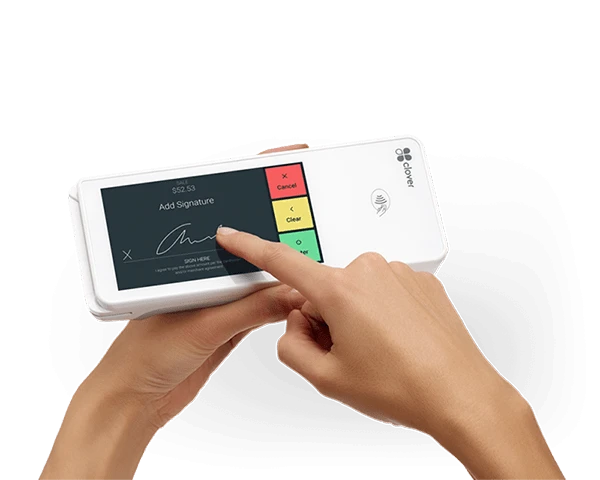

The Clover Flex, available through Florida Payments, is a versatile, portable point-of-sale system designed for mobile businesses, pop-ups, and small retail operations. It combines payment processing, receipt printing, inventory management, and real-time reporting into a compact handheld device. Setting up the Clover Flex correctly ensures smooth daily operations and allows businesses to make the most of its features. Using the Clover Flex with Florida Payments from the start maximizes efficiency and minimizes errors.
Unboxing and Powering Up
The first step is unboxing the device carefully. Inside the package, you will find the Clover Flex device, charging cradle, power cord, and any included accessories. Connect the cradle to a power source and place the Clover Flex on it. Press and hold the power button until the device powers on. Ensuring the device is fully charged is crucial for uninterrupted mobile operations, especially when using the system through Florida Payments.
Connecting to a Network
After powering up, connect the Clover Flex to a reliable Wi-Fi network. If Wi-Fi is unavailable, the device also supports LTE/cellular connectivity. A secure network is essential for safe payment processing and smooth operation. Correct connectivity ensures the device can communicate with the Clover cloud for real-time updates, reporting, and inventory management, making it fully functional with Florida Payments services.
Device Activation
Once connected, the Clover Flex may automatically download software updates. Complete the activation process by entering any registration or activation codes provided by your provider. This step links the device to your business account and ensures access to all features. Activation guarantees that transactions, employee accounts, and inventory sync correctly with your Clover Dashboard.
Loading Receipt Paper
The Clover Flex has a built-in receipt printer, which needs to be loaded properly. Open the receipt compartment, insert the paper roll with the end feeding through the slot, and close the cover. Printing a test receipt verifies that the printer is functioning correctly. Correct paper loading ensures seamless customer transactions and prevents delays during busy periods.
Setting Security and Employee Access
Security is critical for mobile and retail businesses. Set an administrator passcode or PIN to prevent unauthorized access and configure employee access levels based on responsibilities. Enabling “Lock Customer Mode” ensures customers cannot access administrative functions if the device is handed to them. These steps protect sensitive information and maintain accountability across your team.
Testing Basic Functions
Before using the device in daily operations, test its core functions. Process a small payment using chip, swipe, or contactless methods such as Apple Pay and Google Pay. Print a receipt to ensure the printer works. Confirm connectivity to the network and cloud for real-time reporting. Testing these features reduces the risk of operational issues during live transactions.
Customizing Settings
The Clover Flex allows customization to improve efficiency. Configure tip options, receipt layouts, discounts, and loyalty programs as needed. Rearrange apps and shortcuts on the device for quick access to frequently used functions. Enabling automatic updates ensures that the device stays up to date with new features and security enhancements. Customization ensures staff can operate the device smoothly and improves the overall customer experience when using Florida Payments solutions.
Preparing for Mobile or Field Use
For mobile businesses, ensuring sufficient battery life is essential. Consider carrying backup power sources or charging solutions for long shifts or events. Test connectivity at multiple locations to confirm consistent performance. Preparing for mobile use ensures that the Clover Flex remains reliable wherever your business operates.
Final Checks and Best Practices
Before going live, run through a checklist: confirm network connectivity and software updates, verify employee access and permissions, test transactions, printing, and reporting features, and ensure proper backup and charging solutions are available. Regularly maintaining the device and following these best practices prevents operational issues and maximizes productivity.
Conclusion
Setting up the Clover Flex correctly with Florida Payments is the first step toward efficient, mobile-friendly business operations. By powering up, connecting to a network, activating the device, loading receipt paper, securing access, testing functions, and customizing settings, businesses ensure seamless daily transactions. Following these quick setup tips allows owners and employees to make the most of the Clover Flex, improving efficiency, accuracy, and customer satisfaction in any mobile or retail environment.



























Sign in to leave a comment.