

Commercial printers play an important role in keeping everyday office operations running smoothly. From printing invoices and business reports to scanning contracts and copying important documents, businesses rely on printing equipment to handle a wide range of tasks.
However, like any office machine, printers can occasionally develop problems that interrupt workflow and reduce productivity.
Whether your office uses a multifunction printer, a laser printer, or a high-volume copier, understanding common printer issues can help you identify problems and find practical solutions.
A Commercial Office Printer is designed to handle regular business printing requirements, but proper maintenance and troubleshooting are essential to keep it performing efficiently.
In this article, we will explore some common commercial printer problems, their possible causes, and simple troubleshooting steps to help your office get back to work.
1. Paper Jams and Feeding Problems
Paper jams are among the most common problems experienced with commercial office printers. They can occur when paper gets stuck inside the printer or fails to move properly through the paper-feeding mechanism.
Common Causes:
- Incorrectly loaded paper
- Using damaged, folded, or damp paper
- Overfilling the paper tray
- Incorrect paper size settings
- Dust or debris inside the paper feed rollers
How to Troubleshoot:
- Check the printer display for the location of the paper jam.
- Open the appropriate access panel according to the manufacturer's instructions.
- Carefully remove the jammed paper without tearing it.
- Check the paper tray and adjust the paper guides.
- Make sure the paper is properly aligned and does not exceed the tray capacity.
If paper jams continue, the feed rollers may be worn or require professional attention.
2. Poor Print Quality
Faded text, streaks, smudges, and uneven printing can affect the quality of business documents. Poor print quality may make reports, invoices, and presentations difficult to read.
Common Causes:
- Low toner levels
- Damaged or worn imaging components
- Incorrect print settings
- Dirty printer components
- Low-quality or incompatible toner supplies
How to Troubleshoot:
- Check toner levels and replace the cartridge if necessary.
- Review the printer's print quality settings.
- Run the built-in cleaning or maintenance cycle.
- Check whether the paper type selected in the settings matches the paper being used.
- Print a test page to identify whether the issue continues.
If streaks or faded areas remain after these steps, a technician may need to inspect the imaging unit or other internal components.
3. Printer Not Responding to Print Commands
Sometimes, employees send documents to print, but the printer does not respond. This can delay important office tasks, especially when several employees depend on the same device.
Common Causes:
- Loose or disconnected network cables
- Wi-Fi connectivity issues
- Printer showing an offline status
- Incorrect printer selection
- Stuck print jobs in the print queue
- Outdated or incompatible printer drivers
How to Troubleshoot:
- Check whether the printer is powered on and displaying any error messages.
- Confirm that the printer is connected to the office network.
- Make sure your computer is connected to the same network, where required.
- Check the printer status on your computer.
- Clear any stuck print jobs from the print queue.
- Restart the printer and try printing again.
If multiple employees experience the same issue, the problem may be related to network settings or the printer's connection.
4. Slow Printing Speed
Slow printing can affect productivity, particularly in offices that regularly process large documents or high-volume print jobs.
Common Causes:
- High-resolution print settings
- Large files with graphics and images
- Network congestion
- Limited printer memory
- Complex document processing
How to Troubleshoot:
- Select standard or draft print quality for everyday documents.
- Avoid unnecessary high-resolution settings.
- Check the printer's network connection.
- Update printer drivers when necessary.
- Consider whether the printer's rated speed and monthly print capacity match your office workload.
If slow printing happens frequently, your business may benefit from a printer designed to handle higher-volume printing requirements.
5. Printer Producing Blank Pages
A printer that produces blank pages can waste paper and interrupt regular office activities. This problem may occur even when the printer appears to be working normally.
Common Causes:
- Empty or incorrectly installed toner cartridges
- Blocked printheads in inkjet printers
- Damaged toner cartridges
- Incorrect document formatting
- Printing the wrong pages or blank sections of a document
How to Troubleshoot:
- Check whether the toner or ink cartridge has sufficient supply.
- Confirm that the cartridge is installed correctly.
- Review the document before sending it to print.
- Check the printer's print settings.
- Run the recommended cleaning or maintenance process.
If the printer continues producing blank pages, professional inspection may be necessary to identify an internal printing component issue.
6. Toner or Ink Cartridge Problems
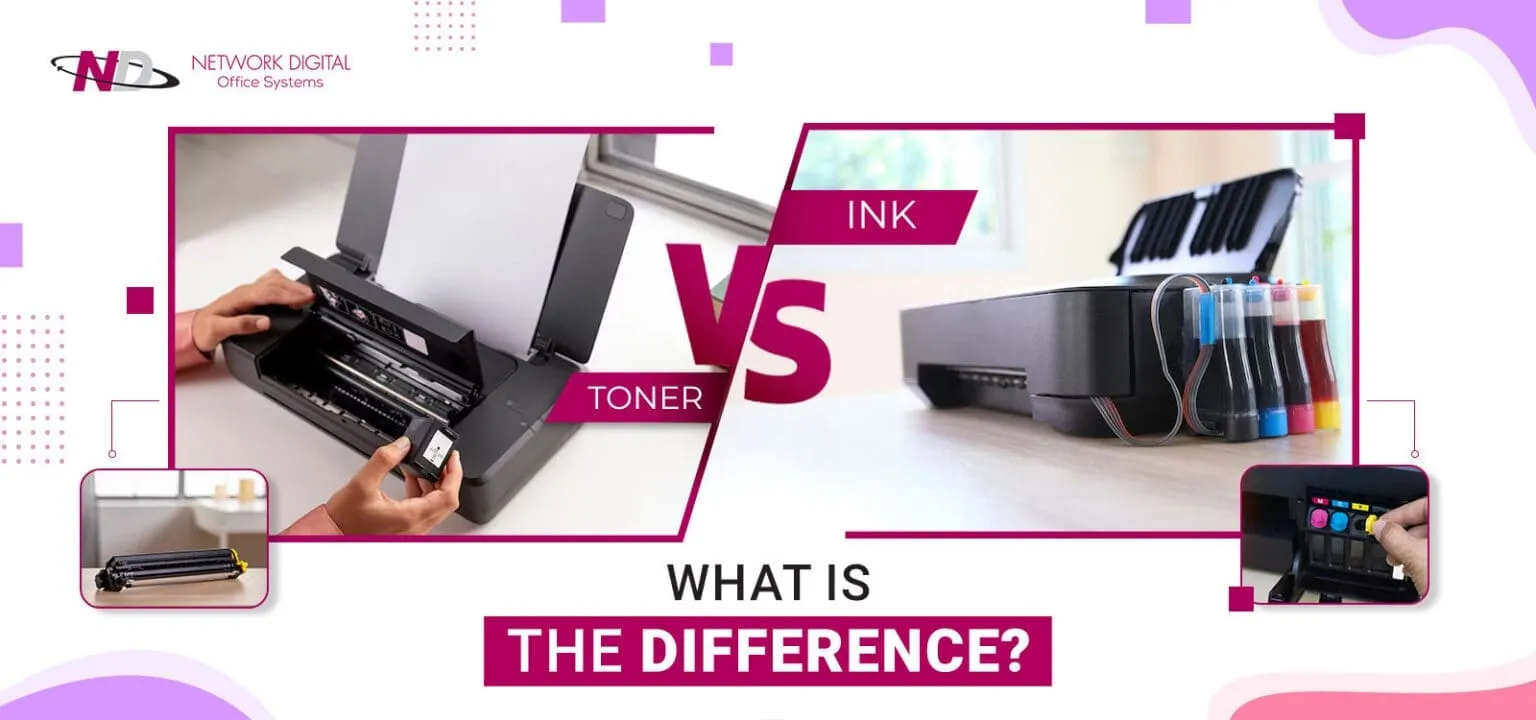
Cartridge-related problems can affect printing quality and prevent the printer from operating correctly. Businesses may experience error messages even after installing a replacement cartridge.
Common Causes:
- Incorrect cartridge model
- Improper cartridge installation
- Damaged cartridge components
- Protective packaging not removed
- Toner or ink compatibility issues
How to Troubleshoot:
- Verify that the cartridge is compatible with your printer model.
- Remove and reinstall the cartridge according to the manufacturer's instructions.
- Check that all protective seals have been removed.
- Inspect the cartridge for visible damage.
- Follow the printer's recommended replacement procedure.
Using compatible, manufacturer-approved supplies can help maintain consistent printing performance.
7. Printer Connectivity Issues
Modern commercial printers often connect to office networks so multiple employees can access shared printing equipment. However, connectivity problems can prevent users from sending documents to the printer.
Common Causes:
- Unstable Wi-Fi connections
- Network configuration changes
- Incorrect IP address settings
- Ethernet cable problems
- Firewall or security restrictions
How to Troubleshoot:
- Check the printer's network connection.
- Restart the printer and router if appropriate.
- Verify the printer's network settings.
- Check whether the printer's IP address has changed.
- Contact your IT support team if network restrictions are preventing access.
For offices that depend on shared printing, a stable network connection is essential for maintaining an efficient workflow.
8. Unusual Printer Noises
Grinding, clicking, squeaking, or other unusual sounds may indicate that something is not working properly inside the printer.
Common Causes:
- Worn rollers
- Loose internal components
- Foreign objects inside the printer
- Mechanical wear
- Problems with internal paper-feeding components
How to Troubleshoot:
First, stop the printing process and check for visible obstructions. Remove loose paper or debris only if it is safe to do so and follow the manufacturer's instructions.
Avoid opening internal mechanical assemblies or attempting repairs without the necessary experience. If the noise continues, arrange a professional inspection to prevent further damage.
9. Printer Overheating or Unexpected Shutdowns
Some commercial printers may stop working or shut down unexpectedly during heavy printing sessions. This can happen when the equipment experiences excessive heat or an electrical issue.
Common Causes:
- Blocked ventilation areas
- Continuous heavy printing
- Environmental temperature issues
- Electrical supply problems
- Internal hardware faults
How to Troubleshoot:
- Make sure the printer has sufficient ventilation.
- Keep the equipment away from direct heat sources.
- Avoid blocking air vents.
- Follow the manufacturer's recommended operating conditions.
- Check the power connection and avoid overloaded electrical outlets.
If the printer repeatedly overheats or shuts down, stop using it and contact a qualified service technician.
10. Printer Requiring Frequent Maintenance
Regular maintenance is necessary to keep commercial printing equipment operating efficiently. However, repeated maintenance alerts or frequent breakdowns may indicate an underlying issue.
Common Causes:
- High printing volume
- Worn rollers and other components
- Dust accumulation
- Delayed servicing
- Incorrect use of printing supplies
How to Troubleshoot:
- Follow the manufacturer's recommended maintenance schedule.
- Clean accessible printer components as instructed.
- Replace consumables when required.
- Monitor printing volume and recurring error messages.
- Schedule professional servicing when necessary.
A regular maintenance plan can help reduce unexpected downtime and support consistent printer performance.
Tips to Prevent Common Commercial Printer Problems
Although printer issues cannot always be avoided, businesses can reduce the chances of unexpected breakdowns by following a few simple maintenance practices.
Here are some useful tips:
- Use the right paper: Always use paper that meets the printer's recommended specifications.
- Keep the printer clean: Remove dust and debris from accessible areas regularly.
- Avoid overloading paper trays: Follow the recommended paper capacity.
- Replace supplies on time: Monitor toner and other consumables.
- Update printer drivers: Keep software and firmware updated according to manufacturer recommendations.
- Schedule regular maintenance: Arrange periodic inspections to identify worn components.
- Train employees: Make sure staff members understand basic printer operation and troubleshooting.
These practices can help extend equipment life, maintain print quality, and reduce unnecessary service interruptions.
When Should You Contact a Professional Printer Technician?
Basic troubleshooting can resolve many common printer problems. However, some issues require professional attention.
Consider contacting a qualified technician when:
- Paper jams continue despite proper loading and cleaning.
- The printer displays recurring hardware error messages.
- Print quality remains poor after replacing supplies.
- The equipment makes unusual mechanical noises.
- The printer frequently shuts down or overheats.
- Internal components require repair or replacement.
Attempting complex repairs without proper knowledge may cause additional damage. Professional servicing can help identify the underlying problem and restore equipment performance.
Final Thoughts
Commercial printers are essential for maintaining smooth office operations, but recurring technical problems can affect employee productivity and create unnecessary delays.
Understanding common issues such as paper jams, poor print quality, connectivity failures, and slow printing can help businesses resolve minor problems before they become more serious.
Investing in a reliable Commercial Office Printer, following proper maintenance practices, and arranging timely technical support can help your business maintain a productive printing environment.
If your business is looking for dependable office printing equipment, maintenance, or print management support, Network Digital offers office equipment solutions designed to support everyday business printing needs.




















Sign in to leave a comment.