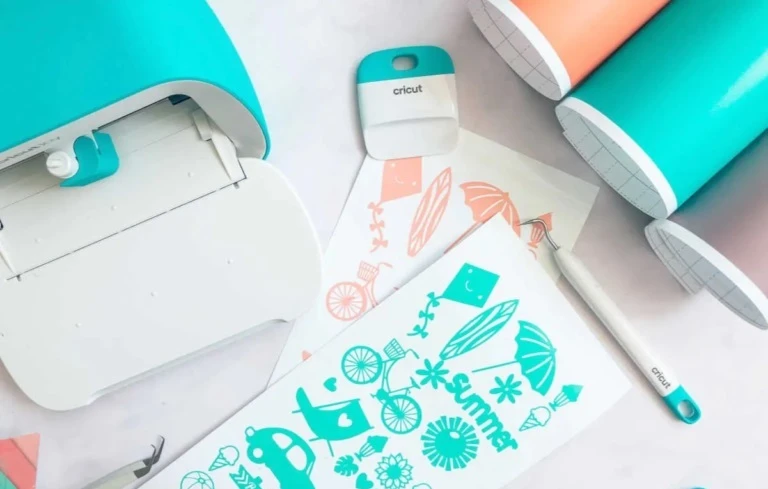
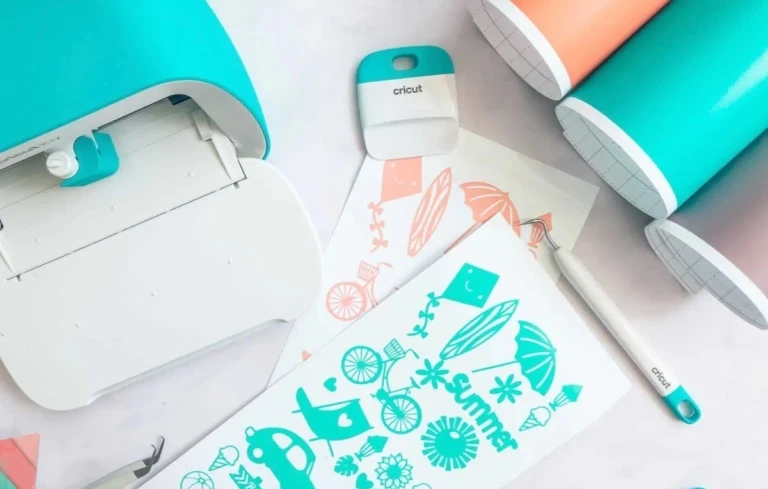
Cricut Design Space is a useful software for crafting enthusiasts. This free software is perfect for creating a variety of DIY crafting projects on any device, such as a phone, laptop, or tablet. With this, you can make custom cards, personalized gifts, and many other projects. Design Space helps you turn your ideas into real projects.
If you already know how to download the app, that’s great. But if you are new to this software, you may find the download process confusing, so this guide will help you with the process.
We have explained the Cricut Design Space download app process for both Windows and Mac devices. But first, take a look at some issues that might occur when you’re downloading Design Space.
Problems That Can Occur When Downloading Cricut Design Space
- Incompatibility: If you try to download Design Space on unsupported systems, such as Chromebooks, it may not install or run properly.
- Corrupted Installation File: Reusing old installation files instead of downloading a fresh one from design.cricut.com may result in a failed download.
- Blank Screen: A common startup error often caused by third-party security software preventing communication with Cricut servers.
- Conflicting Software: Firewalls or antivirus programs may flag the software as a threat and stop it from downloading or launching.
Things to Avoid During Cricut Design Space Download
- Downloading From Third-Party Sites: If you download the Cricut app from other websites, you may encounter harmful or fake software. Always use the official site of Cricut (design.cricut.com/setup).
- Using Incompatible Machines: Avoid using Design Space with machines outside the Cricut Explore, Joy, Maker, or Venture series.
- Ignoring System Requirements: Your computer system must have the minimum specifications. Take note that Design Space software does not work on Chromebooks or Linux operating systems.
- Installing on Low Storage or Memory: Check that you have enough disk space so you don’t face installation issues.
- Ignoring Software Updates: Cricut frequently updates Design Space. If you skip the updates, you might face performance issues or missing features later on.
Steps to Download Cricut Design Space on Windows
If you are a Windows user, here is the complete process for downloading the Cricut software on your PC:
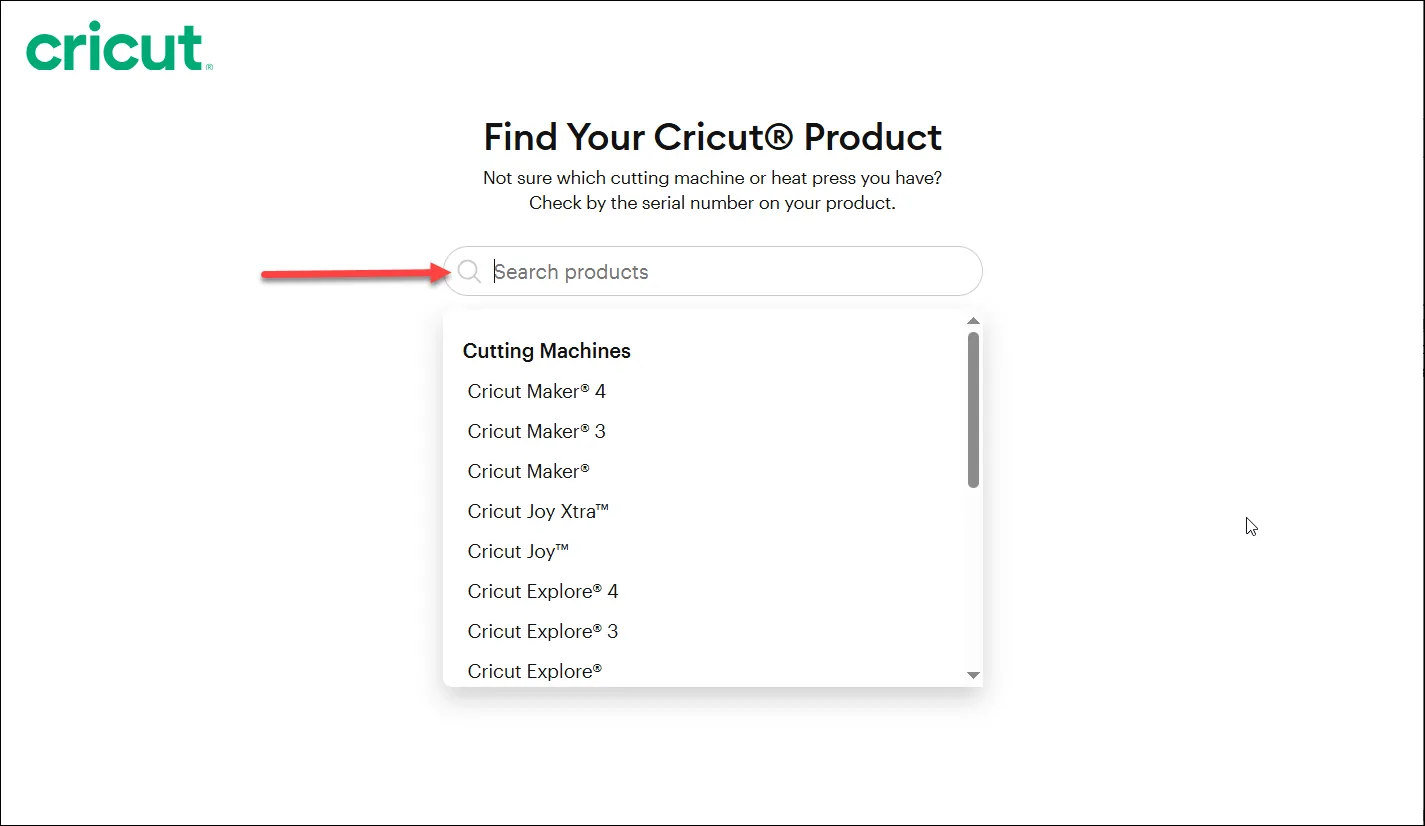
- Open any web browser on your computer and go to the official Cricut Design Space website: cricut.com/setup.
- Select your machine model from the list.

- Tick the box next to “I agree to Cricut Terms of Use and Privacy Policy.”
- Click on the “Download” option.

- Wait for the file to download completely.
- Once the download is complete, open the file from the Downloads folder on your computer.
- You will see a setup window pop up, and the installation process will begin. Wait for the installation process to complete.
- Open the app from your desktop or the Start menu.
- When the app opens, select “Product Setup” if you are connecting a new Cricut machine.
Steps to Download Cricut Design Space on Your Mac
If you have a Mac system, follow the given instructions to download the Cricut Design Space app:
- Open any web browser on your Mac system and go to the official Cricut Design Space website.
- Select the “Cutting Machine” option.
- Tick the “I agree to Cricut Terms of Use and Privacy Policy” box, and click on the “Download” button.
- Wait for the download to finish.
- Open the downloaded file.
- A new installation window will appear. Drag the Cricut icon into the Applications folder.

- Open the Applications folder and double-click the Design Space icon.

- Click “Open” in the security pop-up that appears to allow the application to launch.

- Log in to your Cricut account or create a new one.
To Sum Up
As discussed, simply follow the steps above to successfully download and install Cricut Design Space on your computer. Don’t forget to check the basic requirements before you start, and make sure you download the software from the official setup page. Also, make sure your computer is not low on disk space. Use Design Space only if you have machines such as the Cricut Explore, Maker, Joy, or Venture.
Frequently Asked Questions
Q: How can I download Design Space on my phone?
These are the correct steps to download the Cricut Design Space app on a phone:
- If you are using an Android, open the Play Store. If using an iPhone/iPad, open the Apple App Store.
- Search for “Cricut Design Space” on your device.
- Tap on the “Install” button.
- Wait for a while till the application is fully downloaded.
Q: Why is Design Space not downloading on my computer?
If the Design Space software is not downloading, it could be because of:
- Weak internet connection
- Low storage space
- Incompatible device
To fix this, check your internet connection, free up some space on your hard disk, or try again.
Q: Can I use Design Space without the internet?
Yes, Design Space can be used when offline, but you need to download your projects and fonts in advance while connected to the internet.
Q: Do I need a Cricut ID to use Design Space?
Yes, you need a Cricut account to use the software. You can create a free account during the setup process.
Source: https://cricricutdesigncut.wordpress.com/2026/05/01/cricut-design-space-app-download-guide/























Sign in to leave a comment.