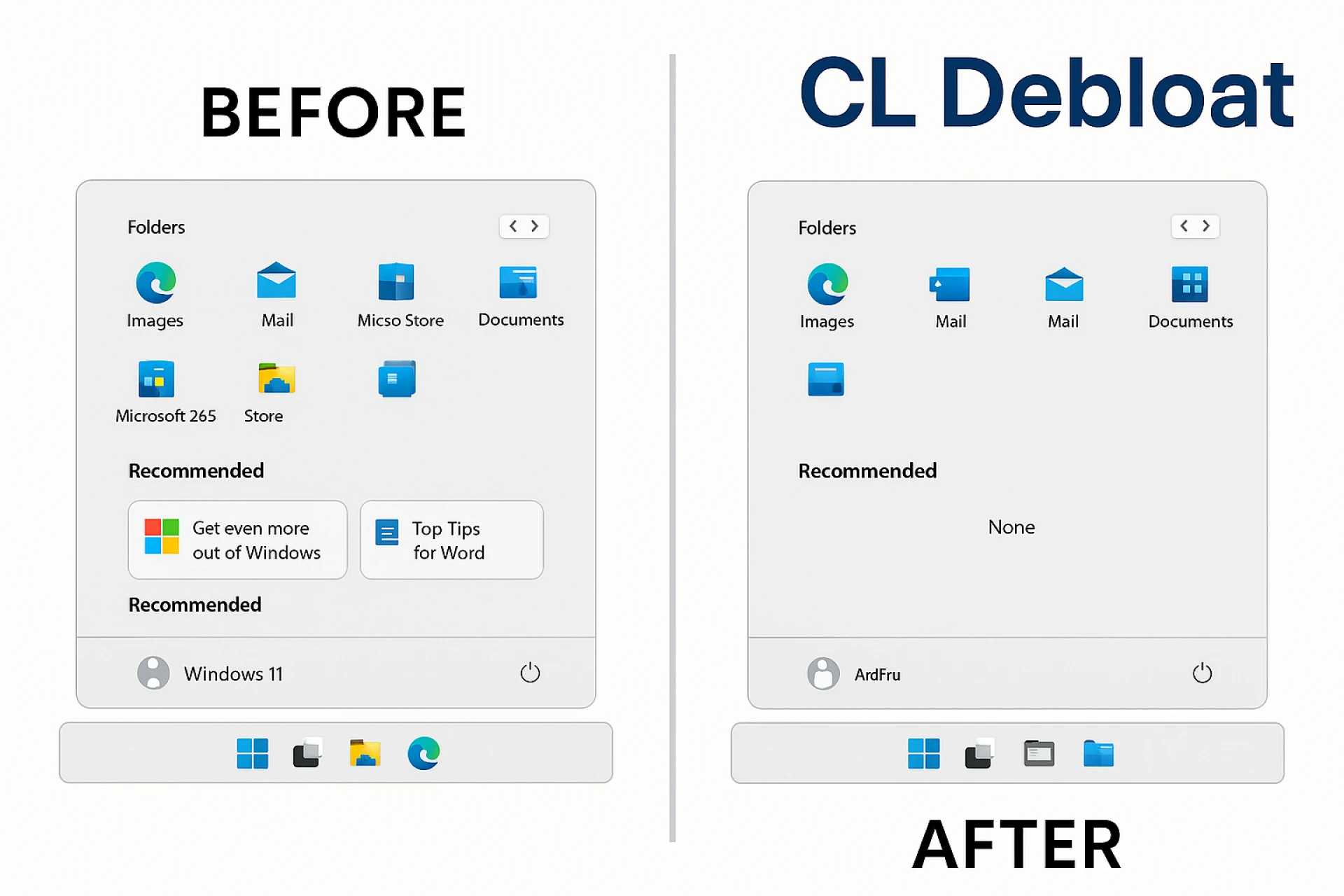

Windows 11 can feel noisy. Ads appear in the Start menu, File Explorer shows promotions, and tips pop up when you least expect them. Telemetry also sends diagnostic data in the background. Many guides tell you to edit the registry or run risky scripts. This article takes a different path. It shows how to use CL Debloat to quiet Windows 11 without registry hacks, PowerShell scripts, or guesswork. Every change is a simple toggle you can switch back later. The goal is a calmer, faster, and more private PC that still feels familiar.
What Windows 11 “ads” and “telemetry” actually mean
First, plain definitions help.
- Ads and promotions are Microsoft-driven suggestions. They can appear on the lock screen, in Start, inside Settings, and in File Explorer. They promote services such as OneDrive, Microsoft 365, and Bing features.
- Telemetry is diagnostic data that helps Microsoft improve Windows. Some data is basic. Some is optional. You may prefer to minimize it.
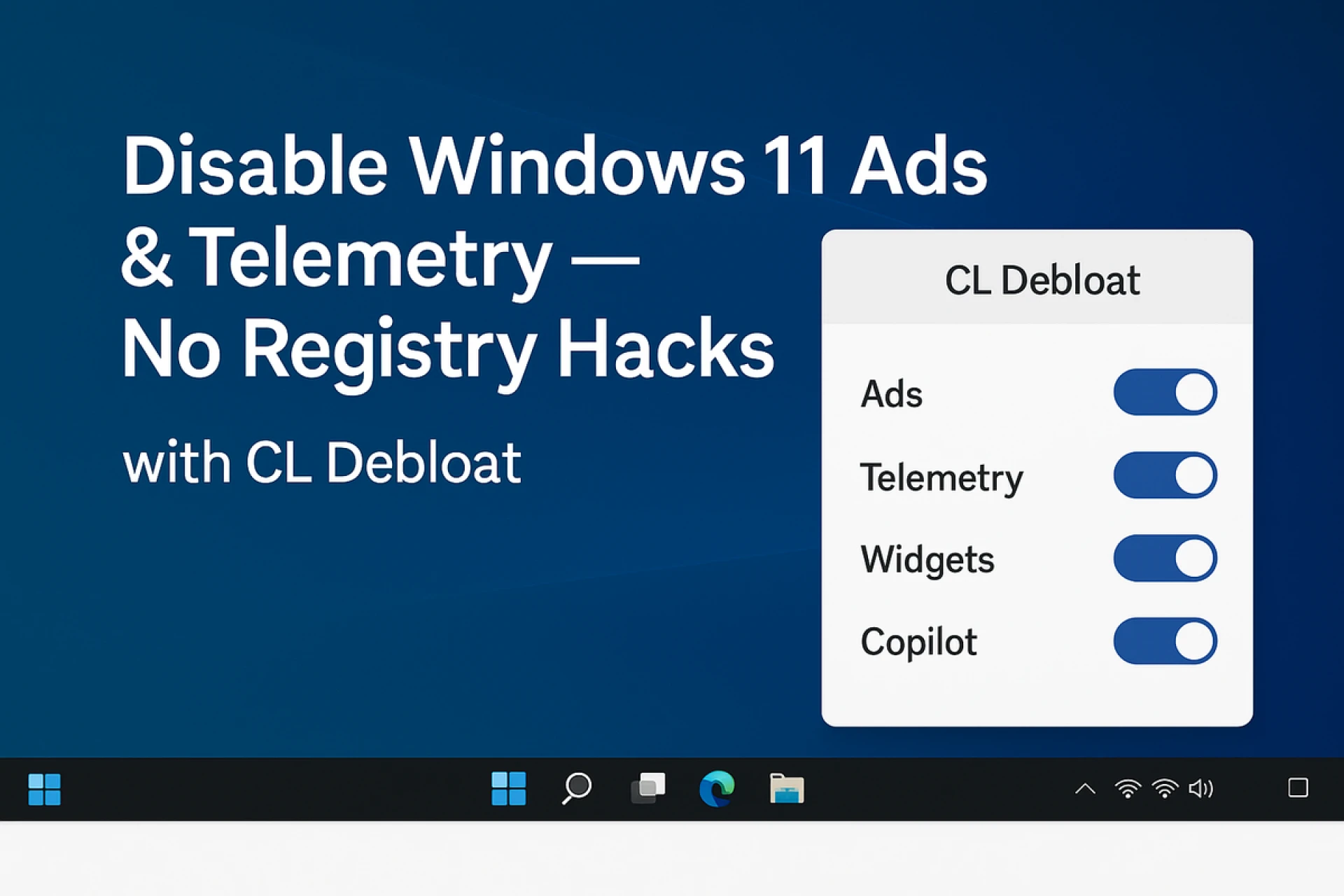
These items are not harmful by themselves, but they add clutter and background activity. CL Debloat gives you clean, labeled switches to reduce both.
Why avoid registry hacks and risky scripts
Many “tweak” articles ask you to copy long commands, paste them into the registry, and hope for the best. That path has three problems:
- Hard to reverse if you forget what changed.
- Easy to copy a wrong value or run an outdated tweak after a Windows update.
- It mixes many changes together, so troubleshooting becomes slow.
CL Debloat solves these issues. It groups settings under clear categories and keeps each choice reversible. You turn a switch on. If you change your mind, you turn it off. That is it.
Meet CL Debloat
CL Debloat is a small Windows app built for one job: make Windows 11 clean, quiet, and familiar again. It organizes options in plain sections such as Visual, Bloat, and Ads. You do not need to learn registry keys. You do not need to use command lines. You open the app, review the choices, and apply them. The app focuses on safe toggles, so you can always return to stock behavior later.
What you will achieve with this guide
By the end, you will:
- Hide promotions in Start, Settings, File Explorer, and on the lock screen.
- Reduce background data collection to a minimum, as you prefer.
- Silence suggestions, tips, and content you did not ask to see.
- Keep a clear path to undo any change with a simple toggle.
Along the way, you will also see options that help Windows feel familiar, such as moving the taskbar to the left and restoring the classic right-click menu.
Quick start: CL Debloat in three steps
- Install and run CL Debloat. Launch it with administrator rights so Windows allows the requested changes.
- Scan the sections. Open Ads, Bloat, and Visual. Read the short descriptions under each switch.
- Apply changes. Toggle only what you want. You can revisit and adjust at any time.
No registry edits. No scripts. No random downloads. Download it to try for free now!
Step 1: Disable ads and promos with clear toggles
Open the Ads section in CL Debloat. You will find switches that aim at the most visible promotions. Work through them top to bottom.
- Lock screen and “fun facts” suggestions: turn them off for a clean, quiet sign-in.
- File Explorer promotions: hide “ad” banners so Explorer stays about your files only.
- Settings and Start suggestions: remove extra rows that push you toward Microsoft services.
- Search web results in Start: keep Start focused on apps and local files.
As you make these changes, you will naturally address the keyword disable Windows 11 ads safely in practice, since you are doing it without risky edits. You can leave any one of these items on if you prefer it. For example, if you like the Spotlight lock screen, keep it.
Step 2: Reduce telemetry without breaking normal features
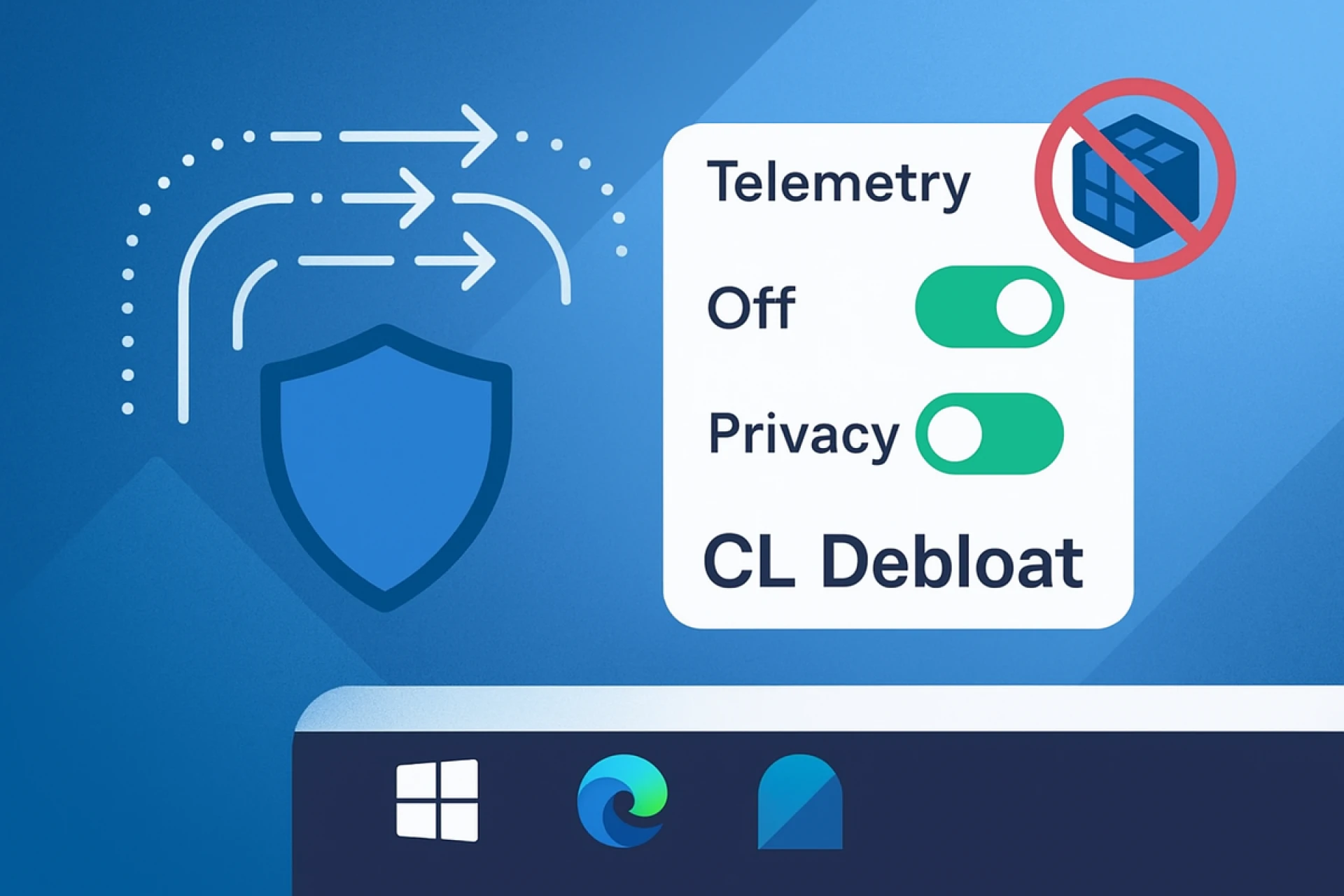
Next, open the Bloat or Privacy/Telemetry area (your label may vary). Here, you choose how Windows shares diagnostic data.
- Turn off optional diagnostic data.
- Disable tips, content suggestions, and “get the most out of Windows” nudges.
- Limit feedback prompts to a low frequency.
- Review background services you do not need and switch them off.
This is where the phrase turn off telemetry in Windows 11 tool fits well. The key idea is balance. You can keep Windows secure and updated while reducing the extra chatter.
Step 3: Keep Start, taskbar, and menus calm
Clean visuals support focus. In Visual, you can make Windows feel consistent and familiar.
- Move the taskbar to the left if you prefer the classic layout. That fulfills the intent behind moving the Windows 11 taskbar to the left again.
- Restore the classic right-click menu so your most used actions return to the first layer. That maps to restore the classic right-click menu in Windows 11.
- Show file extensions and hidden items in File Explorer so you always know what you are opening.
- Turn off the Widgets feed and News to keep the desktop quiet. This supports turning off Windows 11 Widgets and News.
Each item is a toggle you can revisit later.
Step 4: Remove bloat and background noise
Windows ships with extra components that not everyone needs. CL Debloat helps you turn them off cleanly.
- Disable Game Bar and background game recording if you do not stream or clip gameplay. This reduces background processes and stops surprise overlays. That naturally covers disabling Windows 11 Game Bar without scripts if you choose to phrase it, but we will stay with our planned keyword to turn off Windows 11 Widgets and News and the related steps above.
- Quiet app suggestions and inbox apps you never use.
- Show only the tools you rely on.
Here, the spirit of removing Windows 11 bloat without PowerShell is exactly what CL Debloat provides: simple switches, no command line.
Step 5: Focus Search and the Browser choice
Search should respect your intent. If you want to Start to find files and apps first, disable web results in Start. This aligns with disabling Bing in Windows 11 Start search. You can still open a browser and search the web when you want. Keeping these actions separate reduces noise and speeds up local tasks.
Step 6: Optional privacy extras
Many users also choose to turn off Copilot and similar cloud features for a quieter desktop or stricter privacy posture.
- Disable Copilot if you do not want AI prompts on the taskbar. This matches the disabled Copilot in Windows 11 without the registry.
- Reduce content suggestions across the UI.
- Review notification senders and silence those you do not need.
In each case, you make a clear choice with a clear label, and you can reverse it anytime.
What changes immediately vs. after a reboot
Most toggles take effect right away. Some items, such as taskbar layout or deep system services, may require a sign-out or a reboot. CL Debloat keeps this simple: apply the switch, then restart if a prompt suggests it. The benefit shows up the next time you log in.
How to roll back safely
Reversing a change is as easy as returning to the same toggle and switching it back. If you try a group of changes and do not like the result, open CL Debloat, move through the sections, and restore the items you miss. This reversible design is the main reason to pick CL Debloat over registry edits.
Performance and battery gains you can expect
A quieter Windows is often a faster Windows. When you turn off promos, background suggestions, Widgets, and extra services, you free a little memory and CPU time. On a desktop, that feels snappier. On a laptop, it can add a bit of battery life. Results vary by device, but less background work is almost always helpful.
Security, updates, and stability
Disabling ads and telemetry through CL Debloat does not block Windows Update. You can keep receiving security patches and feature updates. If a future Windows release changes a setting, you can revisit CL Debloat and apply your preferences again. This steady, toggle-based approach avoids brittle registry edits that break after upgrades.
Troubleshooting tips
If something looks different from what you expect:
- Re-open CL Debloat and scan the toggles you just changed. One may be responsible for the behavior you see.
- If a component stops working, re-enable it and test again.
- After major Windows updates, give the system one reboot, then reapply your preferred switches if needed.
Because you never touched the registry directly, troubleshooting stays simple.
FAQs: Disable Windows 11 Ads and Telemetry Without Registry Hacks
Q1: Is CL Debloat safe for non-experts?
A: Yes. Each change is a labeled toggle. You can turn it on or off at any time.
Q2: Does this block security updates?
A: No. Windows Update keeps working. You can still patch the system on schedule.
Q3: What if I need Copilot or Widgets later?
A: Just open CL Debloat and turn those items back on. You are never locked in.
Q4: Can I use CL Debloat at work?
A: Check your organization’s IT policy. CL Debloat offers a professional license for business use.
A simple checklist to finish strong
Use this short list to confirm you achieved the focus of this article—disable Windows 11 ads and telemetry without registry hacks.
- Ads and promotions are hidden in Start, Settings, Explorer, and Lock screen.
- Optional diagnostic data is reduced to the level you prefer.
- Widgets, tips, and other feeds turned off where you do not want them.
- Start search focused on local apps and files.
- Copilot is disabled if you prefer a distraction-free taskbar.
- Classic right-click menu restored and taskbar aligned the way you like.
- All changes verified after one reboot.
Why CL Debloat is the right tool for this job
The strongest reason is clarity. You do not need to memorize registry paths or keep a text file of scripts. You can read the label, make the choice, and move on. You can also reverse any choice later. That is how you keep Windows clean and stress-free for the long term.
Finally, remember the goal. You want Windows to help you work, not distract you. With CL Debloat, you take control in minutes, and you keep that control as Windows evolves.


























Sign in to leave a comment.