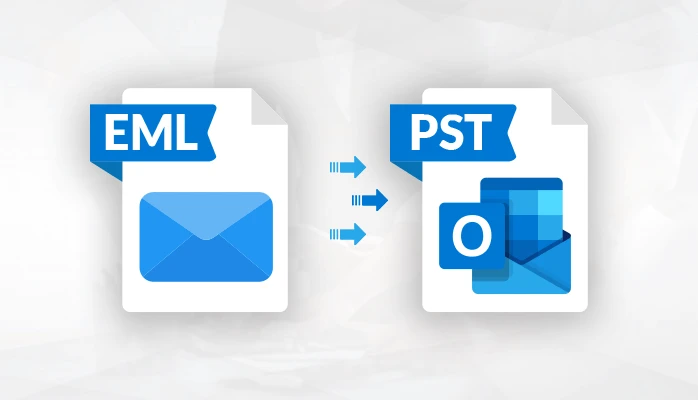

No, Outlook does not directly support the EML file format. If you are looking for a way to access EML files in Outlook. Then this article will tell you the solution to access EML files in Outlook.
EML is the most common file format in a mailbox. It is a very flexible file format and is compatible with many email applications such as Opera Mail, Thunderbird, Eudora Mail, Squirrelmail, and many more. Compared to Microsoft Outlook, it offers a way to manage emails, tasks, calendars, contacts, tasks, etc. Therefore, the majority of the organization is moving towards Outlook.
Thunderbird is the most popular email client that can support EML file formats. If Outlook supports PST file format. Both are different platforms. One of the disadvantages of an EML file is that it can only store a single message and on the other hand, a PST file can store complete mailbox data like email messages, contacts, calendars, tasks, journals, etc. PST also offers password protection due to several advantages in Outlook. So many users want to migrate from EML to Outlook using EML Converter.
How To Import EML Files Into Outlook Using Manual Approach?
If you are familiar with Outlook and have a high level of technical knowledge of Outlook. Then you can do it at your own risk as this solution has many disadvantages that we have mentioned after the solution. Download and configure your email account with Outlook. Then follow the instructions below
First, open Outlook and create a new folder in it.Open the EML file location and select all EML files.Drag and drop all EML files into the newly created folder earlier in Outlook.Then, navigate to the file menu and hit on the open and Export options.After that, click on the Import and Export option to proceed to the next step.Import/Export wizard will appear on your display, choose export to a file.After clicking on the next choose Outlook data file then again hit on the next button.Here, choose the EML file as you have moved in Outlook.Now, set the resulting path and hit the finish button to begin the process.After completing the process successfully, you will get your PST file at your desired location
Why Do Experts Not Rely On Manual Solutions?
It will consume a lot of time and be a very complicated task.Technical expertise is required to operate this operation.Skipped steps will corrupt all mailbox data.Outlook installation is required to perform this solution.It’s not easy to keep the whole process in their mind.How To Transfer EML File To PST Using Third-Party Software?
To overcome the challenges of the manual solution, we recommend you opt for EML to PST Converter, which is the perfect choice to get your work done instantly and safely. The best thing about this software is that it is easy to use for everyone, even non-technical users.
Download the converter and launch it on your windows pc.Choose EML files and upload them into the software panel.Select PST in the list of export options.At last, choose the destination path and hit the convert button to get the result instantly.Major Benefits Of Using Third-Party Software
The EML to PST File Converter is designed with an advanced algorithm to secure data from any type of data loss during the process.You can split PST into multiple parts as per the required size.This software offers a separate PST for each folder.You can choose specific data using the email filter option to avoid unnecessary data.Outlook installation is not required to perform this solution.Final Verdict
On this webpage, we discussed how Outlook supports EML files. We have mentioned all the essential knowledge in this regard and we mention both risk-free and risk-free solutions. Manual approaches have some risks or limitations. So, we recommend you choose third-party software to complete the solution without any errors.























Sign in to leave a comment.