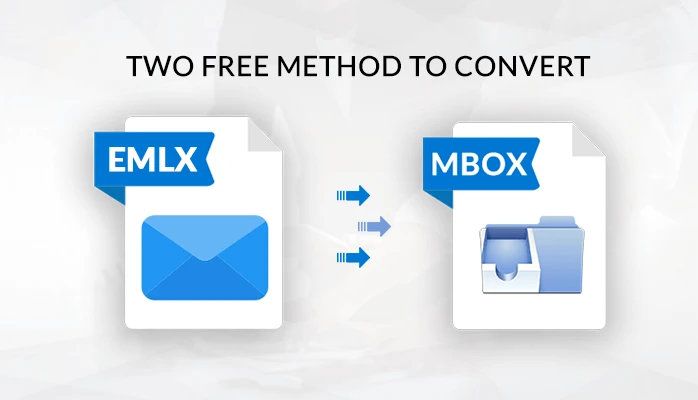

Are you a Mac user? You might be searching how to open Mac mails on other email clients. Though, other email clients like MBOX support multiple formats to export and import data files. No need to go anywhere! How good will it be if you can convert EMLX to MBOX easily? Yes, it is right. By reading this blog, you will get to know the best methods to import EMLX files to MBOX.
Before moving to the methods, it is good to have some basic knowledge of both data formats. So quickly grasp information on it.
What is EMLX file?
- EMLX (.emlx) is an extension of files that are used to store email messages.
- These EMLX files are plain text files that store only a single email message.
- Moreover, EMLX files can also be accessed with a normal text editor and Apple mail.
- It is the format of Apple mail and it was made by Apple for the Macintosh operating system.
- Apple Mac works on Unix. Therefore, Unix is an operating system that is useful for multi-user and multitasking.
What is MBOX file?
- MBOX means MailBox.
- It is the extension of a text file that is used to arrange and store email messages.
- It is a very popular format for storing email messages on a computer.
- All the Mailbox messages are kept as a single text file starting with the (From) header of the message.
- This file format is still in use by many email clients like Thunderbird, Mozilla, Microsoft Entourage, and Qualcomm Eudora.
Advantages of MBOX over EMLX files
- MBOX supports multiple formats to import and export data files. But, one cannot export EMLX files to other email clients.
- MBOX files can be accessed by any email client, but EMLX formats are specifically for Mac OS.
- Many email clients use this popular file format. So it is beneficial for you to convert EMLX files into MBOX.
Till now you must have understood the importance of MBOX file format. So, let’s discuss the methods to convert EMLX files to MBOX.
Easy & Top Tricks to Convert EMLX to MBOX Manually:
Method 1: Export EMLX to MBOX Manually.
- Firstly, Exit Apple OS X Mail.
- Type (/Library/Mail/Mailboxes) in the search bar, After that press the Enter key.
- Create a folder having extension .mbox(importemlx.mbox).
- Also, create a new message folder in the MBOX folder.
- After this, move all the .emlx files in the Message folder that you have made above.
- Now, Open Mac OS X Mail
- You will see the local mailbox of the same name as you have set up earlier.
- The folder might be empty. If it is, then go to the menu of the mailbox, Click on the Rebuilt option
- Lastly, It will start processing and your message will start appearing in the Mailbox.
Important!! This method may look easy but sometimes the process gets stuck in between which also arises the risk of losing data. This might be the reason that professionals prefer to use third-party tools. Considering these problems, we have also discussed a method used by many professionals.
Method 2: Export EMLX to MBOX using a professional approach
This method requires third-party software that is EMLX Converter Tool.
- Few steps to export EMLX files to MBOX:
- At first, Download and install the EMLX Converter Tool.
- Launch tool, Click the (Add Files) button, choose single or multiple EMLX File.
- Enter the destination path from the ‘Choose’ option.
- After that, Open the (Select Output Format) option. Then choose (MBOX) to save the file
- You can also select the (Date Filter) option to move the EMLX file according to the date range.
- After that, Hit the ‘Save’ button, it will start the converting process.
Note: This tool provides many features to its valuable users rather than converting EMLX files to MBOX
Other features:
- This tool has the ability to convert EMLX files to multiple file formats like Outlook PST, MHT, Text, EML, PDF, MSG, MBOX, HTML, IMAP, etc file formats.
- It can also move from EMLX email clients to Outlook, Gmail, Thunderbird, Yahoo, ZOHO, Zimbra, The Bat, etc.
- It has the ability to convert multiple EMLX files at a time to give maximum results without consuming time.
- This tool also provides the feature to resume the process from where it is left in case of connectivity issues.
Conclusion:
In this blog, firstly, we have discussed some basic knowledge of MBOX and EMLX files. After that, we have discussed methods to convert EMLX to MBOX. Lastly, we conclude that a professional approach is always better, and using the given tool we can easily convert EMLX files.



























Sign in to leave a comment.