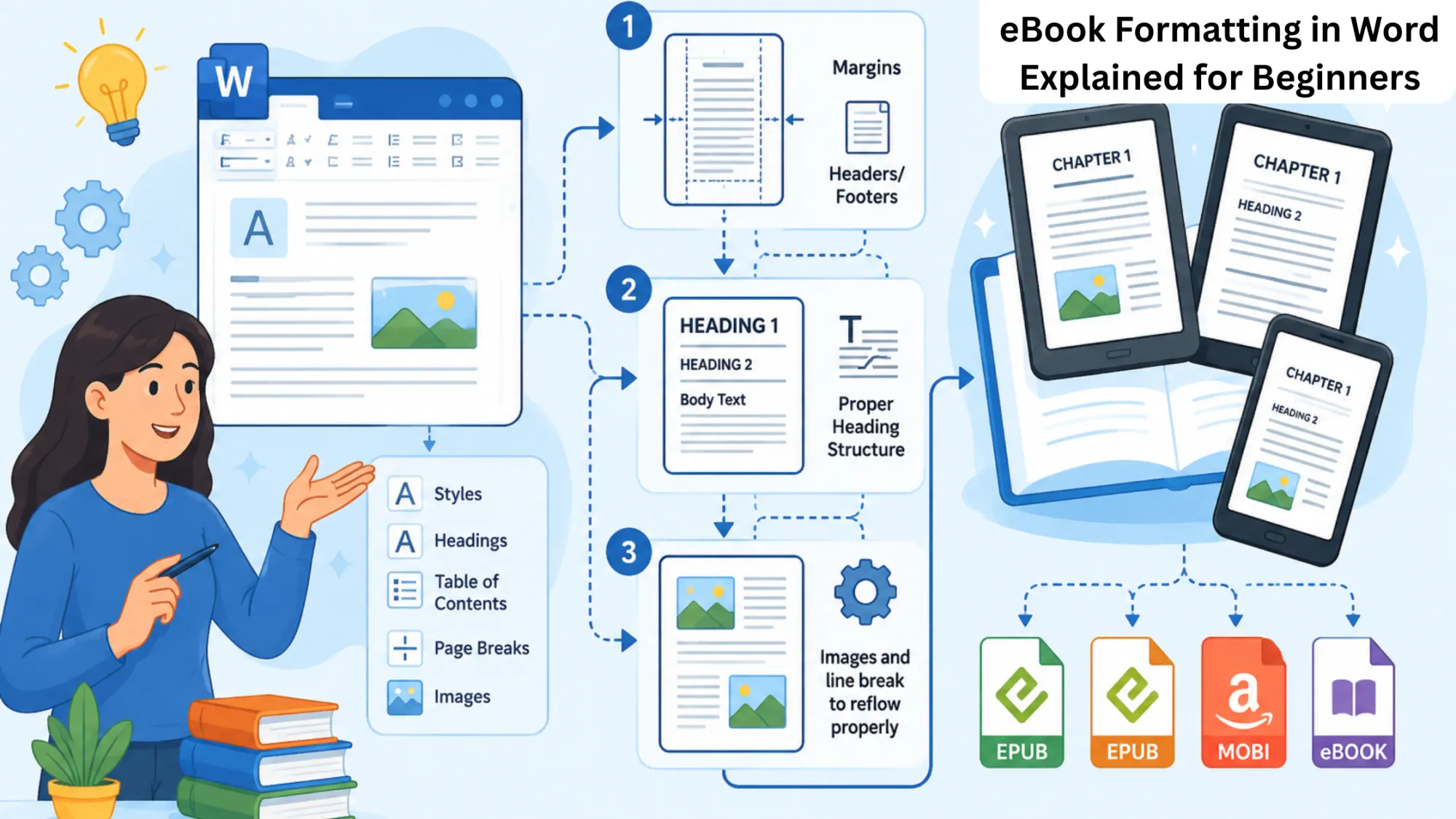

eBook formatting seems to be pretty simple at first glance. Many beginners feel that writing text in Word will be enough. Unfortunately, some users soon discover that their documents contain odd spacing, distorted chapter structure, no page breaks, or distorted images after uploading to Kindle and ePub sites. That’s because digital book publishing is not the same as print formatting.
In eBook formatting, visual styling is a minor concern. Structure is an important thing. When uploaded to a digital book platform, the content will automatically reflow. That’s why so many visually formatted Word documents get lost in the shuffle.
But beginner publishers can still professionally format their documents inside Microsoft Word. The important thing is to understand which formats work well for them and which create unnecessary problems.
Why Proper eBook Formatting Is Important
People get thrown off by poorly formatted eBooks. An eBook with a rigid layout is considered amateur. It’s the same with messed-up spacing.
The standard for publishing things on the internet is that they will be accessed on a digital device. Both the Kindle and ePub systems keep the text at a consistent size regardless of screen size. If your document relies on rigid, heavy manual styling, it will disrupt the layout on digital screen.
Avoid all the stress and pain of bad formatting and undesired eBooks. eBooks are now the best way to increase your readership and publish your content as quickly as possible. A neat file makes publishing easy and ready for any digital display.
Setting Up Your Word Document Before You Start Writing
Before you put in any effort to your actual book, adjust these three basic Word settings for a manuscript you want to convert to an eBook:
1. Default Margins: The left and right margins for Microsoft Word's pages should be set to the default. eBooks are fully "reflowable," meaning the margins adjust based on the screen size.
2. Force Left-Alignment: Left alignment is the only allowed body text alignment. Do not fully justify text, as it creates awkward gaps in between because the word stretches the text.
3. Stick to a Single Column: Use a single-column layout. Magazines use multiple columns of text. eBooks require a single, continuous stream of text with no breaks.
Formatting Rules You Should Observe While Working in Word
Microsoft Word has all the tools needed for eBook conversion.
1. Use Heading Styles Correctly
Heading styles play an important role in ebook formatting. Apply the following styles in this order:
- Heading 1 — chapter title
- Heading 2 — main part of a chapter
- Heading 3 — minor parts of a chapter
Using these styles correctly allows publishing platforms to automatically build a functional, clickable, interactive table of contents while ensuring your chapters break cleanly during Kindle conversion. Never manually change font sizes to create a title; instead, use an official Heading Style.
2. Use Page Break Instead of Repeated Enter
It’s a common beginner’s mistake to hit the Enter key a dozen times to push a new chapter to the next page. This may look fine on your desktop monitor, but it creates random big gaps of white space on mobile e-readers. Instead, use the official Page Break tool (Ctrl + Enter) to ensure that each new chapter starts cleanly on a fresh screen.
3. Use Consistent Paragraph Spacing
Don’t do this manually, but rather use the paragraph settings in Word to establish consistent spacing rules throughout your document. Make a “standard line spacing” layout and a “uniform paragraph indentation” rule.
4. Insert Images Correctly
Sometimes, images can be notoriously tricky to handle when converting an ebook. To format images successfully:
- Compress them before you put them in
- Make them centered
- Never wrap text around pictures
- Keep image file quality high.
5. Creating a Clickable Table of Contents
A clickable table of contents greatly improves the navigability of ebooks. Kindle readers usually want to navigate through the book faster.
How to create a TOC?
- Use heading styles for your ebook.
- Place a cursor in the place you want to insert a TOC
- Press the "References" tab in the top menu
- Select "Table of Contents"
- Press "Insert"
Professional formatting teams usually build the system based on headings.
Common eBook Formatting Mistakes
And there are some common document habits that many beginners follow.
- The "Enter Key" Trap: Never hit the Enter key repeatedly to push text to a new page. While it looks fine in Word, it creates massive, unpredictable blank gaps on mobile e-readers. Use an official Page Break instead.
- Font Overload: OpenDocs recommends avoiding overuse of fonts. Stick to simpler, more common fonts like Arial and Georgia. If you choose a font that isn't available on an e-reader, it will revert to the SYSTEM FONT, which could mess up your layout.
- Using Spaces for Indents: Manually indenting with five spaces is not a great way to indent a new paragraph. Mobile screens will fix them into a jagged mess. Also, different screens and devices will display at different sizes and positions, and it will all be a mess. Use the indents tool to set a proper, uniform indent.
Many beginners disregard Microsoft Word’s hidden formatting when copying and pasting text. If you are submitting files for publication, it is always a good idea to review your formatting. You may find that some elements of your content need more adjustments due to formatting.
Word eBook Formatting VS Professional Publishing Services
When to Format It Yourself in Word
If you are publishing a straightforward, text-heavy manuscript like a novel, memoir, or basic non-fiction book, formatting it yourself in Microsoft Word is highly effective. The startup costs are entirely free, and you maintain absolute control over your file.
The trade-off is your time: you will need to learn the basic rules of Word Styles, and you risk missing hidden formatting bugs that can cause headaches later.
When to Outsource to a Professional Service.
If you’re working on a complex project like a cookbook, textbook, children’s book with lots of illustrations, or an interactive book with external hyperlinks, then you’ll want to hire a professional formatter. They have the technical skills to make your complex layout look amazing on any screen, from an iPad to a Kindle.
While this guarantees high visual quality and saves you dozens of hours, it does require an upfront financial investment and open communication with an external team.
Preparing Your Word Book for Conversion
Before uploading the file, make sure that:
- You haven't used unnecessary formatting
- Heading styles were applied correctly
- All images are properly inserted
- Hyperlinks work properly
- You inserted correct page breaks
- The file format is DOCX
- Carefully check the ebook formatting
Many ebook publishing sites provide you with simulators that allow you to check how the document looks in other ebook applications. It's good to run these tests before publication. One common mistake made by beginner publishers is spending too much time styling documents in Word.
Beginner-Friendly eBook Formatting - Focus on Clean Structure
Acquiring basic eBook format skills is crucial for successful digital publishing.
There is no need for sophisticated publishing software to format your ebook. Actually, simple formatting practices in Microsoft Word work better for most Kindle and ePub books than complex Word styling.
The goal is not to make the document visually complex. The goal is to create a structured file that adapts smoothly across different reading devices.
Clean formatting improves readability, reduces publishing errors, and creates a more professional experience for readers from the very first page.
























Sign in to leave a comment.