
Introduction
Microsoft Outlook is a cornerstone of modern email communication, widely adopted by individuals, businesses, and enterprises for managing emails, calendars, contacts, and tasks. At the heart of Outlook’s data storage system lies the PST (Personal Storage Table) file, which stores all mailbox information locally.
However, users often encounter a critical issue—Outlook fails to open PST files. This error can disrupt workflow, prevent access to essential communications, and create significant frustration, especially when time-sensitive data is involved.
While traditional troubleshooting methods exist, they may not always deliver reliable results. In such cases, converting PST files into EML format emerges as a practical and efficient solution. This blog explores the causes of PST file issues, conventional fixes, and why PST to EML conversion is a smarter alternative.
Understanding the PST File and Its Importance
A PST file serves as a centralized repository for Outlook data, including emails, attachments, contacts, calendars, and notes. It enables users to store and access data locally without continuous server connectivity.
Despite its advantages, PST files are inherently vulnerable to technical issues. As the file size grows or system inconsistencies arise, the likelihood of corruption or inaccessibility increases.
When Outlook fails to open a PST file, it essentially locks users out of their own data—making immediate resolution critical
Common Reasons Why Outlook Cannot Open PST Files
Understanding the root causes of this issue is essential for selecting the right solution. Below are the most common reasons:
- PST File Corruption: Unexpected shutdowns, power outages, or improper application closure can damage PST files.
- Oversized PST Files: Exceeding Outlook’s size limitations can lead to performance issues or file inaccessibility.
- Damaged Outlook Profile: A corrupted profile may prevent Outlook from loading PST files correctly.
- Compatibility Issues: Older Outlook versions may not support PST files created in newer versions.
- Malware or Virus Attacks: Malicious programs can corrupt PST files or disrupt Outlook functionality.
- Storage Media Issues: Bad sectors on hard drives can make PST files unreadable.
These factors collectively contribute to the “Outlook not opening PST file” error, requiring immediate and effective resolution.
Traditional Methods to Fix PST File Errors
Before considering conversion, users often attempt manual troubleshooting techniques:
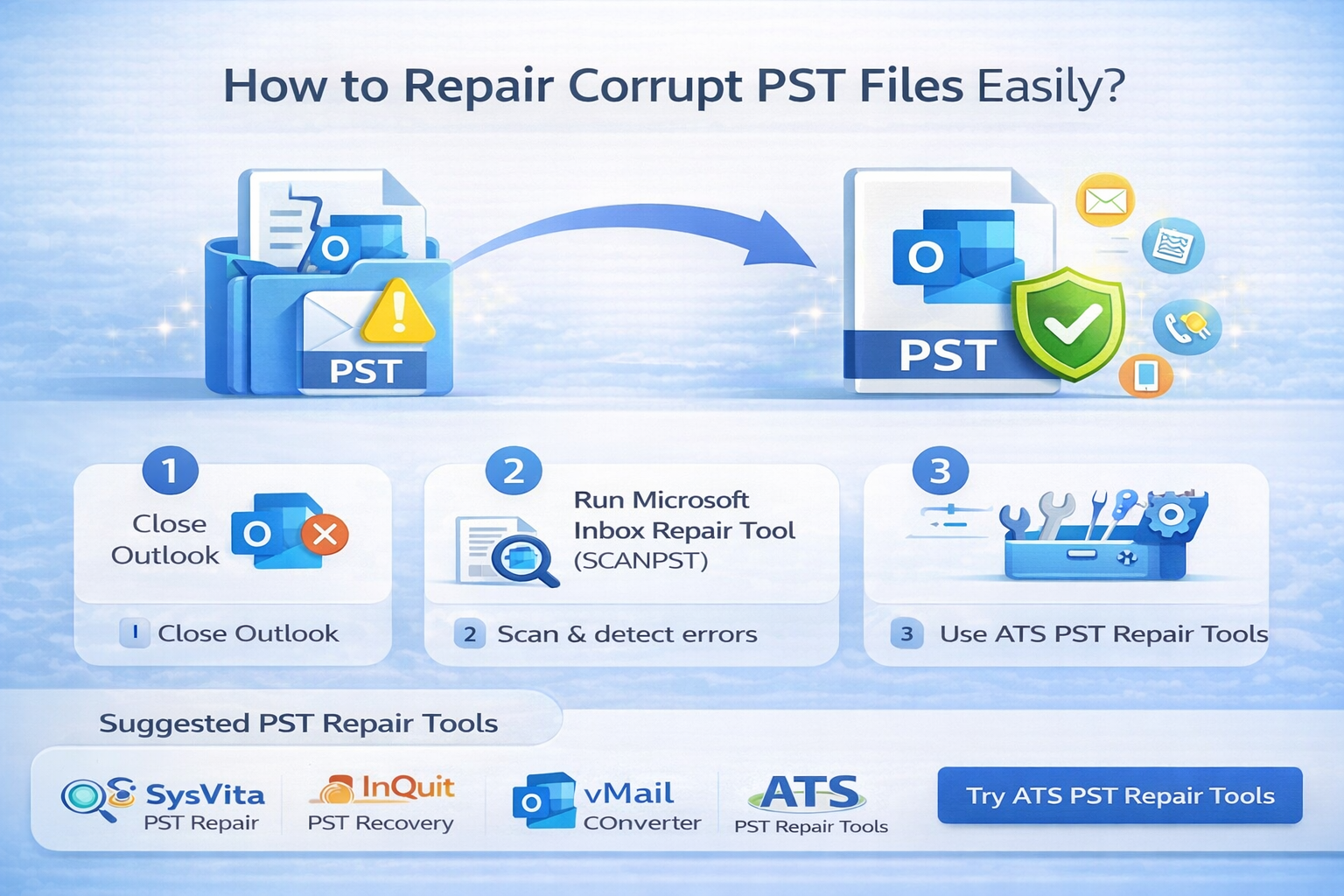
- Running the Inbox Repair Tool (ScanPST.exe)
- Creating a new Outlook profile
- Reinstalling Microsoft Outlook
- Restoring PST files from backup
While these methods can sometimes resolve minor issues, they have limitations:
- Ineffective for severely corrupted PST files
- Time-consuming and technically demanding
- Risk of partial data loss
- Dependence on Outlook functionality
When these approaches fail, users must explore alternative solutions.
Why Convert PST to EML Instead?
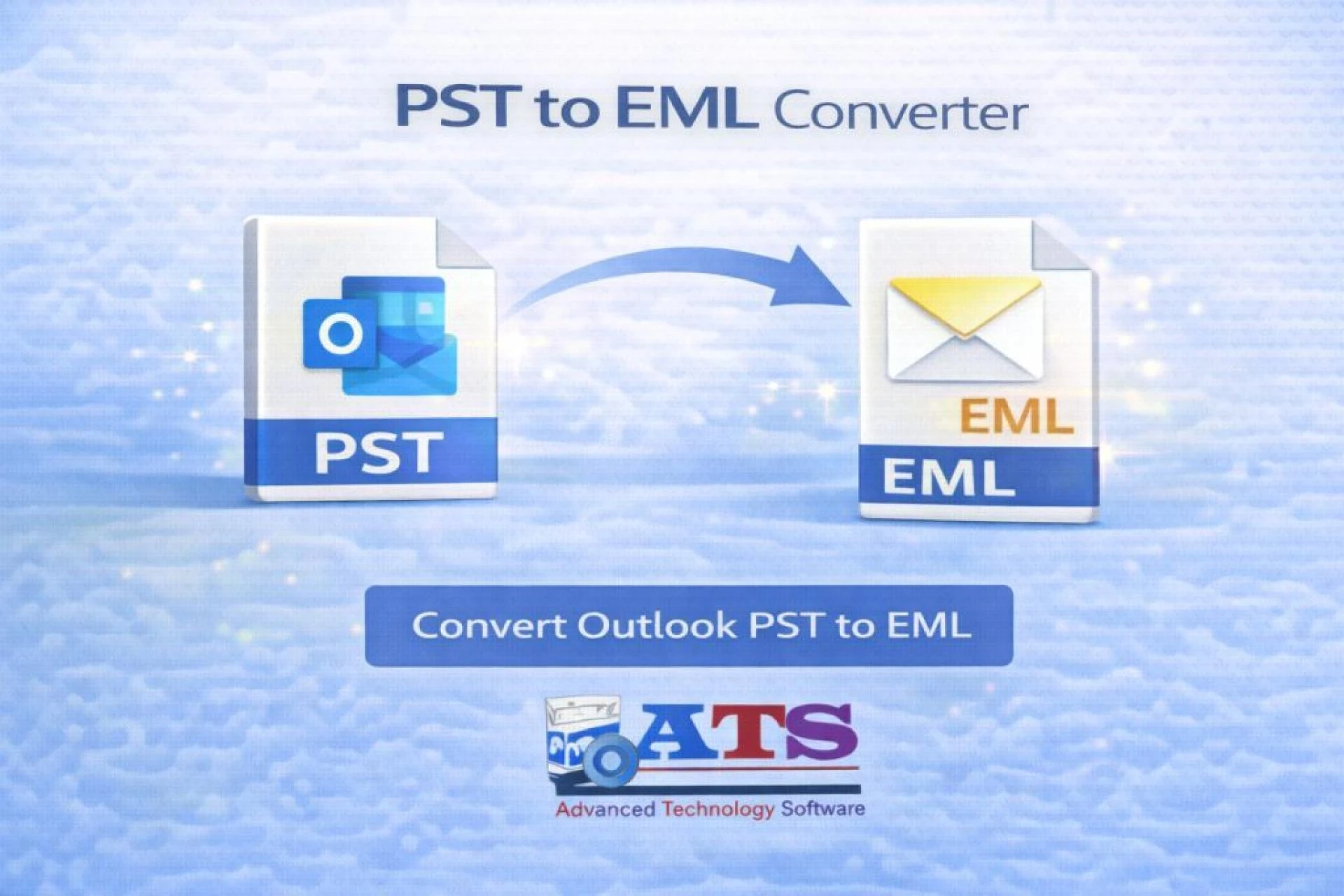
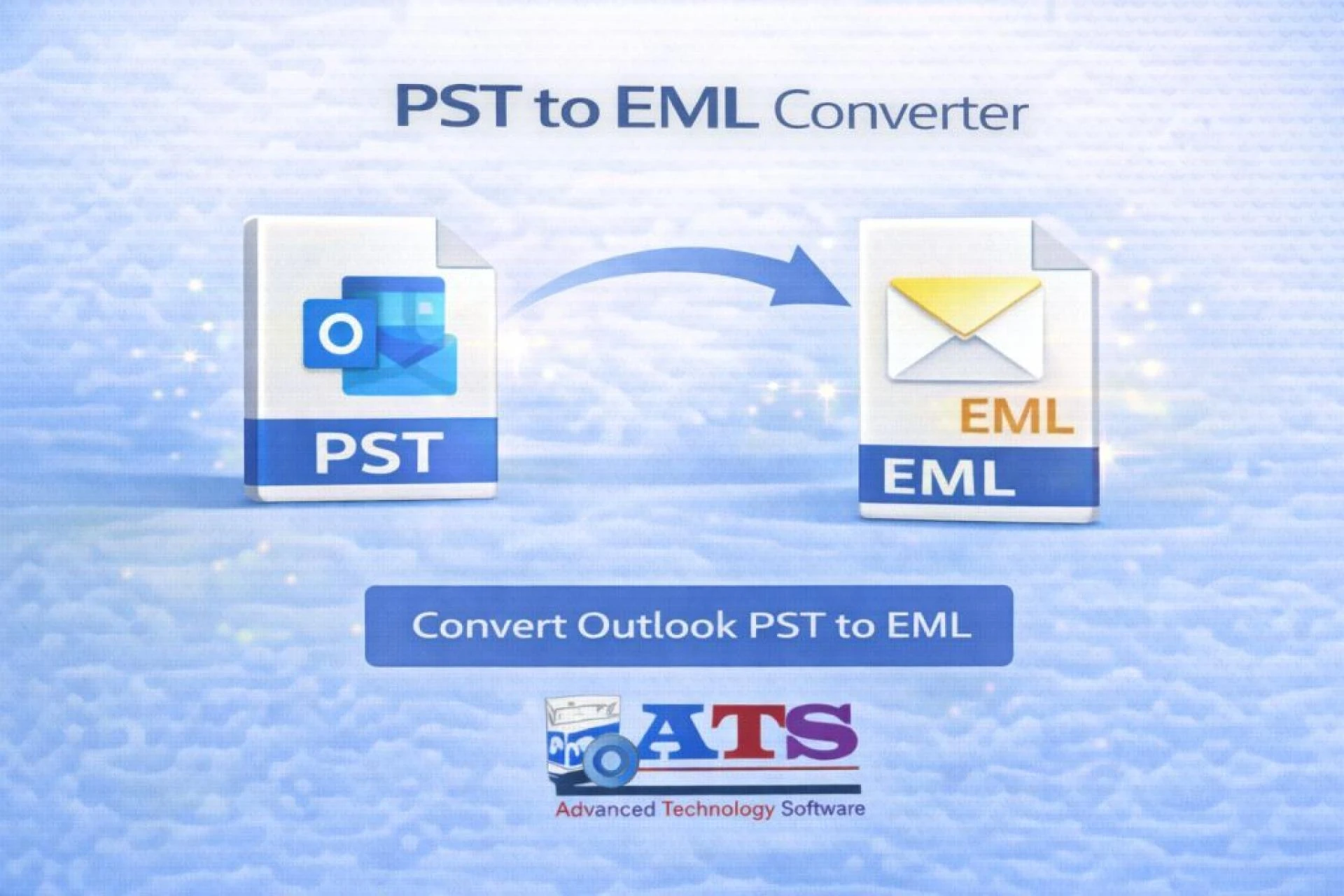
Converting PST files to EML format is an innovative workaround that bypasses Outlook dependency entirely.
EML files store individual email messages and are supported by multiple email clients such as Mozilla Thunderbird, Windows Mail, and Apple Mail.
Key Advantages of PST to EML Conversion:
- No Dependency on Outlook – Access emails without relying on Outlook
- Cross-Platform Compatibility – Open emails across various operating systems
- Granular Access – Each email is stored as a separate file
- Improved Data Portability – Easy to share and archive emails
- Reliable Recovery Option – Extract emails even from damaged PST files
Benefits of PST to EML Conversion
1. Universal Accessibility: EML files can be opened using various email clients, eliminating platform restrictions.
2. Data Integrity Preservation: A reliable converter maintains email formatting, attachments, and metadata.
3. Selective Conversion: Users can export specific folders or emails as needed.
4. Simplified Backup Management: EML files are easier to organize and store.
5. Recovery from Corruption: Even severely corrupted PST files can often be partially recovered.
6. Time Efficiency: Automated tools perform conversions faster than manual methods.
Features to Look for in a PST to EML Converter
Choosing the right tool is crucial for successful conversion. Key features include:
- User-Friendly Interface – Simplifies complex operations
- Batch Conversion Capability – Converts multiple PST files simultaneously
- Preview Functionality – Allows verification before conversion
- Selective Export Options – Convert only necessary data
- High-Speed Processing – Efficient handling of large PST files
- Data Integrity Maintenance – Preserves structure and formatting
- Wide Compatibility – Supports multiple Outlook versions
Step-by-Step Guide to Convert PST to EML
Follow these steps to perform the conversion efficiently:
Step 1: Download and Install Software: Choose a reliable PST to EML converter and install it on your system.
Step 2: Launch the Application: Open the tool and prepare to import your PST file.
Step 3: Add PST File: Browse and select the PST file you wish to convert.
Step 4: Preview Data: Verify emails, attachments, and folders before proceeding.
Step 5: Select Output Format: Choose EML as the desired output format.
Step 6: Choose Destination Location: Specify where the converted files will be saved.
Step 7: Start Conversion: Click “Convert” and wait for the process to complete.
After completion, your emails will be available as individual EML files, ready to open in multiple email clients.
Free Trial vs Full Version
Most conversion tools offer both trial and full versions:
Free Trial
- Limited conversion functionality
- Restricted number of emails
- Preview options available
Full Version
- Unlimited conversions
- Access to advanced features
- Faster processing and technical support
For evaluation, the trial version is sufficient. For complete functionality, the full version is recommended.
When Should You Use PST to EML Conversion?
This method is ideal in the following situations:
- Outlook cannot open PST files
- PST file is severely corrupted
- Migrating to another email client
- Creating secure backups
- Accessing emails without Outlook
In these scenarios, PST to EML conversion offers a dependable solution.
Conclusion
The “Outlook not opening PST file” error can significantly disrupt productivity and restrict access to critical email data. While traditional troubleshooting methods may resolve minor issues, they often fall short when dealing with severe corruption or system failures.
Converting PST files to EML format provides a powerful, flexible, and reliable alternative. It eliminates dependency on Outlook, enhances accessibility, and ensures that valuable data remains usable across multiple platforms.
By adopting a professional PST to EML converter, users can overcome technical limitations, safeguard their data, and maintain uninterrupted workflow. In today’s data-driven environment, having a reliable backup and recovery strategy is not just beneficial—it is essential.





























Sign in to leave a comment.