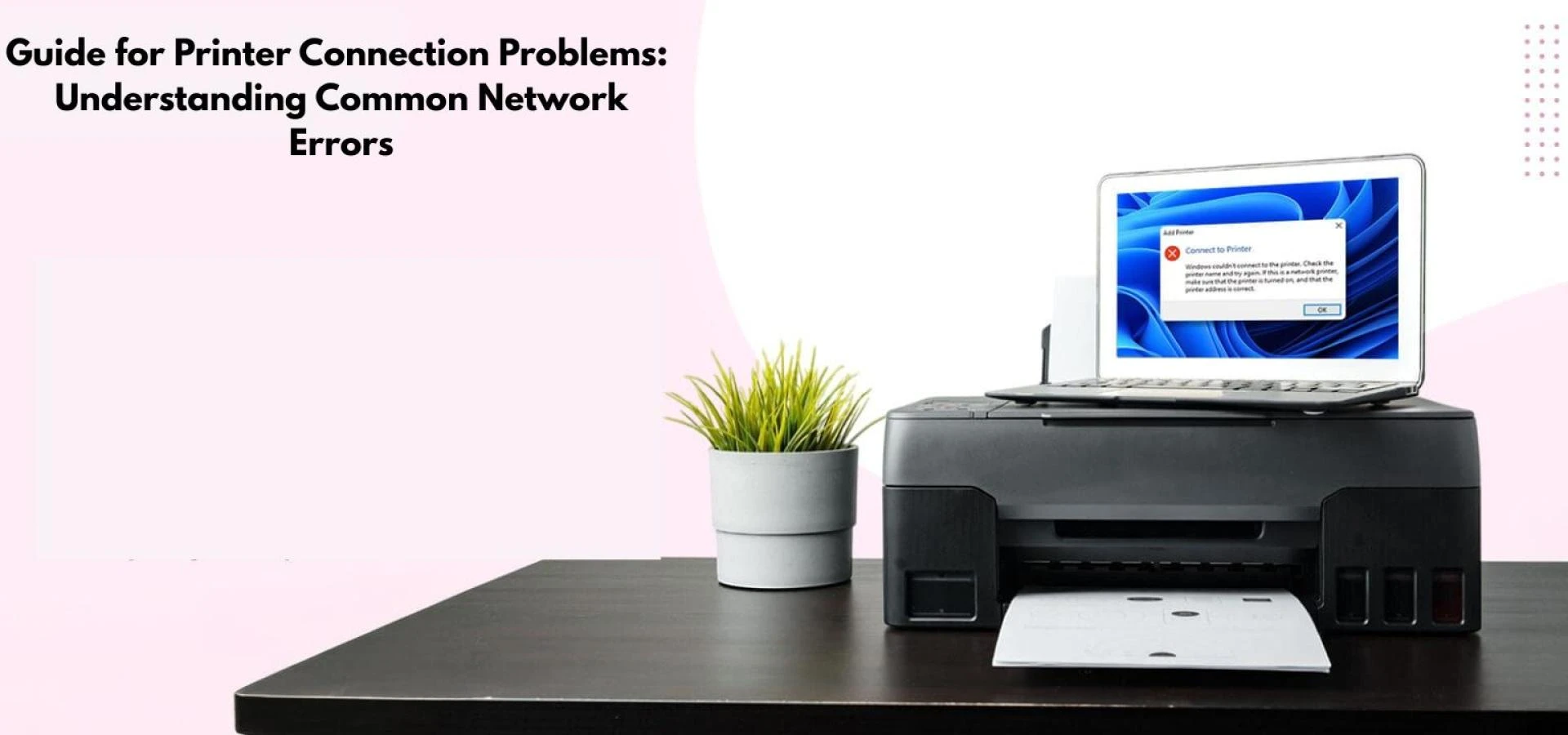

Printers are essential tools in both homes and offices, but nothing is more frustrating than hitting Print and seeing an error pop up instead of a completed document. Many users search for a reliable Guide for Printer Connection Problems because modern printers depend heavily on stable Wi-Fi, networks, and device communication. Understanding why these issues occur can save time, reduce downtime, and help you make smarter troubleshooting decisions.
In this blog, you'll learn the most common network-related causes of printer connection failures, how to diagnose them, and the exact steps to fix the most frequent problems.
Why Printer Connection Problems Happen
Printers rely on communication between multiple components—your router, device, operating system, drivers, and the printer itself. When one link in that chain fails, you may experience connectivity errors such as:
- Printer offline
- Unable to connect to network
- Driver unavailable
- IP address conflict
- Wi-Fi signal weak or unstable
This Guide for Printer Connection Problems simplifies these issues and provides actionable solutions anyone can follow.
1. Weak or Unstable Wi-Fi Signal
A weak signal is one of the most common causes of inconsistent printer connectivity. Printers placed far away from the router may struggle to maintain a constant connection.
Symptoms
- Printer frequently disconnects
- Slow printing
- Printer not found on network
How to Fix
- Move the printer closer to the router
- Reduce interference from walls or appliances
- Restart your router to refresh the connection
- Connect the printer to a 2.4 GHz network (better range than 5 GHz)
2. Incorrect or Changed Wi-Fi Password
If you recently changed your router password or purchased a new router, the printer may still be trying to connect using outdated credentials.
Symptoms
- Printer won’t connect to Wi-Fi
- Network authentication error
- Printer setup loop
Fix
- Reconnect the printer to the Wi-Fi using the updated password
- Reset the printer’s network settings to default
- Use the manufacturer’s app (HP Smart, Canon Print, Epson iPrint, etc.) to reconfigure Wi-Fi
3. IP Address Conflicts
When two devices use the same IP address, one may disconnect, including your printer.
Symptoms
- Printer goes offline randomly
- Printing stalls or stops
- IP Address Conflict message
How to Fix
- Assign a static IP address to your printer
- Restart your router to refresh IP distribution
- Use your router’s admin panel to reserve a unique IP for the printer
4. Outdated or Missing Printer Drivers
Drivers act as the communication bridge between your device and printer. If they’re outdated, corrupted, or incompatible, connection errors appear.
Symptoms
- Driver unavailable error
- Printer not recognized by Windows or macOS
- Unexpected software crashes
Fix
- Update drivers from the manufacturer’s official site
- Use Windows Update or macOS Software Update
- Uninstall old drivers before installing new ones
Keeping drivers current is a major part of any Guide for Printer Connection Problems because they directly affect connectivity and functionality.
5. Firewall or Security Software Blocking the Printer
Antivirus programs, VPNs, and firewalls can unintentionally block printers from communicating over the network.
Symptoms
- Printer not discoverable
- Connection works only when security software is disabled
- Random offline status
Fix
- Add your printer’s IP address as a trusted device
- Temporarily disable VPN during printing
- Allow printer-related apps through the firewall
6. Printer Offline Mode Enabled
Sometimes the issue is as simple as the printer being set to offline mode in your computer’s settings.
Symptoms
- Printer is offline even though it’s powered on
- Jobs stuck in print queue
- Printing only works after restarting device
How to Fix
- Go to Devices & Printers and disable Use Printer Offline
- Clear the print queue
- Restart your device and printer
7. Router Issues or Network Overload
If your router is overloaded with devices, the printer may struggle to maintain a connection.
Symptoms
- Slow Wi-Fi
- Printer drops connection during large print jobs
- Random disconnections
Fix
- Restart the router
- Disconnect unused devices
- Give your printer network priority through QoS settings
- Update your router firmware
8. Wrong Network Selected During Setup
Many printers list both 2.4 GHz and 5 GHz networks. If the printer supports only one, you may accidentally choose the wrong one.
Fix
- Confirm your printer supports 2.4 GHz (most do)
- Reconnect using the correct band
- Use WPS setup for easier pairing
9. USB or Ethernet Cable Issues
Not all connection problems are wireless. Faulty cables can also disrupt communication.
Symptoms
- Printer disconnects randomly
- No device detected
- Slow response
Fix
- Replace damaged USB or Ethernet cables
- Plug directly into your device instead of using hubs or splitters
Final Troubleshooting Checklist
Here’s a concise overview to quickly diagnose issues using this Guide for Printer Connection Problems:
- Restart printer and router
- Check Wi-Fi signal strength
- Update drivers
- Confirm correct Wi-Fi password
- Disable VPN or security blockages
- Assign a static IP
- Reconnect using the official mobile app
- Verify printer is not set to offline mode
Conclusion
Network-related printing issues are extremely common, but most can be solved quickly once you understand what causes them. This Guide for Printer Connection Problems helps you identify the most frequent errors, from weak Wi-Fi signals to IP conflicts, outdated drivers, and router issues. With the right steps, you can restore your printer’s connection and avoid future disruptions.

























Sign in to leave a comment.