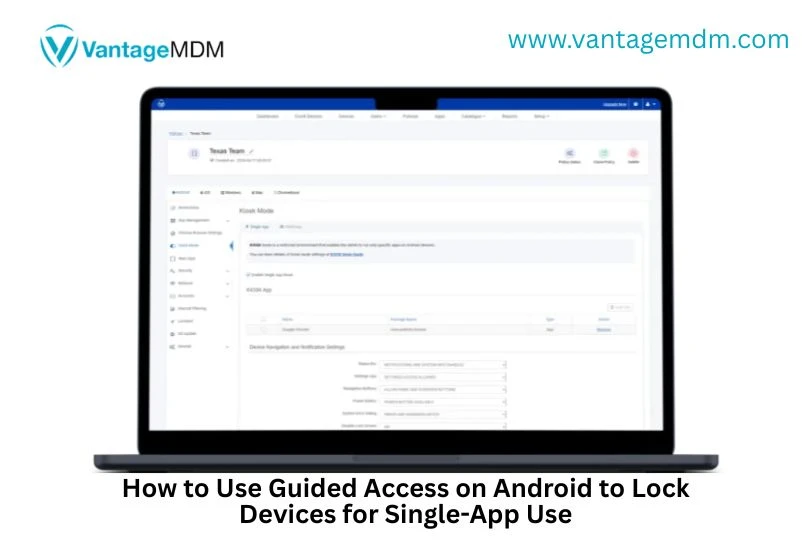

Why Lock Devices to One App
In today’s digital world, maintaining focus and security is crucial, especially in education and enterprise environments. Locking devices to one app ensures that users stay within the intended program, avoiding distractions and unauthorized access. While Apple users rely on Guided Access, Android users can use similar features like Screen Pinning and Kiosk Mode to achieve the same effect.
What Is Guided Access and Why It’s Important
The Purpose of Guided Access on iOS
Guided Access is a built-in iOS feature that restricts iPads or iPhones to a single app, preventing users from switching apps or accessing system settings. It’s commonly used in classrooms, kiosks, and business setups where limited functionality is required.
Equivalent Options for Android Devices
Android doesn’t have a “Guided Access” feature by name, but it offers Screen Pinning and Kiosk Mode—two powerful tools that mimic Guided Access functionality by locking the device to one application.
Benefits of Locking Devices for Single-App Use
Security and Data Protection
Restricting access minimizes the risk of data breaches and misuse. For business or educational tablets, this ensures sensitive data remains protected.
Productivity and User Focus
In classrooms or customer-facing kiosks, locking to one app maintains focus, improving efficiency and usability.
Device Management for Enterprises
Organizations with multiple devices benefit from centralized control using mobile device management software, which enforces lockdown policies remotely.
Guided Access vs Android Screen Pinning
Key Differences

When to Use Each Method
Use Guided Access for education or formal business environments requiring advanced restrictions. Use Screen Pinning for simpler, temporary app locks.
Step-by-Step: How to Use Android Screen Pinning (Guided Access Alternative)
Enabling Screen Pinning
- Open Settings → Security → Screen Pinning.
- Toggle Screen Pinning ON.
- Enable Ask for PIN before unpinning for added security.
Locking Android to One App
- Open the desired app (e.g., browser, POS app, or learning app).
- Tap Overview (Recent Apps) and select the app icon.
- Tap Pin this app.
The device is now restricted to a single app.
Exiting Screen Pinning
To exit, hold both the Back and Overview buttons simultaneously and enter your PIN.
Using Kiosk Mode on Android for Full Lockdown
Configuring Kiosk Mode
Kiosk Mode offers a more advanced lockdown, used primarily by businesses. It prevents access to the home screen, status bar, and other apps.
- Go to Settings → Advanced → Kiosk Mode (or App Pinning).
- Select the app to lock.
- Restrict system navigation buttons and notifications.
Recommended Apps for Kiosk Lockdown
- SureLock Kiosk Lockdown
- Scalefusion Kiosk App
- KioWare for Android
These tools allow administrators to lock devices remotely and manage them via dashboards.
Using Mobile Device Management (MDM) Solutions
Apple MDM Solutions for iPads
Apple offers advanced MDM capabilities through Apple School Manager and Apple Business Manager, combined with solutions like Jamf or Mosyle, to enable Single App Mode—the enterprise-grade version of Guided Access.
Android MDM Solutions
Android users can use Scalefusion, Hexnode, or ManageEngine MDM Plus to configure similar single-app restrictions across multiple devices.
Setting Up Single-App Mode via MDM
- Register devices in your MDM portal.
- Assign the desired app and set it as “single-app mode.”
- Push the configuration remotely.
- Monitor usage and compliance.
Best MDM Tools to Lock Devices
Jamf (Apple)
A robust solution for managing Apple devices in education and business environments.
Scalefusion (Android/iOS)
Supports both Android and iOS, ideal for schools, retail, and enterprise control.
Hexnode
Offers flexible policies, kiosk management, and remote control features.
ManageEngine Mobile Device Manager Plus
A cost-effective, cross-platform solution supporting kiosk mode and remote app deployment.
Use Cases: Education and Business
Classrooms and Schools
Teachers can lock tablets to learning apps, eliminating distractions and keeping students focused on lessons.
Business and Retail Environments
Companies use single-app mode for self-service kiosks, restaurant menus, digital signages, and check-in stations—ensuring professional, secure user interactions.
Troubleshooting Common Issues
When Apps Crash or Freeze
Update apps regularly and ensure devices run the latest OS version. Configure MDM systems to auto-relaunch crashed apps.
When Devices Exit Single-App Mode
Ensure PIN lock is enabled for unpinning. In kiosk setups, verify policies in MDM settings to prevent accidental exits.
FAQs About Guided Access on Android
1. Does Android have Guided Access like iPad?
Not exactly, but Android offers Screen Pinning and Kiosk Mode as similar alternatives.
2. Can I use Guided Access on Samsung tablets?
Yes, via Screen Pinning or Kiosk Mode found under Advanced Settings or through MDM.
3. Is MDM required for single-app mode?
Not always. For large-scale device management, MDM is highly recommended.
4. Can I lock iPads to one app permanently?
Yes, using Apple’s MDM solution in Single App Mode.
5. What is the best mobile app management software for Android?
Scalefusion and Hexnode are among the best for Android device lockdown.
6. How do I exit Screen Pinning on Android?
Press and hold both the Back and Overview buttons simultaneously and enter your PIN.
Using Guided Access on Android (via Screen Pinning or Kiosk Mode) is a powerful way to lock devices for single-app use—perfect for schools, enterprises, and retail environments. Whether you’re managing Android devices through mobile app management software or using Apple MDM solutions for iPads, locking devices enhances productivity, focus, and security across your ecosystem.






















Sign in to leave a comment.