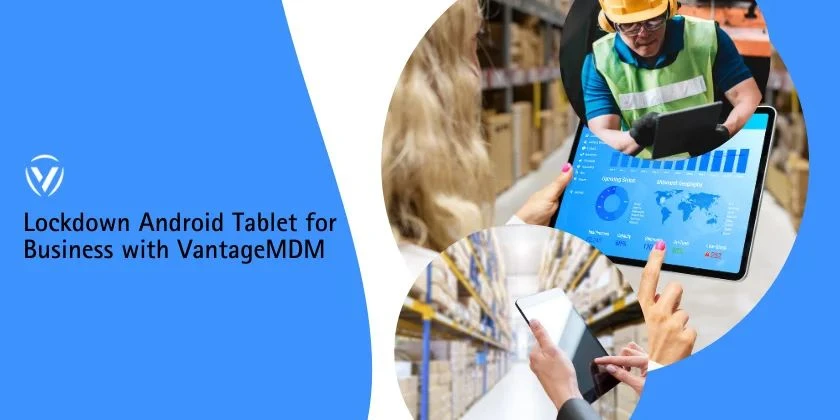

In today’s mobile-first workplace, Android tablets are widely used across industries—from retail counters and restaurants to logistics warehouses and healthcare facilities. However, without proper controls, these devices can quickly become security risks or productivity drains. That’s why organizations rely on kiosk software, android kiosk software, and a robust Android MDM solution to effectively lockdown Android tablet for business environments.
Locking down an Android tablet doesn’t just mean restricting apps—it means creating a secure, controlled, and purpose-driven device experience that enhances efficiency while preventing misuse. In this comprehensive guide, we’ll walk through how to properly secure Android tablets and optimize them for enterprise productivity.
Why Locking Down Android Tablets Is Essential for Businesses
Before discussing how to lock down devices, it’s important to understand why it matters.
1. Prevent Unauthorized Usage
Employees or customers may install unauthorized apps, change settings, or access restricted content. Without restrictions, this can lead to:
- Data leaks
- Malware infections
- Compliance violations
- Increased IT support costs
2. Improve Productivity
When tablets are restricted to work-related applications, users stay focused on their tasks. Whether it’s inventory scanning or order processing, controlled environments reduce distractions.
3. Protect Sensitive Business Data
Tablets often access:
- Customer information
- Payment systems
- Internal databases
- Corporate communication tools
A properly configured android kiosk software environment ensures this data remains secure.
What Does “Lockdown Android Tablet for Business” Mean?
To lockdown Android tablet for business use means:
- Restricting device access to specific apps
- Preventing changes to system settings
- Blocking unauthorized websites or downloads
- Disabling hardware buttons and ports (if required)
- Managing devices remotely through an Android MDM solution
In short, the tablet becomes a purpose-built tool rather than a general-use consumer device.
Step 1: Choose the Right Kiosk Software
The foundation of any secure deployment starts with selecting the right kiosk software.
Key Features to Look For:
- Single-app and multi-app mode
- App whitelisting and blacklisting
- Custom launcher with branding
- System UI restrictions
- Remote monitoring and control
Modern android kiosk software transforms standard Android tablets into dedicated-use devices for POS systems, check-in counters, field services, and more.
Step 2: Implement an Android MDM Solution
While kiosk mode restricts device usage, an Android MDM solution provides centralized control.
What an Android MDM Solution Does:
- Remotely configure policies
- Push app updates
- Monitor device health
- Track device location
- Enforce security compliance
Without centralized management, scaling deployments becomes inefficient and costly. MDM ensures consistent security across all devices.
Step 3: Enable Single-App or Multi-App Kiosk Mode
Single-App Mode
Best for:
- Self-service kiosks
- Digital signage
- POS terminals
The tablet launches only one application and prevents users from exiting it.
Multi-App Mode
Best for:
- Warehouse workflows
- Field service operations
- Healthcare rounds
Users can access only approved applications while everything else remains blocked.
This controlled flexibility helps businesses maintain both security and operational efficiency.
Step 4: Restrict System Settings and Navigation
To properly lockdown Android tablet for business, system-level restrictions are essential.
Critical Controls:
- Disable access to system settings
- Hide status bar and navigation bar
- Block Google Play Store
- Prevent factory reset
- Disable safe mode booting
These measures prevent users from bypassing restrictions or altering configurations.
Step 5: Control App Installation and Updates
Uncontrolled app installations are a major security risk.
With android kiosk software and an Android MDM solution, you can:
- Whitelist approved apps
- Block unknown sources
- Remotely install updates
- Schedule maintenance windows
This ensures that devices remain secure while running the latest versions of critical business applications.
Step 6: Secure Network and Connectivity Settings
Tablets often connect to corporate Wi-Fi or mobile networks. Misconfigured connectivity can expose vulnerabilities.
Recommended Controls:
- Lock Wi-Fi settings
- Restrict hotspot usage
- Configure VPN profiles
- Block unauthorized Bluetooth connections
MDM policies allow administrators to pre-configure secure network settings across all devices.
Step 7: Disable Hardware Buttons and Ports
Physical device access can compromise security.
Depending on your kiosk software capabilities, you can:
- Disable volume buttons
- Restrict power button actions
- Block USB debugging
- Prevent external storage access
This is especially important in public-facing deployments where users have direct physical access to tablets.
Step 8: Set Up Remote Monitoring and Alerts
Device downtime affects productivity and revenue.
With a centralized Android MDM solution, you can:
- Monitor battery health
- Track device uptime
- Receive crash alerts
- Identify offline devices
Proactive monitoring reduces IT response time and ensures business continuity.
Step 9: Use Role-Based Access Control (RBAC)
Not all employees need the same level of access.
Role-based controls allow administrators to:
- Assign permissions based on job function
- Restrict sensitive features
- Limit administrative rights
This layered approach strengthens security without limiting productivity.
Step 10: Enable Automatic Device Enrollment
For businesses deploying tablets at scale, manual setup is inefficient.
Zero-touch enrollment allows devices to:
- Automatically configure upon first boot
- Apply security policies instantly
- Download required apps automatically
This streamlines deployments and ensures every tablet adheres to company standards.
Industry Use Cases for Locked-Down Android Tablets
Retail
- POS systems
- Self-checkout stations
- Inventory management
Healthcare
- Patient check-in kiosks
- Digital charting
- Medication tracking
Logistics
- Route management
- Proof-of-delivery systems
- Barcode scanning
Hospitality
- Self-service ordering
- Guest check-in systems
In all these cases, proper lockdown ensures reliability and security.
Security Best Practices Beyond Kiosk Mode
Even with strong kiosk software, additional measures enhance protection.
1. Enforce Strong Authentication
Use PIN codes, biometric locks, or secure login credentials for staff-accessible devices.
2. Encrypt Device Storage
Enable full disk encryption to protect sensitive data.
3. Schedule Regular Security Audits
Review device policies and update configurations as threats evolve.
4. Enable Remote Wipe
If a device is lost or stolen, remote wipe ensures data cannot be accessed.
Common Mistakes to Avoid
❌ Relying Only on Native Android Restrictions
Basic Android settings are not sufficient for enterprise-grade security.
❌ Ignoring Remote Management
Without an Android MDM solution, managing multiple tablets becomes chaotic.
❌ Over-Restricting Devices
While security is crucial, excessive restrictions can hinder workflow efficiency.
❌ Skipping Regular Updates
Outdated apps and firmware increase vulnerability risks.
Benefits of Locking Down Android Tablets for Business
When implemented correctly, lockdown delivers measurable advantages:
- Reduced IT support costs
- Improved employee productivity
- Lower risk of data breaches
- Extended device lifespan
- Consistent user experience
- Scalable device management
The combination of kiosk software, advanced android kiosk software, and a reliable Android MDM solution creates a secure yet flexible environment tailored to business needs.
To successfully lockdown Android tablet for business, organizations must go beyond simple app restrictions. A strategic combination of enterprise-grade kiosk software and centralized device management ensures tablets operate securely, efficiently, and reliably.
When properly configured, locked-down Android tablets transform into powerful business tools—driving productivity, reducing risks, and delivering long-term operational value.
If your organization is planning or scaling tablet deployments, investing in comprehensive android kiosk software and a trusted Android MDM solution isn’t optional—it’s essential for secure growth.






















Sign in to leave a comment.