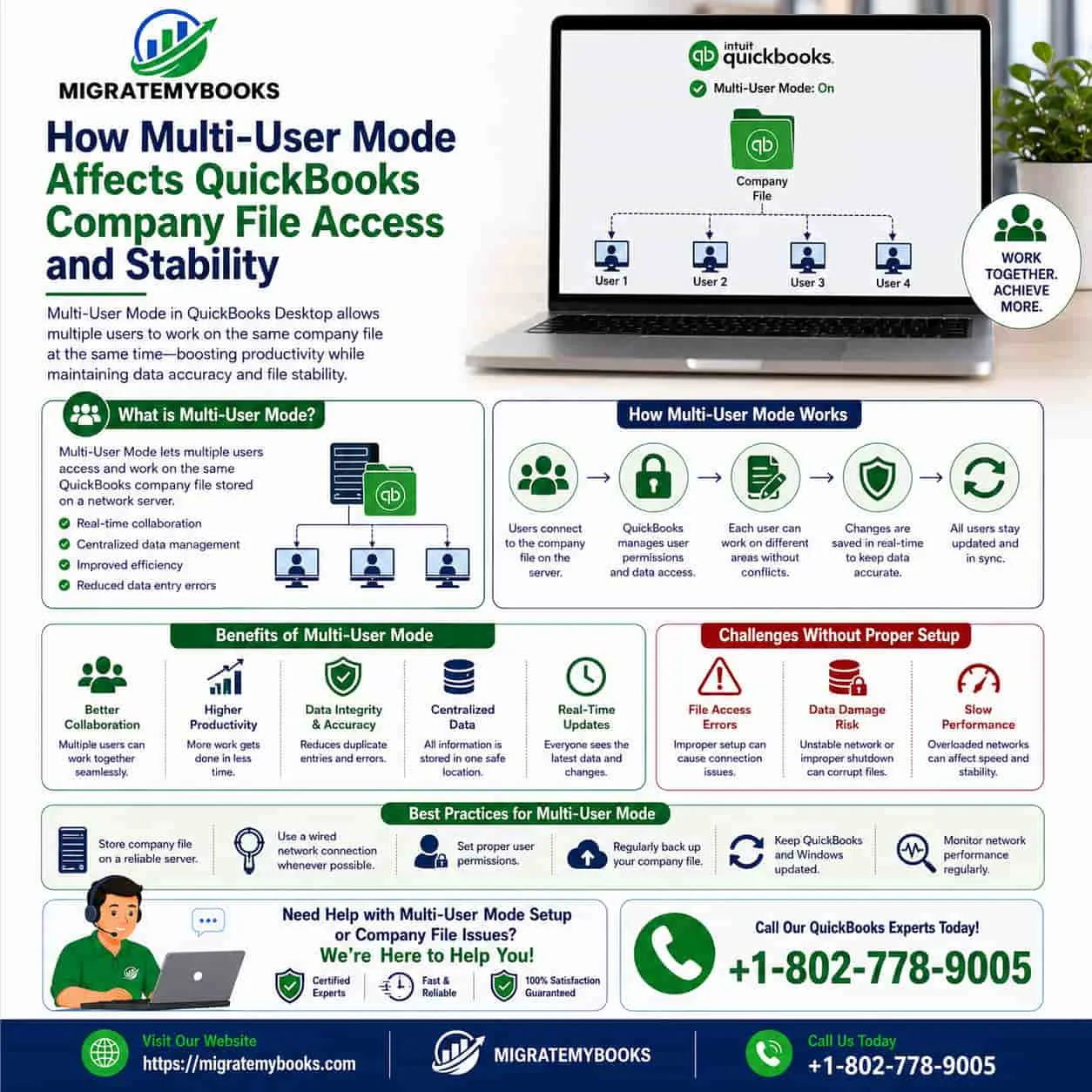

QuickBooks Desktop Multi-User Mode allows multiple employees, accountants, and business users to access the same company file simultaneously. This feature improves collaboration by allowing different users to perform accounting tasks at the same time, but it also requires proper network configuration, hosting settings, and file management practices.
When Multi-User Mode is configured correctly, users can efficiently manage:
- Customer transactions
- Vendor payments
- Banking activities
- Payroll processing
- Financial reporting
However, because multiple computers communicate with one shared company file, stability depends on several connected components, including network performance, QuickBooks Database Server Manager, Windows permissions, and company file health.
If communication between these components fails, users may experience problems such as:
- Company files not opening
- Slow performance
- Multi-user connection failures
- Unexpected disconnections
- Data access issues
Understanding how Multi-User Mode works helps businesses maintain a reliable QuickBooks Desktop environment and reduce disruptions.
Understanding QuickBooks Desktop Multi-User Mode
Multi-User Mode allows multiple users to work inside the same QuickBooks company file from different computers connected through a network.
In this setup:
- One computer or server hosts the company file.
- Other workstations connect to the hosted file.
- QuickBooks manages simultaneous user access.
- Data changes are synchronized across users.
Each user's activity is processed through the network, making proper configuration essential.
How QuickBooks Company File Access Works in Multi-User Mode
When a user opens a company file in Multi-User Mode, QuickBooks performs several background processes.
These include:
- Locating the company file on the network.
- Establishing communication with the hosting computer.
- Verifying user permissions.
- Connecting through QuickBooks Database Server Manager.
- Allowing users to access accounting data.
Every step depends on proper communication between QuickBooks and the network environment.
Multi-User Mode depends on smooth communication between company files, network systems, and QuickBooks Desktop services. Understanding "Managing QuickBooks Company Files Across Multiple Computers and Networks" helps businesses learn how shared file access, hosting settings, and network configurations affect daily accounting operations. Similarly, "What Happens Behind the Scenes During a QB Desktop Payroll Update" explains how QuickBooks processes payroll information, communicates with update services, and applies changes while maintaining company file accuracy. These connected processes highlight why proper network management, regular maintenance, and stable system communication are essential for reliable QuickBooks Desktop performance.
The Role of the Host Computer
The host computer plays a central role in Multi-User Mode.
The host system manages:
- Company file storage
- Database services
- User connections
- File access requests
A properly configured host allows multiple users to work without interruptions.
However, problems with the host computer can affect every connected workstation.
Common host-related issues include:
- Hosting settings turned off
- Database services not running
- Firewall restrictions
- Network connection failures
QuickBooks Database Server Manager and Multi-User Stability
QuickBooks Database Server Manager is responsible for allowing multiple users to access company files stored on a network.
It helps:
- Monitor company file locations
- Manage network access
- Support multi-user connections
- Maintain communication between workstations
If Database Server Manager is missing, outdated, or incorrectly configured, users may experience difficulty opening company files.
Network Performance and Company File Stability
A stable network is essential for QuickBooks Multi-User Mode.
Network problems can affect:
- File opening speed
- Transaction saving
- User connections
- Data synchronization
Common network issues include:
- Weak Wi-Fi connections
- Router problems
- Incorrect firewall settings
- Server communication failures
Businesses using QuickBooks Desktop should prioritize reliable network infrastructure.
How User Activity Affects Company File Performance
When multiple users work in the same company file, QuickBooks must process several activities simultaneously.
Examples include:
- Creating invoices
- Entering bills
- Recording payments
- Running reports
- Processing payroll
Heavy activity from multiple users may increase:
- File processing time
- Network traffic
- Database workload
Maintaining organized workflows helps improve performance.
Company File Location and Accessibility
The location of the company file affects Multi-User Mode performance.
Recommended locations include:
- Dedicated server systems
- Properly configured host computers
- Reliable network storage
Avoid storing active company files on:
- External USB drives
- Personal cloud folders
- Unsupported storage locations
Incorrect file locations can create access problems and increase the risk of file corruption.
QuickBooks Error 6177: Company File Path and Access Issues
QuickBooks Error 6177 commonly occurs when QuickBooks cannot properly locate or access the company file.
In Multi-User Mode, this error may appear when workstations cannot communicate correctly with the file location.
Common Causes
Possible causes include:
- Incorrect company file path
- Damaged network configuration
- Hosting issues
- File location changes
- Database Server Manager problems
Symptoms
Users may experience:
- Company file fails to open
- QuickBooks cannot find the file location
- Multi-user access interruptions
- Slow connection attempts
Prevention Tips
To reduce the risk of QuickBooks Error 6177:
- Keep company files in supported locations.
- Avoid moving files without updating settings.
- Maintain proper network configuration.
- Verify hosting settings regularly.
QuickBooks Error 6150: Company File Creation and Access Problems
QuickBooks Error 6150 is often associated with company file access or creation issues.
In a multi-user environment, this error may indicate problems with:
- Company file integrity
- File permissions
- Installation components
- Incorrect file locations
Common Causes
Possible causes include:
- Damaged company files
- Corrupted QuickBooks installation
- Incorrect folder permissions
- Malware affecting files
Symptoms
Users may notice:
- Unable to create a company file
- Company file opening failures
- Unexpected QuickBooks crashes
Prevention Tips
To minimize QuickBooks Error 6150:
- Maintain regular backups.
- Keep QuickBooks updated.
- Protect company files from unauthorized changes.
- Maintain healthy storage devices.
Common Multi-User Mode Problems and QuickBooks Stability Issues
QuickBooks Desktop Multi-User Mode provides flexibility for businesses by allowing multiple users to work on the same company file. However, because several computers access the same financial data simultaneously, even small configuration problems can affect performance and accessibility.
Most Multi-User Mode problems are caused by communication failures between the host computer, network, QuickBooks Database Server Manager, and company file. Identifying these areas helps users troubleshoot issues faster and maintain a stable accounting environment.
Common Multi-User Mode Connection Problems
Company File Cannot Be Opened on Workstations
One of the most common Multi-User Mode issues occurs when users cannot open the company file from connected computers.
Possible causes include:
- Host computer is unavailable
- Network connection failure
- Incorrect folder permissions
- Database Server Manager issues
- Firewall restrictions
Common Symptoms
Users may experience:
- Error messages when opening files
- Long loading times
- Connection failures
- QuickBooks switching back to Single-User Mode
To resolve these problems, businesses should first verify that the host computer is running and that all network connections are working correctly.
Hosting Configuration Problems
QuickBooks Desktop requires proper hosting settings for Multi-User Mode to function.
Only the computer storing the company file should have hosting enabled.
Incorrect hosting configuration may result in:
- Multiple computers trying to host the same file
- User connection conflicts
- Company file access failures
Best Practice
Review hosting settings regularly and confirm that:
- The server or host computer is the only hosting system.
- Workstations are configured for network access.
- QuickBooks Database Server Manager is running properly.
Firewall and Security Restrictions
Firewall settings are important for protecting business systems, but incorrect configurations can block QuickBooks communication.
A firewall may prevent QuickBooks from accessing:
- Company files
- Network connections
- Database services
- Required communication ports
Common Symptoms
Firewall-related problems may cause:
- Multi-user mode not working
- Users unable to connect
- Company files appearing unavailable
- Slow performance
To maintain stability, ensure QuickBooks programs and services have proper network permissions.
QuickBooks Database Server Manager Issues
The QuickBooks Database Server Manager allows workstations to communicate with company files stored on a network.
If this service is not working correctly, users may experience:
- Missing company files
- Connection failures
- Multi-user access problems
Common Causes
Problems may occur due to:
- Damaged installation files
- Outdated components
- Service not running
- Incorrect file scanning
Maintenance Tips
To improve reliability:
- Keep Database Server Manager updated.
- Scan company file folders correctly.
- Restart services after major system changes.
- Verify network access regularly.
QuickBooks Error 6175 0: Database Server Communication Problems
QuickBooks Error 6175 0 commonly occurs when QuickBooks cannot communicate properly with the Database Server Manager or hosting computer.
Because Multi-User Mode depends heavily on database communication, this error can interrupt access for multiple users.
Common Causes
Possible causes include:
- Database Server Manager not responding
- Hosting configuration problems
- Firewall blocking communication
- Network connection failures
- QuickBooks services not running correctly
Symptoms
Users may experience:
- Company file fails to open
- QuickBooks freezes while connecting
- Multi-user mode becomes unavailable
- Other workstations cannot access the file
Troubleshooting Steps
To address QuickBooks Error 6175 0:
- Confirm the host computer is powered on.
- Verify hosting settings.
- Restart QuickBooks Database Server Manager.
- Check firewall permissions.
- Test network connectivity.
How Company File Size Affects Multi-User Performance
As businesses continue using QuickBooks Desktop, company files naturally grow in size.
Large company files may affect:
- Opening speed
- Report generation
- Transaction processing
- Multi-user responsiveness
Factors contributing to file growth include:
- Years of transaction history
- Large customer databases
- Extensive inventory records
- Payroll information
Performance Improvement Tips
Businesses can improve performance by:
- Removing unnecessary data when appropriate
- Maintaining regular backups
- Monitoring file health
- Optimizing network performance
Data Synchronization Challenges
In Multi-User Mode, QuickBooks must synchronize changes made by different users.
For example:
- One user creates an invoice.
- Another records a payment.
- A third user generates a report.
QuickBooks manages these updates to maintain accurate financial records.
However, communication interruptions may cause:
- Delayed updates
- Temporary access problems
- Transaction conflicts
Stable network connections reduce synchronization issues.
Multi-User Mode and Payroll Processing
Payroll requires additional communication because it involves:
- Employee records
- Payroll items
- Tax calculations
- Online payroll services
When multiple users access payroll features, proper company file communication becomes even more important.
Issues with Multi-User Mode may affect:
- Payroll updates
- Employee information access
- Payroll reporting
Businesses should verify network stability before processing payroll tasks.
Multi-User Mode After QuickBooks Migration
Moving QuickBooks Desktop to a new computer or server can affect Multi-User Mode settings.
Migration may change:
- File storage locations
- Network permissions
- Hosting configuration
- Firewall rules
Before Migration
Prepare by:
- Creating a complete backup.
- Documenting current network settings.
- Installing compatible QuickBooks versions.
- Reviewing user permissions.
After Migration
Test:
- Company file access
- Multi-user connections
- Database Server Manager
- User permissions
- Transaction processing
A proper migration process reduces downtime and prevents connection problems.
Troubleshooting Multi-User Mode Problems
Follow this structured troubleshooting approach:
Step 1: Identify the Problem Area
Determine whether the issue involves:
- Network connection
- Company file access
- Hosting settings
- Database services
- User permissions
Step 2: Check the Host Computer
Verify:
- Computer is running
- Company file location is accessible
- Hosting is enabled correctly
- Database services are active
Step 3: Verify Network Settings
Check:
- Shared folder permissions
- Firewall settings
- Network connectivity
- QuickBooks communication permissions
Step 4: Protect Your Data
Before making major changes:
- Create a backup.
- Avoid moving company files unnecessarily.
- Record current settings.
Why Multi-User Maintenance Is Important
QuickBooks Desktop Multi-User Mode helps businesses improve collaboration by allowing multiple users to work on the same company file. However, maintaining a stable multi-user environment requires regular monitoring of the network, company file health, software updates, and user access settings.
Without proper maintenance, businesses may experience:
- Slow company file performance
- Frequent connection failures
- Multi-user access problems
- Data synchronization delays
- Unexpected QuickBooks errors
A proactive maintenance strategy helps keep QuickBooks Desktop reliable and reduces interruptions during daily accounting operations.
Maintain a Reliable Network Environment
A stable network is the foundation of successful QuickBooks Multi-User Mode.
Businesses should regularly monitor:
- Network speed
- Router performance
- Server availability
- Wired connections
- Shared folder access
For best performance, use a reliable wired network whenever possible, especially when multiple users regularly access large company files.
A weak or unstable network can interrupt communication between workstations and the host computer.
Keep QuickBooks Desktop Updated
Regular QuickBooks updates improve:
- Software stability
- Security
- Compatibility
- Error prevention
All computers connected to the same company file should use compatible QuickBooks Desktop versions.
Before updating:
- Create a company file backup.
- Schedule updates during low business activity.
- Confirm compatibility across all systems.
Consistent updates help prevent communication problems between users.
Protect and Maintain Company Files
The company file contains important financial information, making data protection essential.
Recommended practices include:
- Creating regular backups
- Storing backups securely
- Checking file health periodically
- Avoiding unnecessary file transfers
A healthy company file improves:
- Loading speed
- Multi-user performance
- Data reliability
Manage User Permissions Carefully
User permissions control what each person can access within QuickBooks Desktop.
Proper permission management helps:
- Protect financial information
- Prevent accidental changes
- Improve workflow organization
Review user access regularly and remove unnecessary permissions when employees leave or change roles.
Optimize QuickBooks Hosting Settings
Correct hosting configuration is essential for Multi-User Mode.
Best practices include:
- Enable hosting only on the server or designated host computer.
- Disable hosting on workstations.
- Verify Database Server Manager functionality.
- Scan company file folders when necessary.
Incorrect hosting settings are a common cause of connection failures.
Perform Regular System Maintenance
QuickBooks performance depends on the overall health of the computer systems running it.
Maintain systems by:
- Installing Windows updates
- Removing unnecessary files
- Checking available storage space
- Updating security software
- Restarting systems periodically
A healthy operating system supports better QuickBooks performance.
Prepare for QuickBooks Migration
Migration is a common time when Multi-User Mode problems appear.
Before moving QuickBooks to a new system:
Create a Full Backup
Backup:
- Company files
- Payroll information
- Custom templates
- Reports
Document Current Settings
Record:
- Company file location
- User permissions
- Hosting configuration
- Network settings
Test the New Environment
After migration:
- Open the company file.
- Verify Multi-User Mode.
- Check all user connections.
- Test transactions.
- Confirm reports are working.
Proper migration planning reduces downtime and prevents configuration issues.
Preventing Common Multi-User Errors
Many Multi-User Mode problems can be reduced by following preventive practices.
Preventing QuickBooks Error 6177
To avoid QuickBooks Error 6177, maintain:
- Correct company file paths
- Proper network permissions
- Stable hosting configuration
- Updated Database Server Manager
This error often appears when QuickBooks cannot locate or access the company file correctly.
Preventing QuickBooks Error 6150
To reduce the chances of QuickBooks Error 6150:
- Maintain regular backups.
- Protect company files from corruption.
- Keep QuickBooks installation healthy.
- Avoid improper file movement.
This helps prevent company file creation and access-related problems.
Preventing QuickBooks Error 6175 0
To minimize QuickBooks Error 6175 0:
- Keep Database Server Manager running.
- Verify firewall permissions.
- Maintain stable network connections.
- Check hosting settings regularly.
Proper database communication is essential for reliable Multi-User Mode.
QuickBooks Multi-User Stability Checklist
Use this checklist to maintain a healthy environment:
✅ Store company files on a reliable host system
✅ Use stable network connections
✅ Keep QuickBooks versions compatible
✅ Update all workstations regularly
✅ Maintain proper firewall permissions
✅ Configure hosting correctly
✅ Monitor company file performance
✅ Create frequent backups
✅ Review user permissions
✅ Test Multi-User Mode after system changes
Frequently Asked Questions
Why does QuickBooks Multi-User Mode stop working?
Multi-User Mode may stop working because of network problems, incorrect hosting settings, firewall restrictions, damaged company files, or Database Server Manager issues.
Can multiple users damage a QuickBooks company file?
Multiple users do not normally damage company files when Multi-User Mode is configured correctly. Problems usually occur because of network interruptions, improper shutdowns, or file corruption.
Should every computer host the QuickBooks company file?
No. Only the designated server or host computer should have hosting enabled. Workstations should connect to the hosted company file.
How can I improve QuickBooks Multi-User performance?
Improve performance by maintaining a reliable network, reducing unnecessary file growth, updating QuickBooks regularly, and keeping company files healthy.
Does migration affect QuickBooks Multi-User Mode?
Yes. Migration can change file locations, permissions, hosting settings, and network configurations. Proper setup after migration is important for continued access.
Related QuickBooks Troubleshooting Resources
For additional guidance, explore these related topics:
- QuickBooks Error 6177 – Learn how company file path and access issues can affect Multi-User Mode.
- QuickBooks Error 6150 – Understand company file creation and access problems and how to prevent data issues.
- QuickBooks Error 6175 0 – Explore database communication problems that can interrupt multi-user access.
These resources help businesses troubleshoot specific QuickBooks Desktop issues and maintain a more reliable accounting environment.
Final Thoughts
QuickBooks Desktop Multi-User Mode provides businesses with an efficient way to collaborate on accounting tasks, but its reliability depends on proper configuration and regular maintenance.
Successful multi-user management requires:
- A stable network
- Correct hosting settings
- Healthy company files
- Updated software
- Proper user permissions
- Regular backups
By following preventive practices and understanding how QuickBooks communicates across multiple computers, businesses can reduce errors, improve performance, and maintain consistent access to their financial data.
A well-maintained QuickBooks Desktop environment allows teams to collaborate confidently while protecting important accounting information.






























Sign in to leave a comment.