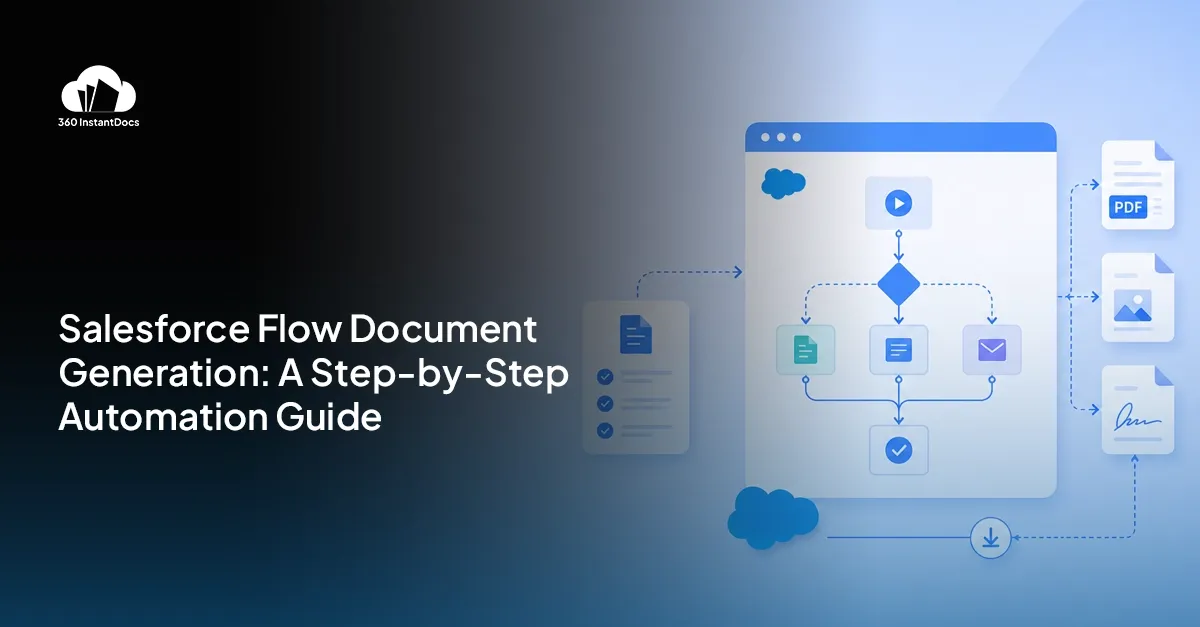

Even when a team has document generation set up, a rep still has to click a button. When an Opportunity closes at 6pm on Friday, that contract doesn’t go out until Monday morning when someone clicks Generate. That’s not a document generation problem anymore, it’s a timing problem, and it’s the kind of small gap that costs deals momentum right when momentum matters most. Salesforce Flow document generation removes that last manual step entirely. This post covers when to use Flow versus a Quick Action, the most common use cases worth automating, and a step-by-step build for the most common trigger of all: Opportunity stage changes to Closed Won.
When to Use Flow vs a Quick Action for Document Generation
Not every document should generate automatically, and knowing which approach fits which situation matters more than defaulting to full automation everywhere.
Use Cases for Flow-Triggered Document Generation
A handful of triggers cover most of what teams actually automate. An Opportunity stage changing to Closed Won is the classic case, a contract generates and emails to the customer the moment the deal closes, no waiting for Monday morning.
How Flow Calls 360 InstantDocs to Generate a Document
The mechanism itself is simple once you understand the shape of it. 360 InstantDocs exposes an Invocable Action that Salesforce Flow can call directly, the same way Flow calls any other native or custom action.
Step-by-Step Building a Flow to Generate a Document When an Opportunity Closes
This is the most detailed section, and it’s worth following closely. Every step below should be reproducible in your own Salesforce org, ideally starting in a sandbox before touching production.
Step 1: Create a new Record-Triggered Flow on the Opportunity object.
Step 2: Set the trigger to “A record is updated” when Stage changes to Closed Won.
Step 3: Add a Get Records element to retrieve the Template record ID for the contract template.
Step 4: Add an Action element, searching for Create Document Manager or createDocumentManagers.
Step 5: Map input parameters.
Step 6: Optionally add a second Action to send an email with the generated document attached.
Step 7: Save and activate the Flow.
Step 8: Test by updating an Opportunity stage on a sandbox record.
Adding Email Delivery to the Flow
Generating the document is only half the value. Adding an email action right after the generate action means the document delivers to the Opportunity’s contact automatically, the moment it’s created, with no separate manual send required.
Scheduled Flows for Bulk Document Generation
Not every use case is triggered by a single record changing. Monthly invoicing is the clearest example of a workload that fits a different pattern entirely: a Scheduled Flow runs on the first of each month, queries all active subscription records at once, and calls the document generation action for each one in a loop.
Common Errors and How to Fix Them
A few issues come up often enough to call out directly. If templateId is blank, the Get Records element likely didn’t find an active template for that object, usually because the template is still in draft status or the filter criteria in the Get Records element don’t match what’s actually stored on the Template record.
Read full blog here- https://360degreecloud.com/product/instantdocs/blog/how-salesforce-flow-triggers-document-generation/















Sign in to leave a comment.