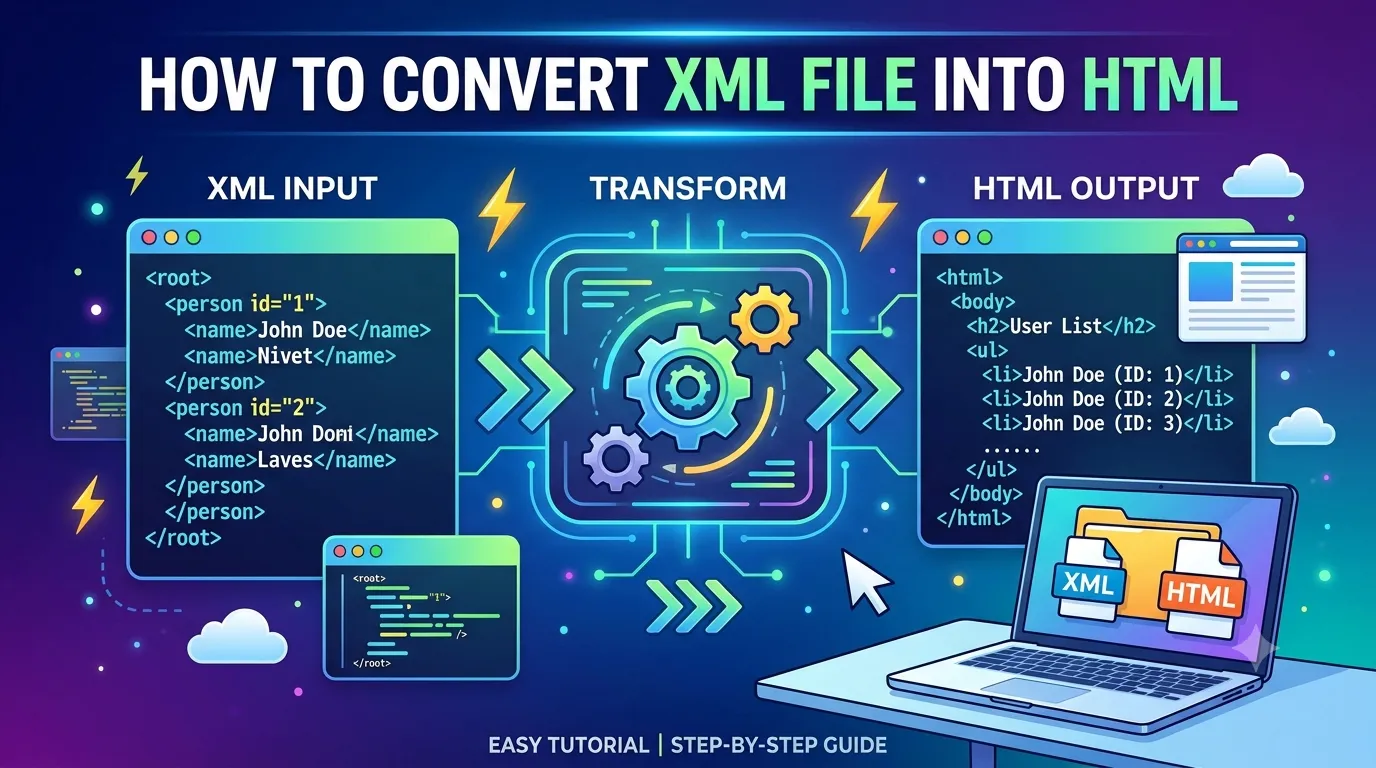

The quickest method to convert xml file into html would be through using a desktop program like XML Converter. Drag and drop your xml file or folder, choose HTML as the export format, specify destination, and press export. For developers who favor using codes, an XSLT style sheet can be applied using xsltproc, Saxon, and Python's lxml module. This, together with the shortcomings usually not mentioned in guides, is discussed below.
What are The Differences Between XML and HTML?
The key difference between XML and HTML is that you can define your own custom elements like invoice or patient. The names of these elements indicate the meaning of the elements' contents, not their appearance. HTML has predefined elements that tell the browser how to display them
Converting XML files into HTML, therefore, cannot be done simply by renaming elements. Every element needs to be translated into an appearance: a table cell, a header, a paragraph. A hierarchy of XML elements must be rendered as a hierarchy of HTML elements, or deliberately flattened.
Why Convert XML to HTML?
There can be many reasons for needing this; among them are:
- Readability: One can simply open an HTML document in a browser without requiring special knowledge of XML from colleagues, customers, and auditors.
- Distribution/backup/archiving: HTML documents are portable and easily attached or uploaded.
- Reporting; Invoices, orders, export products, etc. come in XML format and require formatting.
- Documentation: Configuration files and API requests are made more readable when presented as HTML pages.
- Publishing on the web/internet/intranet: Data can be placed directly in a web page/document.
Method 1: Use an XSLT Stylesheet to Convert XML File into HTML
XSLT (Extensible Stylesheet Language Transformations) is the standard, W3C-defined way to turn XML into other formats. It is the classic route when you want to convert an xml file into html with full control over the layout.
Sample XML (employees.xml):
<?xml version="1.0" encoding="UTF-8"?>
<employees>
<employee id="101"><name>Ava Miller</name><role>Analyst</role></employee>
<employee id="102"><name>Noah Clark</name><role>Developer</role></employee>
</employees>
Stylesheet (employees.xsl):
<?xml version="1.0" encoding="UTF-8"?>
<xsl:stylesheet version="1.0" xmlns:xsl="http://www.w3.org/1999/XSL/Transform">
<xsl:output method="html" encoding="UTF-8" indent="yes"/>
<xsl:template match="/employees">
<html lang="en">
<head><title>Employee List</title></head>
<body>
<table border="1">
<tr><th>ID</th><th>Name</th><th>Role</th></tr>
<xsl:for-each select="employee">
<tr>
<td><xsl:value-of select="@id"/></td>
<td><xsl:value-of select="name"/></td>
<td><xsl:value-of select="role"/></td>
</tr>
</xsl:for-each>
</table>
</body>
</html>
</xsl:template>
</xsl:stylesheet>
Run the transformation (Linux/macOS, or Windows with xsltproc installed):
xsltproc employees.xsl employees.xml > employees.html
Saxon, Java's built-in transformer, and .NET's XslCompiledTransform all do the same job. The trade-off is that you must write a stylesheet for each XML schema. A new structure means new XSLT.
Method 2: Use Python to Convert XML File into HTML
Python is a flexible option when you must convert an xml file into html inside a larger data pipeline. With the same stylesheet as above:
from lxml import etree
transform = etree.XSLT(etree.parse("employees.xsl"))
result = transform(etree.parse("employees.xml"))
result.write_output("employees.html")
Install lxml with pip install lxml. To process a folder, wrap this in a loop over pathlib.Path("folder").rglob("*.xml"). Wrap each file in try/except so one bad file does not stop the batch.
Method 3: Use Microsoft Excel to Convert XML File into HTML
For small, flat XML files, Excel can act as a quick bridge:
- Open Excel and go to Data > Get Data > From File > From XML.
- Select the file and load the table.
- Choose File > Save As and pick the web page (.htm/.html) format.
This works only when the XML is shallow. Deeply nested data gets flattened or split across tables, and attributes can be lost. It is not suitable for batches.
Method 4: Use Online XML to HTML Converters to Convert XML File into HTML
Web-based converter tools can be used for a fast trial with dummy data. It is important to take care when working with real files, since invoices, medical data, or customer information could have sensitive and protected data in them, and once you upload these files to a web site, you will have to trust your data with a third party.
Method 5: Use Professional XML Converter to Convert XML File into HTML in Bulk
However, when you prefer not to write stylesheets, or your files are large, nested, and/or inconsistent, then a dedicated desktop application will be the way to go. This is where XML Converter fits. As per the vendor, it converts XML files to 15+ file formats including HTML, PDF, CSV, JSON, XLSX, DOCX, SQL, and SQLite formats without needing the internet connection.
Some of the features available as per the product page:
- Whole folder batch conversion with no file count limit mentioned
- Add File(s) for individual files, or Add Folder(s) for loading a folder including its sub-folders
- Maintains the original directory structure, hierarchy, nested elements, and tags
- Large XML file support with no file size limit mentioned
- Converts invalid or corrupt XML automatically by repairing the missing or broken tags without modifying the original file
- No coding needed
- Supported for Windows 11/10 (64-bit) and macOS Big Sur up to Sequoia
Steps to convert xml file into html using Professional Software XML Converter:
- Install SysTools XML Converter.
- Click Add File(s) for converting one file at a time, or click Add Folder(s) for loading the entire folder
- See the loaded files in the preview window
- Choose the HTML file format under Export Options
- Click Change to choose a destination folder.
- Click Export to start the conversion.
- Open the resulting .html file in Chrome, Edge, Firefox, or Safari.
Free version versus full version: Demo limits the conversions of the first 10 files per each conversion type, but this amount is sufficient to test the quality of the output. This limitation doesn’t exist in the full version. The price of the product starts at $49 on the official website.
What People Mostly Miss During XML File into HTML Conversion?
1. A browser may not let the local file to be used in XSL. The addition of <?xml-stylesheet?> will lead to Chrome blocking this for security reasons because of the file:// restriction. Firefox is more lenient in this case. Alternatively, use a local web server or create static HTML files.
2. XSLT: provided by default in browsers is not going to last forever. There were talks about phasing out browser native support for XSLT 1.0 in the future. Be sure to check the browser status now before building a website around it. Using the server-side or desktop transformation creates simple HTML.
3. Encoding issues: When accented characters become garbled, the XML Declaration, encoding of the file, and the HTML meta charset tag have different encodings. Use standard UTF-8 encoding. A byte-order mark in XML will create additional problems for parsing.
4. Namespaces make it impossible to use XPat: In case your XML file contains xmlns="...", a regular select="name" will return no result. You have to include the namespace prefix in your stylesheet. It is one of the most common reasons for getting an empty output.
5. Escape and security: XSLT's xsl:value-of element escapes special characters, protecting you from script injection through XML text. Using disable-output-escaping on untrusted input creates an XSS vulnerability. Consider any external XML as untrusted.
6. Memory limitations for huge documents: Traditional XSLT 1.0 processors load the entire input document into memory. Large inputs may cause crashes or sluggishness. Desktop converters or streaming XSLT 3.0 processors manage larger inputs better. However, a converter's practical limit also depends on your RAM and disk space; test it on a sample of a larger file.
7. Hierarchy decisions: Tables are suitable for records in one line. Nested XML, like orders with items with options, is better presented as nested lists, collapsible details tags or several tables. Make up your mind about the hierarchy structure before converting.
8. Accessibility considerations: Accessible HTML includes <th> header cells, <caption>, lang attribute and semantic headings.
9. Validation first: Check your XML file for validity or well-formedness using a validator. Invalid input, like an unclosed tag, will be rejected by most parsers. A converter capable of automatic correction will save you time.
10. Offline matters for compliance: If your XML holds financial, legal, or health data, keep conversion on your own machine so the data never leaves your control.
Troubleshooting Common Errors
- Error while XML parsing: "not well-formed." You have an unclosed tag or an unescaped ampersand. Correct the tag or employ a utility that fixes it.
- Empty HTML output. Look into namespaces and your XPath expressions.
- Odd characters in the output. Standardize on UTF-8 everywhere.
- Stylesheet does not apply in the browser. Send the files via HTTP or generate static HTML.
- The conversion hangs when working with a large file. Close other applications and check RAM and disk space availability or employ a desktop application tailored for big files.
- The folder structure of output files was lost. Employ a utility or a script that maintains the folder hierarchy.
Best Practice Checklist
- Prior to conversion xml file to html, go through the following checklist:
- Backup the original files
- Check that the XML is well-formed
- Notice the encoding and namespaces
- Determine the appearance of the nested data
- Use a sample
- Open the HTML in several browsers
- Protect the sensitive files from being processed by a public online converter
Frequently Asked Questions
Q1. How do I convert XML file into HTML?
Answer. With a stylesheet, with a script or with a converter program. With XML Converter, you have to load the file, select HTML among the options to export, set the target location and click Export.
Q2. Is there a way to convert xml file into html without coding?
Answer. Yes, The desktop application called XML Converter does not require any programming. Excel can do it too for smaller and flatter XMLs.
Q3. How do I convert XML file into HTML with XSLT?
Answer. Write an XSL stylesheet that describes how XML elements should be transformed to HTML tags and run it through xsltproc, Saxon, or other XSLT processors.
Q4. How do I convert XML file into HTML with Python?
Answer. With the help of lxml's etree.XSLT with a stylesheet, like described in Method 2.
Q5. How can I convert XML file into HTML table format?
Answer. Use the xsl:for-each instruction to loop through repeating nodes and write out a <tr> for each node, like the example above.
Q6. How can I open the XML file in a browser?
Answer. Just open it using Chrome, Edge, or Firefox you'll see the collapsible tree structure in it. You can export it to HTML to have a nice presentation page.
Q7. How can I convert multiple XML files to HTML?
Answer. Use some batch-capable software tool. XML Converter uses the "Add Folder(s)" command to import the entire folder including subfolders.
Q8. Is there any free XML file into HTML converter?
Answer. There is. XSLT, Python, and xsltproc are all free. XML Converter provides a demo version that converts 10 records per export option.
Q9. Is there a Mac version of XML to HTML conversion?
Answer. There is professional solutions provides the Mac version for macOS Big Sur and later using Sequoia, and the xsltproc utility is available on macOS too.
Q10. Can I convert XML to other formats too?
Answer. Yes, Can export to PDF, CSV, JSON, XLSX, DOCX, SQL, SQLite, and more, so one tool can cover several conversion needs.
Conclusion
The correct method for changing xml file to html varies depending upon your files and your capabilities. If you need a custom format and know how to write a code, then use either XSLT or Python. If your file is small and simple, then use Excel. If you have to deal with bulk, nested, or dirty XML, then you should opt for an offline converter. In addition, anyone who is not keen to write any code should use an offline converter. XML Converter is available free for testing purposes for 10 records.





















Sign in to leave a comment.