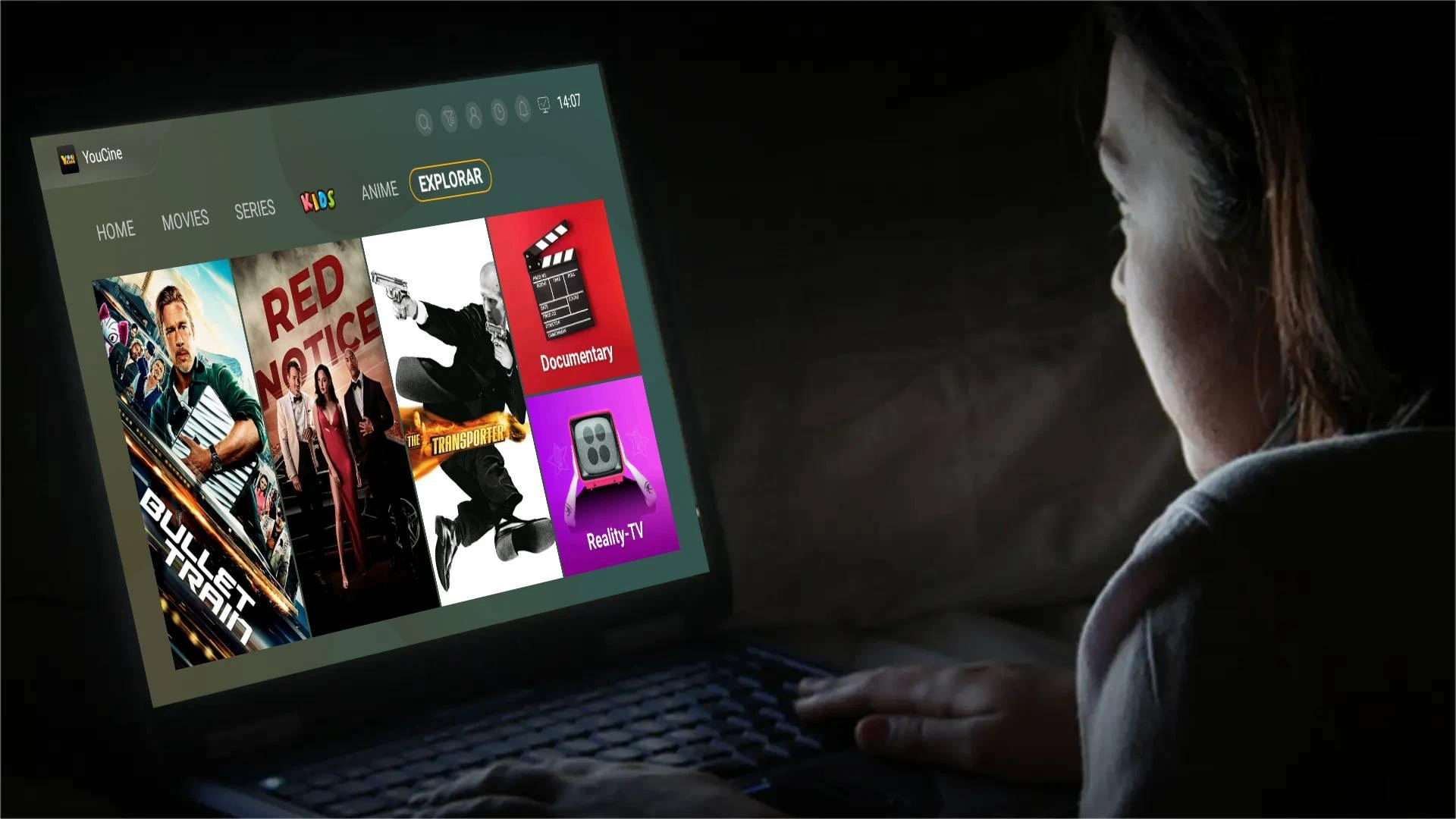

YouCine is a popular streaming app designed to give you a smooth, high-quality entertainment experience on the big screen. Whether you’re using an Android TV, Fire TV Stick, or a TV Box, installing YouCine is simple — and you don’t need any complicated tools.
Before starting, make sure your TV or device supports Android apps. This guide will walk you through the entire installation process step by step, so even if you’ve never sideloaded an app before, you can follow along easily.

Step 1 — Check If Your TV Supports Android Apps
Before downloading anything, make sure your TV can actually run Android apps.
YouCine works best on devices such as:
Android Smart TVs (Sony, Philips, TCL, etc.)
TV Boxes (Xiaomi Mi Box, NVIDIA Shield, etc.)
Amazon Fire TV Stick (using Downloader app)
Step 2 — Enable “Unknown Sources” on Your TV
By default, most TVs block apps from outside the official app store. To install YouCine, you’ll need to enable “Unknown Sources” — this simply gives your device permission to install the APK file manually.
Here’s how to do it on most Android TVs:
1. Go to “Settings” on your TV.
2. Select “Security & Restrictions” or “Apps & Permissions” (the name may vary).
3. Find “Unknown Sources” and turn it ON for the app you’ll use to download (e.g., Downloader or File Manager).
Step 3 — Use Downloader or a Browser to Get YouCine
Once your TV is ready, it’s time to download the YouCine APK. The easiest way to do this on most devices is by using the Downloader app from AFTVnews — a trusted and lightweight tool.
Option 1: Using Downloader (Recommended)
1. Open the Play Store or Amazon Appstore on your TV.
2. Search for “Downloader by AFTVnews.”
3. Install and launch the app.
4. In the URL bar, type one of the following short codes:
Mobile version: 7387461
TV version: 6673506
5. Press “Go” and wait for the file to finish downloading.
Tip: These short codes make it faster to access the official download page without typing a long URL.
Option 2: Using a USB Drive (Alternative)
If your TV doesn’t allow Downloader or browsers, you can:
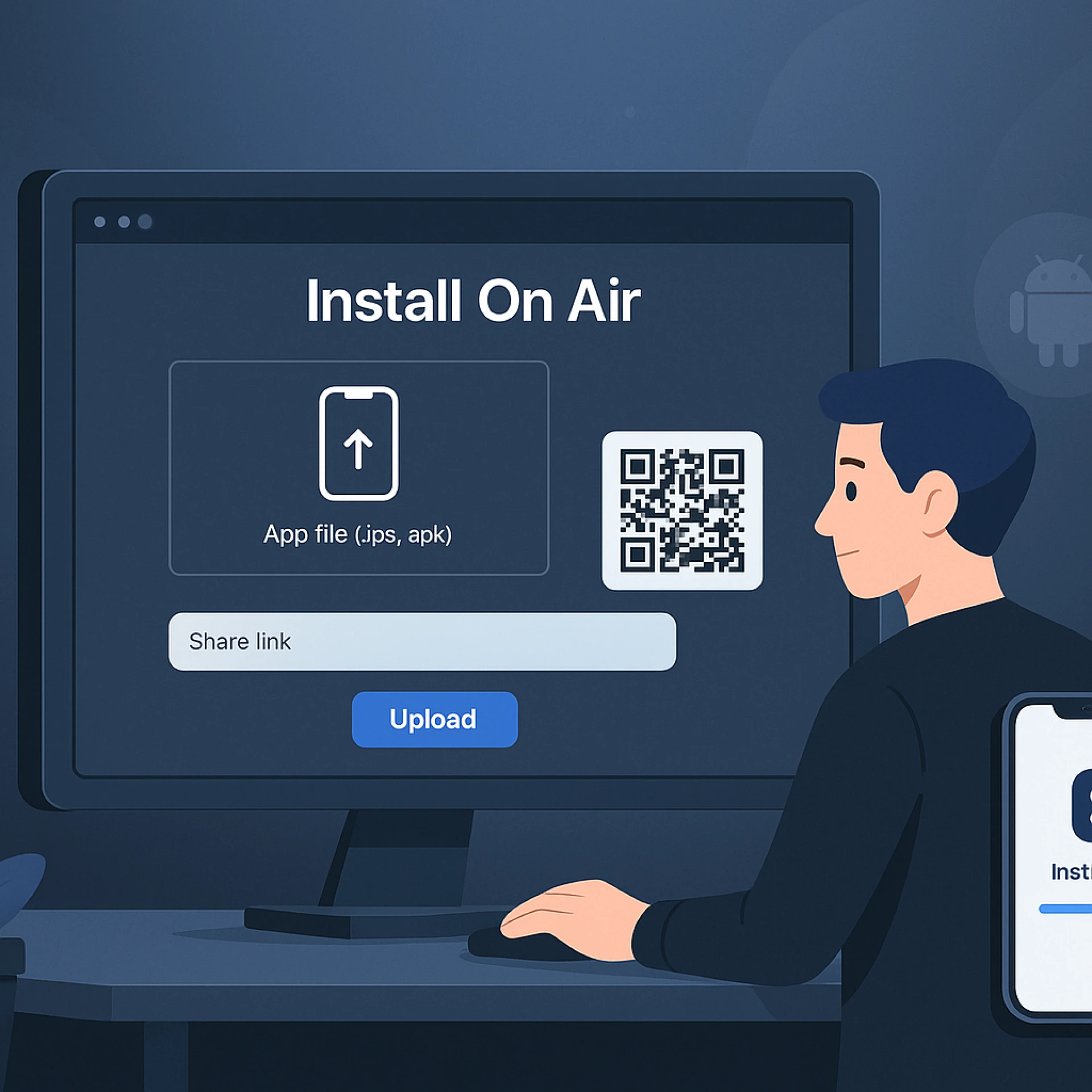
1. Download the YouCine APK on your computer or phone.
2. Copy the file to a USB drive.
3. Plug the USB into your TV.
4. Open a file manager on your TV to locate and open the APK.
This method works well for TVs with limited app store access.
Step 4 — Install the APK File
Once the APK file finishes downloading, you can install it directly on your TV. The process is simple and only takes a few seconds.
1. When the download is complete, a prompt will appear on the screen.
2. Select “Install” to begin the installation.
3. Wait for the process to finish — this usually takes less than a minute.
4. After installation, select “Open” to launch YouCine immediately, or “Done” to return to your home screen.
If you don’t see the app right away, go to Home → Apps or App List to find YouCine. You can also pin it to your home screen for easier access.
Start Streaming with YouCine Today
You’ve completed all the steps — your TV is now ready to stream with YouCine. Whether you’re watching movies, series, or live channels, the TV version of YouCine is built to give you a smooth and easy viewing experience.



















Sign in to leave a comment.