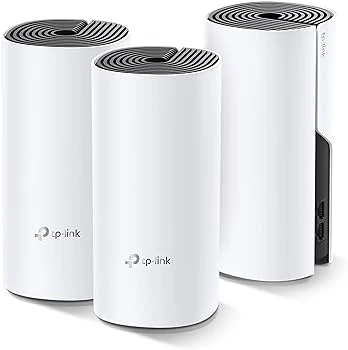

Setting up your Deco Mesh WiFi system is quick and easy—it only takes a few minutes. In this guide, you’ll learn how to connect your Deco system to your home modem and establish a reliable mesh network throughout your home.
Start by connecting the Deco router to your home modem using an Ethernet cable. Place the router close to the modem, locate the LAN port on the modem, and plug the Ethernet cable into it. Then, connect the other end to any available port on the Deco router. Once everything is connected, power on both devices.
After establishing the physical connection between your Deco router and modem, you can proceed with the setup using one of two methods: through the Deco mobile app or the Deco web interface.
Deco Setup through Deco App
Download Deco App
Go into the Play Store or App Store of your phone. Search for TP-Link Deco app and tap download button.
Access Deco App
Open and access the Deco app in your phone via TP-Link account credentials. If you don’t have the credentials, tap Set Up New Deco. Choose the location you have placed the Deco router. Then, enter the new WiFi name and password.
Finish Deco Setup
Tap SAVE and Continue Button. Now, the app will search for a new update, if latest firmware version is available, tap INSTAL. After that, you can add more Deco units by taping ADD NEW DECOS.
Deco Setup via Web-Interface
Reach Login Interface
- Link a PC or laptop with the Deco router network via Ethernet cable.
- Go into the browser and enter tplinkdeco.net or IP address 192.168.1.1 in the address bar.
- Deco login page displays on the PC.
Access the Interface
- On the login page, you have to enter the admin username and password.
- The default admin username and password are given on the router’s back label.
- Enter the credentials and click LOGIN button to access the interface.
Complete the Deco Setup
- Inside the interface, select the location of the router where you have power it on.
- Then, choose the security type for the Deco network.
- On the next page, type in the new WiFi username and password.
- SAVE the Settings and skip the Update if you want.
- Then, Deco will restart itself to apply the settings.
Hopefully, you setup Deco mesh WiFi with the help of above given methods with instructions. If you are facing any problems, use these below given troubleshooting tips and solutions that will help you solve any network problem.
Troubleshooting Tips and Solutions
Reboot Deco Mesh System
By Rebooting the device, the network will refresh and clear the bugs out from the device hardware and software. To restart the device, just turn it off and on once via pressing the Power button twice.
Update Firmware First
To update the Deco mesh system firmware:
- Access Deco app in your phone via TP-Link account credentials.
- Select Menu tab and go into the firmware tab by scrolling down.
- Tap Check New Updates. If the latest firmware update is available then choose UPDATE.
- After a few minutes, the update will finish and the Deco device will reboot itself to apply the new features of the update.
Reset the Deco Router
Resetting the Deco will delete all the settings adjustment and data stored in the device. To reset the device,
- Locate the RESET button at the router’s back.
- Push and hold it for 10 seconds.
- The reset process starts and will end in a few minutes.
- Then you should re-configure the Deco mesh network from the Deco app or Deco login interface.
The Conclusion
There are two methods that you can complete the Deco setup with the help of your phone and computer. We have explained both of the methods. With the setup, we have provided simple troubleshooting tips to apply at the end of the article.

























Sign in to leave a comment.