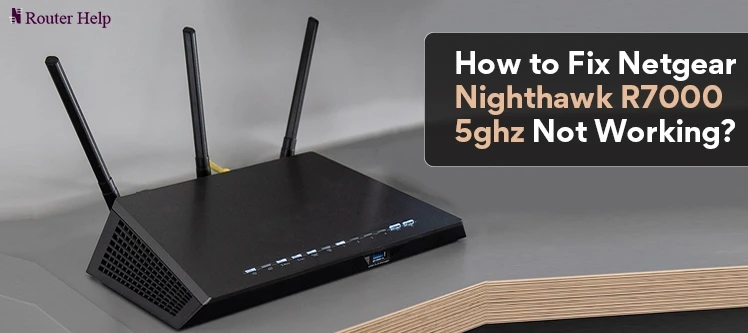

The Netgear Nighthawk R7000 is a powerful and popular wireless router known for its excellent performance and advanced features.
However, some users may encounter issues with the 5GHz frequency band not working properly. In this article, we will provide you with a troubleshooting guide to help you resolve the Netgear Nighthawk 5g Not working and get your network back up and running smoothly.nding the Netgear Nighthawk R7000 5GHz Connectivity Issue
Before diving into the troubleshooting steps, it’s important to understand the potential causes behind the 5GHz connectivity problem. Here are a few common factors that can lead to this issue:
1. Interference: Interference from other electronic devices, such as cordless phones, baby monitors, or neighboring Wi-Fi networks, can disrupt the 5GHz signal and cause connectivity problems.
2. Firmware Issues: Outdated or corrupted firmware can impact the performance of the 5GHz band. Updating the router’s firmware can often resolve such issues.
3. Wireless Channel Congestion: If multiple devices in your vicinity are using the same wireless channel, it can result in interference and degrade the 5GHz signal quality.
Troubleshooting Steps to Fix Netgear Nighthawk R7000 5GHz Not Working
Now let’s explore the step-by-step troubleshooting process to address the Netgear Nighthawk R7000 5GHz connectivity issue:
1. Check Hardware Connections and Placement
Ensure that all cables connecting the router to your modem and power source are securely plugged in. Additionally, make sure the router is placed in an open area, away from obstructions, walls, or other objects that may block the signal.
2. Update Firmware
Access the Netgear router’s administration interface by typing its IP address (usually 192.168.1.1) into a web browser.
Navigate to the firmware update section and check if there are any available updates. If updates are available, follow the instructions to update the firmware to the latest version.
3. Adjust Wireless Channel
Access the router’s administration interface as mentioned in the previous step.
Navigate to the wireless settings and change the wireless channel for the 5GHz band. Select a channel that is less congested and has minimal interference from other networks in your vicinity.
4. Check for Interference
Identify any potential sources of interference near the router, such as cordless phones, baby monitors, or microwave ovens. Temporarily move these devices away from the router to see if it improves the 5GHz signal.
5. Reset the Router
If none of the above steps resolve the issue, you can try performing a factory reset on your Netgear Nighthawk R7000 router.
This will restore the router to its default settings and may help resolve any persistent configuration issues. Note that a factory reset will erase any customized settings, so make sure to backup your configuration beforehand.
6. Contact Netgear Support
If you have followed all the troubleshooting steps and the 5GHz connectivity issue persists, it is recommended to reach out to Netgear customer support for further assistance.
They can provide additional troubleshooting guidance specific to your router model and help you resolve the issue.
Conclusion
Experiencing connectivity issues with the 5GHz frequency on your Netgear 5g not working can be frustrating, but with the troubleshooting steps outlined in this guide, you should be able to resolve the problem.
By checking hardware connections, updating firmware, adjusting wireless channels, identifying interference sources, and performing a factory reset if needed, you can restore the 5GHz functionality and enjoy fast and reliable wireless connectivity. If all else fails, don’t hesitate to seek support from Netgear’s customer service team for expert assistance.

























Sign in to leave a comment.