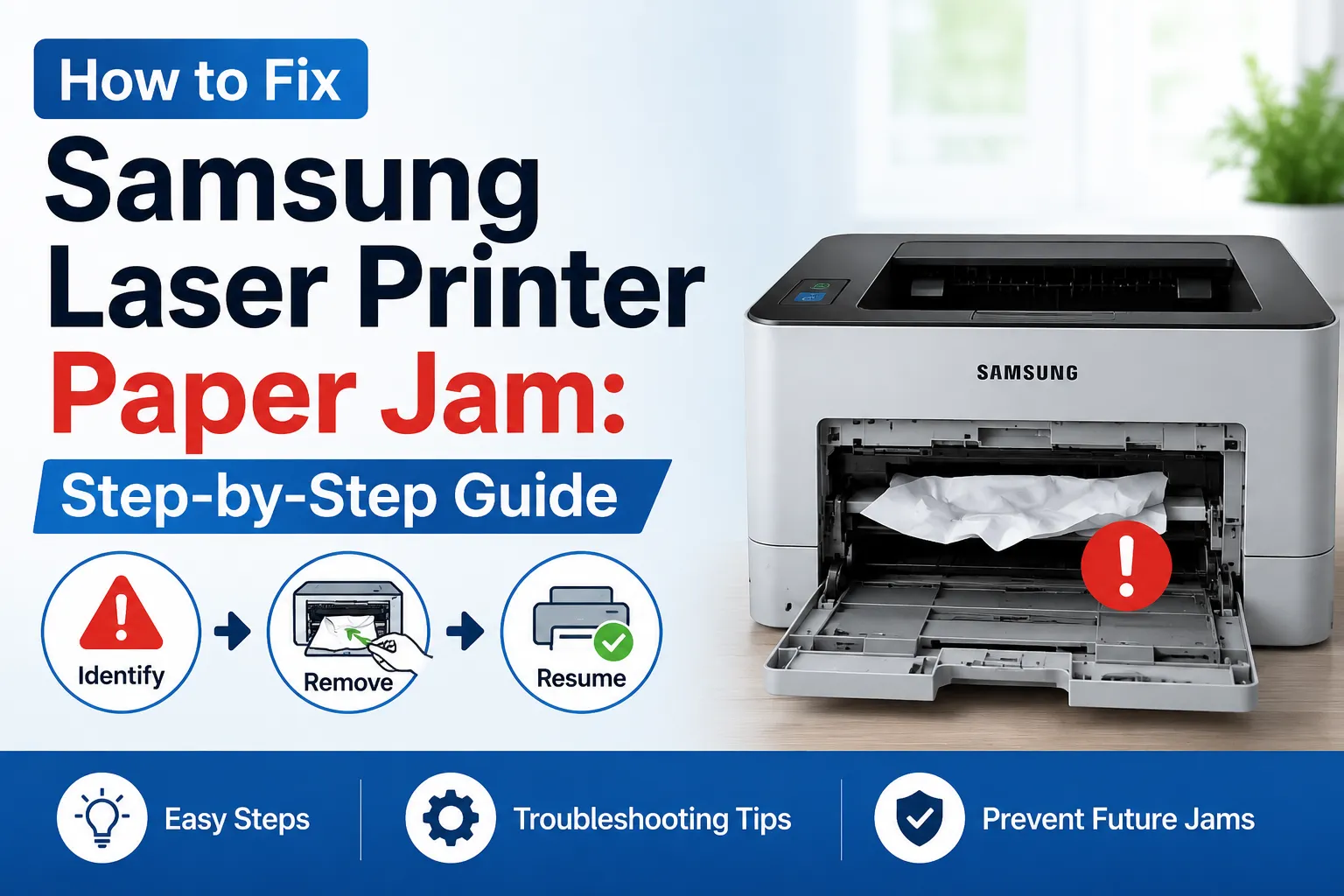

Dealing with a Samsung laser printer paper jam is one of the most frustrating experiences for any printer user — especially when you're in the middle of an important print job. The good news is that most paper jam issues can be resolved at home without any professional help. This comprehensive guide walks you through every fix, from basic checks to advanced solutions, so you can get back to printing as quickly as possible.
Why Do Paper Jams Happen?
Before diving into fixes, understanding the root cause helps prevent future jams. A Samsung printer paper jam can occur due to:
- Incorrectly loaded paper
- Worn or dirty paper feed rollers
- Wrong paper size or type
- Debris or foreign objects inside the printer
- Overfilled paper tray
Now let's walk through the complete step-by-step process to fix it.
Step 1: Don't Force the Paper Out
The moment you notice a Samsung printer jam, your first instinct might be to yank the paper out forcefully. Resist that urge. Pulling paper out too quickly can tear it, leaving small pieces deep inside the printer that cause repeated jams later.
Instead:
- Turn off the printer immediately
- Wait 2–3 minutes for internal components to cool down
- Open all access doors slowly and carefully
- Look for the paper before pulling anything
Patience at this stage saves you a lot of trouble later.
Step 2: Check the Paper Tray First
Start from the most obvious place — the paper tray. Remove all the paper from the tray and check for any sheets that are bent, torn, or stuck together. A common Samsung printer paper jam problem is caused simply by using paper that's too thin, too thick, or slightly damp.
When reloading paper:
- Fan the stack of paper before placing it in the tray
- Make sure the paper guides are snug but not too tight
- Never overfill the tray beyond the maximum line
- Use the paper type and size recommended in your printer manual
Step 3: Remove Jammed Paper from Inside the Machine
If the jam isn't visible from the tray, you'll need to look deeper. A Samsung printer paper jam inside the machine is more common than people think and requires accessing the rear or interior panels.
Here's how:
- Open the rear output tray or the back cover of your printer
- Look for any crumpled or folded paper
- Grip the paper with both hands and pull slowly and evenly in the direction of paper travel
- Never pull paper backward — always pull it forward in the direction it feeds
- Close all panels firmly after removing the jam
If you see torn pieces of paper, use tweezers to carefully remove every fragment.
Step 4: Fix the "No Paper" Jam Error
One of the most confusing situations is when you get a Samsung printer paper jam, but no paper is visible anywhere. This usually means:
- A tiny torn piece of paper is stuck inside a sensor
- The paper sensor itself is dirty or faulty
- The feed rollers are worn, triggering a false jam signal
To fix this:
- Use a flashlight to inspect all paper paths thoroughly
- Clean the paper feed rollers with a lint-free cloth lightly dampened with water
- Blow compressed air gently into the paper path to dislodge hidden debris
- Run a printer cleaning cycle from the printer's control panel if available
Step 5: Fix a Printer That Keeps Jamming Repeatedly
If your Samsung printer keeps jamming every few prints, the issue is likely ongoing and mechanical rather than a one-time paper problem.
Common causes and fixes:
- Dirty rollers — Clean them with a damp cloth regularly
- Worn rollers — Replace the paper pickup roller kit (available from Samsung or third-party suppliers)
- Wrong paper — Switch to a higher quality, standard-weight paper (75–90 gsm recommended)
- Humidity — Store paper in a dry place; damp paper curls and jams frequently
- Toner issues — A nearly empty or improperly seated toner cartridge can also cause repeated jams
Fixing the root cause stops the cycle of repeated jams permanently.
Step 6: Do a Samsung Printer Jam Fix Through Software
Sometimes the jam has been physically cleared, but your printer still shows a jam error on the screen. Here's how to do a proper Samsung printer jam fix through software:
- Turn the printer off completely and unplug it from the power source
- Wait at least 60 seconds
- Plug it back in and power it on
- If the error persists, go to your computer's Devices and Printers
- Right-click your Samsung printer → "See what's printing."
- Cancel all pending print jobs
- Restart the Print Spooler service from Windows Services
This clears any error state the printer is stuck in after a jam.
Step 7: Set Up Your Samsung Printer Correctly to Prevent Future Issues
Believe it or not, many recurring paper jam problems are linked to improper printer setup. A correct Samsung printer setup ensures the printer communicates properly with your system and handles print jobs efficiently without errors.
If you haven't set up your printer properly yet, here's a quick overview:
For Wireless Setup: To complete your Samsung printer wifi setup, follow these steps:
- On your printer's control panel, navigate to Network Settings
- Select Wireless Setup Wizard
- Choose your WiFi network and enter the password
- Wait for the confirmation light or message
To connect a Samsung printer to the network successfully, make sure your router is broadcasting on 2.4GHz, as many Samsung laser printers don't support 5GHz bands.
For Mobile Printing: To add a printer to a Samsung phone, download the Samsung Mobile Print app from the Google Play Store or App Store. Make sure your phone and printer are on the same WiFi network, then follow the in-app instructions.
To fully connect the Samsung printer to all your devices, use the Samsung Easy Printer Manager software on your computer — it handles drivers, network configuration, and settings in one place.
For a complete Samsung printer setup wireless experience, always install the latest drivers from Samsung's official website after completing the network connection.
Final Thoughts
Paper jams are annoying, but they're rarely a sign of serious printer damage. By following each step in this guide — from carefully removing jammed paper to setting up your printer correctly — you can resolve the issue and prevent it from happening again.
If you've tried everything and the problem persists, the team at Printer IT Help is available 24/7 to provide remote support for all Samsung printer issues — quickly, professionally, and affordably.



























Sign in to leave a comment.