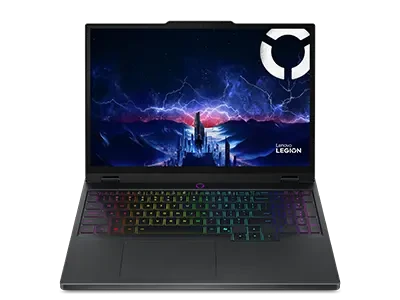

Gaming laptops deliver powerful performance that supports modern titles real time rendering and competitive play. However strong performance also creates heat and heat can reduce speed when you do not manage it well.
Thermal throttling happens when your processor or graphics unit slows down to protect itself from high temperature. As a result your frame rates drop and your system feels unstable during important tasks.
Many businesses, creative teams and serious gamers invest in the best laptops for gaming because they expect reliable speed under heavy workloads. Therefore proper maintenance becomes a responsibility not an option. When you maintain your system with care you protect both performance and long term value.
With the right habits and regular checks you can prevent thermal throttling and keep your gaming laptop running at peak performance every single day.
1. Clean Your Cooling System Regularly
Dust builds up slowly yet it blocks airflow inside your laptop. As airflow reduces heat stays trapped around the CPU and GPU. Over time this trapped heat forces the system to throttle performance.
You should clean the cooling vents and fans every few months. Use compressed air to remove dust from air vents. Also open the back panel carefully if you feel confident and clean internal fans gently.
When you remove dust from the vents and internal fans you improve airflow efficiency across the cooling system. As a result the heat sink and cooling fans operate at optimal capacity and maintain stable thermal conditions.
The best laptops for gaming rely on unrestricted airflow to sustain consistent CPU and GPU clock speeds under heavy workloads. Therefore, regular internal cleaning strengthens thermal performance, protects component health and ensures steady high level performance during extended gaming sessions.
2. Replace Thermal Paste When Needed
Thermal paste sits between the processor and the heat sink. It helps transfer heat away from the chip. However thermal paste dries out after long use. When it dries heat transfer becomes weak and temperature rises quickly.
You should replace thermal paste every one to two years depending on usage. If your laptop runs hot even after cleaning then old thermal paste may cause the issue.
Fresh thermal paste improves heat transfer. As a result your processor maintains higher performance without sudden slowdowns. Many professionals who test the best laptops for gaming always monitor thermal paste health because strong cooling supports stable benchmark results. Therefore this simple upgrade can bring noticeable temperature improvement.
3. Use a Cooling Pad for Better Airflow
Gaming laptops generate heat from the bottom panel. Therefore placing the laptop on a flat hard surface improves airflow. However adding a cooling pad provides extra support.
Why a Cooling Pad Helps
A cooling pad offers these benefits
- It increases airflow under the laptop
- It reduces surface temperature during long sessions
- It supports better posture and typing angle
- It prevents heat buildup on desks
When you combine internal cooling with external airflow you reduce thermal stress. As a result your system maintains stable frame rates during extended gameplay. Even users of the best laptops for gaming often use cooling pads in esports setups because consistent temperature ensures consistent performance.
4. Update Drivers and BIOS Regularly
Software also plays a key role in temperature control. Graphics drivers often include thermal management improvements. Similarly BIOS updates adjust fan curves and power settings.
You should check for updates from your laptop manufacturer website. Install stable updates that improve system performance and cooling behavior.
When drivers stay updated your GPU manages workloads more efficiently. As a result it generates balanced heat instead of sudden spikes. Updated BIOS settings also improve fan response time. Therefore your cooling system reacts faster when temperature rises. This proactive step keeps your gaming laptop reliable under heavy loads.
5. Optimize Power Settings for Performance Balance
Many users select maximum performance mode without understanding its impact. While performance mode increases speed it also increases heat output.
Instead you should create a balanced power profile. Adjust processor power limits slightly if you notice constant overheating. You can also enable advanced cooling mode from your system control software.
Smart Power Management Tips
- Set balanced mode during casual tasks
- Use performance mode only for demanding games
- Monitor CPU and GPU temperature during gameplay
- Limit background applications that consume resources
When you manage power wisely you reduce unnecessary stress on internal components. As a result your laptop runs cooler while still delivering strong gaming performance. Even the best laptops for gaming perform better when users control workload distribution carefully.
6. Keep Air Vents Clear During Use
Your laptop needs open space to breathe. However many users place laptops on beds, couches or soft surfaces. Soft materials block vents and trap heat inside the system.
Always use your gaming laptop on a hard flat surface such as a desk. Ensure that rear and side vents remain uncovered. If you connect external monitors then arrange cables in a way that does not block airflow.
Clear ventilation allows fans to push hot air out efficiently. As a result internal temperature remains stable. Thermal throttling often begins due to blocked airflow rather than hardware weakness. Therefore simple awareness during daily use can prevent long term performance issues.
7. Monitor Temperature and Performance Metrics
You cannot fix what you do not measure. Therefore temperature monitoring tools help you track CPU and GPU heat levels in real time.
Install reliable monitoring software and observe temperature during gaming sessions. Most gaming laptops operate safely within specific thermal ranges. If temperature crosses safe limits frequently then you must take corrective steps quickly.
Regular monitoring helps you
- Detect overheating early
- Identify sudden temperature spikes
- Compare performance before and after maintenance
- Maintain consistent gaming experience
Users who invest in the best laptops for gaming often track performance metrics during benchmarking and gameplay testing. When you follow similar practices you maintain long term stability. Monitoring builds awareness and awareness leads to smart maintenance decisions.
Conclusion
Your gaming laptop works hard to deliver immersive visuals, fast rendering and competitive speed. Therefore you must support it with consistent care and smart habits. When you clean the cooling system, update drivers, monitor temperature and manage airflow you prevent thermal throttling before it begins. Each step may seem simple yet together they create strong long term protection.
Even the best laptops for gaming depend on responsible maintenance to sustain peak performance. Hardware power alone cannot solve overheating without proper care. When you treat your system with attention and respect it rewards you with smooth gameplay and reliable speed every time you power it on.
Strong performance begins with strong maintenance. When you commit to these seven practices you protect your laptop and you protect your gaming experience.



























Sign in to leave a comment.