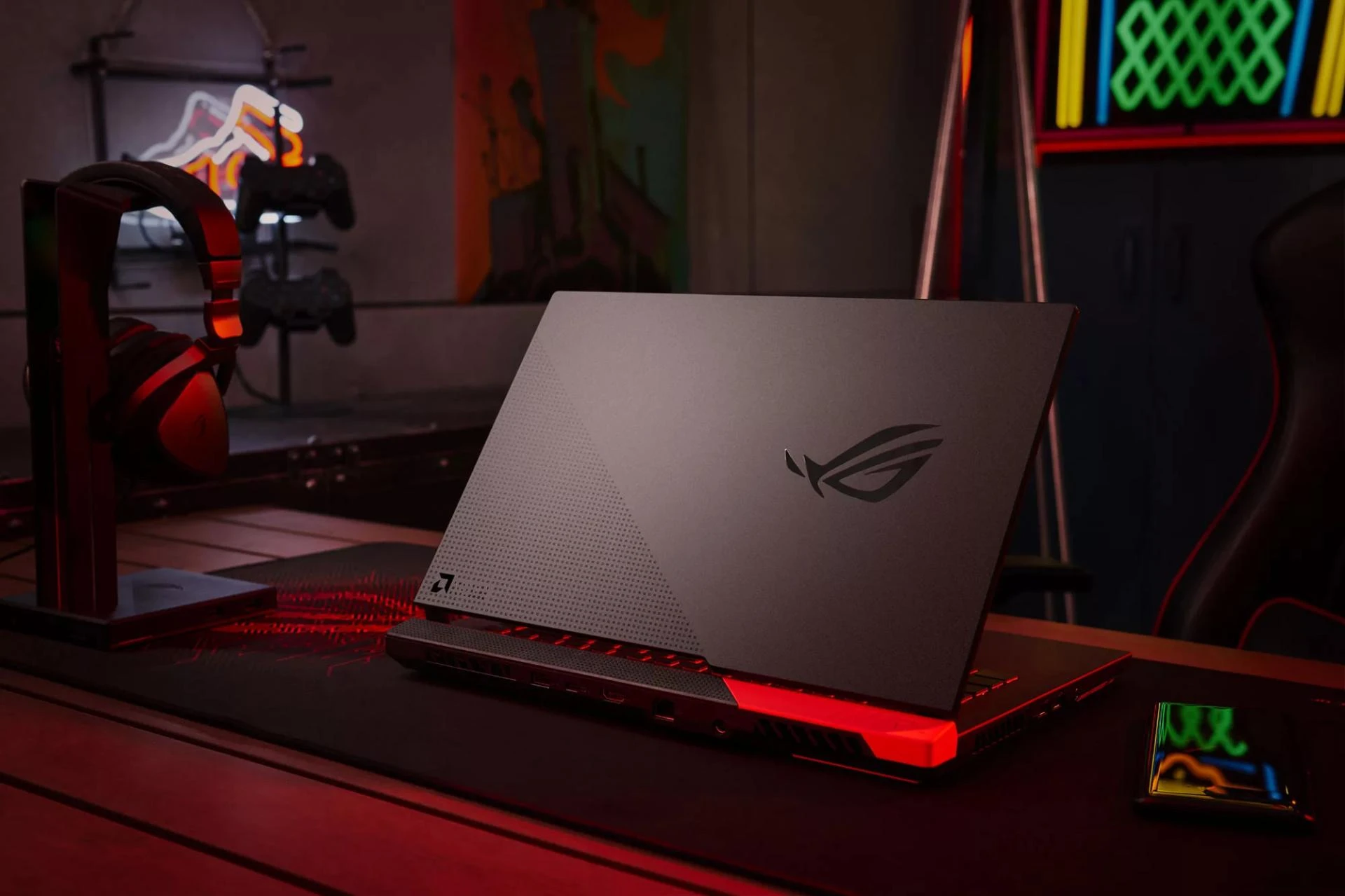

How to Overcome Overheating Issues in Your Gaming Laptop? Gaming laptops are powerful machines that can deliver an immersive gaming experience, but they often grapple with a common adversary: overheating. The intense graphics and processing demands of modern games can push a gaming laptop's thermal limits. In this user-friendly guide, we will explore effective techniques and tips on how to combat overheating issues in your gaming laptop, ensuring smoother and cooler gaming sessions. If you have pink gaming laptops then this article is for you, So keep reading!
1. Understanding the Causes of Overheating
Before we dive into solutions, let's first understand why gaming laptops tend to overheat. The primary culprits include:
Intensive Graphics Processing: Modern games often push graphics cards to their limits, generating significant heat.Inadequate Cooling: Gaming laptops have compact designs, which can limit airflow and cooling capabilities.Dust Buildup: Dust can accumulate inside your laptop, insulating components and increasing temperatures.Ambient Temperature: The temperature of the room you're in can impact your laptop's cooling efficiency.2. Invest in a Cooling Pad
One of the simplest and most effective solutions to combat overheating is to invest in a cooling pad. These pads come equipped with fans that provide additional cooling and airflow to your laptop. Place your gaming laptop on the cooling pad, and you'll notice a considerable drop in temperature during long gaming sessions.
3. Elevate Your Laptop
Elevating the rear of your gaming laptop can significantly improve airflow, allowing heat to dissipate more effectively. You can use purpose-built laptop stands or improvise with household objects to achieve the desired angle.
4. Optimize In-Game Settings
Adjusting in-game settings can alleviate the strain on your gaming laptop's hardware and reduce heat generation. Lowering graphics settings, resolution, and disabling resource-intensive features like anti-aliasing can make a substantial difference in temperature.
5. Clean Your Laptop Regularly
Dust accumulation inside your laptop can hinder airflow and cooling efficiency. Periodically clean your laptop's vents and fans with compressed air. You can do this yourself or seek professional assistance if you're uncomfortable opening your laptop.
6. Use a Thermal Paste
Over time, the thermal paste that transfers heat from your laptop's components to the cooling system can degrade. Reapplying high-quality thermal paste can help improve heat transfer and reduce temperatures. This procedure is best performed by experienced individuals or technicians.
7. Manage Background Processes
Close unnecessary background processes and applications while gaming. These programs can use CPU and RAM resources, contributing to overheating. Use the Task Manager to monitor and close resource-intensive processes.
8. Update Drivers
Ensure your graphics card and other hardware drivers are up-to-date. Manufacturers often release driver updates that can improve hardware efficiency and reduce heat generation.
9. Adjust Power Settings
In your laptop's power settings, you can choose performance modes that regulate CPU usage and power consumption. Consider using a balanced or power-saving mode while gaming to reduce heat buildup.
10. Control Room Temperature
Your gaming laptop's cooling efficiency can also depend on the ambient room temperature. Playing games in a cooler room can help prevent overheating. Consider using fans or air conditioning to maintain a comfortable gaming environment.
11. Limit Multitasking
Avoid running multiple resource-intensive applications simultaneously while gaming. For example, streaming, video editing, and gaming all at once can tax your laptop's resources and lead to overheating.
12. Undervolt Your CPU/GPU
Undervolting your CPU and GPU involves lowering the voltage supplied to these components. This can reduce heat output without sacrificing performance. There are software tools available for safely undervolting your laptop.
13. Consider a Repasting Job
If you're comfortable with advanced DIY laptop maintenance, you can consider repasting your CPU and GPU. This involves replacing the thermal paste with a high-quality alternative, which can significantly improve cooling efficiency.
14. Use Cooling Software
Several third-party cooling software solutions are available that allow you to manually adjust fan speeds and monitor temperature. These tools can help you keep a close eye on your laptop's thermal performance.
15. Laptop Stand with Built-in Cooling Fans
Some laptop stands come equipped with built-in cooling fans. These stands not only elevate your laptop but also provide additional cooling airflow.
16. External Cooling Fans
In addition to using a cooling pad, you can also invest in external USB cooling fans. These fans can be placed near your laptop's intake vents to provide extra cooling.
17. Regularly Update Firmware
Check for firmware updates from your laptop's manufacturer. These updates can sometimes include improvements to the laptop's thermal management system.
18. Optimize Background Processes
Ensure that your laptop is not running unnecessary background processes or applications while gaming. Close any apps or programs that you're not actively using to free up system resources.
19. Adjust Windows Power Settings
In Windows, you can adjust power settings to prioritize performance or power savings. Choosing a balanced or power-saving mode while gaming can help reduce heat generation.
20. Keep Your Laptop Clean
Regularly clean your laptop's exterior and vents to prevent dust buildup. Dust can obstruct airflow and cause overheating.
21. Monitor Your Laptop's Temperature
Use software tools to monitor your laptop's temperature while gaming. This can help you identify when it's getting too hot and take appropriate action.
22. Optimize In-Game Settings
Lowering the in-game graphics settings can reduce the strain on your laptop's hardware and lower temperatures.
23. Avoid Gaming on Soft Surfaces
Gaming on soft surfaces like beds or couches can block airflow and cause overheating. Use a hard, flat surface for gaming to ensure proper ventilation.
24. Upgrade Your Laptop's Cooling System
If you're comfortable with hardware upgrades, you can consider upgrading your laptop's cooling system. This might involve replacing fans or adding additional cooling components.
25. Keep Your Laptop Elevated
Elevating the rear of your laptop can improve airflow and cooling. You can use a purpose-built laptop stand or improvise with household objects.
26. Install a Cooling Software
There are several third-party cooling software options available that allow you to control fan speeds and monitor temperature. These programs can help you fine-tune your laptop's cooling.
27. Check for Background Processes
Close any background processes or applications that are using significant CPU or GPU resources while gaming. This can help reduce heat generation.
28. Repaste the CPU and GPU
If you're comfortable disassembling your laptop, consider repasting the CPU and GPU with fresh thermal paste. This can improve heat transfer and cooling efficiency.
29. Upgrade Your Laptop's Cooling System
If your laptop allows for it, you can upgrade the cooling system by replacing fans or adding additional cooling components.
30. Consider External Cooling Solutions
External cooling solutions, such as laptop cooling pads and external fans, can provide additional cooling to your gaming laptop.
Conclusion
Overheating is a common challenge for gaming laptops, but with the right strategies and precautions, you can keep your laptop running cool and efficiently during intense gaming sessions. Whether you opt for hardware upgrades, cooling accessories, or software optimizations, implementing these techniques will help you enjoy smoother and cooler gaming experiences with your laptop. Remember to regularly monitor your laptop's temperature and perform maintenance to ensure its longevity and performance.


























Sign in to leave a comment.