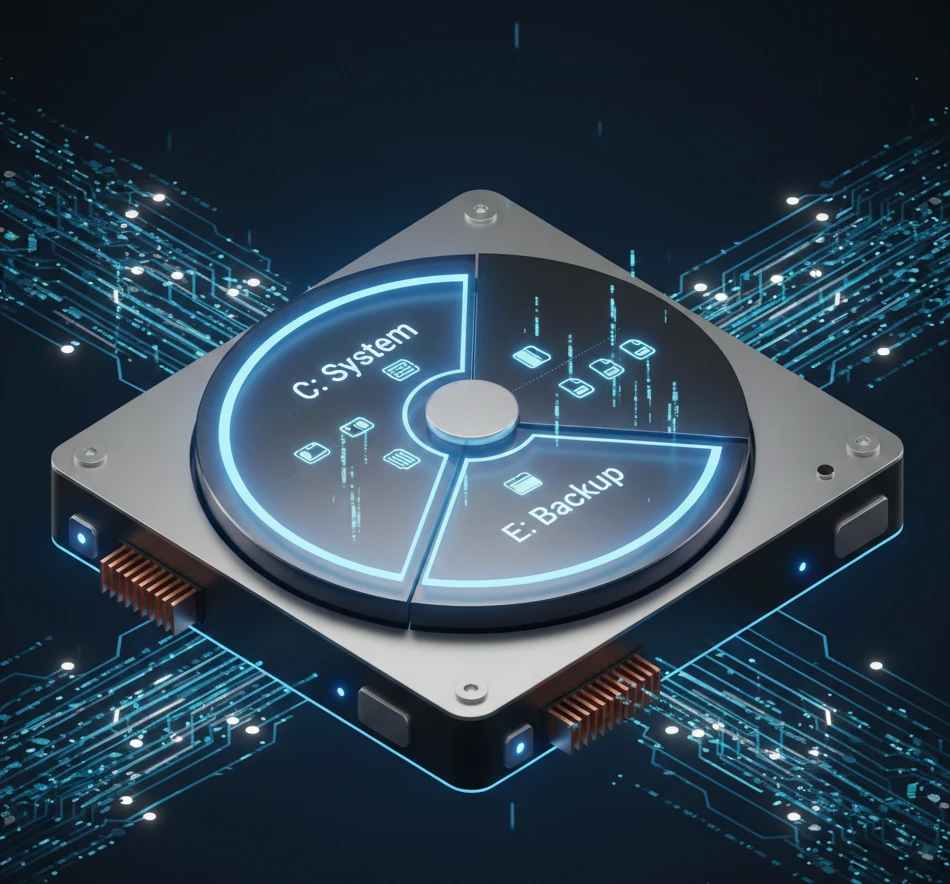

If your computer feels cluttered, disorganized, or constantly low on space, you’re not alone.
Most Windows 10 users store everything on a single C: drive system files, documents, games, software, downloads all mixed together.
That’s where learning how to partition drive Windows 10 becomes incredibly useful.
Partitioning allows you to divide your hard drive into separate sections so you can organize files better, protect important data, and even prepare for system reinstallations without losing everything.
The best part? You don’t need to be a tech expert to do it.
In this complete guide, I’ll walk you through everything in simple, practical terms so you can safely partition your drive with confidence.
What Does It Mean to Partition Drive Windows 10?
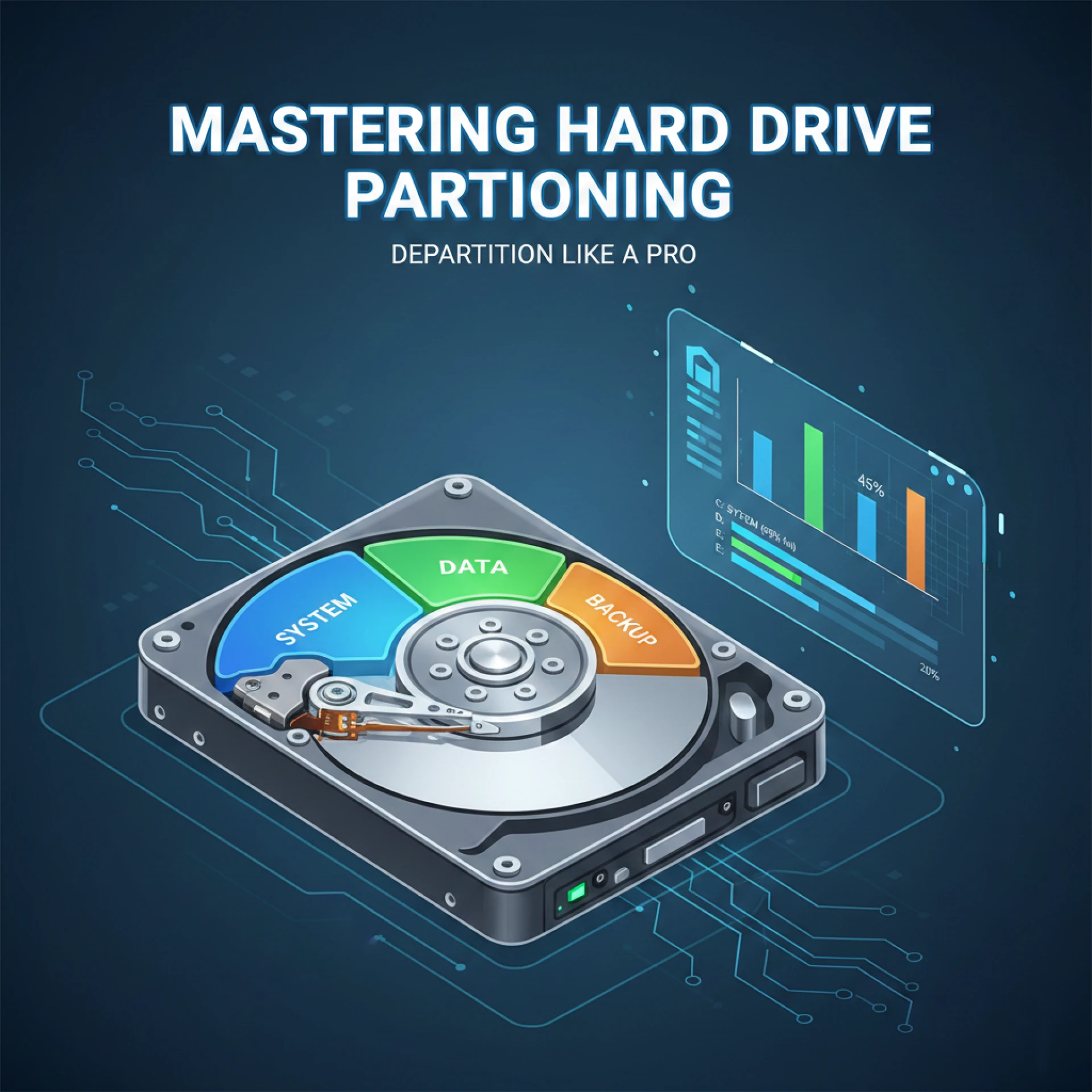
When you partition a drive, you divide one physical hard disk (or SSD) into multiple logical sections.
Each partition:
- Gets its own drive letter (like D:, E:)
- Works like a separate storage unit
- Can store different types of data
Even though it's physically one disk, Windows treats each partition as independent.
For example:
- C: → Windows & system files
- D: → Personal documents
- E: → Games or media
This structure makes your computer cleaner, safer, and easier to manage.
Why You Should Partition Your Drive
Many people only think about partitioning when something goes wrong. But smart users do it in advance.
Here’s why.
1. Protect Your Personal Files
If Windows crashes and you need to reinstall it, only the system partition (C:) gets formatted. Your D: drive with personal files remains safe.
2. Better Organization
Instead of mixing work files, movies, and system folders, you keep everything structured.
3. Easier Backup
You can back up just your data partition instead of the entire drive.
4. Ideal for Dual Boot Systems
If you plan to install Linux alongside Windows, you must partition drive Windows 10 first.
Before You Partition: Important Preparation Steps
Partitioning is safe but preparation prevents problems.
✔ Back Up Important Files
Even though Windows tools are reliable, unexpected power loss or system errors can cause data loss.
✔ Check Free Space
You can only create a new partition from unused space. Make sure your C: drive has enough free storage to shrink.
✔ Close All Running Programs
This prevents system interruptions while resizing.
How to Partition Drive Windows 10 Using Built-In Tools
Windows 10 includes a built-in tool called Disk Management. You don’t need any extra software.
Let’s go step by step.
Step 1: Open Disk Management
- Right-click the Start button
- Click Disk Management
You’ll see a visual layout of your disk and partitions.
Step 2: Shrink the Existing Partition
To create a new partition, you must free up space.
- Right-click on the C: drive
- Select Shrink Volume
- Enter how much space you want to shrink (in MB)
- Click Shrink
After this, you’ll see “Unallocated Space” appear.
Step 3: Create a New Partition
- Right-click the Unallocated Space
- Select New Simple Volume
- Follow the wizard
- Assign a drive letter (like D:)
- Choose NTFS as the file system
- Click Finish
That’s it. You’ve successfully learned how to partition drive Windows 10.
How Much Space Should You Allocate?
This depends on how you use your computer.
Here’s a simple recommendation:
- Windows system partition → Minimum 120GB
- Personal files → Remaining space
- Gaming partition → 200GB or more
Always leave at least 20–25% free space on your C: drive for smooth Windows updates.
Real-Life Use Cases for Partitioning
Let’s make this practical.
Scenario 1: Student Laptop
- C: → Windows & software
- D: → Assignments, projects, PDFs
If Windows needs reinstalling, school files stay safe.
Scenario 2: Office Work PC
- C: → Operating system
- D: → Work documents
- E: → Backup copies
Cleaner workflow and better data safety.
Scenario 3: Gaming Setup
Many gamers partition drive Windows 10 to:
- Keep system drive lightweight
- Install games separately
- Reduce clutter
Can Partitioning Improve Performance?
This is a common myth.
Partitioning does not directly increase speed.
However, it helps by:
- Preventing C: drive overload
- Improving file organization
- Making system maintenance easier
If you want real performance improvement, upgrading to an SSD is far more impactful.
Common Mistakes to Avoid
Shrinking Too Much Space
Leave enough room for Windows updates.
Skipping Backup
Always back up first.
Creating Too Many Partitions
Two or three partitions are usually enough.
Using the Wrong File System
Choose NTFS for Windows 10.
When You Should Not Partition
Partitioning may not be necessary if:
- Your SSD is only 128GB or 256GB
- You rely heavily on cloud storage
- You prefer simple storage management
In small drives, keeping one large partition can be more practical.
Is It Safe to Partition Drive Windows 10?
Yes if done correctly.
Windows Disk Management is stable and widely used. As long as you:
- Follow the steps carefully
- Avoid shutting down during the process
- Back up important files
You should have no issues.
Millions of users partition drive Windows 10 safely every year.
Final Thoughts
Learning how to partition drive Windows 10 gives you control over your storage instead of letting it control you.
It helps you:
- Organize files intelligently
- Protect personal data
- Prepare for system reinstallations
- Improve long-term storage management
The process takes only a few minutes, but the benefits last for years.
If your entire digital life is sitting on one crowded C: drive, now is the time to change that.
Partition smart. Stay organized. Keep your data safe.
Frequently Asked Questions (FAQ)
1. Will partitioning delete my files?
No, shrinking a partition using Disk Management does not delete data. However, always create a backup before making changes.
2. How many partitions should I create?
For most users, two partitions are enough: one for Windows and one for personal data.
3. Can I merge partitions later?
Yes, but you may need to delete one partition first, which will erase its data. Always back up before merging.
4. Is it better to partition SSD or HDD?
You can partition both. The process is identical in Windows 10.
5. Do I need third-party software?
No. Windows Disk Management is sufficient for basic partitioning tasks. Third-party tools are only needed for advanced operations.

























Sign in to leave a comment.