
Learn how to run Stable Diffusion locally or in the cloud in 2026. Compare GPU setups, hosted notebooks, and zero-install platforms to find your best option.
Running Stable Diffusion has gotten easier every year since 2022, but the number of choices you face before generating your first image has only grown. Local install or cloud? ComfyUI or AUTOMATIC1111? Which model, which checkpoint, which sampler?
A freelance designer sees an AI-generated product mockup, opens a setup tutorial, and hits a wall twenty minutes in — wrong Python version, a CUDA driver mismatch, a model file too large for their GPU. That first experience drives most people away before they ever type a prompt.
This guide covers the three practical paths to running Stable Diffusion in 2026, from full local installs to platforms where you skip the setup entirely.
What You Need to Run Stable Diffusion
Stable Diffusion is an open-source image generation model that turns text prompts into images. To run it, you need three things: the model weights (large files, typically 2–7 GB each), a frontend interface to type prompts and control settings, and enough computing power to process the math behind every image. That computing power almost always means a GPU with dedicated video memory, called VRAM.
The more VRAM your GPU has, the larger the images you can generate and the faster they render. If you do not have a dedicated GPU — or yours does not have enough memory — cloud options handle the hardware for you. That is the fork in the road, and the rest of this guide walks each branch.
Option 1: Run Stable Diffusion Locally
Local setup gives you the most control. The models live on your drive, nothing leaves your machine, and after the initial effort, generation is fast and essentially free.
GPU. An NVIDIA card with at least 8 GB of VRAM is the practical minimum for SDXL-class models. The RTX 3060 (12 GB) and RTX 4060 (8 GB) are solid starting points, both available under $300. AMD cards work but have weaker software support for Stable Diffusion workflows. Apple Silicon Macs with 16 GB or more unified memory can run SDXL through ComfyUI's Metal backend — workable, but slower than a midrange NVIDIA card.
Storage. Each model checkpoint is 2–7 GB, and you will accumulate several. Start with at least 30–50 GB of free disk space.
Frontend. The two dominant options in 2026 are ComfyUI and AUTOMATIC1111. ComfyUI uses a node-based canvas that lets you build complex visual workflows — powerful but steeper to learn. AUTOMATIC1111 (A1111) has a simpler form-based web interface that most beginners prefer for their first week. Both are free and open source.
Installation. The typical process: clone the frontend repository with Git, download a model checkpoint from CivitAI or Hugging Face, drop the file into the correct folder, and launch the web UI. First-time setup takes 30–60 minutes if things go smoothly, longer if you run into driver or dependency issues. Popular beginner models include Juggernaut XL for realistic images and Rev Animated for stylized work.
The tradeoff is straightforward: local setup requires upfront time and a capable GPU, but once running, each image costs nothing beyond electricity.
Option 2: Run Stable Diffusion in the Cloud
If you do not have a strong GPU — or you do not want to troubleshoot Python environments and driver updates — cloud services let you run the same models on rented hardware.
Hosted notebooks. Google Colab and Kaggle both offer free-tier GPU access. You open a notebook in your browser, run a few code cells to install the frontend and load a model, and generate images without touching your local machine. Free tiers have session limits and queue waits, but they work for testing. Paid tiers lift most restrictions.
Cloud GPU rentals. Platforms like RunPod and Vast.ai let you rent a virtual machine with a high-end GPU by the hour. You get a full Linux environment, install whatever you want, and pay only for the time you use. Typical rates range from $0.20 to $1.50 per hour depending on GPU tier. This is a good fit for people who want the flexibility of a local environment without buying the hardware.
Browser-based platforms. Some services run image generation models behind a web interface — you type a prompt, pick a model, and get results without writing any code. These vary in quality and model selection, but they eliminate setup entirely.
Cloud options trade control for convenience. You depend on someone else's infrastructure and pricing, but you skip every installation step.
Option 3: Use a Zero-Setup Image Generator
For users who want images and do not want to manage infrastructure, the fastest path is a platform that handles everything behind the scenes.
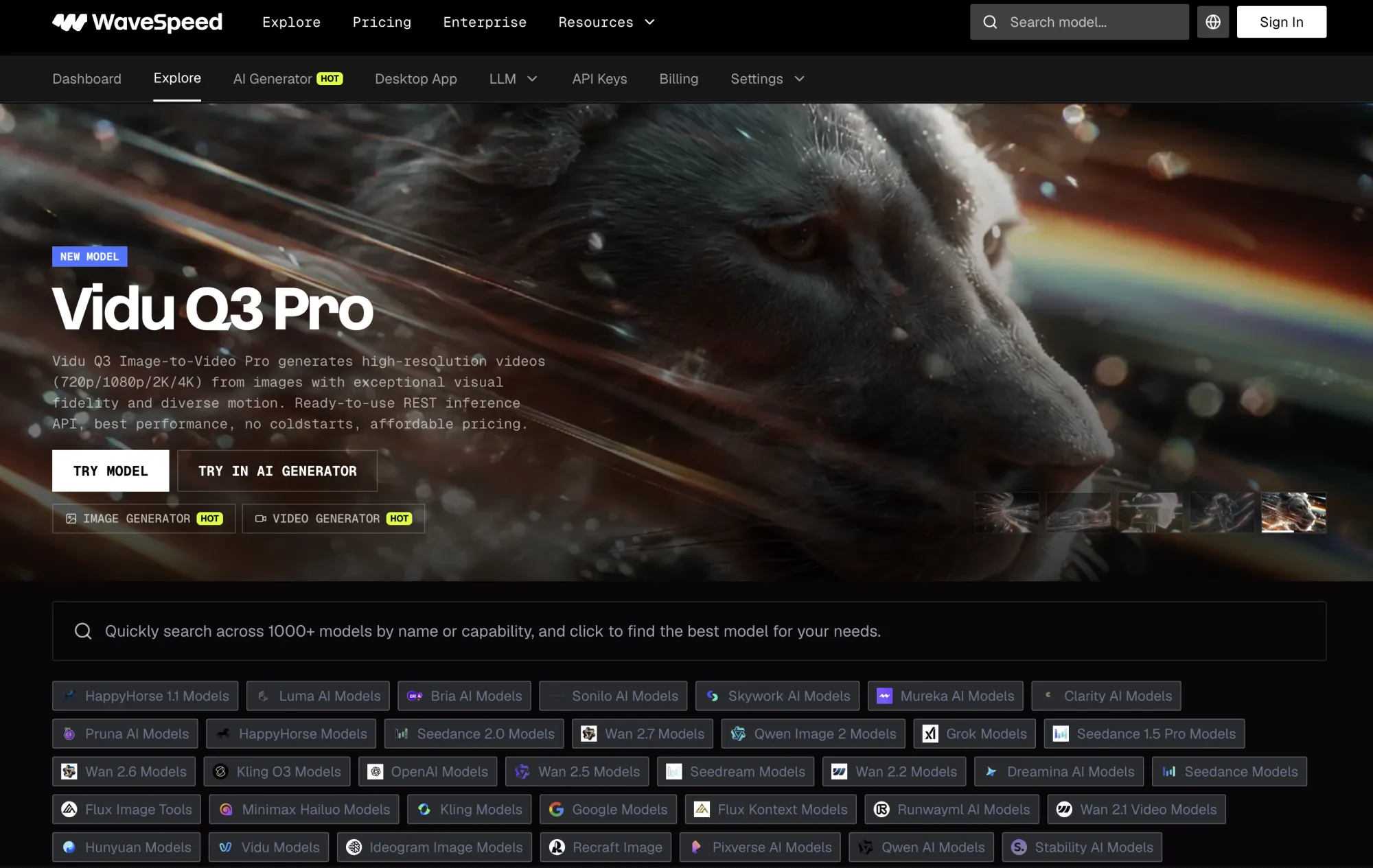
WaveSpeed AI is one example of this approach. It is a cloud-based AI image generator that gives you access to over a thousand models — including FLUX, Seedream, Nano Banana, and others — through a single web interface. You choose a model, write a prompt, and get results in seconds. No installation, no GPU, no model files to manage.
What sets this kind of platform apart from a basic cloud notebook is breadth. Instead of downloading and configuring one model at a time, you can switch between dozens of image models and compare outputs side by side. WaveSpeed also offers a Studio interface for structured editing workflows, a desktop app, free tools for casual use, and an API for developers who want to build image generation into their own products.
This path works well for creators and marketing teams who need fast visual output across different styles without learning the underlying toolchain. You give up low-level configuration in exchange for a workflow that starts and ends in a browser tab.
Local vs Cloud: Which Should You Choose?
The right choice depends on what you actually need, not on which option sounds more sophisticated.
Choose local if you generate images daily, want full control over model selection and fine-tuning, need all data to stay on your own hardware, and are willing to invest in a capable GPU. At high volume, local setup pays for itself quickly.
Choose a cloud notebook or GPU rental if you want the flexibility of a local environment without the upfront hardware cost. This fits developers, researchers, and technically comfortable users who generate in bursts rather than continuously.
Choose a zero-setup platform if you want results now and do not need to manage the underlying models. This is the fastest path for marketers, content creators, and small teams. If your workflow already includes other AI-driven tools — say you use an AI visibility platform to track how your brand appears across AI search engines, or you run A/B tests on ad creatives — a browser-based image generator fits alongside those tools without adding technical overhead.
For most beginners, the honest advice is to start with a zero-setup platform or a free cloud notebook. Generate enough images to learn what models and styles you prefer. Then decide whether local setup is worth the time.
Common Beginner Mistakes
Picking the wrong model. Stable Diffusion is a family of models, not a single one. A realistic photography model will produce poor anime, and an anime model will not give you photorealistic product shots. Read the model description and look at example outputs before downloading or selecting one.
Ignoring aspect ratio. Most models are trained on square images. Generating at an unusual ratio without adjusting your settings can distort compositions or duplicate subjects. Start with the model's default resolution and change it deliberately.
Writing vague prompts. "A beautiful landscape" gives the model almost nothing to work with. Include the subject, setting, lighting, style, and intended use. A prompt like "mountain lake at sunrise, soft golden light, wide landscape photograph, high detail" produces noticeably better results than two generic words.
Underestimating GPU requirements. Attempting to run SDXL on a card with 4 GB of VRAM will either fail outright or produce images painfully slowly. Check the model's VRAM requirement before spending an hour on installation.
Expecting perfection on the first try. AI image generation is iterative. Your first result will rarely be your best. Change one variable at a time — lighting, composition, style keywords — and compare outputs. Small, targeted prompt edits are more effective than rewriting the entire prompt from scratch.
Final Recommendation
If you are technical, want full control, and plan to generate thousands of images, set up Stable Diffusion locally. The upfront time is real, but after that, each image costs only electricity.
If you want to experiment without commitment, start with a free cloud notebook on Colab or Kaggle. You will get hands-on experience with real models and can decide later whether a local install is worth the effort.
If you want images and do not want a project, use a platform like WaveSpeed AI. Open the browser, pick a model, write a prompt, get the result. For most beginners, creators, and marketing teams, that is the practical answer — generate first, and go deeper only when you have a reason to.



















Sign in to leave a comment.