

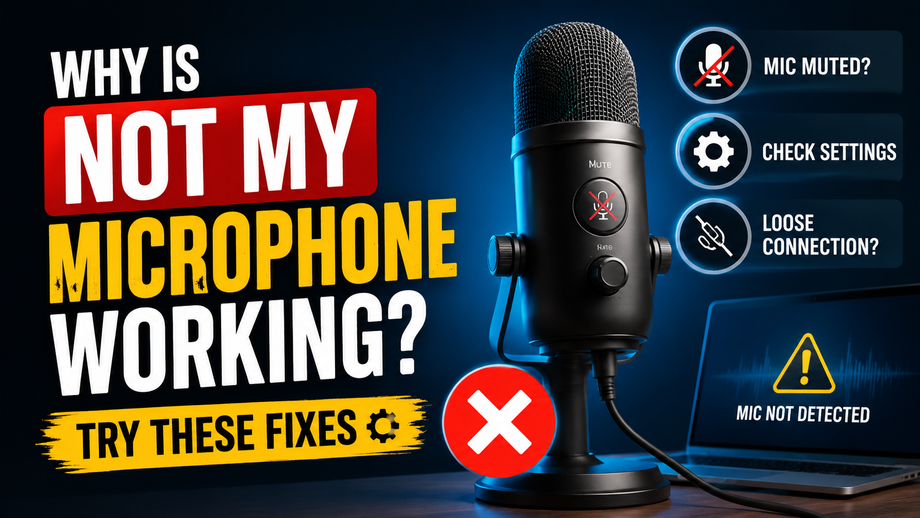
Have you ever connected a microphone and heard absolutely nothing? A Microphone Not Working can happen for several simple reasons, from muted settings to loose connections or the wrong input selected. The good news is that many microphone issues do not require technical expertise to fix.
Check the Basic Connections
Start with the easiest checks. Make sure the microphone cable is firmly connected to both the microphone and the audio device. If you use a USB microphone, try another USB port.
For an XLR microphone, check both ends of the cable. A loose connection can quickly turn a working microphone into a silent one.
Check the Mute and Volume Settings
A microphone may work perfectly while the device keeps it muted. Check the microphone's physical mute switch, mixer channel, computer settings, and application settings.
Increase the input level gradually. Avoid setting the gain too high because excessive gain can introduce unwanted noise or distortion.
Select the Correct Input Device
Computers and recording software can have several audio inputs. Your system may accidentally select a built in microphone instead of your external microphone.
Open your device's sound settings and confirm that the correct microphone appears as the selected input. Then test it by speaking normally.
Test the Microphone on Another Device
If your microphone still does not work, test it with another compatible device. This simple step can help you identify whether the issue comes from the microphone, cable, mixer, interface, or computer.
If the microphone works elsewhere, check the original device's settings. If it does not work anywhere, inspect the cable and microphone for possible damage.
Check Your Audio Software
Sometimes the microphone works, but the recording or meeting application does not use it. Open the application's audio settings and select the correct input.
Also check whether the application has permission to access your microphone. Restarting the application after changing these settings can sometimes help.
What About Noise or Weak Sound?
A microphone may produce sound but still seem faulty because of low volume, buzzing, static, or distortion. Check the gain level, cable connection, and nearby electronic devices.
For live audio setups, correct microphone placement and suitable gain settings can also improve performance.
Choose Reliable Audio Equipment
If troubleshooting does not solve the issue, the microphone or cable may need replacement. HawkPro offers microphones, audio cables, mixers, speakers, and other professional audio equipment for different applications.
You can explore HawkPro's professional audio solutions and choose equipment according to your setup.
Conclusion
When your Microphone Not Working, do not panic. Check the connection, mute button, input selection, volume, software settings, and cable before assuming the microphone has failed.
Most importantly, test one part of the setup at a time. It is much easier to find the problem when you stop blaming the microphone for everything.

















Sign in to leave a comment.