![How to migrate OneDrive files to new account? [Easy methods]](https://writeupcafe.com/data/post/1691791/4b279fbb91d91f24f7ffc5459b1ea05f.png.webp)

Suppose: There is an old OneDrive user with a personal account now looking to switch to a new OneDrive for Business account. But before switching and decommissioning the old personal account, there is a need to migrate the entire data safely to avoid losing it to disasters.
OneDrive migration from old to new account is easy, but you need to take care of a few pointers before you do that. This will help you escape the risk of permanent data loss and zero downtime, assuring business continuity. There are several manual methods available online to help you move OneDrive files easily without any cost.
Let’s get ahead with this article to learn effective methods to migrate OneDrive files from old to new account.
Data types that can be migrated and important considerations
This section helps you explore the major data types you can migrate from one OneDrive account to another. Additionally, it also mentions the important considerations to remember during migration.
- Migrate all types of files, such as documents, PowerPoint presentations, spreadsheets, images, PDFs, etc.
- Migrate all the folders with their original structure and data.
- The methods allow you to migrate from a personal to a business account or between multiple OneDrive for Business accounts.
- No supported feature to merge two OneDrive accounts into one.
How to migrate OneDrive to another OneDrive?
Let’s check out the step-by-step processes to move OneDrive data securely:
Download and upload OneDrive files
This method is simple and useful when you have a large amount of data and need to migrate over slow internet connectivity. Here are the steps:
Step 1: Log in to the old OneDrive on your web browser.
Step 2: Select all the desired files and click Download.
Step 3: All the files will be downloaded within a zip file to your computer.
Step 4: Extract all the files from the zip file to the desired location locally.
Step 5: Log in to the target account on a different browser.
Step 6: Click Upload and then select the files to move to the destination.
The process will take some time and will migrate all the desired files from the old OneDrive to new OneDrive account.
Read also: PST To Office 365 Migration Tool
Migrate using OneDrive Copy Feature
Well, this method doesn’t involve any download or upload of files but helps you transfer files directly from one OneDrive to another. Let’s check out the steps:
Step 1: Open the web browser and log in with the source OneDrive account.
Step 2: Select the files and folders to transfer and click Share.
Step 3: Enter the email address of the targeted new OneDrive account.
Step 4: Set the permissions to “Can Edit” and click Send and Copy link.

Step 5: Open the link received or the one copied previously within the target account.
Step 6: From the shared folder, select folders to copy the files. Click Copy to.

Step 7: Select the destination within My Files and click Copy here to move the files.
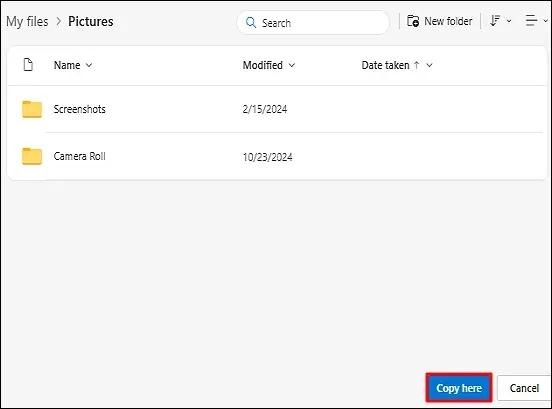
Once all the desired files are in the new OneDrive account, you can organize them according to your preferences.
Limitations of manual methods
- You need to manually organize all the files and folders once the data is moved to the target account.
- Require admin credentials and several necessary permissions to migrate the data efficiently.
- No provision to migrate data between OneDrive accounts selectively.
- Can put the organization’s data at risk of exposure to cybercrimes.
After reading the limitations, it is clear that manual solutions are not ideal for the data transfer from one OneDrive to another. It can be a time-consuming and lengthy process with unstructured data as the outcome. What’s best to migrate the files then?
Conclusion
OneDrive migration from old to new account can be due to account upgrade, decommissioning of old account, data sharing, etc. Irrespective of the purpose behind the migration, what’s more important is the safe transition of data between two accounts.
To migrate OneDrive to another OneDrive with accuracy and zero data loss, use Kernel OneDrive Migration tool. The tool supports features such as bulk data transfer, selective migration, automated processes, and a lot more. Use the tool to avoid inconsistencies in the migrated data.
Read also: Key Considerations For SharePoint Data Migration In 2026




























Sign in to leave a comment.