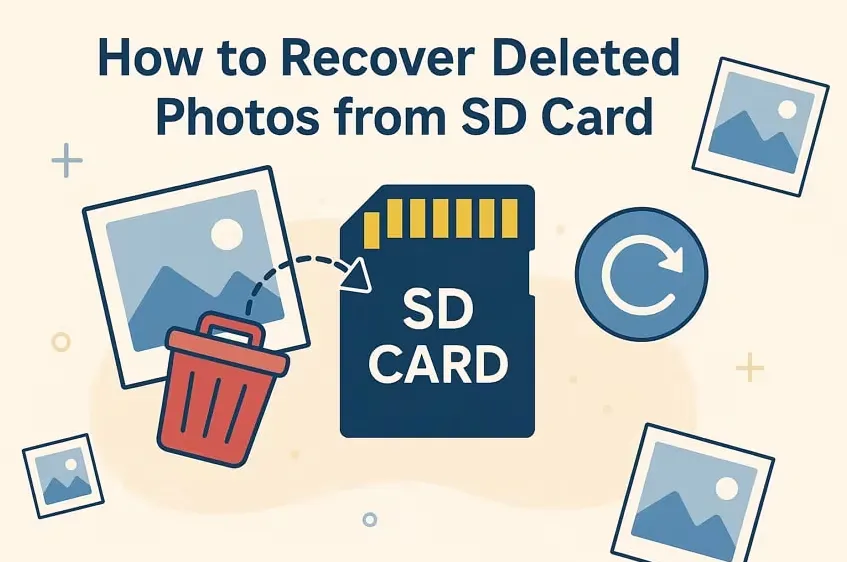

Deleted photos from an SD card are often recoverable, as long as they haven’t been overwritten by new data. When you delete an image, the file isn’t immediately erased—instead, the system marks that space as available. Using the right approach, you can Recover Deleted Photos from SD Card without cost.
The key is to act quickly and avoid using the SD card further. This guide explains practical, beginner-friendly methods to restore deleted photos using free tools and built-in options.
How Photo Deletion Works on an SD Card
When a photo is deleted, the file reference is removed but the actual data remains on the card temporarily. This means recovery software can still locate and reconstruct the image if the storage space hasn’t been reused.
However, if you continue taking photos or saving files on the same SD card, new data may overwrite the deleted images. Once overwritten, recovery becomes technically impossible using standard methods.
What This Means for You
- Deleted photos are not instantly gone
- Recovery depends on storage overwrite
- Early action improves success rate
Quick Ways to Recover Deleted Photos from SD Card
Method 1: Use Free Photo Recovery Software (Most Effective)
The most reliable way to Recover Deleted Photos from SD Card is by using recovery software that scans the card at a deep level. These tools identify hidden file fragments and rebuild deleted images.
To get started, use a free photo recovery software for sd card installed on your computer. This ensures no additional data is written to the SD card during recovery.
How It Works
- Scans SD card sector-by-sector
- Detects deleted image file signatures
- Reconstructs recoverable photos
This process goes beyond normal file browsing, allowing recovery even when files are no longer visible.
Step-by-Step Process
- Remove the SD card immediately
Stop using the card to prevent overwriting deleted photos. This step is critical for maximizing recovery success. - Insert SD card into a computer
Use a card reader or built-in slot to connect it. Ensure the system detects the card properly before proceeding. - Install and launch recovery software
Tools like Stellar Photo Recovery provide a guided interface that simplifies scanning and recovery for beginners. - Select the SD card for scanning
Choose the correct storage device to avoid scanning the wrong drive. - Run a deep scan
The software analyzes storage sectors to locate deleted image files. This may take a few minutes depending on card size. - Preview recoverable photos
Check file quality and confirm which images you want to restore. - Recover and save files to computer
Always save recovered photos to a different location, not back to the SD card.
Method 2: Restore from Backup (If Available)
If you had previously backed up your photos, recovery becomes much easier and faster. Backups may exist on cloud storage, external drives, or synced apps.
This method doesn’t involve scanning or reconstruction—it simply restores previously saved copies of your images.
Where to Check
- Cloud storage (Google Photos, Drive, etc.)
- Computer backup folders
- External hard drives
Key Limitation
- Works only if backup was created before deletion
- Cannot recover newly deleted, unsaved files
Method 3: Check Hidden or Temporary Files
Sometimes photos aren’t fully deleted but become hidden due to file system issues. This can happen if the SD card was improperly removed or corrupted.
In such cases, making hidden files visible can help you recover images without using recovery software.
Steps to Try
- Connect SD card to computer
- Enable “Show hidden files” in settings
- Check DCIM and media folders
When This Works
- Files are hidden, not deleted
- Minor file system corruption exists
Method 4: Use Command Prompt (Basic Recovery Attempt)
For users comfortable with basic commands, you can attempt to recover files using system utilities. This method doesn’t always restore deleted photos but can fix file system issues.
It’s useful when the SD card shows missing files due to corruption rather than actual deletion.
Basic Steps
- Connect SD card to PC
- Open Command Prompt
- Run disk repair command (e.g., chkdsk)
Important Note
- This method repairs errors but doesn’t guarantee photo recovery
- Best used alongside recovery software
Common Mistakes to Avoid
Many recovery attempts fail due to simple but critical mistakes. Avoiding these improves your chances of successfully restoring photos.
- Continuing to use the SD card after deletion
- Saving recovered files back to the same card
- Using unreliable or unsafe tools
- Interrupting the scan process
Tips to Improve Recovery Success
A few best practices can significantly increase recovery results. These are especially important for beginners who may not be familiar with how storage works.
- Act immediately after photo deletion
- Use a computer-based recovery tool
- Perform a deep scan instead of quick scan
- Store recovered files externally
Final Thoughts
It is entirely possible to Recover Deleted Photos from SD Card if you act quickly and follow the correct process. The data often remains recoverable until overwritten, which creates an opportunity for restoration.
Using a Free photo recovery software for sd card provides the most reliable results, especially for beginners. Tools like Stellar Photo Recovery simplify the process, helping you retrieve lost images without needing advanced technical knowledge.



























Sign in to leave a comment.