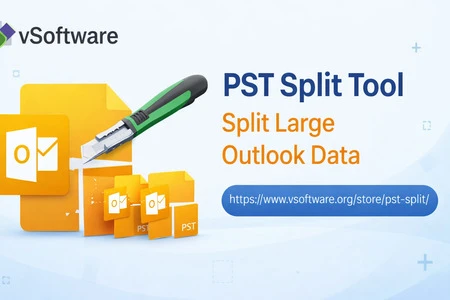

Managing Microsoft Outlook data becomes difficult when PST files grow too large. A bloated PST can slow down Outlook performance, increase the risk of corruption, and make backups or migrations unnecessarily time-consuming. If you’re dealing with oversized mailbox archives, the simplest fix is to split the PST into smaller, well-organized files—without losing emails, attachments, contacts, or folder structure. That’s exactly where VSoftware PST Splitter Software comes in.
This guide explains what PST splitting means, why it matters, and how a reliable splitter helps you break large PST files by size, date, and folder with better control and minimal effort.
Why large PST files cause problems
Outlook PST files are essentially containers that store mailbox data locally. As they grow over time, a few common issues appear:
- Slower Outlook performance: Search, indexing, and loading folders can take longer.
- Backup and restore delays: Large PSTs take more time to copy, upload, or restore.
- Higher corruption risk: Oversized files are more vulnerable to errors, especially with frequent access.
- Migration challenges: Moving data to a new system or Outlook profile becomes harder with a single massive PST.
- Storage management issues: Archiving and compliance workflows become messy when everything sits in one file.
Splitting is a practical way to reduce risk and improve usability while keeping your mailbox history intact.
What a PST splitter should do (and what it should never do)
A professional PST splitter should help you divide a PST logically while maintaining data integrity. When evaluating any tool, make sure it can:
- Preserve folder hierarchy and original structure
- Maintain email metadata (To/From, date, subject, read/unread state)
- Keep attachments intact and correctly mapped
- Split without modifying the source PST (read-only processing is ideal)
- Offer flexible rules like size-based, date-range, and folder-wise splitting
- Provide status reporting or logs for verification
Most importantly, it should not cause duplicates, missing items, or broken folders after the split.
How the VSoftware PST Splitter software helps
VSoftware PST Splitter Software is designed for users who want a clean and safe way to handle large PST files. Instead of manually exporting folders or creating multiple archives by trial and error, it automates the process through controlled splitting options.
1) Split by size for smooth performance
Size-based splitting is one of the most common needs. You can set a target size limit (for example, 2 GB, 5 GB, 10 GB, etc.), and the tool divides the data into multiple PSTs accordingly. This approach is ideal when:
- Outlook is slow due to a huge PST
- You want quicker backups
- You’re preparing data for transfers or storage limits
By keeping each output PST smaller, you reduce load time and improve manageability.
2) Split by date to organize mailbox history
If your archive spans many years, date-based splitting creates instant order. You can separate mailbox content by:
- Year-wise archives
- Month-wise splits
- Custom date ranges (for example, “2018–2020” in one file and “2021–2023” in another)
This is useful for compliance, project-based archiving, and keeping current mail separate from older history.
3) Split by folder for a clean structure
Folder-based splitting is perfect when your PST contains multiple departments, clients, or categories. With folder-wise splitting, you can export specific folders into separate PST files while preserving internal subfolders. It’s a practical method for:
- Sharing selected mailbox sections with a team
- Separating “Inbox,” “Sent Items,” and custom folders
- Organizing by client/project folders
Typical use cases
A PST splitter isn’t only for “Outlook feels slow.” It’s also a smart tool for:
- IT admins are preparing mailbox archives before migration
- Business users separating work and personal data
- Legal/compliance teams maintaining structured archives
- Support teams are troubleshooting PST-related performance issues
- Users with limited storage who need smaller, controlled PST segments
Simple workflow: how splitting usually works
While exact steps vary by interface, the overall process is straightforward:
- Add PST file (browse and select the source PST)
- Choose split method (size, date, folder)
- Set rules (size limit, date range, folder selection)
- Select destination (output folder for split PST files)
- Start splitting and verifying output PSTs in Outlook
The goal is speed, accuracy, and repeatability—especially when handling large archives.
Tips to get the best results
- Decide your goal first: performance (size split), organization (date/folder split), or migration (combined strategy).
- Keep naming consistent: use labels like “Archive_2019” or “ClientA_Support” for easy identification.
- Verify after splitting: open a sample output PST in Outlook and check folders + a few random items.
- Create backups: even with safe tools, keeping a copy of the original PST is best practice.
Frequently asked questions
Will splitting delete anything from my original PST?
A professional splitter should create new PST files without altering the source. Always confirm that the tool processes data safely.
Can I split very large PST files?
Yes—size-based splitting is built for large archives and helps reduce performance issues.
Will my attachments and folder structure remain the same?
A reliable tool preserves folder hierarchy and attachments while generating output PSTs.
Final thoughts
If you’re struggling with oversized Outlook data files, splitting is one of the safest and quickest ways to regain control. VSoftware PST Splitter Software helps you split PST files easily using practical options like size, date, and folder-based rules—making mailbox management cleaner, faster, and less risky.


























Sign in to leave a comment.