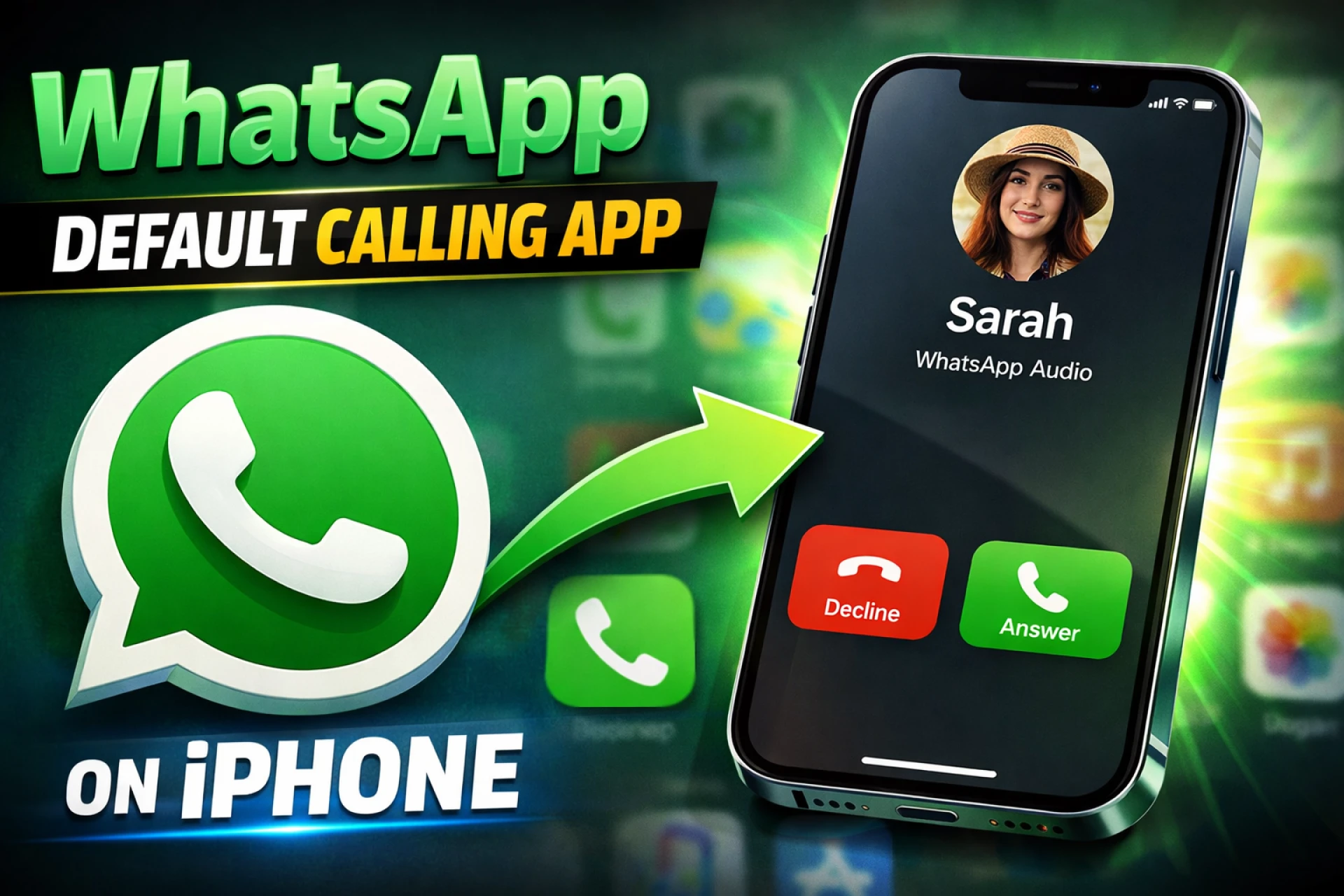

For a long time, the iPhone was known for its rigid ecosystem, especially when it came to core functions like phone calls and messaging. However, Apple has recently embraced a more open approach, allowing users to customize their devices to better suit their digital habits. For millions of people, WhatsApp has replaced traditional cellular calls as the primary way to stay in touch. If you are one of those users, knowing how to set WhatsApp as the calling app on iPhone is a major quality-of-life upgrade.
This change isn't just for power users; it is a practical move for anyone who wants to save on international calling costs or prefers the end-to-end encryption that WhatsApp provides. Whether you are holding a brand-new device or a high-quality second hand iphone in india, the latest versions of iOS now provide a dedicated space to manage these preferences. By streamlining your dialer, you remove the extra steps of opening apps manually and get straight to the conversation.
Step-by-Step Instructions to Set WhatsApp as Default
To begin, you need to ensure your device is running at least iOS 18.2, as this was the specific update that introduced the centralized "Default Apps" menu. You should also verify that your WhatsApp is updated to the latest version via the App Store to ensure the system recognizes it as a compatible calling service.
Follow these steps to make the change:
- Open the Settings app on your iPhone.
- Scroll down to the bottom of the main menu and tap on Apps.
- At the very top of the Apps screen, you will see a new section labeled Default Apps. Tap it.
- Locate the Calling category and select it.
- You will see a list of available apps such as Phone, FaceTime, and WhatsApp. Tap WhatsApp to set it as your primary choice.
Once this is active, your iPhone will prioritize WhatsApp whenever you trigger a calling action from a web link, a business listing in Maps, or a Siri command. If you are using a premium device like an iphone 16 refurbished, you will notice how the optimized software makes this transition seamless, handling the hand-off between the system and the app with zero lag.
Why Hardware Choice Matters for VoIP Calling
While software settings are crucial, the hardware you use plays a significant role in the quality of your WhatsApp calls. VoIP (Voice over IP) calling is more demanding on a phone's processor and network modem than a standard cellular call. This is why many users are turning to reputable sources like EasyPhones to find devices that offer flagship performance without the flagship price tag.
A device such as the iphone 16 pro refurbished is particularly well-suited for this. With its advanced Wi-Fi 7 support and superior noise-canceling microphone array, your WhatsApp calls will sound clearer and stay more stable, even in crowded environments. When you combine the right default settings with high-performance hardware, you create a communication setup that feels truly professional. EasyPhones ensures that every refurbished device meets strict quality standards, so you never have to worry about hardware limitations interrupting your important conversations.
Managing Individual Contact Preferences
Sometimes, you might not want every single call to go through WhatsApp. You might have a few contacts—like elderly relatives or business landlines—who aren't on the platform. In these cases, you can use a "per-contact" default setting within the native Contacts app to fine-tune your experience.
To set a specific preference for one person:
- Open the Contacts app and select the individual.
- Below their name, you will see buttons for Message, Call, and Video.
- Long-press the blue "Call" button.
- A menu will appear listing different numbers or apps. Select the WhatsApp option.
The iPhone will remember this choice for that specific contact. The next time you simply tap the call button for them, it will launch a WhatsApp Audio call automatically. This allows for a "hybrid" setup where your general system might use one app, but your inner circle is reached through your preferred messaging service. This level of customization is what makes the modern iOS experience so powerful for users who value efficiency.
Understanding the Limitations of Third-Party Defaults
It is important to note that setting WhatsApp as your default calling app doesn't mean the native Phone app disappears. Due to security and emergency protocols, traditional cellular calls and emergency services (like 911 or 112) will always go through the native Phone app. Additionally, if you receive a call from a standard mobile number, it will still ring through the traditional interface.
Think of the "Default App" setting as a primary shortcut for outgoing actions. It tells your iPhone, "Whenever I want to reach out to someone, try WhatsApp first." If the person you are calling doesn't have a WhatsApp account, the app will usually notify you, and you can then switch back to a cellular call. By understanding these nuances, you can navigate your iPhone more effectively and enjoy a communication suite that is perfectly tailored to your needs.



























Sign in to leave a comment.