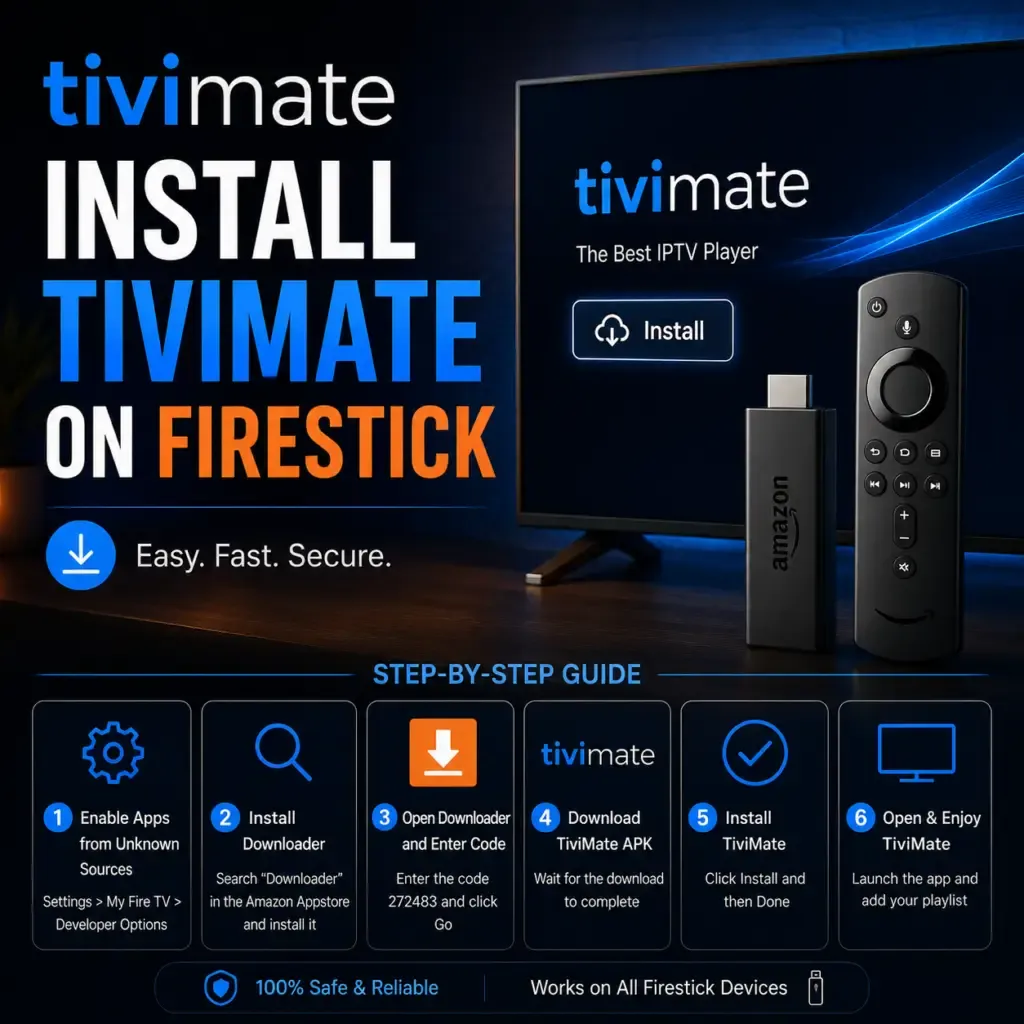

IPTV (Internet Protocol Television) has changed how people watch live TV. Instead of traditional cable or satellite, you stream channels over your internet connection. A Firestick is one of the most popular devices for this because it is affordable, portable, and runs Android under the hood. This guide walks you through the entire setup process as a beginner.
Why Use a Firestick for IPTV?
A Firestick plugs into any HDMI port and turns a regular TV into a smart TV. It costs around $40 and gives you access to thousands of live channels, movies, and sports. The interface is simple, the remote is familiar, and you can take it with you when traveling.
The key advantage is that a Firestick runs Android, which means you can sideload apps that are not available in the Amazon Appstore. This is how you install powerful IPTV players like TiviMate.
What You Need Before Starting
- Firestick (4K Max recommended for best performance)
- Wi-Fi connection (at least 25 Mbps for HD streaming)
- An IPTV subscription with an M3U URL or Xtream Codes
- A computer or mobile device to download setup files
- The Downloader app from the Amazon Appstore (free)
Step 1: Prepare Your Firestick
Go to Settings > My Fire TV > Developer Options and turn on Apps from Unknown Sources. This allows you to install apps outside the Amazon store. If you do not see Developer Options, go to Settings > My Fire TV > About and click the name seven times until it says you are now a developer.
Step 2: Install the Downloader App
From the Firestick home screen, search for Downloader using the magnifying glass icon. Install the app. This is the safest and easiest way to sideload software onto your device.
Step 3: Install TiviMate on Firestick
Open Downloader and enter the URL for the latest TiviMate APK. After the file downloads, click Install. Once finished, click Open to launch the app.
For detailed installation instructions covering every Firestick model, refer to the full TiviMate Firestick installation guide.
Step 4: Add Your IPTV Playlist
When you open TiviMate for the first time, it asks for a playlist. You have two options:
- M3U URL — Paste the URL your provider gave you
- Xtream Codes — Enter the server, username, and password
Your IPTV provider sends these details when you subscribe. If you do not have a provider yet, you need one before continuing.
Step 5: Configure Your EPG (Electronic Program Guide)
EPG shows what is currently playing and what comes next. Go to Settings > EPG and select your playlist source. TiviMate downloads the guide data automatically. You can also add a secondary EPG source if your provider offers one separately.
Step 6: Optimize Streaming Settings
For the best experience, adjust these settings in TiviMate:
- Buffer size — Set to Medium or Large if you experience buffering
- Video decoder — Use Hardware if compatible, otherwise Software
- Audio passthrough — Enable for surround sound systems
- Auto frame rate — On for smoother motion
You can find a full breakdown of the best Firestick settings in the TiviMate optimization guide.
Common Issues and Fixes
Buffering — Usually caused by slow internet or an overloaded provider. Lower the stream quality, restart your router, or switch to a wired Ethernet connection using a Firestick adapter.
EPG not loading — Refresh the guide manually in Settings > EPG > Update. If it still fails, try a different EPG source.
App crashes — Clear the app cache in Settings > Applications > Manage Installed Applications > TiviMate > Clear Cache.
No audio — Check your TV audio output settings. Try disabling audio passthrough in TiviMate.
Is IPTV Legal?
IPTV technology itself is legal. TiviMate is a media player that does not host or provide any content. The legality depends on what you stream. Always use verified IPTV providers that have proper licensing.
For a deeper look into the legal side of IPTV, check the TiviMate legality guide.
Final Tips
- Keep your Firestick software updated for security and performance
- Use a VPN for privacy if you stream frequently
- Bookmark your provider's support page for quick help
- Set up favorites in TiviMate for your most-watched channels
IPTV on Firestick gives you thousands of channels at a fraction of cable cost. The setup takes about 15 minutes and once it is done, you have a complete live TV system that fits in your pocket.
Author Bio:
I write about IPTV streaming, Firestick optimization, and everything TV-related. For in-depth tutorials on TiviMate, visit tvimate.co.


















Sign in to leave a comment.