
Want to migrate your AOL Mail to Outlook? You can then find the most effective methods for migrating AOL Mail to Outlook while preserving your properties.
A Step-by-Step Guide to Transferring AOL Mail to Outlook
Are you tired of having to manage various email accounts and interfaces? Transferring AOL Mail to Outlook could be the solution you're looking for, and Outlook offers a powerful platform with advanced capabilities to help you handle your emails more efficiently. Moving your AOL email to Outlook can streamline your email management and increase productivity for a variety of reasons, including improved security/better organization capabilities, and seamless connection with other Microsoft services.
This article will guide you through the entire process of transitioning from AOL Mail to Outlook, guaranteeing a seamless and stress-free experience.
Click Here to DOWNLOAD NOW
Why Should You Migrate Your AOL Mail to Outlook?
Transferring your AOL Mail to Outlook provides various benefits that can improve your email management experience, and here are some important reasons why switching is a good decision-
- Microsoft Outlook includes powerful security safeguards that protect your emails from phishing and malware. Outlook's built-in encryption and robust spam filters ensure that your communications are protected.
- It also has extremely powerful functionality and organizational tools, including customized folders/rules and categories to help you manage and prioritize your emails. You can better manage your emails and keep your inbox clutter-free.
- Outlook seamlessly connects with other Microsoft apps such as Word/Excel, and OneNote, and this integration enables a more unified workflow.
- Particularly if you use Microsoft Office for additional duties.
Manual Method to Transfer AOL Mail to Outlook
Transferring your AOL Mail to Outlook is a simple process that requires setting up your Microsoft Outlook account to receive emails from AOL.
1. Accessing Your AOL Account
- Navigate to the AOL logon page by opening a web browser.
- Enter your AOL email address and password, and then click Login.
- Check that you can access your mailbox.
2. Configuring the AOL Account with Microsoft Outlook
- Open Microsoft Outlook and navigate to the file.
- Tap on Add Account and select Manual Server Setup.
- To proceed, click on IMAP or POP and then hit Next.
- Enter your username, email address, and application password.
- Fill in the IMAP configuration details
Incoming mail server- imap.aol.com. Port-993 Encryption- SSL
Outgoing mail server- smtp.aol.com. Port- 465 Encryption-SSL
- Now, click test and wait for the account to be verified.
3. Importing emails.
Wait to synchronize email with Outlook; this can take some time depending on the volume of emails.
- Check the AOL inbox data as it is sent completely.
- If you do not see complete emails, right-click on your AOL email account and select Update Folder.
4. Syncing contacts and calendars
To sync your AOL contacts and calendar with Outlook, you must manually export them from your AOL accounts and then import them into Outlook.
- Access your AOL Mail account and select Contacts.
- Now select Tools and click Export.
- Select CSV as the format and click the Export button.
- Provide a location for outputting on your computer.
5. Import Contacts and Calendar into Outlook.
- Open Microsoft Outlook and browse to the file.
- Click Open & Export, then Import/Export.
- The Import/Export wizard will appear on your screen; select Import from a different software or file.
- After pressing the next button, choose the AOL-exported CSV file and press the next button.
- Next, navigate to the output destination and select the "Finish" option.
Troubleshooting Common Issues while Transferring AOL Mail to Outlook Manually
Sometimes, there are complications while migrating AOL Mail to Outlook. Here are some common reasons you can find their solution-
- Microsoft Outlook cannot authenticate your AOL account, resulting in messages such as cannot log in to the account.
- Outlook is unable to completely synchronize emails, contacts, and calendars.
- Error messages related to IMAP/SMTP server connections, such as'unable to connect to a server.
- Receiving multiple emails upon migration.
- Some emails and folders are missing after the calendar.
Manual Method 2- How to Transfer AOL Email to Outlook Using the Forwarding Feature?
If you want to move all of their incoming emails to Outlook, follow the steps outlined below.
- Go to AOL's login page.
- To log into your account, enter your credentials.
- Go to Settings and select Forwarding POP and IMAP.
- Now, enter your Outlook email address and validate it.
- Finally, you have successfully moved all incoming emails from AOL to Outlook.
Migrating from AOL Email to Outlook: Potential Obstacles
- Some older versions of Outlook do not fully support AOL Mail configurations, which can result in problems with email syncing or functionality.
- Issues can occur after the conversion due to variations in the organization of email data between Outlook and AOL, including folder structures and labeling.
- Setting up AOL Mail in Outlook requires manual configuration of IMAP/SMTP server settings, which can be difficult for non-technical users.
- AOL frequently requires users to grant access to less secure programs, which can be a security risk for some users.
- There is a risk of incomplete email/contact/calendar syncing which could result in missing data after migration.
Expert Advice - How to Transfer AOL Mail to Outlook?
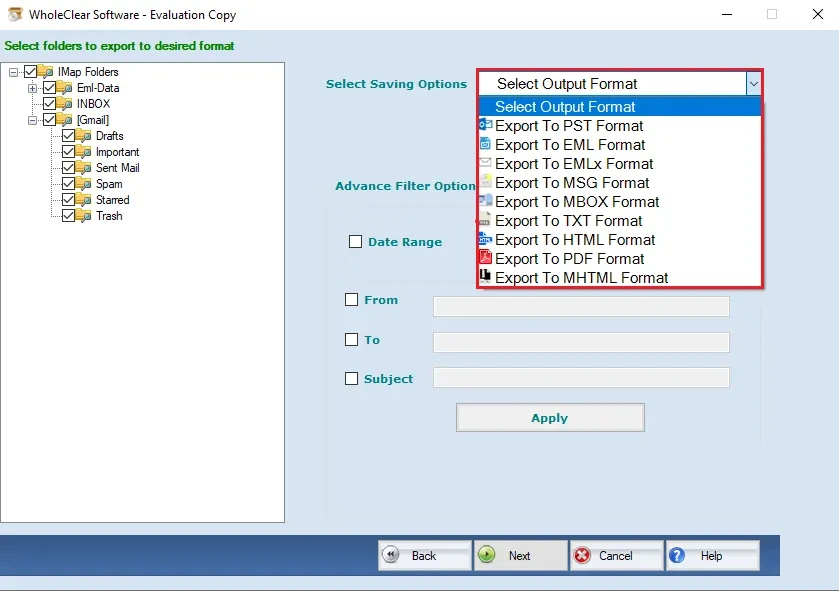
Manual setting poses a high risk of data loss. As a result, we recommend WholeClear AOL Backup Tool which allows you to transfer AOL Mail to Outlook while preserving the attributes of the original file. This software contains a powerful algorithm that allows it to export to a variety of formats, including PST, EML, and MBOX, among others.
Key Features
- Preserve AOL emails in a variety of formats, including PST, MBOX, EML, MSG, and more.
- Complete mailbox backup including Inbox, Sent Items, Drafts, Spam, Trash, and custom folders.
- All email attachments are safely included in the backup.
- The backup maintains the original folder structure in its entirety.
- Email selection based on date and folder.
- Complete data protection during backup without any corruption.
- No Microsoft Outlook required – works independently.
- Compatible with all versions of Windows, including 11, 10, 8.1, 8, 7, Vista, and XP.
- Option to test on a trial basis by backing up limited emails.
- A dedicated support team is available for assistance during installation or usage.
Steps to Use WholeClear AOL Backup Software:
- Install and launch the software.
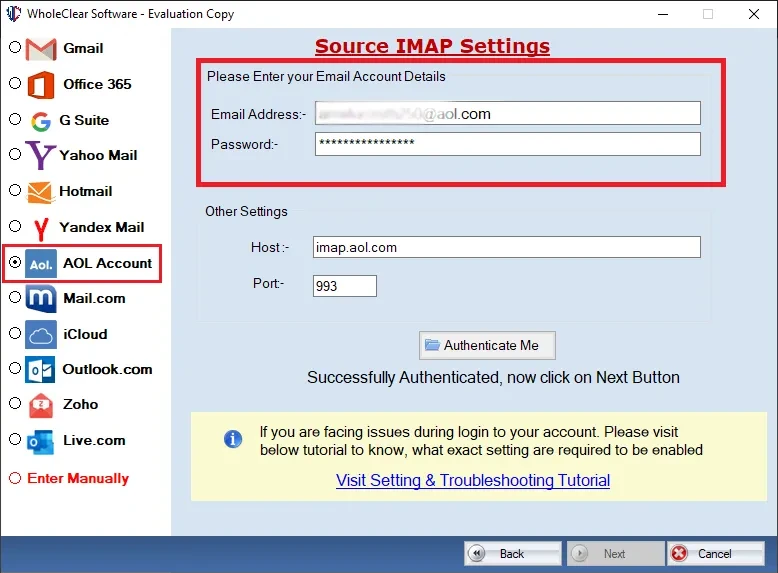
- Log in to AOL account (enter email and password).
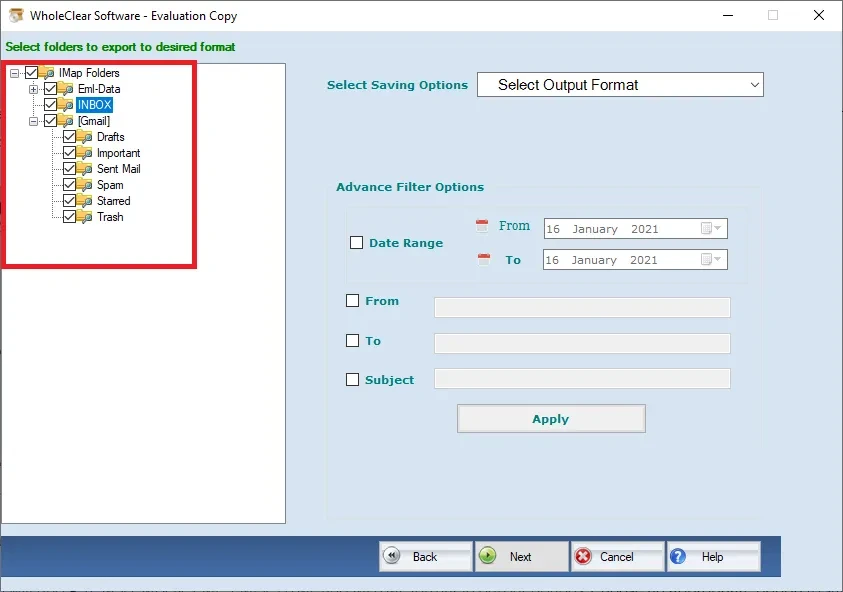
- Choose the folders that should be backed up, such as Inbox, Sent, and Drafts.
- Choose the desired output format, such as PST, MBOX, EML, MSG, or EMLX.
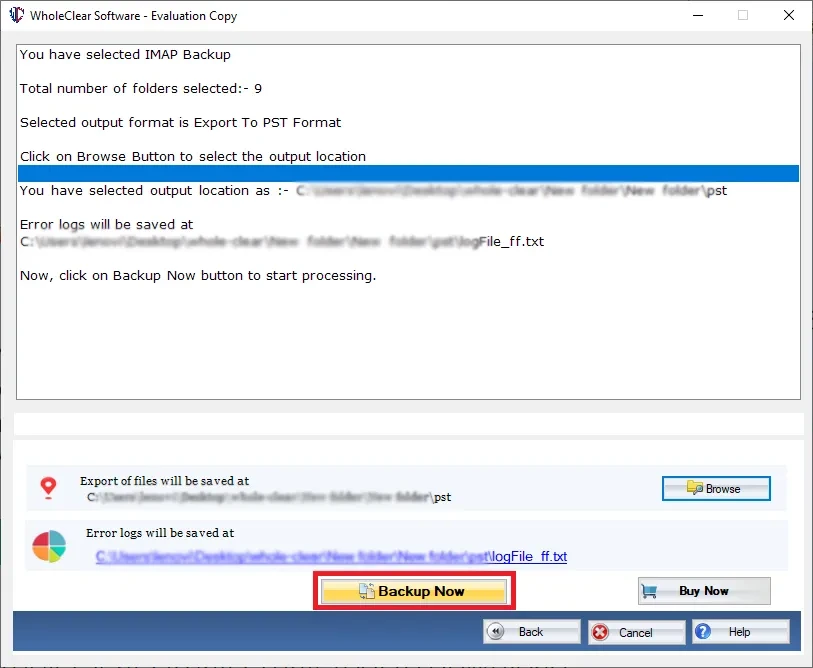
- Decide the location where you save it.
- Select “Backup Now”.
Let Us Wrap Up
This post explains how to migrate AOL to Outlook. We've included both manual and expert-recommended techniques for migrating from AOL to Outlook. Manual operations pose several challenges and cannot ensure data protection. So, we advocate taking an expert-recommended technique to complete the process without losing any information.

























Sign in to leave a comment.