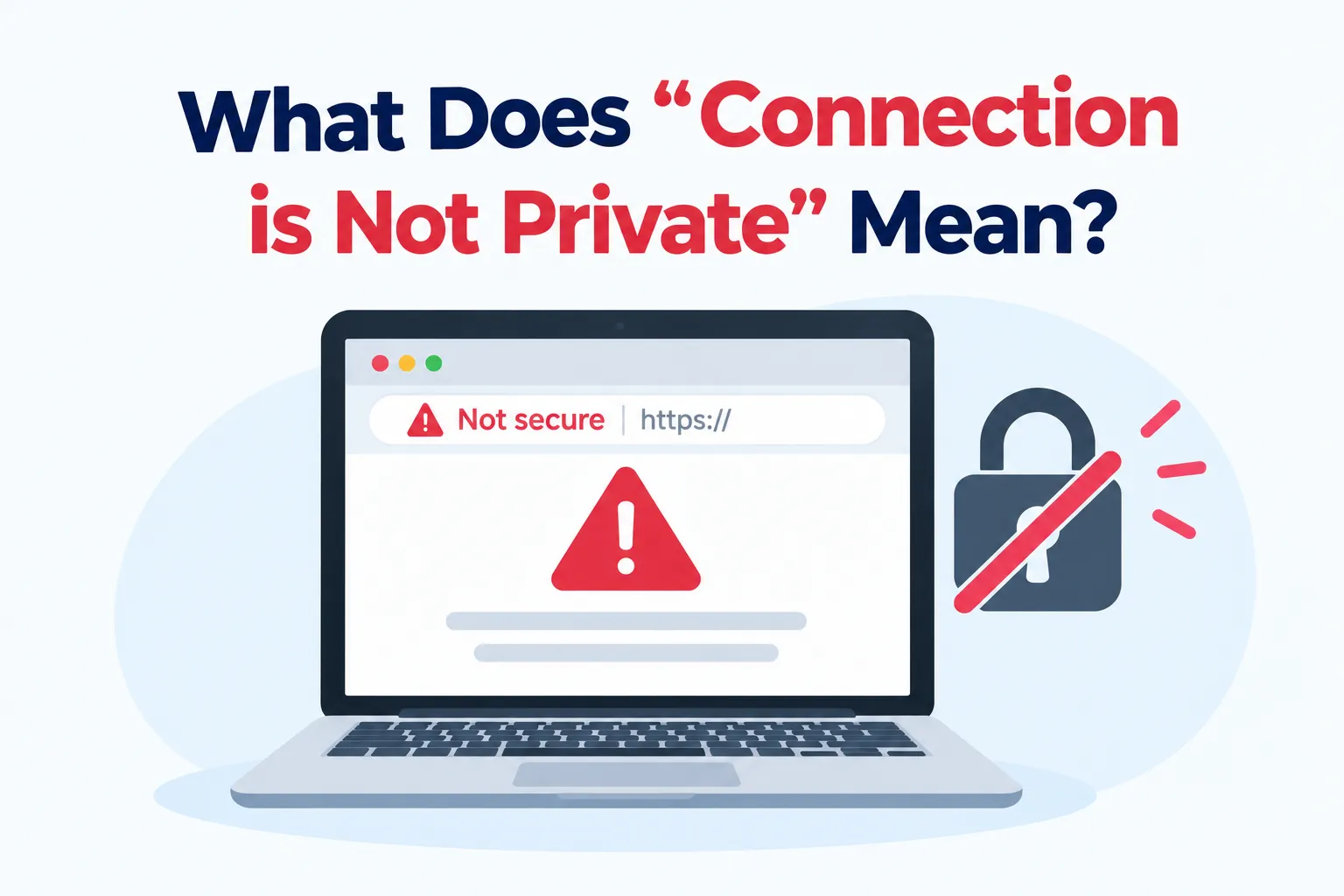

You click a link, and instead of the page you wanted, your browser throws up a red or gray warning screen. It says your connection is not private, and it suggests that attackers might be trying to steal your information. Most people either panic or click "Proceed anyway" without reading a word.
Neither reaction is ideal. The warning is a real safety check, but it does not always mean someone is spying on you. Often the cause is boring, such as a wrong clock on your device or a website owner who forgot to renew a certificate.
This guide explains what the message actually means, why it appears, and how to tell a harmless glitch from a genuine threat. You will also learn what to do in each case, and how site owners can stop showing the warning to their visitors. By the end, you should be able to read the error with confidence instead of guessing.
What the Warning Is Actually Telling You
The message means your browser could not verify that the website it reached is who it claims to be, or could not set up a properly encrypted channel with it. Because of that, the browser refuses to continue automatically. It is essentially saying, "I can't vouch for this connection, so you decide."
The wording changes between browsers. Chrome says "Your connection is not private," Edge says "Your connection isn't private," Safari says "This Connection Is Not Private," and Firefox says "Warning: Potential Security Risk Ahead." The meaning is the same in each case.
It helps to know what the warning does not say. It does not say the website is malicious, and it does not say your device is infected. It only says the identity or encryption check failed.
That distinction matters because the same screen can appear for very different reasons. A hospital's forgotten renewal and a criminal's fake login page can trigger identical wording. The details underneath the headline are what separate them.
The word "private" is also literal here. In this context, privacy means that nobody between you and the website can read or alter what you send. When the browser cannot confirm that, it treats the connection as potentially exposed.
How HTTPS and Digital Certificates Work
To understand the failure, you need a quick picture of the success. When you visit a site that uses HTTPS, your browser and the server perform a short negotiation called a TLS handshake. During it, the server presents a digital certificate, which works like an identity document for the website.
That certificate contains the domain name it was issued for, the organization that issued it, and dates showing when it is valid. It also includes a public key the browser uses to set up encryption. Think of it as a passport that names the holder, the issuing country, and an expiry date.
Certificates are issued by certificate authorities, often shortened to CAs. Your browser and operating system ship with a built-in list of CAs they trust. If a certificate was issued by one of them, the browser accepts it.
Trust also works in chains. A website's certificate is usually signed by an intermediate authority, which is in turn signed by a root authority on the trusted list. The browser follows the chain upward and checks that every link is valid.
If everything lines up, the browser shows a padlock and continues quietly. If any check fails, such as the wrong name, a broken chain, or an expired date, you get the warning screen. The design is deliberately strict, because a certificate system that tolerated errors would protect nobody.
Reading the Error Code Under the Message
Underneath the main message, most browsers show a short technical code. It looks intimidating, but it is the single most useful clue you have. Chrome-based browsers display codes that begin with "NET::ERR," and Firefox uses names starting with "SEC_ERROR" or "SSL_ERROR."
A code containing "CERT_DATE_INVALID" means the certificate is expired or not yet valid. This points at either the website's renewal or your device's clock. It is one of the most common and least sinister errors.
"CERT_AUTHORITY_INVALID" means the certificate was issued by an authority your browser does not trust. That can be a self-signed certificate, a corporate proxy, or something more suspicious. Firefox often reports the same situation as "SEC_ERROR_UNKNOWN_ISSUER."
"CERT_COMMON_NAME_INVALID," or "SSL_ERROR_BAD_CERT_DOMAIN" in Firefox, means the certificate was issued for a different domain than the one you visited. A site might present a certificate for its main address while you reached it through another name. Attackers can also cause this mismatch when they redirect traffic.
Other codes point to revoked certificates, weak encryption, or protocol problems. If you see something unfamiliar, searching the exact code usually turns up a clear explanation. Writing down the code before you close the tab is a habit worth building.
Cause One: Your Device Has the Wrong Date or Time
Certificates are only valid within a specific window, and the browser checks that window against your device's clock. If your clock is wrong, a perfectly good certificate can look expired or not yet valid. This is a surprisingly frequent cause of the warning across every website you visit.
It tends to happen after a phone or laptop has been powered off for a long time, after a dead battery, or when automatic time settings get switched off. Travelers who change time zones manually also run into it. In these cases the warning shows up on many sites at once, which is a strong hint that the problem is local.
The fix is simple. Turn on automatic date and time in your system settings, and confirm the time zone is correct. Then reload the page.
If the error vanished, you have your answer. If it did not, the clock is not the cause, and you can rule it out and move on. Checking it takes ten seconds, so it is worth doing first.
Cause Two: The Website's Certificate Has a Problem
Sometimes the problem genuinely belongs to the website. Certificates expire, and if the owner forgets or fails to renew one, every visitor sees the warning. Even large organizations have had this happen.
Renewal is getting more demanding, not less. Certificate lifetimes have been shrinking across the industry, which means more frequent renewals and more chances for automation to fail. A site that relied on a manual yearly reminder can easily slip.
Name mismatches are another site-side cause. A certificate might cover "example.com" but not "www.example.com," or it might not cover a subdomain that a team launched later. Visitors reaching the uncovered address see a domain mismatch error.
Incomplete chains are a subtler problem. If the server does not send its intermediate certificate, some browsers cannot connect the site's certificate to a trusted root. The site may work on one device and fail on another, which confuses everyone involved.
Self-signed certificates round out the list. These are certificates a site created for itself instead of getting one from a recognized authority. They are common on test servers and home devices, and they will always trigger a warning on the public internet.
When the cause is on the website's side, you cannot fix it. What you can do is notify the owner and avoid entering sensitive information until it is resolved. Checking whether the same error appears on other devices and networks helps confirm it is the site, not you.
Cause Three: Public Wi-Fi and Captive Portals
Airport, hotel, and café networks are a well-known source of this warning. Many of them use a captive portal, the login or terms page that appears before you get full internet access. Until you complete it, the network may intercept your requests and redirect them.
If you try to open a secure site before finishing the portal, the redirect can break the certificate check. Your browser expected the real website and got something else, so it complains. The warning here is technically correct, because the response did not come from the site you requested.
The usual fix is to open a plain, non-secure page such as a captive portal detection address, and let the login screen appear. Accept the terms, then reload your original page. Most of the time the warning disappears.
There is a less friendly possibility to keep in mind. Public networks are also where attackers set up lookalike hotspots and try to tamper with traffic. A certificate error on a shared network deserves more suspicion than the same error at home.
A network-level check can help you judge the environment before you log into anything. A tool like AVO Wifi Security is designed to flag unsecured or questionable connections, which gives useful context when an unexpected certificate warning appears. It does not diagnose the certificate itself, but it tells you whether the network deserves trust.
When in doubt on public Wi-Fi, switch to mobile data for anything sensitive. A different network is the fastest test of whether the network was the problem.
Cause Four: Someone Interfering With the Connection
The scenario the warning is designed for is a man-in-the-middle attack. In it, an attacker positions themselves between you and the website, intercepting traffic and possibly reading or changing it. To do this against an encrypted connection, they need to present a certificate of their own.
Their certificate will not match the real site, and it will not be signed by a trusted authority, so your browser objects. That is the system working as intended. The warning is the alarm, and ignoring it is exactly what the attacker hopes you will do.
Such attacks are most practical on networks the attacker controls or can influence, such as a rogue hotspot. They can also occur through compromised routers or malicious DNS settings that send you to a fake copy of a site. Fake copies are usually paired with convincing pages that collect passwords.
Spotting the difference between an innocent error and an attack is hard from the warning alone. Clues that raise suspicion include the warning appearing on major sites that normally work fine, appearing only on one network, or appearing on a site that handles logins or payments. If a bank's page throws a certificate error, stop.
Encrypting your traffic with a VPN adds a layer of protection on untrusted networks, because your data travels through an encrypted tunnel before it reaches the local network. AVO VPN is one example of that kind of tool. It reduces exposure on shared networks, but it does not turn a bad certificate into a good one, so a warning should still be taken seriously.
Cause Five: Antivirus Software, Proxies, and Corporate Networks
Not every interception is hostile. Some security products deliberately inspect encrypted traffic, which requires them to insert their own certificates. Certain antivirus programs and parental filters do this by installing a local trusted certificate on your device.
When that setup works, you never notice it. When it breaks, perhaps after an update, a browser change, or an expired local certificate, you may see certificate errors on many sites at once. Temporarily disabling HTTPS scanning in the security software is a common test.
Workplaces and schools do something similar. Many organizations route traffic through a proxy that inspects it for policy and safety reasons, and they install their own root certificate on managed devices. On an unmanaged personal device joined to that network, the same proxy triggers warnings, because your device does not trust its certificate.
If you see a certificate issued by your employer, school, or a security vendor you recognize, the interception is probably intentional. If you see one from a name you do not recognize, treat it as suspicious. Checking the certificate details in your browser shows who issued it.
There is an important privacy point here. Anything that can decrypt your traffic can, in principle, see it, so you should know which parties do that on your devices. If you do not expect any inspection, unexpected certificates deserve questions.
Cause Six: An Outdated Browser or Operating System
Browsers and operating systems maintain lists of trusted root certificates, and those lists change. Older authorities are retired and new ones are added. A device that has not been updated for years may lack the newer roots that modern websites depend on.
The result is a warning on sites that work perfectly for everyone else. It is especially common on older phones, tablets, and laptops that no longer receive updates. Users often blame the website when their own software is the problem.
Weak encryption is the other side of the same coin. Websites now disable outdated protocols and cipher suites for good security reasons. An old browser that cannot speak the modern versions will fail to connect and may display a related error.
The remedy is to update the browser and the operating system. If the device is too old to update, using a maintained browser may help, though the operating system's certificate store can still be a limit. At some point, an unsupported device becomes both a compatibility and a security problem.
Keeping software current also matters for the same reasons beyond certificates. A tool such as AVO Smart Scan reviews selected device settings, including the operating system version, and surfaces suggested actions. That is a convenient way to notice you are running outdated software before it starts causing errors.
What to Do, Step by Step, When You See the Warning
Start by staying calm and not clicking through. Read the code under the message, because it usually narrows the cause quickly. Then work through a short sequence of checks, from simplest to most involved.
First, reload the page and check the address for typos. A misspelled domain can lead to a site with no valid certificate, or to a deliberate lookalike. Type the address yourself instead of following a link if you have any doubt.
Second, confirm your device's date, time, and time zone are correct and set to update automatically. Third, try a different network, such as mobile data instead of Wi-Fi. If the warning disappears, the original network was the issue.
Fourth, try a different browser or device. If only one browser complains, the cause is likely a setting, extension, or outdated software there. If every device on the same network complains, look at the network or the website.
Fifth, update your browser and operating system, and consider testing in a private window to rule out extensions and cached data. Clearing cached certificate data or the SSL state can also help in some cases. Finally, if security software inspects HTTPS traffic, check whether it is the source.
If none of this works and the site is one you need, contact the site owner. Give them the exact error code, the time, and the network you used. That information helps them fix it faster.
When Proceeding Is Reasonable, and When It Is Not
Every warning page offers a way to continue, usually hidden behind an "Advanced" link. Whether to use it depends entirely on what you are about to do. The riskiest part of the decision is that the warning gives you no information about intent.
Continuing can be reasonable for things you control. Examples include a router's admin page on your home network, a device on your local network, or a development server you set up yourself. These commonly use self-signed certificates, and you know exactly what they are.
Continuing is a bad idea when the site asks for a password, payment details, or any personal data. It is also unwise for banking, email, shopping, and government services. If an attacker is present, everything you type is exposed.
Some sites offer no bypass at all. Those that use a security policy called HSTS tell browsers to refuse insecure connections completely, so the warning has no "proceed" option. That is intentional, and it protects users from clicking through a real attack.
A useful rule is to ask what you would lose if the connection were compromised. If the answer is "nothing," the risk is small. If the answer includes a credential or money, close the tab.
Also remember that clicking through does not fix anything, it only removes the browser's protection for that visit. Some browsers remember the exception, so later visits may stop warning you. That makes it wise to be careful with the choice.
The Warning on Phones: Links, Emails, and QR Codes
On a phone, the way you arrive at a site matters as much as the certificate. Links in text messages and emails often open in an in-app browser, which shows fewer details about the address. Scammers rely on that, sending links that lead to lookalike domains with broken or mismatched certificates.
If a message links you to a page that shows a certificate warning, treat that as an extra red flag. Legitimate businesses maintain their certificates, and a bank that sends you to a broken page is unusual. Instead of pushing through, open the official app or type the address yourself.
Testing a link before you open it is a good habit. AVO Link Checker lets you check an address against known threats first, which helps for messages that create urgency. It cannot catch brand-new sites, so it complements careful reading and does not replace it.
QR codes add another blind spot, since nobody can read a destination from the pattern. A AVO QR Scanner shows what a code contains before you open it, and that pause lets you notice an odd address. If a scanned code leads to a certificate warning, do not continue.
Background filtering can also block known bad domains before they load. AVO Web Shield uses DNS filtering profiles to stop unsafe destinations, which can prevent some warning screens from ever appearing. It is not a certificate validator, though, and a site absent from its lists can still fail a certificate check.
One more risk follows credential theft. If you already typed a password into a page you later doubted, assume it could be exposed. An AVO Email Breach Scan can tell you whether your address appears in known breach records, though it cannot detect a phishing page you just visited. Change the password anyway, and enable two-factor authentication.
Helping Children Understand the Warning
Children and teenagers often click through warnings without a second thought, because the goal is the page. A certificate warning is a valuable teaching moment, since it shows that the internet has checks worth respecting. A short conversation goes further than a strict rule.
Explain the warning in simple terms: the browser could not confirm the website is who it says it is. Teach one habit, which is to stop and ask an adult before continuing. That habit protects them from many kinds of scams, not only this one.
Filtering can add a safety margin for younger users. AVO Parental Controls offers family browsing profiles that block some unsuitable or unsafe sites. Filtering does not block everything, and it does not teach judgment, so it works best alongside those conversations.
Device settings matter here too. Make sure children's devices keep automatic time and updates switched on, because a wrong clock or old software will produce confusing warnings. Children who see errors on every site may simply have a dead clock battery or an outdated system.
If You Run the Website: How to Stop Showing the Warning
Visitors see the warning because something on your side failed, and fixing it protects both your users and your reputation. Start by checking the certificate's expiry date and the domains it covers. Confirm it includes both the bare domain and the "www" version, plus any subdomains you use.
Automate renewal wherever possible. Free authorities such as Let's Encrypt support automated issuance, and most hosting platforms handle it for you. Automation matters more as certificate lifetimes shrink, since manual reminders do not scale.
Make sure your server sends the full certificate chain, including intermediates. Online testing tools can inspect your setup and report chain problems, weak protocols, and name mismatches. Testing from more than one device catches issues that a single browser hides.
Redirect all HTTP traffic to HTTPS, and avoid loading scripts, images, or other resources over insecure connections. Mixed content can trigger separate warnings and weaken the padlock. After the basics are solid, consider HSTS, but enable it carefully because a mistake can lock visitors out.
Monitor expiry dates with alerts, and keep a record of which team owns each certificate. Many outages come from a certificate nobody remembered. A small monitoring setup costs little and prevents the most embarrassing failures.
Why a Padlock Does Not Mean a Site Is Safe
Once you understand the warning, a common misunderstanding follows. Many people believe that a padlock icon means a website is trustworthy. In reality, it only means the connection to that site is encrypted and the certificate matches the domain.
Criminals can obtain valid certificates for their own domains, often for free. A phishing site with a padlock is fully able to steal your password, because the encryption protects the path to the attacker. The padlock says nothing about the owner's honesty.
This is why the warning and the padlock deal with different questions. The warning appears when identity or encryption fails, and the padlock appears when they succeed. Neither one tells you whether the content is legitimate.
Judging trustworthiness still comes down to the address itself. Check the spelling of the domain, be cautious with unexpected messages, and prefer bookmarks or official apps for banking and shopping. Certificates are one layer, and your own attention is another.
Modern browsers have also moved away from showing prominent padlocks, partly to reduce this confusion. Look at the domain name first, and treat the encryption indicator as a baseline rather than a verdict.
Conclusion
The "connection is not private" message means your browser could not confirm the identity of a website or build a secure channel with it. The cause is often mundane, such as a wrong device clock, an expired certificate, or a public network's login page. It can also signal real interference, which is why the warning deserves a moment of attention.
The practical takeaway is to read the error code, check your clock and network, and never enter passwords or payment details on a page that fails the check. Layered habits help, and tools like AVO Security can add context around networks, links, and settings, but the decision to stop is yours. When the warning appears, pause first, investigate second, and proceed only when you understand why.


























Sign in to leave a comment.