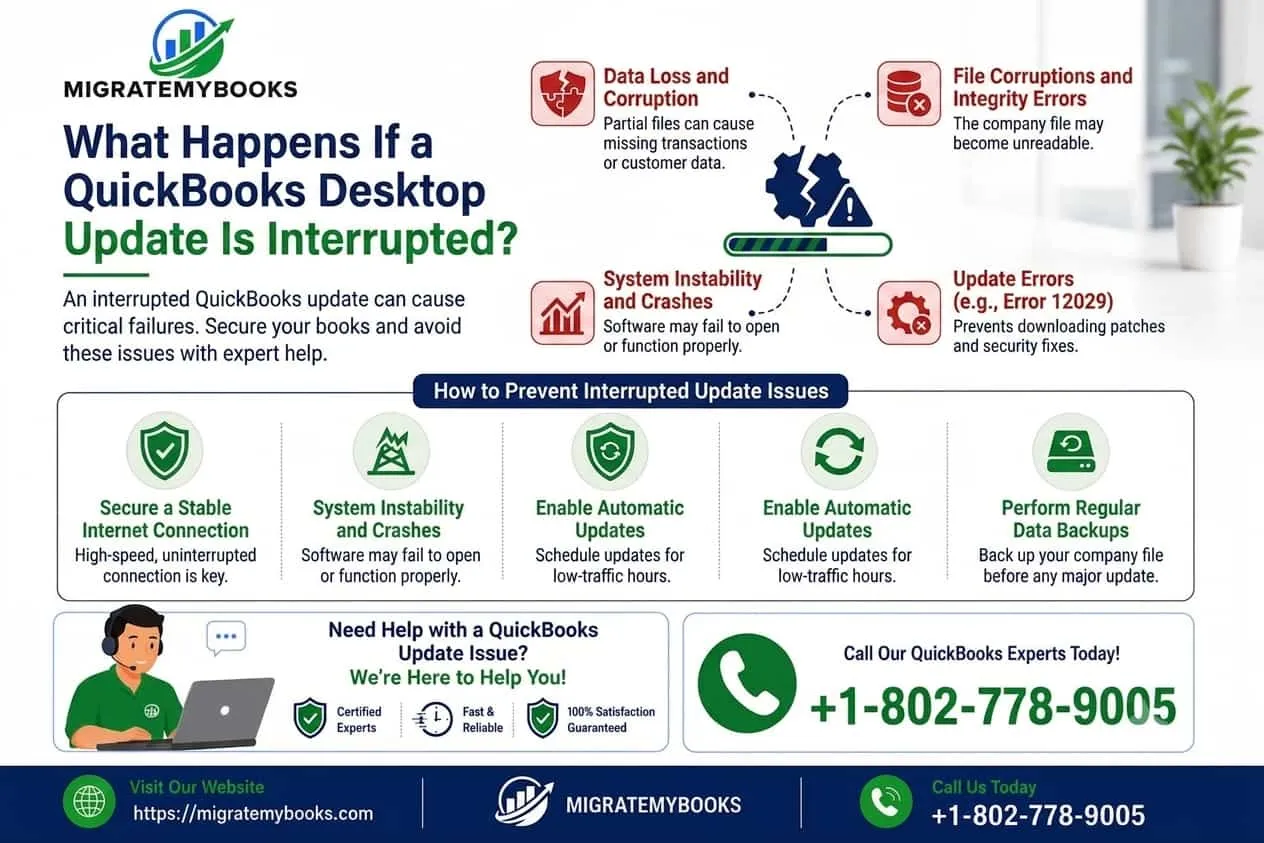

QuickBooks Desktop updates are important for maintaining software performance, security, compatibility, and reliable accounting operations. These updates often include bug fixes, security improvements, payroll updates, and system enhancements that help businesses manage financial records efficiently.
However, sometimes a QuickBooks Desktop update does not complete successfully. A sudden power failure, unstable internet connection, antivirus interference, insufficient system resources, or an unexpected system shutdown can interrupt the update process. When this happens, users may experience problems opening QuickBooks, accessing company files, running payroll services, or connecting with QuickBooks-related features.
An interrupted update can create confusion because the software may appear partially updated while important files remain incomplete or damaged. In some cases, users may receive error messages, experience slow performance, or find that certain features no longer work correctly.
Understanding what happens if a QuickBooks Desktop update is interrupted can help users take the right recovery steps without risking their important accounting data.
This guide explains the causes of interrupted QuickBooks updates, possible problems, troubleshooting methods, connectivity solutions, migration considerations, and preventive steps to keep QuickBooks Desktop running smoothly.
Why QuickBooks Desktop Updates Are Important
QuickBooks Desktop updates are not only about adding new features. They are designed to improve overall software stability and protect business data.
Regular updates help with:
- Security improvements
- Bug fixes
- Payroll tax table updates
- Compatibility with Windows updates
- Database performance improvements
- Error prevention
- Better user experience
Businesses that delay updates may eventually face compatibility problems, especially when using older QuickBooks versions with newer operating systems or connected services.
For organizations that process payroll, regular updates are especially important because outdated payroll components can lead to calculation problems and compliance risks.
What Happens If a QuickBooks Desktop Update Is Interrupted?
When an update is interrupted, QuickBooks may not install all required files correctly. Some files may be updated while others remain outdated, creating an unstable software environment.
The impact depends on the stage where the update stopped.
Update Interrupted During Download
If the interruption happens while QuickBooks is downloading update files:
- The update package may become incomplete
- QuickBooks may repeatedly request the same update
- Installation may fail during the next attempt
This situation is usually easier to fix because the main program files are not always affected.
Update Interrupted During Installation
This is a more serious situation.
During installation, QuickBooks replaces older files with updated versions. If the process stops suddenly:
- Program files may become incomplete
- QuickBooks services may not start properly
- Important components may fail to load
Users may notice:
- QuickBooks freezing
- Unexpected crashes
- Missing features
- Update installation errors
Update Interrupted While Opening Company Files
Sometimes users update QuickBooks and immediately open their company file. If the update process was incomplete, the company file environment may not match the updated software components.
Possible issues include:
- Company file opening errors
- Database connection problems
- Multi-user mode failures
- Performance slowdown
Common Reasons Why QuickBooks Desktop Updates Get Interrupted
Several technical and environmental factors can stop a QuickBooks update.
Unstable Internet Connection
QuickBooks requires a reliable internet connection to download and verify update files.
Connection interruptions may cause:
- Failed downloads
- Corrupted update packages
- Installation errors
Users working with wireless networks may experience more interruptions due to unstable signals.
Sudden Power Failure
If the computer shuts down during an update, QuickBooks may not complete the installation process correctly.
A forced shutdown can interrupt:
- File replacement
- System registration
- QuickBooks service configuration
Using an uninterrupted power supply (UPS) can reduce this risk for businesses that depend on accounting systems.
Antivirus or Firewall Blocking
Security software sometimes identifies QuickBooks update processes as suspicious activity.
This may prevent:
- Update file downloads
- Installation permissions
- Network communication
Proper firewall configuration is important for smooth QuickBooks operation.
Limited System Resources
Older computers may struggle during updates because of:
- Low storage space
- Limited RAM
- Background applications
- Slow hard drives
Before updating QuickBooks, users should close unnecessary programs and ensure enough storage is available.
Signs That a QuickBooks Update Was Not Completed Successfully
After an interrupted update, users may notice different warning signs.
QuickBooks Will Not Open
The application may:
- Freeze at startup
- Close automatically
- Display error messages
This usually indicates missing or damaged program files.
Update Messages Keep Appearing
QuickBooks may repeatedly ask users to install the same update.
This happens when:
- Update files were incomplete
- Installation did not finish
- Components were not registered correctly
Payroll Features Stop Working
Payroll depends heavily on current update files.
Users may experience payroll-related problems, including tax table update failures and payroll service interruptions.
For example, some users may encounter issues related to QuickBooks Payroll Update Error PS032, which can occur when payroll update files or subscription information are not processed correctly.
Company File Performance Problems
After an interrupted update, company files may become slower or show unexpected behavior.
Common symptoms include:
- Reports loading slowly
- Transactions taking longer to save
- Multi-user connection problems
How an Interrupted Update Can Affect QuickBooks Connectivity
QuickBooks Desktop relies on several background services to communicate with company files, payroll services, and connected applications.
An incomplete update can affect:
- Database Server Manager
- QuickBooks services
- Firewall permissions
- Network configuration
Businesses using QuickBooks in multi-user mode may experience additional problems because all computers need compatible software versions.
If one workstation receives an incomplete update while another system has the latest version, communication issues may occur.
A stable and secure internet connection plays an important role in maintaining QuickBooks Desktop performance, especially during updates, payroll synchronization, and connected service operations. Many update failures happen because communication between QuickBooks servers and the local system is interrupted or blocked. Understanding Why Secure Internet Communication Matters for QuickBooks Desktop helps businesses protect their accounting environment from connection failures, incomplete downloads, and update installation problems. Using reliable networks, updated security settings, and proper firewall configurations ensures QuickBooks can communicate safely with required online services.
Quick Troubleshooting Before Advanced Repairs
Before performing advanced solutions, try these basic steps:
Restart Your Computer
A restart can complete pending system changes and refresh QuickBooks services.
Check Internet Connection
Make sure your connection is stable before attempting another update.
Run QuickBooks as Administrator
Administrative permissions may be required to install update files correctly.
Close Background Applications
Temporarily closing unnecessary programs can free system resources.
Before attempting repairs, it is important to identify the actual reason behind an unsuccessful update. Following a proper diagnostic process prevents unnecessary changes that may create additional issues. Learning How to Diagnose QuickBooks Desktop Update Failures Before Applying Fixes allows users to check internet stability, system compatibility, firewall permissions, available storage, and QuickBooks service status. A careful diagnosis helps determine whether the problem is related to installation files, network restrictions, Windows components, or software conflicts, making the recovery process faster and more effective.
How to Repair QuickBooks Desktop After an Interrupted Update
When a QuickBooks Desktop update fails or stops unexpectedly, the main goal is to restore the software without damaging company files or losing accounting information. Before making major changes, always create a backup of your company file if QuickBooks still opens.
The following troubleshooting methods can help repair update-related problems and restore normal QuickBooks functionality.
Run QuickBooks Tool Hub for Update Problems
QuickBooks Tool Hub is a collection of repair utilities designed to fix common Desktop issues. It can help resolve problems related to installation, network connectivity, company file errors, and program crashes.
Steps to Use QuickBooks Tool Hub
- Download and install QuickBooks Tool Hub
- Open the application
- Select Program Problems
- Run Quick Fix My Program
- Restart QuickBooks
This process closes background QuickBooks processes and repairs basic program-related issues caused by incomplete updates.
Use QuickBooks Install Diagnostic Tool
If an interrupted update damages installation components, the QuickBooks Install Diagnostic Tool can help repair Microsoft components and QuickBooks installation files.
It can fix issues related to:
- Microsoft .NET Framework
- Microsoft Visual C++
- Microsoft MSXML components
- QuickBooks installation files
After running the tool, restart your computer and try opening QuickBooks again.
Perform a Clean Install of QuickBooks Desktop
Sometimes a normal repair is not enough. If QuickBooks files are severely damaged after an interrupted update, a clean installation may be required.
A clean install removes damaged program files and installs a fresh copy of QuickBooks while keeping company data separate.
Before Clean Installation
Make sure you have:
- Product license information
- Installation files
- Company file backup
- Admin access
Your company files should remain safe because they are stored separately from the QuickBooks application files.
Verify and Repair QuickBooks Company File Data
An interrupted update does not always damage the program itself. In some situations, the company file database may experience issues after the update process.
QuickBooks provides built-in tools to check and repair data integrity.
Using Verify Data Tool
Follow these steps:
- Open QuickBooks Desktop
- Select File
- Choose Utilities
- Click Verify Data
The tool checks for:
- Data inconsistencies
- Missing references
- Transaction problems
- Database issues
Using Rebuild Data Tool
If Verify Data identifies problems, use Rebuild Data.
Steps:
- Open File menu
- Select Utilities
- Click Rebuild Data
- Create a backup when requested
- Allow the repair process to complete
The rebuild process may take time depending on company file size.
Fixing QuickBooks Update Errors After Interruption
Interrupted updates can trigger different QuickBooks errors. These errors usually indicate damaged installation files, missing components, or permission problems.
Understanding QuickBooks Error 1723
QuickBooks Error 1723 commonly appears when there is a problem with Windows installer components or damaged installation files.
Users may experience this error during:
- QuickBooks installation
- Software updates
- Program repairs
Possible Causes
- Damaged Windows installer files
- Missing permissions
- Temporary folder problems
- Corrupted QuickBooks installation components
Basic Solutions
- Restart the computer
- Run QuickBooks as administrator
- Repair QuickBooks installation
- Update Windows components
Fixing installation-related issues helps QuickBooks complete updates successfully.
Understanding QuickBooks Error 1328
QuickBooks Error 1328 may occur while updating, repairing, installing, or uninstalling QuickBooks Desktop.
This error usually indicates that a file replacement process was interrupted.
Common Causes
- Failed update installation
- Corrupted update files
- Damaged QuickBooks program files
- Incomplete installation process
Recommended Solutions
- Run QuickBooks Tool Hub
- Repair installation files
- Reinstall QuickBooks updates
- Perform a clean installation if necessary
Resolving these issues ensures QuickBooks files are properly updated and registered.
Resolving QuickBooks Payroll Update Problems
Payroll requires frequent updates because tax tables, compliance rules, and payroll calculations change regularly.
When an update interruption affects payroll components, users may experience problems processing employee payments.
One common issue is QuickBooks Payroll Update Error PS032, which may appear when payroll update files cannot be downloaded or installed correctly.
Possible Causes of Payroll Update Errors
- Expired payroll subscription
- Damaged payroll files
- Incorrect billing information
- Missing QuickBooks updates
- Internet connection problems
Troubleshooting Steps
- Verify payroll subscription status
- Update QuickBooks Desktop
- Check internet connectivity
- Run repair tools
- Restart payroll services
Keeping payroll components updated helps maintain accurate employee payments and tax calculations.
Check Network and Connectivity Settings
Many businesses use QuickBooks Desktop in multi-user mode. An interrupted update can create communication problems between computers.
Common connectivity symptoms include:
- Company file cannot be opened
- Other users cannot connect
- Database server errors appear
- QuickBooks freezes during access
Many companies use advanced security systems to protect sensitive financial information, but these protections can sometimes interfere with accounting software communication. Understanding Why Business Networks Sometimes Block QuickBooks Desktop Communication helps users identify issues caused by firewall rules, restricted ports, antivirus settings, or network policies. When QuickBooks cannot communicate properly with required services, users may experience update failures, multi-user connection problems, or synchronization errors. Reviewing network permissions and allowing QuickBooks-related processes can improve connectivity while maintaining security.
Restart QuickBooks Database Server Manager
The Database Server Manager allows multiple users to access company files on a network.
Steps
- Open QuickBooks Database Server Manager
- Scan company file folders
- Restart database services
- Test multi-user access
This can repair connection problems caused by incomplete updates.
Check Firewall and Security Settings
Firewall restrictions may block QuickBooks communication after updates.
Make sure QuickBooks has permission through:
- Windows Firewall
- Antivirus software
- Network security applications
Incorrect settings can prevent QuickBooks from connecting to required services.
Migration Considerations After Interrupted Updates
Sometimes users choose to migrate QuickBooks data after experiencing repeated update failures, especially when using older software versions.
Migration requires careful planning because accounting data contains important historical records.
Before migration:
- Verify company file health
- Create multiple backups
- Confirm compatibility
- Test converted files
A damaged file should be repaired before migration whenever possible.
Moving Data From Older QuickBooks Versions
Businesses using older QuickBooks releases may eventually need to move data to newer versions for security and compatibility.
Before upgrading:
- Backup all company files
- Check for corruption
- Remove unnecessary data
- Confirm system requirements
Moving outdated files directly without verification may transfer existing problems into the new environment.
Best Practices Before Any QuickBooks Update
Following preventive steps can reduce update failures.
Create Regular Backups
Always maintain:
- Local backups
- External backups
- Cloud backups
Multiple backup locations provide better protection.
Keep Windows Updated
QuickBooks depends on Windows components. Regular operating system updates improve compatibility.
Maintain Stable Internet
Avoid updating QuickBooks during unstable network conditions.
Schedule Updates During Low Activity
Businesses should perform updates when fewer users are accessing company files.
This reduces interruption risks.
Advanced Tips to Prevent QuickBooks Desktop Update Interruptions
Preventing update failures is easier than repairing damaged software after an interruption occurs. Businesses that depend on QuickBooks Desktop should follow a regular maintenance routine to keep their accounting environment stable.
A proactive approach reduces the chances of software errors, company file issues, and connectivity problems.
Maintain Regular Company File Backups
A reliable backup strategy is one of the most important protections for QuickBooks users.
Before installing any major update:
- Create a manual backup
- Verify backup completion
- Store copies in multiple locations
- Test backup restoration occasionally
A backup allows you to restore financial information quickly if an update failure damages your company file.
Avoid Interrupting QuickBooks Updates
During the update process, avoid:
- Turning off the computer
- Closing QuickBooks forcefully
- Disconnecting internet access
- Running heavy applications
QuickBooks updates modify important program files. Interrupting these changes can create incomplete installations.
Use Compatible Hardware and Operating Systems
Older computers may struggle with newer QuickBooks versions.
Before updating, check:
- Available storage space
- RAM capacity
- Windows compatibility
- Processor performance
Using supported hardware improves update reliability and software performance.
Monitor Antivirus and Firewall Settings
Security applications are important, but incorrect settings can block QuickBooks processes.
Before updating:
- Add QuickBooks as an allowed application
- Check firewall permissions
- Temporarily review antivirus restrictions if installation fails
Proper configuration allows QuickBooks to communicate with update servers and connected services.
Keep QuickBooks Desktop and Connected Services Updated
Many businesses use additional QuickBooks services, including:
- Payroll
- Banking connections
- Third-party integrations
- Multi-user hosting
Keeping all connected services updated prevents compatibility conflicts.
QuickBooks Data Migration After Update Problems
Sometimes repeated update failures indicate that the existing QuickBooks environment is outdated or unstable. In these situations, businesses may consider moving their accounting data to a newer QuickBooks version.
Migration can improve:
- Performance
- Security
- Compatibility
- Reporting features
- User experience
However, migration should always be performed carefully to avoid transferring damaged data.
Preparing QuickBooks Files Before Migration
Before moving company data:
Check Company File Health
Run:
- Verify Data utility
- Rebuild Data utility
- Backup verification
This ensures existing problems are identified before migration.
Remove Unnecessary Data
Large company files may perform better after cleanup.
Review:
- Old transactions
- Unused users
- Duplicate records
- Unnecessary attachments
Test the Migrated File
After migration:
- Open company file
- Review reports
- Check balances
- Verify customer and vendor information
Testing ensures that financial records transferred correctly.
When Professional Help May Be Required
Some QuickBooks update issues cannot be resolved through basic troubleshooting.
Professional assistance may be useful when:
- Company files cannot open
- Data corruption is severe
- Multiple errors appear together
- Network issues continue
- Migration fails repeatedly
Experienced QuickBooks specialists can analyze system settings, repair damaged installations, and guide users through safe recovery steps.
Importance of Maintaining QuickBooks Connectivity
QuickBooks Desktop relies on proper communication between software components, company files, and connected services.
Stable connectivity helps ensure:
- Multi-user access
- Payroll synchronization
- Banking connections
- Update downloads
- Data sharing
Businesses should regularly review network settings to prevent unexpected interruptions.
Final Checklist Before Updating QuickBooks Desktop
Before starting any update, follow this checklist:
✅ Create a company file backup
✅ Confirm subscription status
✅ Check internet stability
✅ Close unnecessary applications
✅ Verify available storage
✅ Update Windows components
✅ Review firewall settings
✅ Schedule updates during low business activity
Following these steps significantly reduces the risk of interrupted installations.
Business owners should follow a structured approach whenever QuickBooks Desktop experiences update problems, connection issues, or unexpected errors. A simple QuickBooks Troubleshooting Checklist for Business Owners can include checking backups, verifying internet connectivity, updating Windows, reviewing firewall settings, confirming subscription status, and running QuickBooks repair tools when needed. Having a regular troubleshooting routine reduces downtime and helps prevent small technical issues from becoming major accounting disruptions. Proper maintenance also improves software reliability and protects important financial records.
Conclusion
A QuickBooks Desktop update interruption can create unexpected problems, including software errors, connectivity failures, payroll issues, and company file access problems. Because QuickBooks updates modify important system components, an incomplete installation may leave the software in an unstable condition.
Fortunately, most update-related problems can be resolved through proper troubleshooting methods. Using QuickBooks Tool Hub, repairing installation files, verifying company data, checking network settings, and maintaining regular backups can help restore normal operation.
Businesses should also consider long-term strategies such as regular software maintenance, secure backups, and careful migration planning when moving to newer QuickBooks versions. Updating from older environments without checking data health can transfer existing issues into a new system.
By following recommended practices and addressing errors early, users can maintain a reliable QuickBooks Desktop environment. A stable accounting system helps businesses manage financial records accurately while reducing downtime and preventing future update interruptions.
Frequently Asked Questions (FAQs)
1. What happens if a QuickBooks Desktop update is interrupted?
If a QuickBooks Desktop update is interrupted, some program files may not install correctly. This can cause errors, crashes, missing features, or problems opening company files.
2. Can an interrupted QuickBooks update damage my company file?
Yes, although the company file is usually stored separately from program files, an interrupted update can sometimes create compatibility issues or database problems. Running Verify Data and maintaining backups can help protect your data.
3. How do I fix QuickBooks after a failed update?
You can fix failed updates by restarting your computer, running QuickBooks Tool Hub, repairing installation files, updating QuickBooks again, or performing a clean installation if required.
4. Why does QuickBooks keep showing update errors?
Repeated update errors may occur because of unstable internet connections, damaged installation files, firewall restrictions, outdated Windows components, or insufficient system resources.
5. Should I update QuickBooks before migrating my company file?
Yes. It is recommended to repair and verify your company file before migration. Moving a damaged file to a newer QuickBooks version may transfer existing problems and create additional errors.





























Sign in to leave a comment.