
Anyone who has spent a Friday afternoon manually copying bank transactions into a spreadsheet knows exactly how soul-crushing the process feels. You squint at a PDF, type a number, second-guess yourself, scroll back, and repeat — for two hours. And somewhere in that process, a digit gets flipped, a row gets skipped, and your reconciliation is off by ₹4,500 with no idea why.
This is the reality for thousands of accountants and business owners every month. But over the last couple of years, AI-based PDF processing has changed the game in a serious way — and if you're still doing this manually, you're leaving both time and accuracy on the table.

The Problem With Traditional PDF Converters
Not all PDF converters are built the same. The generic ones — the kind you find by Googling "PDF to Excel free" — treat your bank statement like any other document. They extract text in reading order, ignore table structure, and dump everything into a single column that looks nothing like usable data.
Bank statements are structurally unique. Every bank formats its PDF differently. Some use proper table tags, others generate statements as scanned images, and many use a combination of both. A standard converter has no way to distinguish a transaction narration from a column header or a closing balance from a regular credit entry.
The result? Garbage output that takes longer to clean up than if you'd just typed the data yourself.
How AI Changes the Accuracy Equation
Modern AI-based processing works differently. Instead of blindly extracting text, it understands the layout and context of a bank statement. It recognizes that a date column always appears on the left, that debit and credit amounts are mutually exclusive in any given row, and that the running balance should follow a mathematical pattern throughout the document.
This contextual understanding is what pushes accuracy from the 70–80% range of traditional converters to near 100% on well-structured PDFs. The AI has been trained on thousands of bank statement formats, so it knows what an SBI statement looks like versus an HDFC one — and adjusts its extraction logic accordingly.
For scanned statements — the tricky ones — AI combines OCR with pattern recognition. It doesn't just read characters; it understands what those characters mean in context. A "0" that looks like an "O" gets corrected not because the OCR guessed right, but because the AI knows that column only contains numeric values.
Putting It Into Practice: Bank Statement to Excel
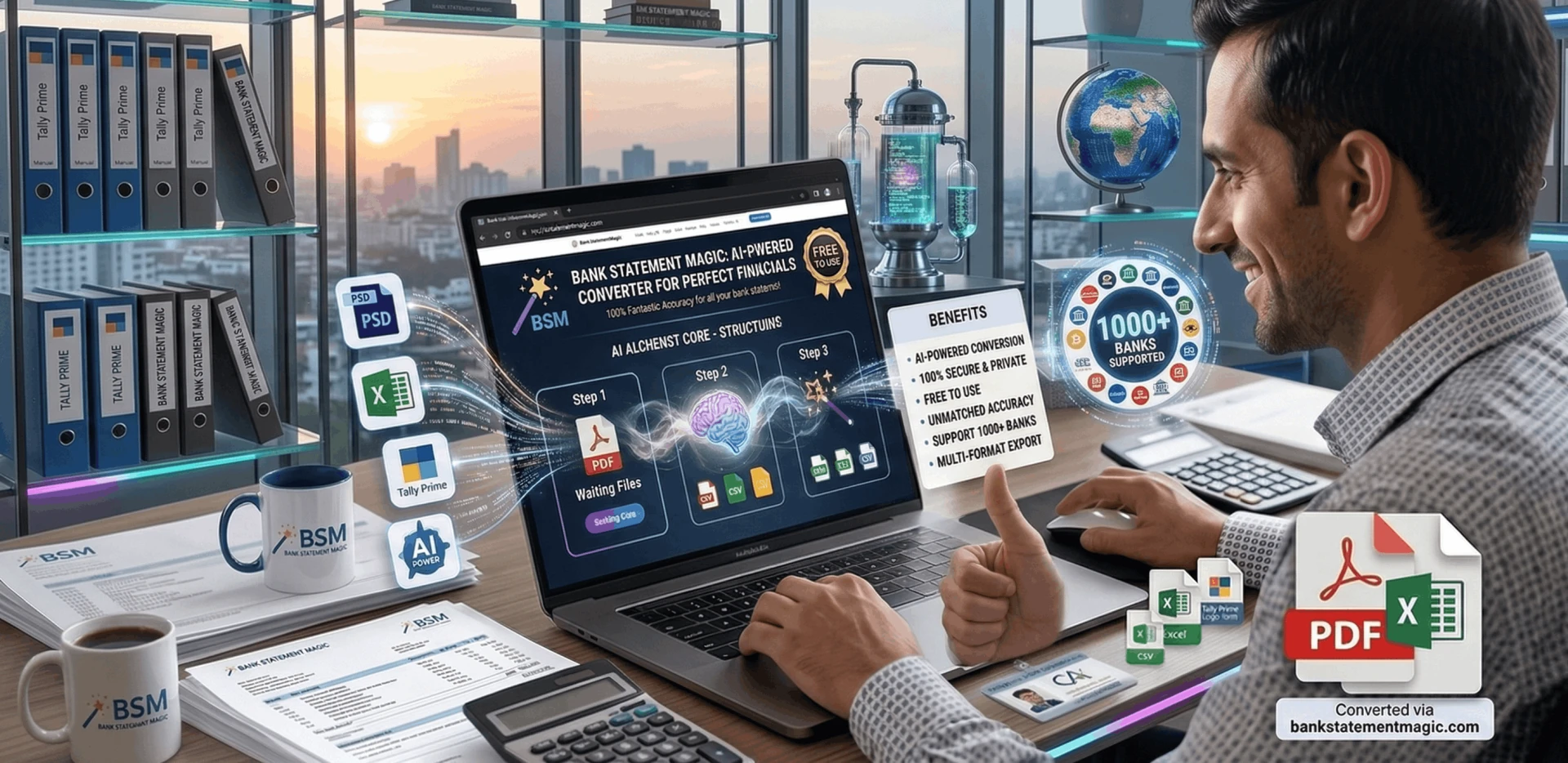
The most practical tool I've come across for this is Bank Statement Converter — an online platform built specifically for converting bank statement PDFs into clean, structured Excel and CSV files.
What separates it from generic converters is the level of detail it extracts automatically. You don't just get a messy dump of transaction text. You get properly separated columns — date, narration/description, reference number, debit amount, credit amount, and closing balance. It also pulls out account-level information like the bank name, account number, and IFSC code from the header section of the statement.
The process is straightforward:
- Upload your PDF bank statement to bankstatementmagic.com/tools
- The AI processes the file and maps every transaction to the correct column
- Download your structured Excel or CSV file — ready to use
It supports over 1000 Indian and international bank formats, which matters if you're handling accounts across multiple banks for different clients. There's no software to install and no technical setup involved.
Formatting the Excel for Tally Prime Import
Once you have your clean Excel file, getting it into Tally Prime is a straightforward process — but the formatting has to be right. Tally expects data in a specific structure when you're importing vouchers.
Here's what your Excel columns should look like before import:
- Date — formatted as DD-MM-YYYY in text format, not Excel's date serial
- Narration — the transaction description from the bank
- Ledger Name — must exactly match the ledger name in your Tally company
- Debit Amount — numeric only, blank if it's a credit entry
- Credit Amount — numeric only, blank if it's a debit entry
The output from Bank Statement Magic already separates debit and credit into individual columns, which is exactly what Tally needs. You'll mainly just need to add a Ledger Name column and verify your date format before importing.
For the actual import, most Tally users rely on third-party utilities like Excel2Tally or Tally's own data sync feature. Load your formatted file, map the columns to Tally's voucher fields, run a validation pass, and then push the entries in. A month's worth of bank transactions typically imports in under a minute.
Beyond Conversion — The PDF Toolkit
One thing worth mentioning is that Bank Statement Magic isn't just a converter. The platform includes a set of PDF utilities that accountants and finance professionals actually find useful in day-to-day work:
- PDF Split — Break a multi-month or multi-account statement PDF into individual files
- PDF Merge — Combine multiple statement PDFs into a single document before conversion
- PDF to Text — Extract raw text content from any PDF for quick reference
- PDF Password Unlock — Remove password protection from bank-issued PDFs before processing
These tools solve the small friction points that slow down the workflow — like dealing with a password-protected statement or needing to isolate a specific quarter from a year-long PDF before handing it off.
Tips for Getting the Best Results
Even with AI processing, a few habits will consistently give you cleaner output:
Use digital PDFs over scanned copies when possible. If your bank offers a downloadable e-statement, use that instead of a scanned physical copy. Digital PDFs have embedded text that AI can read with near-perfect accuracy. Scanned images introduce OCR variability that even good AI can't always eliminate.
Process one account at a time. Don't merge statements from multiple accounts into a single PDF before converting. Process each account separately and merge the Excel outputs afterwards — it keeps your data clean and your ledger mapping simple.
Reconcile immediately after Tally import. Run your bank reconciliation in Tally right after importing, while you can still easily cross-reference the original statement. Catching discrepancies early is far easier than hunting them down weeks later.
Keep your original PDFs archived. Store the original bank statement PDFs alongside your converted Excel files. For audit purposes and internal record-keeping, having the source document matters.
The Bottom Line
Manual bank statement entry into Tally is one of those tasks that feels like it should have been automated years ago — and now it genuinely has been. AI-powered tools like Bank Statement Magic handle the extraction accurately, the PDF toolkit handles the prep work, and Tally handles the accounting. Your job becomes reviewing and reconciling rather than typing and hoping.
For any CA firm, accounting practice, or business that processes more than a few bank accounts per month, this workflow shift pays for itself in time saved within the first use. Give it a try at bankstatementmagic.com — the free tier is enough to see exactly what it can do with your statements.




























Sign in to leave a comment.