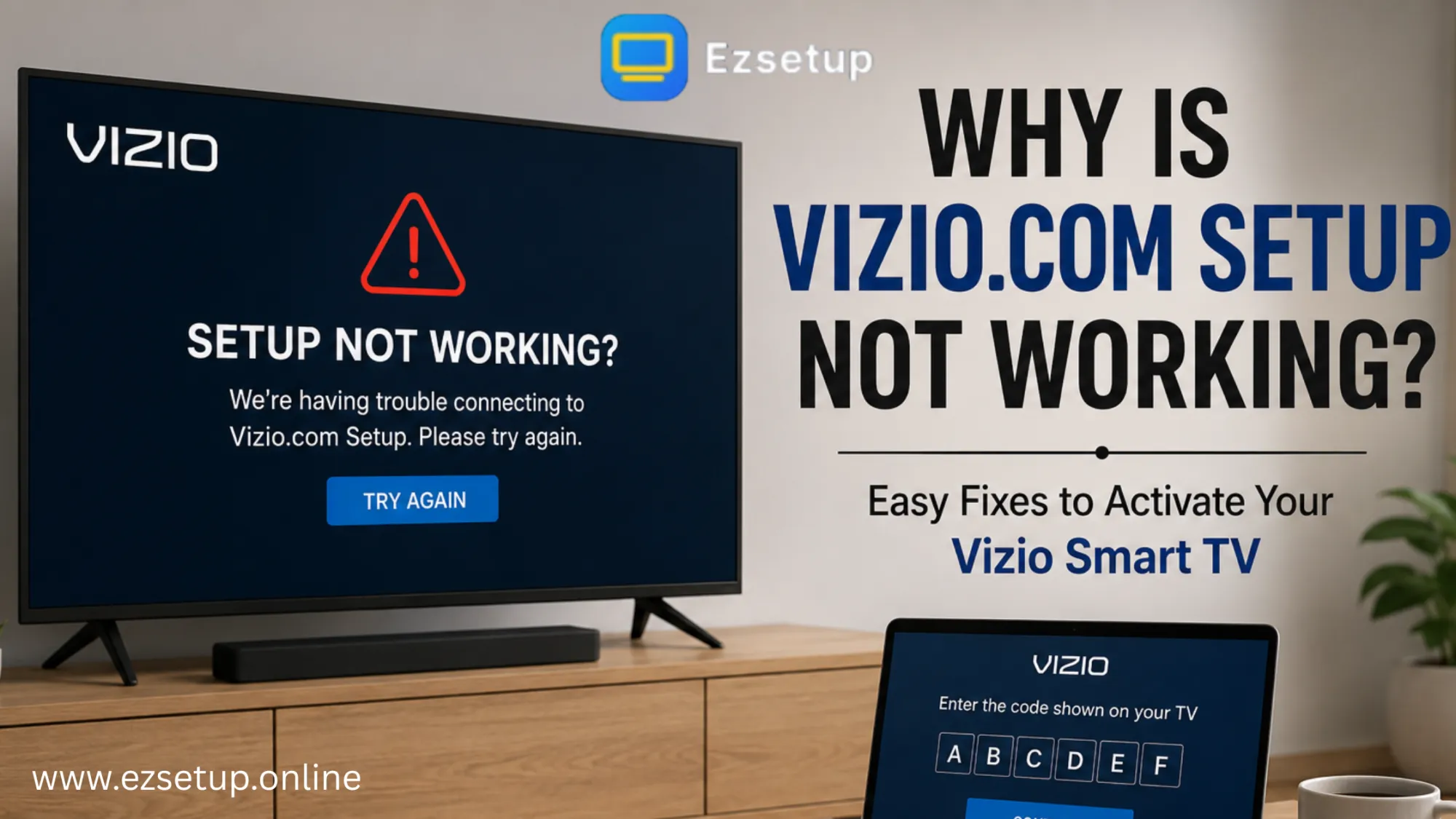

Setting up a new Vizio Smart TV should be a quick and simple process. However, many users experience problems during activation. The setup page may not load, the activation code may not work, or the TV may fail to connect to Wi-Fi. These issues can delay your setup, but they are usually easy to fix.
This guide explains why Vizio.com setup may not be working and provides practical solutions to help you activate your TV successfully. Whether you're setting up a new TV or reconnecting an existing one, these troubleshooting steps can help you complete the process without frustration.
Why Does Vizio.com Setup Fail?
Several factors can interrupt the activation process. The most common causes include:
- Weak or unstable internet connection
- Incorrect activation code
- Expired setup code
- Browser compatibility issues
- Temporary server problems
- Outdated TV software
- Network security settings
Identifying the cause is the first step toward fixing the problem.
1. Check Your Internet Connection
A stable internet connection is essential during the activation process.
Before starting setup:
- Restart your Wi-Fi router.
- Move the TV closer to the router if the signal is weak.
- Disconnect other devices that are using heavy bandwidth.
- Test another website on your phone or computer.
If your internet connection is unstable, the setup page may fail to communicate with your TV.
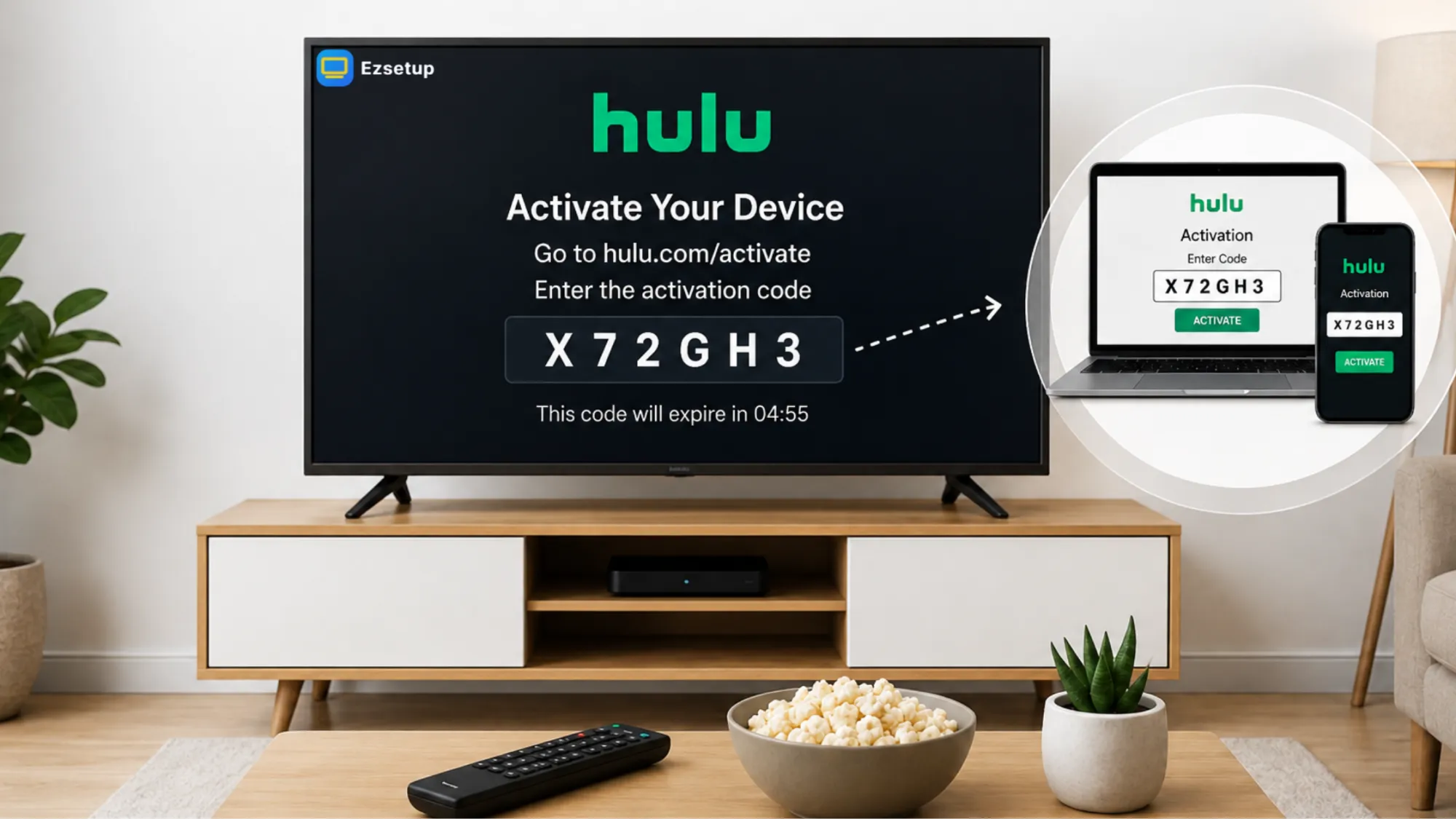
2. Verify the Activation Code
Each activation code is generated specifically for your TV.
Make sure that:
- You enter every character correctly.
- Similar characters such as O and 0 or I and 1 are not confused.
- The code has not expired before entering it.
If the code no longer works, generate a new one directly from your TV and try again.
3. Refresh the Setup Process
Sometimes the activation session simply times out.
Try these steps:
- Restart the TV.
- Return to the setup screen.
- Generate a fresh activation code.
- Complete the setup again.
Many temporary activation issues disappear after restarting the process.
4. Use a Different Browser
Occasionally, browser extensions or cached files prevent the setup page from loading properly.
If the page isn't working:
- Try Google Chrome.
- Use Microsoft Edge.
- Open Safari if you're using an Apple device.
- Clear your browser cache and cookies.
You can also try completing the setup from another computer or smartphone.
5. Restart Your Vizio Smart TV
A quick restart can resolve temporary software glitches.
To restart:
- Turn the TV off.
- Unplug it from the power outlet.
- Wait about one minute.
- Plug it back in.
- Turn the TV on and restart the activation.
This simple step often fixes setup-related problems.
6. Update Your TV Software
Older firmware versions can sometimes create compatibility issues during activation.
If your TV connects to Wi-Fi:
- Open Settings.
- Select System.
- Choose Check for Updates.
- Install any available software updates.
Keeping your TV updated improves both performance and reliability.
7. Confirm Your Wi-Fi Network
Many activation problems are actually network problems.
Check that:
- Your Wi-Fi password is correct.
- The router is functioning properly.
- Your network allows internet access.
- There are no parental controls or firewall settings blocking the connection.
If possible, connect using another Wi-Fi network or a mobile hotspot to determine whether the issue is network-related.
8. Wait if the Servers Are Busy
Occasionally, activation services experience temporary outages due to maintenance or heavy traffic.
If everything appears correct but activation still fails:
- Wait 15–30 minutes.
- Restart the setup process later.
- Avoid repeatedly entering expired activation codes.
Temporary server issues usually resolve themselves without any action from the user.
Common Setup Mistakes to Avoid
Many activation problems happen because of small mistakes during setup.
Avoid these common errors:
- Typing the activation code incorrectly
- Waiting too long before entering the code
- Using an outdated browser
- Connecting to an unstable Wi-Fi network
- Ignoring available software updates
- Closing the setup page before activation finishes
Paying attention to these details can make the setup process much smoother.
Tips for a Successful Vizio.com Setup
Follow these best practices for a hassle-free activation:
- Use a reliable high-speed internet connection.
- Keep your TV close to the Wi-Fi router during setup.
- Complete activation immediately after receiving the code.
- Restart both your TV and router before troubleshooting.
- Update your TV software whenever updates become available.
These simple habits help prevent most activation issues.
Final Thoughts
When Vizio.com setup isn't working, there's usually no need to worry. Most activation problems are caused by internet connectivity, expired activation codes, browser issues, or temporary software glitches. By checking your network, restarting your TV, updating the software, and using a fresh activation code, you can usually complete the setup within a few minutes.
At EzSetup, we recommend working through each solution patiently rather than repeating the same activation attempt multiple times. In many cases, the problem is resolved with a fresh activation code or a stable internet connection.
Following the troubleshooting steps in this guide can save time and help you get your Vizio Smart TV ready for streaming, apps, and entertainment. If the issue persists after trying every solution, allow some time before attempting activation again, as temporary server issues can occasionally interrupt the process.
Frequently Asked Questions
1. Why is my Vizio.com setup code not working?
The code may have expired, been entered incorrectly, or timed out during the activation session. Generate a new code and try again.
2. Does the activation code expire?
Yes. Setup codes are temporary and should be entered soon after they appear on your TV.
3. Can I activate my Vizio Smart TV without Wi-Fi?
No. An internet connection is required to complete the activation and setup process.
4. Why won't the setup page load?
This can happen because of browser cache, internet issues, or temporary server problems. Try another browser and clear your cache.
5. What should I do if none of the fixes work?
Restart your TV and router, generate a new activation code, verify your network connection, and collect your TV details before seeking further assistance if the problem continues.

























Sign in to leave a comment.