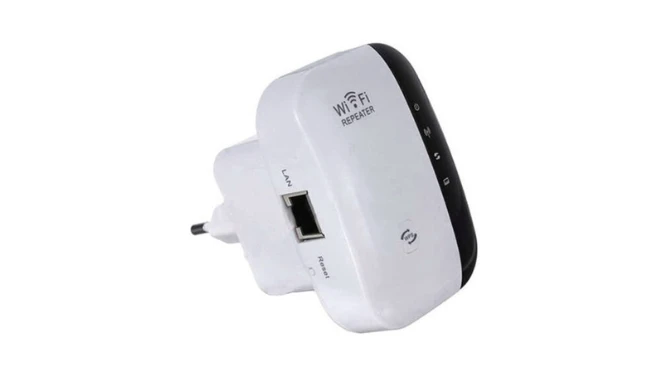

Do you think resetting your WiFi repeater is complicated? Think again! This user-friendly guide breaks down the simple process of both rebooting and performing a hard reset. Get your home's WiFi extender working optimally with these easy steps.
There are generally two types of resets: a soft reset (reboot) and a hard reset (factory reset). We will provide both reset types instructions:
Soft Reset (Restarting the Device)
This is similar to restarting your computer. It simply powers the device down and then back up, which can often resolve temporary glitches or minor software issues.
To perform a soft reset is to unplug the power adapter of your WiFi repeater from the wall outlet or the device itself. Wait for about 10 seconds, and then plug it back in. Allow a few minutes for the repeater to power on and reconnect.
You can also do this same thing by pressing the Power button twice on the repeater.
Hard Reset (Back to Default)
This restores your WiFi repeater to its original factory default settings. This means all your custom configurations, including the extended network name (SSID), password, and any other settings you've changed, will be erased. You'll need to set it up again from the beginning. We have added a list of when to should reset the device.
- Forgotten the login password for the repeater's configuration page.
- Experiencing persistent issues with the repeater that a simple reboot doesn't fix.
- Giving the repeater away or selling it and want to clear your personal settings.
- Want to start the configuration process over.
Now, let’s have look how to reset the device:
You will find the reset button usually on side of the device. You'll likely need a paperclip, pin, or a similar pointed object to press it.
- Ensure the repeater is plugged in and powered on. Using your paperclip or pin, gently press and hold the reset button. You should feel a slight click.
- Keep the button pressed for approximately 10 seconds. Holding it for too short a time might just reboot the device instead of performing a full factory reset.
After the specified time, release the button. The repeater should now begin the reset process. You'll likely see the indicator lights blink or behave in a specific pattern indicating the reset is underway. Give the repeater a few minutes to fully reboot and return to its factory default settings. The lights should eventually stabilize.
Once you've reset your WiFi repeater to factory settings, you'll need to set it up again to extend your network. Here’s a step-by-step guide:
Reconfiguring WiFi Repeater
Your repeater will broadcast its default WiFi network name (SSID). This name is usually printed on a sticker on the repeater itself or in the user manual. So, connect your PC with the repeater via this network:
- Open a web browser, type the repeater's default IP address or web address in the address bar of the browser and then search it.
- A login page asking for a username and password will appear on the computer screen.
- Enter the admin default credentials given on the label or user manual of the repeater.
After successfully logging in, you will be directed to the repeater's configuration or management page. Here, you can adjust various settings, such as the extended network name (SSID), password, and other advanced options.
Other Troubleshooting Tips than RESET
Use WPS Connection
- Locate the WPS button on your main WiFi router. It's usually a physical button.
- Hold this button for a few seconds until its WPS light starts blinking.
- This usually indicates that the router is in WPS pairing mode for a short period.
- Similarly, locate the WPS button on your WiFi repeater.
- Press and hold this button for a few seconds until its WPS light also starts blinking.
The repeater and the router will now communicate and attempt to establish a connection automatically.
Use Cable for Connection
This is often the most reliable way to access the repeater's configuration page for the first time, especially after a reset.
- Most WiFi repeaters have at least one Ethernet port
- Use an Ethernet cable to connect one end to the Ethernet port on your repeater and the other end to an Ethernet port on your computer.
- Open a web browser on your computer and enter the repeater's default IP address or web address.
- Reconfigure the device from the setup page of the repeater.
The End Words
In conclusion, knowing when and how to reset your WiFi repeater, whether through a simple reboot or a full factory reset, can save you time and frustration. Remember that a hard reset will require you to reconfigure your device entirely. Hopefully, this reset guide have been helpful for you and solved multiple problems.

























Sign in to leave a comment.