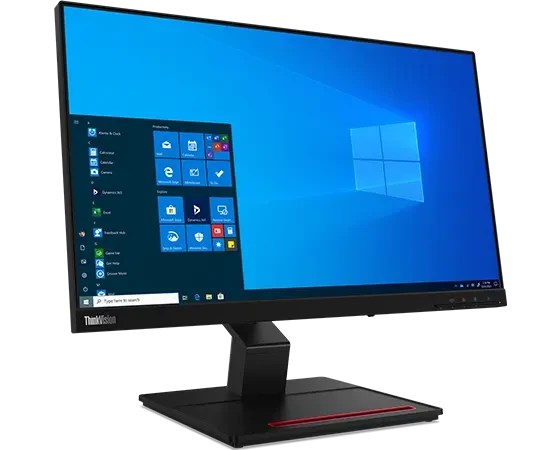

Choosing an ultrawide gaming monitor for a team or an organization feels like a simple hardware buy, yet it affects productivity, comfort, and long-term cost.
When employees stream, test games, build 3D assets, or run data dashboards, a wide panel can reduce window switching and support better focus. At the same time, the wrong specs can create motion blur, poor text clarity, or wasted GPU spend, which quickly shows up in support tickets and return requests.
You can avoid those outcomes by reviewing a short list of technical details that directly shape real-world performance. The seven specs below help buyers compare models with confidence, even across different brands and price tiers.
1) Screen size and aspect ratio
Screen size and aspect ratio shape how people work and play minute to minute, so start here before you compare anything else. Most ultrawide gaming monitor displays come in 21:9 or 32:9, and that difference changes how much content you can place side by side.
A 34-inch 21:9 model often feels like a practical “two windows wide” workspace, while a 49-inch 32:9 model feels closer to two monitors merged into one. If your team shares desks, aspect ratio also affects how quickly users adjust and how neatly the monitor fits standard workstations.
Quick checks before you shortlist
- Match aspect ratio to tasks: 21:9 for mixed work and play, 32:9 for heavy multitasking
- Confirm desk depth, because larger ultrawides need more viewing distance
- Check whether your apps or games support ultrawide layouts cleanly
2) Resolution and pixel density
Resolution tells you how much detail you can show, but pixel density tells you how clean that detail looks at a normal viewing distance. With an ultrawide gaming monitor, many buyers choose 3440×1440 at 34 inches because it balances sharp text with manageable GPU load.
For larger screens, 5120×1440 often works well because it keeps text readable without scaling issues. On the other hand, a low resolution on a large panel can make UI elements look soft, which can frustrate both gamers and office users. Aim for a setup that keeps spreadsheets crisp and game textures clear.
What to align across your stack
- GPU capability and target resolution, so you avoid constant settings changes
- Operating system scaling, especially for shared machines
- Typical viewing distance, because distance changes how sharp the content feels
3) Refresh rate and response time
Refresh rate affects how smooth motion looks, while response time affects how clean that motion looks. You can feel the difference right away when you move the camera in a game or scroll through fast content. Many teams treat 144 Hz as a strong baseline for a gaming-focused environment, especially when users play competitive titles.
However, refresh rate only delivers value when the system can drive it, so pair the monitor choice with realistic GPU expectations. Response time also matters because poor pixel transitions can create smearing, which makes fast scenes look messy and reduces comfort over long sessions.
Practical buying notes
- Prioritize consistent motion clarity over marketing numbers
- Confirm the refresh rate at the monitor’s native resolution
- Check reviews for real-world motion performance, not only spec sheets
4) Panel type and viewing angles
Panel type shapes color, contrast, and how the screen looks from different angles, which matters a lot in team spaces. IPS panels often deliver reliable colors and strong viewing angles, so they work well for studios that handle design, video, or brand assets. VA panels often deliver deeper contrast, which can make dark scenes in games look richer, although some VA models show more motion smearing in certain content.
OLED options can deliver excellent contrast and fast pixel response, yet they also require a clear plan for burn-in risk and brightness behavior. Choose the panel type that matches how people actually use the displays every day.
When panel choice drives business impact
- Shared viewing: IPS often supports group review sessions better
- Dark-room gaming: strong contrast can improve scene detail
- Mixed workloads: confirm text clarity, because users notice it quickly
5) Adaptive sync and frame handling
Adaptive sync helps the monitor match its refresh behavior to the GPU’s output, which reduces tearing and cuts down on stutter. This matters even more on ultrawide resolutions because the GPU works harder, and frame rates can swing during complex scenes.
Look for clear support for common standards, and verify that the feature works over the connection type you plan to use. Some models also include useful tuning options such as low frame rate compensation, which helps maintain smoother motion when frame rates dip. When you buy for a lab or office, adaptive sync can reduce complaints because it improves the “feel” without users tweaking settings.
6) Brightness, HDR support, and contrast performance
HDR labels can confuse buyers, so focus on measurable outcomes: brightness behavior, contrast performance, and how the monitor handles highlights in real content. If users work in bright rooms, a monitor that sustains good brightness can improve comfort and reduce eye strain during long days.
If users game in darker rooms, strong contrast can add depth and help details stand out. Some monitors advertise HDR but cannot deliver meaningful highlight detail, so you should treat HDR as a bonus unless you confirm strong real-world performance through testing data. This spec area often separates a “good enough” screen from one that people genuinely enjoy using.
Questions to ask vendors or reviewers
- How bright does it stay during long sessions, not just peak moments
- Does local dimming improve real scenes or cause distracting halos
- Does HDR mode keep colors accurate, or does it oversaturate content
7) Connectivity, ergonomics, and reliability features
An ultrawide gaming monitor can look great on paper, yet teams feel the difference through ports, cable simplicity, and daily comfort. Confirm you have the right connections for your GPUs and laptops, and pay attention to bandwidth needs for high refresh rates at ultrawide resolutions.
Ergonomics also matters because a wide screen can force awkward head turns if the stand locks you into a poor height or tilt. Finally, reliability features like a strong warranty, dead pixel policy, and firmware update support reduce downtime and protect budgets. These details often decide whether the purchase feels smooth or stressful after deployment.
Deployment-friendly checks
- Ports: DisplayPort version, HDMI capability, and USB-C if needed
- Stand: height and tilt that fit your seating standards
- Support: warranty terms, service turnaround time, and firmware updates
Conclusion
A smart monitor decision does more than improve frame rates, because it also shapes how people feel during long work and play sessions. When you review these seven specs in a clear order, you turn a confusing product category into a straightforward comparison.
You also protect your team from common issues like blurry motion, uncomfortable layouts, and unexpected GPU strain. Most importantly, you give users a screen that feels natural and dependable every day, which builds trust in the tools you provide.
When you choose the right ultrawide gaming monitor, the win shows up in focus, confidence, and shared satisfaction.



























Sign in to leave a comment.