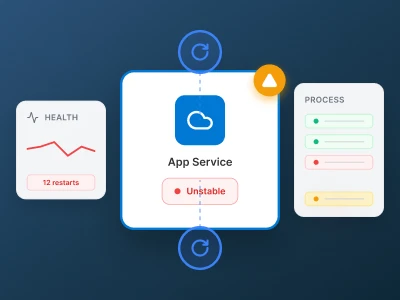
A Step-by-Step Debugging Guide for Developers
When Your App Randomly Goes Down. Few things cause more panic than this scenario:
- Your app works locally
- Deployment succeeds
- Suddenly the app goes down
- Logs show repeated restarts
- No clear error message
You Google one thing: “Azure App Service keeps restarting”
This blog explains why Azure App Service restarts happen, how to identify the exact root cause, and how to fix it permanently—not just restart the service and hope.
Original Link - https://ariedge.ai/blog/azure-app-service-keeps-restarting/
What Does “Azure App Service Keeps Restarting” Mean?
When an Azure App Service keeps restarting, it means the application process is repeatedly crashing or failing health checks, causing the platform to automatically stop and restart the app to recover. This behavior usually indicates:
- Application-level crashes
- Resource exhaustion
- Startup failures
- Configuration errors
Azure is not the problem—the app is.
How Azure App Service Restart Cycles Work
Azure App Service automatically restarts your app when:
- The process crashes
- Memory limits are exceeded
- Startup takes too long
- Health checks fail
- Configuration changes occur
This creates a restart loop, often called a crash loop. Understanding why Azure App Service keeps restarting your app is the key to fixing it.
Most Common Reasons Azure App Service Keeps Restarting
Application Startup Failure (Most Common Cause)
If your app fails during startup, Azure will keep restarting it.
Typical causes:
- Missing environment variables
- Incorrect connection strings
- Unhandled exceptions in Startup.cs
- Invalid app settings
- Dependency failures
How to detect it
- Check Application Logs
- Look for startup exceptions
- Review deployment logs
Fix startup errors first—nothing else matters until the app boots successfully.
Out of Memory (OOM) Issues
Azure App Service has strict memory limits based on the plan.
Symptoms:
- App restarts under load
- No clear error in UI
- Sudden crashes during traffic spikes
Common reasons:
- Memory leaks
- Large object allocations
- Infinite loops
- Heavy caching in memory
How to confirm
- Check Metrics → Memory Working Set
- Enable Application Insights
- Look for memory spikes before restarts
Fix
- Optimize memory usage
- Increase App Service Plan tier
- Move caching to Redis or external stores
App Service Plan Resource Limits
If CPU or memory hits the plan limit:
- Azure throttles the app
- Then restarts it for stability
This is common on:
- Free / Shared plans
- Under-provisioned Basic plans
Fix
- Scale up the plan
- Monitor CPU and memory continuously
- Avoid running background jobs inside the app
Failing Health Checks
If health checks are enabled and your app doesn’t respond in time, Azure restarts it.
Causes:
- Slow startup
- Blocking database calls
- Deadlocked threads
- Long-running initialization code
Fix
- Keep health check endpoints lightweight
- Avoid database calls in health checks
- Increase health check timeout if needed
Deployment and Configuration Issues
Apps can restart continuously after deployment due to:
- Wrong runtime stack
- Incorrect startup command
- Mismatched framework version
- Missing files
Where to check
- Configuration → General Settings
- Startup command
- Runtime version
Always align your deployment config with how the app runs locally.
Application Crashes at Runtime
Unhandled exceptions during execution will crash the app.
Examples:
- Null reference exceptions
- Unhandled promise rejections (Node.js)
- Thread crashes
- Infinite recursion
How to detect
- Application Insights → Failures
- Log stream
- Crash stack traces
Fix
- Add global exception handling
- Improve logging
- Fix code-level bugs
How to Diagnose Azure App Service Restart Issues (Step-by-Step)
Step 1: Check Log Stream Immediately
- Go to Monitoring → Log Stream
- Watch real-time logs during restart
- Look for fatal errors
Step 2: Enable Application Insights
- View Exceptions
- Check Availability
- Correlate crashes with traffic or deployment
Step 3: Use Kudu Console
- Access Advanced Tools → Kudu
- Check file system
- Review startup logs
- Validate deployment artifacts
Step 4: Monitor Metrics
Key metrics to watch:
- CPU Percentage
- Memory Working Set
- HTTP 5xx errors
- Restart Count
Patterns here usually reveal the cause.
How to Stop Azure App Service Restart Loops Permanently
- Fix startup logic before scaling
- Move heavy jobs out of the web app
- Optimize memory usage
- Use proper logging
- Scale plans based on real usage
- Test with production-like data
Restarting the app manually is not a fix—it’s a delay.
When Azure App Service Is Not the Right Choice
If your app:
- Runs long background jobs
- Needs heavy processing
- Requires persistent connections
- Has unpredictable memory usage
Then consider:
- Azure Functions
- Containers
- Kubernetes
- Background worker services
Choosing the wrong hosting model causes endless restarts.
Final Thoughts: Restarts Are a Signal, Not a Failure
When Azure App Service keeps restarting, Azure is protecting your system—not breaking it.
Treat restarts as:
- Architecture feedback
- Resource signals
- Stability warnings
Fix the root cause once—and the problem disappears permanently.






























Sign in to leave a comment.