
Introduction
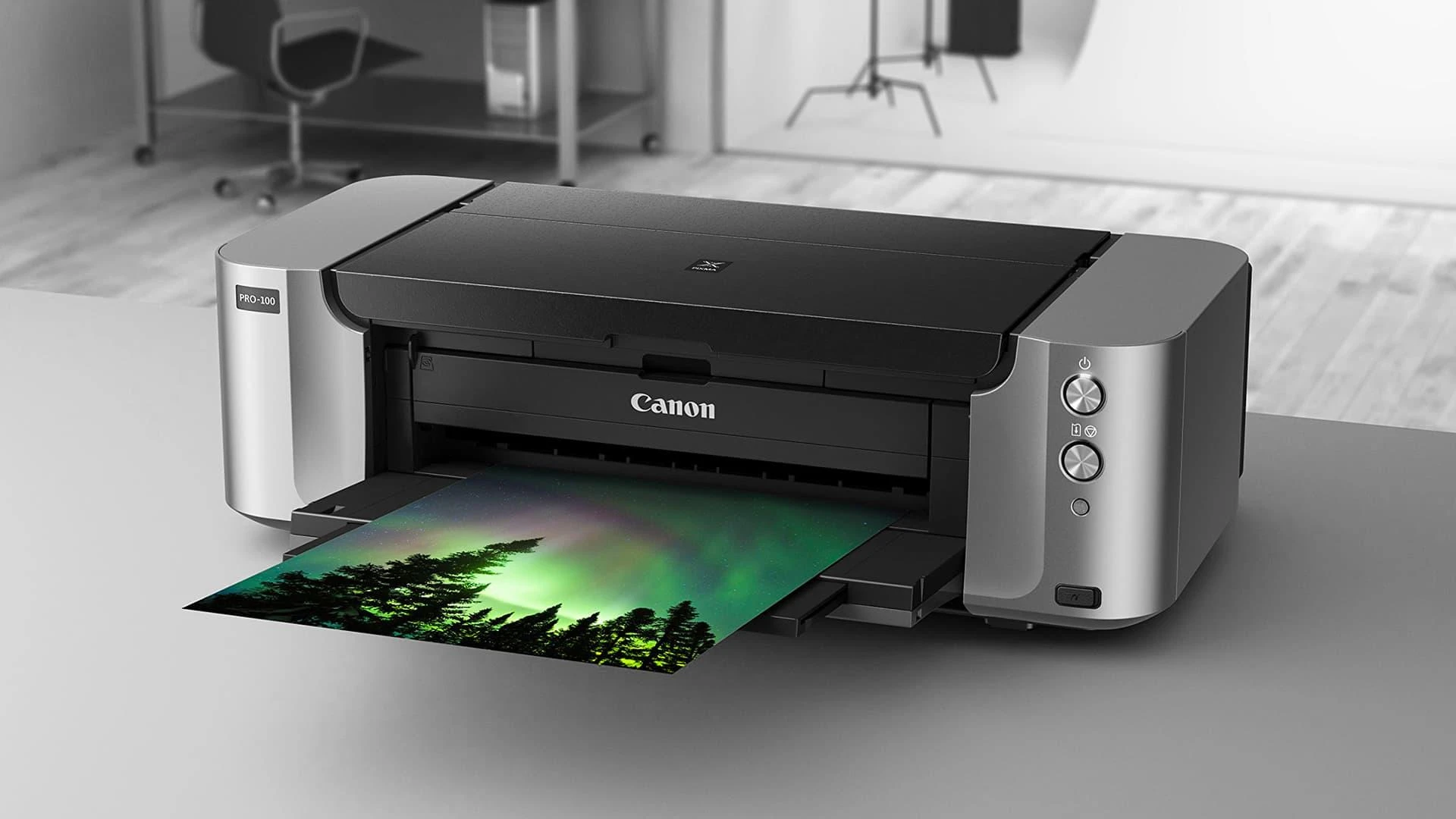
The Canon PIXMA MX922 is a popular all-in-one inkjet printer known for its high-quality prints, wireless connectivity, and advanced features. To ensure optimal performance and functionality, users need to install the correct driver. A driver is a software component that allows the printer to communicate with a computer or other devices. In this article, we will explore the importance of the Canon MX922 driver, how to install it, key features, and troubleshooting common issues.
Importance of the Canon MX922 Driver
A printer driver serves as a bridge between the printer and the operating system of a computer. Without the proper driver, the printer may not function correctly or may not be recognized by the system. Installing the latest driver ensures compatibility, improves performance, and enables access to all the printer’s features.
Key Functions of the Driver:
- Facilitates communication between the printer and the computer.
- Provides access to advanced printer settings.
- Ensures compatibility with different operating systems.
- Enhances printing efficiency and speed.
- Fixes bugs and improves stability with regular updates.
How to Download and Install the Canon MX922 Driver
Installing the correct driver for the Canon MX922 printer is crucial for seamless operation. Follow these steps to download and install the driver:
Step 1: Downloading the Driver
- Open a web browser and go to the official Canon website.
- Navigate to the "Support" section.
- Enter "Canon MX922" in the search bar and select the appropriate model.
- Choose the correct operating system (Windows or macOS).
- Click on the download link to get the latest driver.
Step 2: Installing the Driver on Windows
- Locate the downloaded driver file (usually in the "Downloads" folder).
- Double-click the file to start the installation process.
- Follow the on-screen instructions to complete the setup.
- Connect the printer to the computer using a USB cable or set up a wireless connection.
- Restart the computer to finalize the installation.
Step 3: Installing the Driver on macOS
- Open the downloaded file.
- Drag the driver package to the "Applications" folder.
- Follow the installation wizard’s instructions.
- Connect the printer via USB or Wi-Fi.
- Restart the system to apply the changes.
Features of the Canon MX922 Driver
The Canon MX922 driver unlocks a variety of features that enhance the printer’s functionality. Some of the key features include:
1. Wireless Printing Support
The driver enables Wi-Fi connectivity, allowing users to print from laptops, smartphones, and tablets without needing a physical connection.
2. AirPrint and Cloud Print Compatibility
Users can print directly from Apple devices using AirPrint or utilize Google Cloud Print for remote printing.
3. Automatic Duplex Printing
The driver supports automatic double-sided printing, reducing paper usage and promoting eco-friendly printing.
4. High-Resolution Printing
With support for up to 9600 x 2400 dpi, the driver ensures crisp and high-quality prints, making it ideal for both text documents and photos.
5. Fax and Scanner Integration
The driver also facilitates fax and scanning functions, ensuring smooth operation of all-in-one features.
6. Custom Print Settings
Users can adjust print quality, paper type, and color management settings through the driver interface.
Troubleshooting Common Issues
Despite its efficiency, users may encounter issues with the Canon MX922 driver. Here are some common problems and their solutions:
1. Printer Not Recognized
Solution:
- Ensure the printer is properly connected via USB or Wi-Fi.
- Restart the computer and printer.
- Reinstall the driver using the latest version from the Canon website.
2. Driver Installation Failure
Solution:
- Check system compatibility before downloading the driver.
- Temporarily disable antivirus software during installation.
- Run the installer as an administrator.
3. Printing Errors or Slow Printing
Solution:
- Update the driver to the latest version.
- Clear the print queue and restart the printer.
- Check for paper jams and ensure the ink cartridges are properly installed.
4. Wireless Printing Issues
Solution:
- Verify that the printer and computer are connected to the same Wi-Fi network.
- Restart the router and reconnect the printer.
- Reset network settings on the printer and reconfigure the wireless connection.
5. Scanner Not Working
Solution:
- Ensure the scanner driver is installed alongside the printer driver.
- Restart both the printer and computer.
- Use the Canon IJ Scan Utility for scanning operations.
Conclusion
The Canon MX922 driver is an essential component for ensuring the printer’s optimal performance. Proper installation and regular updates enhance functionality, provide access to advanced features, and prevent common issues. By following the installation and troubleshooting steps outlined in this guide, users can maximize their printer’s efficiency and enjoy a seamless printing experience.






















Sign in to leave a comment.