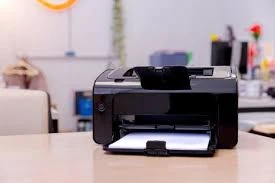

HP printers are among the most widely used printing devices for both home and office environments. Their ability to connect to WiFi networks allows users to print wirelessly from various devices, including laptops, desktops, smartphones, and tablets.
Setting up an HP printer to WiFi is essential for enabling seamless wireless printing, reducing the need for cables, and increasing accessibility. This guide provides step-by-step instructions on how to set up hp printer to wifi network using different methods.
Prerequisites for WiFi Setup
Before starting the WiFi setup process, ensure you have the following:
- An HP printer that supports wireless connectivity.
- A stable WiFi network with an available internet connection.
- A computer, smartphone, or tablet connected to the same WiFi network.
- The HP Smart App installed on your device (for easier setup).
- A USB cable (optional for some setup methods).
With these essentials, the setup process will be smooth and error-free.
Methods to Set Up an HP Printer to WiFi
There are several methods to connect an HP printer to WiFi, depending on the printer model and available setup options.
Method 1: Using the HP Smart App (Recommended for Most HP Printers)
The HP Smart App is a convenient way to set up an HP printer to WiFi and is compatible with Windows, macOS, iOS, and Android devices.
Step 1: Install the HP Smart App
- Download and install the HP Smart App from the Microsoft Store, App Store, or Google Play Store.
- Open the app and sign in or create an HP account.
Step 2: Prepare the Printer for Connection
- Turn on your HP printer.
- If the printer was previously connected to a network, reset the WiFi settings by pressing and holding the Wireless and Cancel buttons together for 5-10 seconds until the WiFi light blinks.
Step 3: Connect to WiFi Using HP Smart App
- Open the HP Smart App and tap Add Printer.
- The app will search for available printers. Select your HP printer from the list.
- Choose your WiFi network (SSID) and enter the WiFi password.
- Wait for the WiFi indicator light on the printer to become solid, confirming a successful connection.
Once the setup is complete, the printer is connected to WiFi and ready to use.
Method 2: Using the Printer Control Panel (For Printers with Touchscreens)
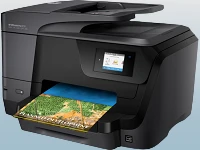
If your HP printer has a touchscreen display, you can connect it to WiFi directly from the control panel.
Step 1: Access Wireless Settings
- Turn on the HP printer.
- Tap the Wireless or Network icon on the touchscreen display.
- Select Wireless Settings, then choose Wireless Setup Wizard.
Step 2: Select and Connect to WiFi
- The printer will scan for available WiFi networks.
- Select your WiFi network (SSID) from the list.
- Enter the WiFi password and tap OK.
- The printer will connect to the network, and the WiFi indicator light will become solid.
Once connected, the printer is ready for wireless printing.
Method 3: Using WPS (Wi-Fi Protected Setup) Push Button Method
This method is suitable for routers and HP printers that support WPS. It allows for quick connection without entering a WiFi password.
Step 1: Enable WPS Mode on the Printer
- Turn on the HP printer.
- Press and hold the Wireless button for 3-5 seconds until the WiFi light starts blinking.
Step 2: Activate WPS on the Router
- Locate the WPS button on your WiFi router.
- Press and hold the WPS button for a few seconds to start the connection process.
Step 3: Automatic Connection
- The printer will automatically detect and connect to the WiFi network.
- Once connected, the WiFi indicator light will turn solid.
The printer is now connected wirelessly and ready for printing.
Method 4: Using a USB Cable (For Older HP Printers)
Some older HP printers without a touchscreen or WPS require a USB connection to set up WiFi.
Step 1: Connect the Printer to the Computer
- Turn on the HP printer.
- Use a USB cable to connect the printer to your computer or laptop.
Step 2: Install HP Printer Software
- Download and install the HP Printer Software from the official HP website.
- Open the software and select Wireless Setup.
- Choose your WiFi network, enter the WiFi password, and follow the on-screen instructions.
Step 3: Disconnect the USB Cable
- Once the setup is complete, disconnect the USB cable.
- Restart the printer to apply the wireless settings.
Now, your HP printer is set up on WiFi, and you can print wirelessly.
Troubleshooting WiFi Setup Issues
During the WiFi setup process, users may encounter connectivity problems. Here are some solutions:
Restart the Printer and Router
- Turn off the HP printer and WiFi router.
- Wait 30 seconds, then turn them back on.
- Try connecting the printer to WiFi again.
Check WiFi Signal Strength
- Ensure the printer is within range of the router.
- Avoid obstacles like walls or electronic devices that may interfere with the signal.
Verify WiFi Credentials
- Ensure the correct WiFi network (SSID) is selected.
- Enter the WiFi password carefully, ensuring it is correct.
Update Printer Firmware
- Visit the HP website and check for the latest firmware updates for your printer model.
Reset Network Settings
- Reset the printer’s network settings by holding the Wireless and Cancel buttons for 5-10 seconds until the WiFi light blinks.
- Try reconnecting using one of the methods above.
Conclusion
Setting up an HP printer to WiFi is a straightforward process that allows users to print wirelessly from various devices. The HP Smart App provides the easiest method for most users, while printers with touchscreens, WPS, or USB connectivity offer alternative setup options.
By following the step-by-step instructions outlined in this guide, users can successfully connect their HP printer to WiFi and enjoy seamless wireless printing. If any issues arise, troubleshooting techniques such as restarting devices, checking network settings, and updating firmware can help resolve connectivity problems efficiently.
4o


























Sign in to leave a comment.