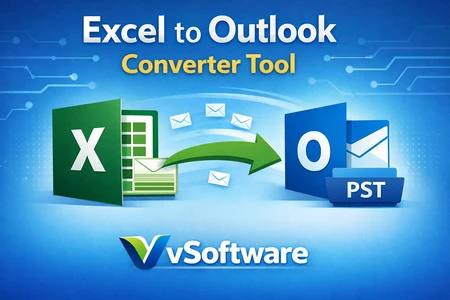

Managing contacts in Excel is common for businesses, marketers, and IT teams. Spreadsheets are simple to create, easy to share, and flexible for storing large volumes of contact data. However, problems arise when those contacts need to be used in Microsoft Outlook. Outlook does not directly import Excel contacts as a single, organized address book in PST format. As a result, users often struggle with manual processes, data mismatches, and formatting errors.
Converting Excel contacts to PST offers a streamlined solution. A PST file is Outlook’s native data format, allowing contacts to appear instantly within the application. By migrating Excel-based records into PST, users gain centralized access, better searchability, and seamless synchronization across Outlook environments.
Why Businesses Store Contacts in Excel
Excel remains a popular choice for maintaining contact lists because it is:
- Easy to edit and update
- Suitable for bulk data entry
- Compatible with CRM exports
- Convenient for sharing between teams
Sales departments, support teams, and marketing professionals often maintain thousands of email addresses, phone numbers, and client details in XLS or XLSX files. While Excel is excellent for storage, it lacks the advanced features of Outlook, such as contact categorization, integration with emails, and address book synchronization.
To unlock these benefits, users must move their data into Outlook. That is where Excel-to-PST conversion becomes essential.
Limitations of Manual Methods
Microsoft Outlook provides basic import options, but they are not designed for large-scale or repeated migrations. Manual methods typically involve:
- Mapping columns one by one
- Handling errors caused by inconsistent formatting
- Losing special fields, such as notes or custom tags
- Repeating the process for every new file
When dealing with hundreds or thousands of records, these steps become time-consuming and error-prone. Even a small mistake in column mapping can lead to misplaced data. For organizations that manage multiple Excel files or perform frequent migrations, manual import is not practical.
An automated conversion solution removes these barriers and ensures accuracy at scale.
What an Automated Converter Does
A professional Excel-to-PST converter is built to handle unlimited records without data loss. It reads Excel spreadsheets, interprets each column, and converts entries into Outlook-compatible contact fields. The resulting PST file can be opened directly in Outlook, displaying all contacts in their proper structure.
Such tools are designed to:
- Support XLS and XLSX formats
- Convert unlimited rows without size restrictions
- Preserve data integrity and formatting
- Maintain field alignment (name, email, phone, company, etc.)
- Create a ready-to-use PST file
Instead of spending hours on manual imports, users can complete the task in minutes with consistent results.
Benefits of Converting Excel Contacts to PST
Migrating contacts from Excel into PST offers tangible advantages:
- Centralized Management
All contacts become part of Outlook’s address book, enabling easy searching, grouping, and categorization. - Better Productivity
Users can send emails, schedule meetings, and manage relationships directly from Outlook without switching tools. - Improved Data Security
PST files can be stored locally, backed up, or encrypted, giving organizations more control over sensitive information. - Scalability
Whether you have 500 contacts or 500,000, automated conversion handles bulk data effortlessly. - Cross-System Compatibility
PST files can be shared between systems, archived, or imported into other Outlook profiles without rework.
How the Conversion Process Works
Most modern tools follow a simple workflow:
- Select the Excel file containing contacts
- Preview the data to verify accuracy
- Map columns to Outlook contact fields if needed
- Choose the destination for the PST file
- Start the conversion process
Once completed, the PST file can be opened in Outlook using the “Open Outlook Data File” option. All contacts appear instantly, fully functional, and ready for use.
This streamlined approach eliminates repetitive tasks and ensures consistent output across multiple projects.
Use Cases Across Industries
Excel-to-PST conversion is not limited to IT professionals. It is widely used in:
- Marketing agencies migrating lead databases
- HR departments managing employee directories
- Customer support teams are consolidating client lists
- Small businesses transitioning to Outlook
- Enterprises standardizing contact management
In each case, the goal is the same: transform raw spreadsheet data into a structured, usable Outlook environment.
Choosing the Right Tool
When selecting a converter, it is important to evaluate:
- Support for large files and unlimited entries
- Accuracy in field mapping
- Compatibility with different Outlook versions
- Ease of use for non-technical users
- Data safety and integrity
A reliable solution should perform conversions without altering the original Excel file and without introducing duplicates or errors.
Final Thoughts
Excel is ideal for storing contact information, but Outlook is far superior for managing relationships and communication. Bridging the gap between these two platforms unlocks efficiency, organization, and productivity. By converting unlimited Excel contacts into PST format, users gain a future-ready address book that integrates seamlessly with Outlook.


























Sign in to leave a comment.