

Smartphones store a large amount of personal information, from photos and messages to location history and health data. On an iPhone, apps can request access to this information to work properly, but not every request should be approved automatically. Knowing how to check app data access permissions on iPhone helps you stay in control of your privacy, reduce security risks, and improve overall device performance.
Why app data access permissions matter
Every app on your iPhone asks for certain permissions, such as access to your camera, microphone, contacts, or location. Some of these permissions are essential for core functionality, while others may not be necessary at all. If permissions are left unchecked, apps may collect more data than you realize. Regularly reviewing these settings ensures that apps only access what they truly need, helping you protect sensitive information, avoid misuse, and even conserve battery life.
How to check permissions for a specific app
One of the easiest ways to manage permissions is by reviewing them for each app individually. Open the Settings app on your iPhone and scroll down until you see the app you want to check. Tap on the app name, and you will find a list of permissions it has requested, such as access to photos, contacts, camera, microphone, or location. From here, you can enable or disable permissions based on how much access you feel comfortable giving that app.
How to check permissions by data category
iOS also allows you to check permissions based on data categories, which provides a broader overview. Go to Settings, then tap Privacy & Security. You will see categories like Location Services, Contacts, Photos, Camera, Microphone, and more. Selecting any category shows all apps that have requested access to that specific type of data. This method is helpful when you want to quickly review or restrict access across multiple apps at once.
Managing location and tracking permissions
Location data is one of the most sensitive forms of personal information. In the Location Services menu, you can choose whether an app can access your location always, only while using the app, or never. You can also turn off Precise Location for apps that do not need exact coordinates. Additionally, App Tracking Transparency allows you to control whether apps can track your activity across other apps and websites, giving you more control over targeted advertising and data sharing.
Reviewing camera, microphone, and photo access
Camera and microphone permissions deserve special attention because they directly impact your privacy. iOS shows visual indicators when these features are being used, making it easier to stay aware. To manage these permissions, go to Privacy & Security and review the Camera and Microphone sections. For photo access, you can choose full access, limited access, or no access at all. Limited access is particularly useful when you want an app to view only selected photos instead of your entire gallery.
Using the App Privacy Report
The App Privacy Report provides detailed insight into how apps use your data over time. Available under Privacy & Security, this report shows how frequently apps access sensitive information, sensors, and network connections. Reviewing this data helps you identify apps that may be accessing information more often than expected. If anything looks unusual, you can adjust permissions immediately or uninstall the app to prevent further access.
Best practices for managing app permissions
To maintain strong privacy on your iPhone, review app permissions regularly, especially after installing new apps. Avoid granting continuous access unless it is absolutely necessary for the app to function. Remove apps you no longer use, as they may still have permission to access your data. Keeping your iOS version up to date is also important, as Apple frequently introduces enhanced privacy controls and clearer permission explanations.
Checking permissions on refurbished iPhones
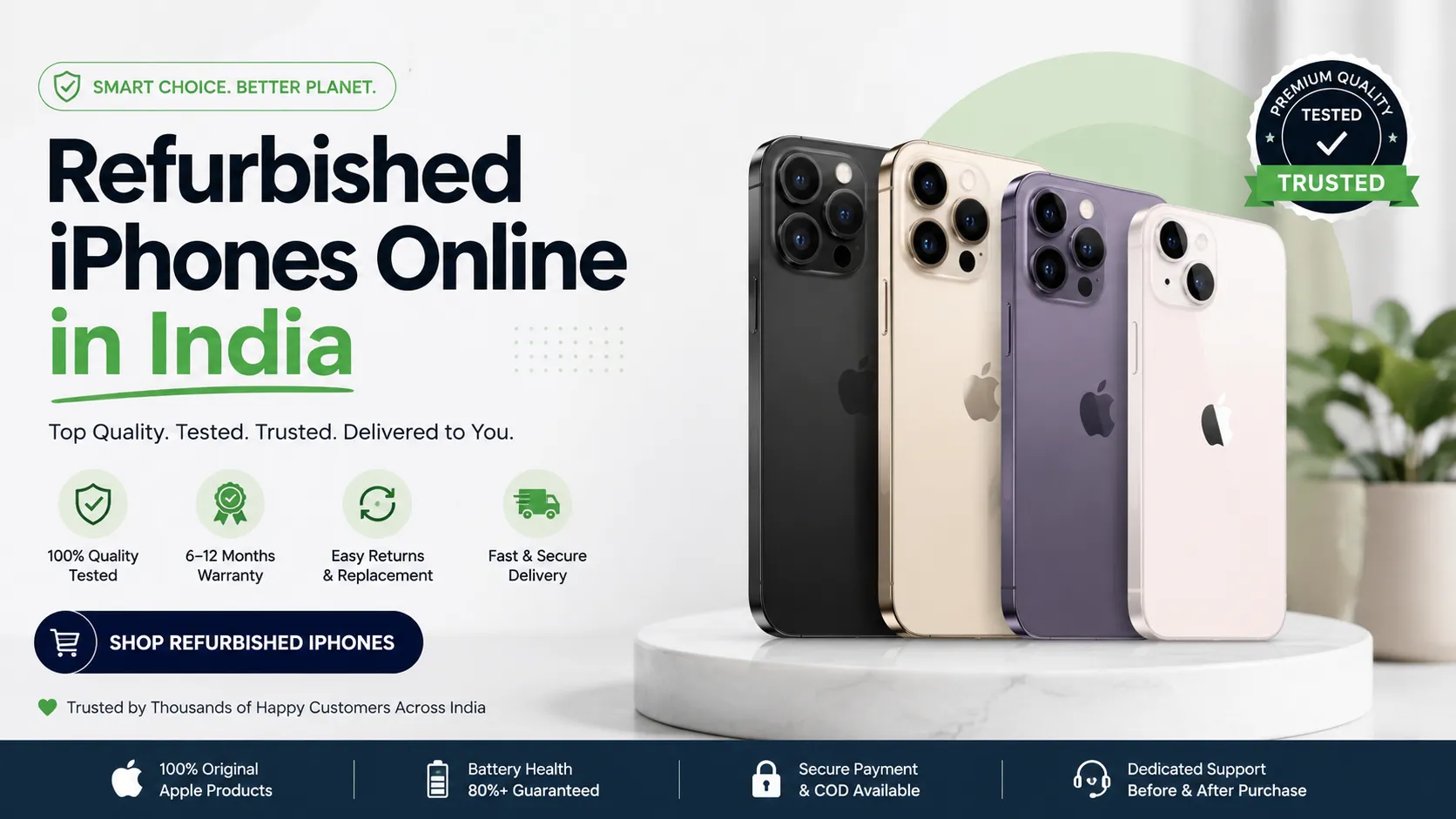
When setting up a refurbished device, reviewing permissions is especially important. After signing in with your Apple ID, take time to go through Privacy & Security settings to ensure everything is configured correctly. Users purchasing an iphone 16 refurbished from EasyPhones benefit from devices that are professionally reset and tested, allowing them to start fresh with secure and customizable privacy settings. EasyPhones emphasizes quality checks and data safety, making privacy management easier from the first use.
Choosing trusted sellers for used iPhones
If you are considering a second hand iphone in india, choosing a reliable seller is essential for both performance and privacy. EasyPhones ensures that every device is thoroughly wiped, verified, and refurbished to high standards. This allows users to confidently manage app permissions without worrying about leftover data or previous user settings.
Conclusion
Checking app data access permissions on iPhone is a simple yet powerful way to protect your privacy. By reviewing permissions by app and by data type, using tools like the App Privacy Report, and following best practices, you can maintain control over your personal information. Whether you are using a brand-new device or a refurbished iPhone from a trusted platform like EasyPhones, staying informed about app permissions ensures a safer and more secure iPhone experience.





























Sign in to leave a comment.