
QuickBooks is widely used by businesses and accounting professionals to manage invoices, expenses, payroll, banking transactions, reports, and other financial activities. Because accounting software is often part of a company's daily workflow, installation problems can become frustrating and disruptive.
A failed installation may prevent users from opening QuickBooks, completing an update, accessing important features, or moving the software to a new computer. In some situations, the installation may stop with an error message. In others, the setup process may appear to finish but QuickBooks may not open correctly afterward.
The good news is that many installation problems can be approached systematically. Instead of repeatedly running the installer or making random changes to Windows, users can identify the likely cause and work through appropriate troubleshooting steps.
This guide explains common causes of installation problems, practical troubleshooting methods, and preventive measures that can help businesses maintain a reliable QuickBooks environment.
What Causes QuickBooks Installation Problems?
QuickBooks installation failures can happen for several different reasons. The cause may be related to the Windows operating system, security software, damaged installation files, insufficient permissions, or components required by QuickBooks.
Common causes include:
- Damaged or incomplete installation files
- Windows Installer problems
- Missing or damaged Microsoft components
- Insufficient disk space
- Security software blocking the installer
- User permission restrictions
- An incomplete previous installation
- Conflicts with another program
- Outdated Windows components
- Network problems during an online installation
Because the causes vary, there is no single solution that works for every installation error.
The best approach is to begin with simple checks and move toward more advanced troubleshooting only when necessary.
Check Your System Before Installing
Before starting an installation, verify that the computer is appropriate for the QuickBooks version being installed.
Check the operating system, available storage, internet connection, and system requirements for the specific QuickBooks product.
Using an unsupported or incompatible environment can lead to installation problems or unexpected behavior after installation.
Users should also make sure that the computer has sufficient free storage.
If the system drive is almost full, the installer may not have enough space to extract and copy required files.
Keeping adequate free space can also improve overall Windows performance.
Download the Installer From a Trusted Source
One common cause of installation problems is an incomplete or damaged setup file.
If the installation file was interrupted while downloading or came from an unreliable source, the installer may fail when it tries to extract or install components.
Users should obtain QuickBooks installation files from an appropriate trusted source and verify that the download has completed successfully.
Avoid using modified or unofficial installation packages. Besides creating installation problems, unknown software can introduce security risks.
A clean and legitimate installation file provides a better starting point for troubleshooting.
Close QuickBooks Before Starting
Before installing, repairing, updating, or reinstalling QuickBooks Desktop, make sure the application is completely closed.
Background processes can sometimes remain active after the main QuickBooks window has been closed.
Other software can also interfere with an installation.
Close unnecessary applications before running the installer. If a previous installation process appears to be stuck, restarting Windows can help clear temporary processes before trying again.
A clean restart is a simple step that can eliminate temporary software conflicts.
Run the Installation With Appropriate Permissions
Windows permissions can affect whether an installer is allowed to create folders, modify program files, or register components.
If the installer repeatedly fails because of permission restrictions, an authorized Windows administrator can check the account permissions and installation settings.
Users should avoid making unnecessary changes to system security policies.
If the computer belongs to a business, an IT administrator may need to handle permission-related installation issues.
This is particularly important on company computers where software installation is restricted for security reasons.
Check Security Software
Antivirus and firewall applications are important for protecting computers, but security software can occasionally interfere with legitimate installations.
If the installer is being blocked, users should review the security notification and determine why the installer was restricted.
Do not permanently disable security protection just to complete an installation.
Instead, follow the security software's approved process for allowing a trusted installer when appropriate.
Intuit also notes that security or antivirus software can sometimes contribute to installation difficulties.
If the computer is managed by an organization, contact the appropriate IT administrator before changing security settings.
Check Windows Updates
QuickBooks depends on Windows components to function properly.
If Windows has missing or damaged components, an installation may fail even when the QuickBooks installer itself is working correctly.
Check whether important Windows updates are pending.
After installing available updates, restart the computer and try the QuickBooks installation again.
Keeping Windows reasonably current can also help maintain compatibility with accounting software and other business applications.
Restart the Computer
A restart may sound simple, but it can resolve temporary problems involving Windows Installer processes and background applications.
If another program is currently installing or updating, QuickBooks may not be able to complete its own installation.
Restart the computer, allow Windows to finish loading, and then run the QuickBooks installer again.
Avoid opening numerous applications during the installation process.
This creates a cleaner environment and can make it easier to identify whether the problem continues.
Check Available Disk Space
Installation programs need space to extract temporary files and install application components.
If the available storage is very low, the installation may stop unexpectedly.
Open Windows storage settings and check the available space on the drive where QuickBooks will be installed.
Remove unnecessary files only when you are confident they are not needed.
Never delete company files, backups, tax records, or other important financial information simply to create additional storage.
Businesses should maintain adequate free space as part of routine computer maintenance.
Use QuickBooks Tool Hub
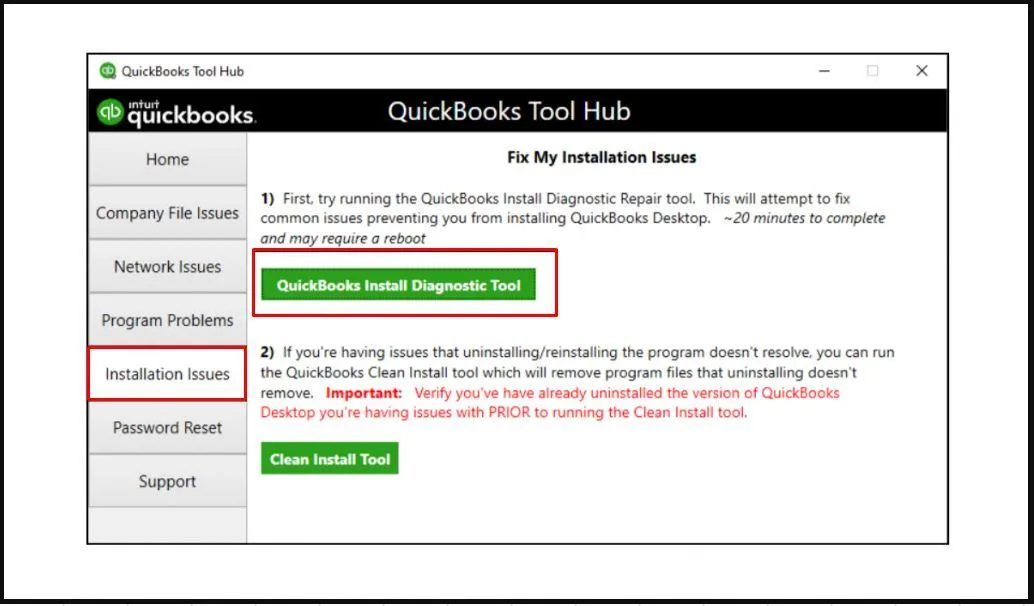
For QuickBooks Desktop, Intuit provides the QuickBooks Tool Hub to help troubleshoot several common problems.
The current Tool Hub includes an Installation Issues section specifically designed for problems related to installing or uninstalling QuickBooks Desktop. Intuit's current guidance also lists tools for company-file issues, network problems, program problems, password resets, and other troubleshooting categories.
To use the Tool Hub, users should close QuickBooks Desktop, download the latest Tool Hub from the official Intuit website, install it, and then select the appropriate troubleshooting category.
The exact tools available can vary as the software is updated, so users should follow the instructions shown in the current version.
Use the Installation Issues Section
After opening QuickBooks Tool Hub, select Installation Issues when the problem involves installing, uninstalling, or updating QuickBooks Desktop.
This section is intended to address installation-related problems, including certain error conditions.
Intuit specifically lists Error 3371 among the types of installation problems that can be addressed through the Installation Issues tools.
Allow the selected diagnostic tool to complete its process.
Some tools may take several minutes to download or run, so users should avoid closing the Tool Hub while a tool is still working.
Understand Common Installation Error Codes
Installation errors can sometimes provide useful clues.
For example, QuickBooks installation problems may display codes such as 1601, 1603, 1642, 1904, or other messages depending on the underlying issue.
These codes can point toward Windows Installer problems, Microsoft component issues, permissions, or damaged installation files.
Users should record the exact code instead of searching for a vague description such as “QuickBooks won't install.”
The exact error message gives troubleshooting resources more useful information.
It is also important to confirm that the instructions being followed apply to the specific QuickBooks product and Windows version.
Troubleshoot Microsoft Components Carefully
QuickBooks Desktop installation can depend on Microsoft Windows components such as .NET Framework, MSXML, and Visual C++.
If one of these components is missing, damaged, or improperly registered, installation may fail.
The QuickBooks Tool Hub's Installation Issues tools are designed to help diagnose certain problems involving these components.
Users should avoid manually modifying system files unless they understand the process.
Changing Windows components incorrectly can affect other applications.
If the problem involves advanced Windows repair, an experienced IT professional may be the safer option.
Repair Instead of Immediately Reinstalling
Some users immediately uninstall QuickBooks when installation or startup problems occur.
However, a complete reinstall is not always necessary.
Depending on the situation, a repair or diagnostic tool may resolve damaged program components without requiring a full reinstallation.
Intuit's current troubleshooting guidance includes Quick Fix My Program and other tools for different types of QuickBooks Desktop problems.
Start with the least disruptive appropriate solution.
If repair attempts fail, a clean reinstall may be considered as a later troubleshooting step.
When a Clean Installation May Be Needed
A clean installation is generally more involved than simply reinstalling the application.
It may be considered when the existing installation is damaged and normal repair or reinstall procedures do not resolve the issue.
Before removing software, users should make sure they have the information and installation resources required to reinstall their QuickBooks product.
Important company files should also be backed up.
A clean installation should be performed carefully because deleting or renaming the wrong folders can affect other applications or installations.
For business computers, an IT administrator can help reduce the risk of accidentally removing important files.
Troubleshoot Installation After an Update
Installation problems sometimes appear after an update attempt.
An interrupted update can leave incomplete files or create conflicts with the existing installation.
If the problem began immediately after an update, record the error message and determine whether QuickBooks can still open.
If QuickBooks opens, check the product version and update status.
If it does not open, use appropriate program or installation troubleshooting tools rather than repeatedly running the same update.
The QuickBooks Tool Hub can be useful when the problem involves installation or program components.
Check Whether Another Program Is Causing a Conflict
Other applications can occasionally interfere with installation.
Background processes, security programs, system utilities, and other installers may compete for system resources or prevent files from being modified.
Restart Windows and attempt the installation before opening unnecessary applications.
If the problem continues, note whether the error appears at the same stage each time.
For example, an error that consistently appears while registering components may indicate a different issue from one that occurs while downloading or extracting the installer.
The stage at which installation fails can provide useful diagnostic information.
Protect Your Company Data
Installation troubleshooting should not be confused with company-file troubleshooting.
QuickBooks installation problems generally concern the application and its supporting components, while company files contain the business's accounting information.
Even so, businesses should maintain current backups before performing major software changes.
Store backups securely and verify that they can be accessed when needed.
Never delete a company file simply because QuickBooks cannot open it.
A company-file problem may require a completely different troubleshooting approach.
Keep Installation Information Available
Businesses should maintain records of their QuickBooks product information.
Useful information can include:
- Product edition
- Subscription or license information
- QuickBooks version
- Windows version
- Installation location
- Company-file location
- Error codes
- Previous troubleshooting steps
Having this information available can make reinstalling or requesting technical assistance easier.
It also prevents unnecessary delays when an installation problem occurs.
Avoid Unofficial Troubleshooting Methods
The internet contains many QuickBooks troubleshooting articles, but not every recommendation is reliable.
Users should be cautious about instructions that ask them to download unknown programs, modify Windows registry entries without explanation, or provide passwords and financial information.
Use trusted documentation and tools whenever possible.
For users who need a dedicated QuickBooks installation troubleshooting resource, an organized troubleshooting guide can help explain common installation errors and possible solutions.
The backlink above is the only backlink in this article.
When to Seek Additional Technical Assistance
Some installation problems may require more advanced help.
Consider seeking assistance when:
- The installer repeatedly fails.
- Windows components appear damaged.
- Multiple QuickBooks versions conflict.
- The computer is part of a managed business network.
- A clean installation is required.
- Error messages continue after using the available diagnostic tools.
- Other Windows applications are also experiencing installation problems.
Before contacting technical support, collect the exact error code, QuickBooks version, Windows version, and a description of everything already attempted.
This makes the troubleshooting process more efficient.
How to Prevent Future Installation Problems
Prevention can reduce the chance of repeated installation failures.
Businesses should maintain adequate disk space, keep Windows reasonably updated, use reliable security software, and maintain regular backups.
Installation files should be downloaded from trusted sources.
Organizations should also maintain a record of the QuickBooks versions used across their computers.
In multi-computer environments, documenting which machine has which QuickBooks version can help prevent compatibility confusion.
Employees should also know when they should contact an administrator instead of changing system settings themselves.
A Simple Installation Troubleshooting Checklist
Before installing QuickBooks, check the following:
1. Confirm the system requirements.
2. Check available disk space.
3. Verify the internet connection if using an online installer.
4. Close QuickBooks and unnecessary applications.
5. Confirm that you have appropriate Windows permissions.
6. Make sure important company files are backed up.
7. Use a trusted installation source.
8. Check Windows updates.
9. Use QuickBooks Tool Hub when appropriate.
10. Record any error code that appears.
Following these steps can help users approach installation problems in an organized manner.
Conclusion
QuickBooks installation problems can prevent businesses from accessing important accounting tools, but they do not always require complicated solutions.
The best approach is to identify the exact problem and work through troubleshooting steps in a logical order. Users should begin by checking system compatibility, available storage, Windows updates, internet connectivity, permissions, and security software.
For QuickBooks Desktop, the QuickBooks Tool Hub provides an Installation Issues section designed to help with certain installation and uninstallation problems.
Users should also protect their accounting data with regular backups and avoid deleting company files or making unnecessary Windows changes.
If a problem continues after basic troubleshooting, collecting the exact error code and system information can make professional assistance much more effective.
With proper preparation, reliable installation sources, regular system maintenance, and a structured troubleshooting process, businesses can reduce installation-related interruptions and maintain a more stable QuickBooks environment.






















Sign in to leave a comment.