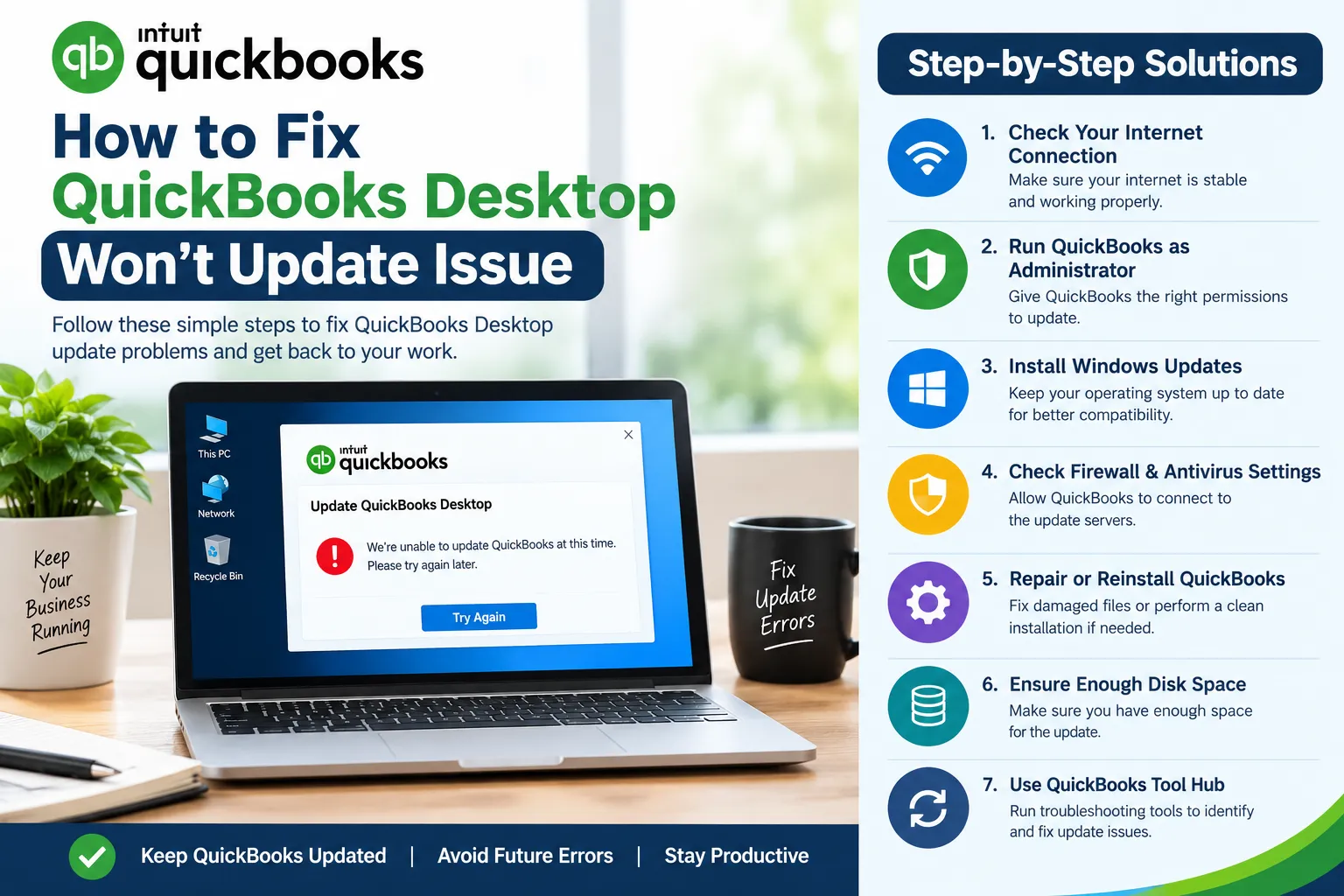

QuickBooks Desktop updates are important for keeping accounting software secure, compatible, and reliable. Updates can introduce new features, improve existing tools, correct known bugs, and help maintain compatibility with operating systems and other business applications. However, users may sometimes find that QuickBooks Desktop refuses to download or install an available update.
The problem can appear in several ways. The update may remain stuck at a particular percentage, the download may fail repeatedly, or QuickBooks may display an error message while attempting to install the latest release. In some situations, the program may appear to update successfully but continue showing an older version after restarting.
Fortunately, most update problems can be resolved with systematic troubleshooting. This guide explains the common causes and practical methods for resolving QuickBooks Desktop update failures.
Why QuickBooks Desktop May Not Update
Before applying a solution, it is useful to understand what can prevent an update from completing successfully. Several factors may contribute to the problem.
Unstable Internet Connection
QuickBooks requires a reliable internet connection to download update files. A weak or interrupted connection can cause downloads to stop unexpectedly or fail before completion.
Incorrect Date and Time Settings
Incorrect system date or time settings can sometimes interfere with secure connections between the computer and update servers. Ensuring that Windows uses the correct date, time, and time zone can help prevent connection-related problems.
Firewall or Security Software
Windows Firewall or third-party security applications may block QuickBooks from accessing the internet. If the software cannot communicate with the required servers, the update process may fail.
Damaged QuickBooks Components
Corrupted installation files or damaged program components can prevent updates from being installed correctly. This may happen after an interrupted installation, system crash, or previous update failure.
Outdated Windows Components
QuickBooks Desktop relies on certain Windows components and system services. If Windows itself is outdated or malfunctioning, the QuickBooks update process may also be affected.
Multiple QuickBooks Processes Running
Sometimes background QuickBooks processes remain active even after the application appears to be closed. These processes can interfere with the update mechanism.
QuickBooks Desktop Update Issues: Initial Checks
Before moving to advanced troubleshooting, perform a few basic checks. These steps are quick and may resolve the problem without requiring major changes to your system.
First, close QuickBooks Desktop completely. Make sure no QuickBooks windows remain open. You can also restart the computer to clear temporary processes and memory-related issues.
Next, verify your internet connection by opening a few websites in a browser. If your connection is slow or unstable, restart the router or connect to a more reliable network.
You should also check whether Windows is displaying the correct date and time. Open Windows settings and enable automatic date and time synchronization if necessary.
After completing these checks, open QuickBooks again and attempt the update.
Solution 1: Run QuickBooks as an Administrator
QuickBooks may require elevated permissions to modify certain program files during an update.
To run the application with administrative privileges:
- Close QuickBooks Desktop.
- Locate the QuickBooks shortcut.
- Right-click the shortcut.
- Select Run as administrator.
- Confirm the permission prompt if Windows displays one.
- Open the update section and try downloading the update again.
Running the program with administrator permissions can help when Windows prevents QuickBooks from modifying files or accessing protected folders.
Solution 2: Use the Built-In Update Feature
QuickBooks Desktop includes an update mechanism that allows users to download the latest available program files.
Open QuickBooks Desktop and navigate to the Help menu. Select the option related to updating QuickBooks Desktop. In the update window, review the available settings and select the option to obtain the latest update.
If an option to reset the update is available, use it before downloading again. Resetting the update can clear previously downloaded temporary files that may have become corrupted.
After the download finishes, restart QuickBooks and check whether the new version has been installed.
Solution 3: Temporarily Check Firewall Settings
A firewall can sometimes prevent QuickBooks from communicating with its update servers. Instead of permanently disabling security protection, review the firewall's allowed applications and make sure QuickBooks is permitted to access the internet.
If you use third-party security software, check its application permissions as well.
It is generally safer to create an appropriate exception for trusted QuickBooks components rather than leaving the firewall disabled. Once the update has completed, verify that your security settings remain enabled.
Solution 4: Restart Windows and Try Again
A simple restart can resolve temporary conflicts between QuickBooks, Windows services, and background applications.
Restart the computer and wait for Windows to load completely. Avoid opening unnecessary programs before starting QuickBooks. Then launch QuickBooks Desktop and try the update process again.
This approach is particularly useful when the update previously stopped because another process was using system resources or a QuickBooks file.
Solution 5: Install Available Windows Updates
QuickBooks Desktop may depend on Windows components that are maintained through system updates.
Open Windows Update settings and check for pending updates. Install the recommended updates and restart the computer if Windows requests it.
Once Windows has finished updating, launch QuickBooks and attempt the Desktop update again.
Keeping both Windows and QuickBooks reasonably up to date can also reduce compatibility problems in the future.
Solution 6: Repair QuickBooks Desktop
If the update continues to fail, the QuickBooks installation itself may have damaged components.
Windows provides repair options for many installed applications. Depending on your version of QuickBooks and Windows, you may be able to access the installed application list, select QuickBooks Desktop, and choose a repair option.
Follow the instructions shown by Windows and allow the process to complete. Restart the computer afterward and test the update.
Repairing the installation can restore damaged program components without requiring you to completely remove the application.
Solution 7: Use QuickBooks Tools to Diagnose Installation Problems
QuickBooks provides diagnostic utilities designed to help identify and repair certain installation and program-related problems.
When an update repeatedly fails, using an appropriate QuickBooks diagnostic tool may help identify damaged components, installation conflicts, or related issues.
Before using any repair utility, close QuickBooks and other applications. Follow the instructions provided by the utility carefully and allow the diagnostic process to finish.
If the tool identifies a problem, restart the computer before attempting another update.
Solution 8: Perform a Clean Installation When Necessary
If standard troubleshooting does not work, a clean installation may be necessary. This process removes the existing QuickBooks Desktop installation and allows the software to be installed again from a fresh setup package.
A clean installation should be approached carefully. Before uninstalling QuickBooks, make sure important company files and other business data are safely backed up.
After removing the existing installation, restart the computer and reinstall the correct QuickBooks Desktop version. Then apply the latest available update.
This method can be especially useful when the original installation contains corrupted files that cannot be repaired through normal troubleshooting.
Protect Your Company Data Before Troubleshooting
Although update problems generally concern the QuickBooks program rather than company data, creating a backup is still a sensible precaution.
Make sure important company files are backed up before performing repair, reinstallation, or other significant changes. Keep a copy in a secure location and verify that the backup can be accessed when needed.
You should also avoid deleting QuickBooks company files simply because the application cannot update. Program updates and company data are separate components, and removing business records is rarely an appropriate solution to an update problem.
How to Prevent Future Update Problems
Once QuickBooks Desktop has been successfully updated, a few maintenance practices can reduce the likelihood of similar problems.
Keep Windows updated and restart the computer when required. Maintain a stable internet connection, particularly when downloading large update packages.
Avoid interrupting an update once the installation process has started. Closing the application or shutting down the computer during installation can potentially damage program files.
Regularly review your firewall and security software settings to ensure trusted accounting applications can communicate properly.
It is also a good idea to maintain current backups of company files. A reliable backup strategy provides additional protection if a software, hardware, or operating-system problem occurs.
When to Seek Additional Assistance
If QuickBooks Desktop continues to refuse updates after completing the recommended troubleshooting steps, the problem may involve a more complicated installation, licensing, networking, or operating-system issue.
At that point, document the exact error message, note when the problem occurs, and record the QuickBooks Desktop version currently installed. This information can make further troubleshooting more efficient.
Avoid repeatedly installing random software or deleting system files in an attempt to force an update. Unverified fixes can create additional problems and may put accounting data at unnecessary risk.
Conclusion
A QuickBooks Desktop update that refuses to install can interrupt normal accounting activities, but the problem is often manageable with a structured troubleshooting approach. Start by checking the internet connection, system date and time, and basic application permissions. Then try the built-in update process, review firewall settings, restart Windows, and install pending operating-system updates.
If these steps do not resolve the problem, repairing QuickBooks, using appropriate diagnostic utilities, or performing a clean installation may be necessary. Always protect important company data with reliable backups before making significant software changes.
By keeping QuickBooks Desktop, Windows, and security software properly maintained, users can reduce update failures and keep their accounting environment running more reliably.


























Sign in to leave a comment.