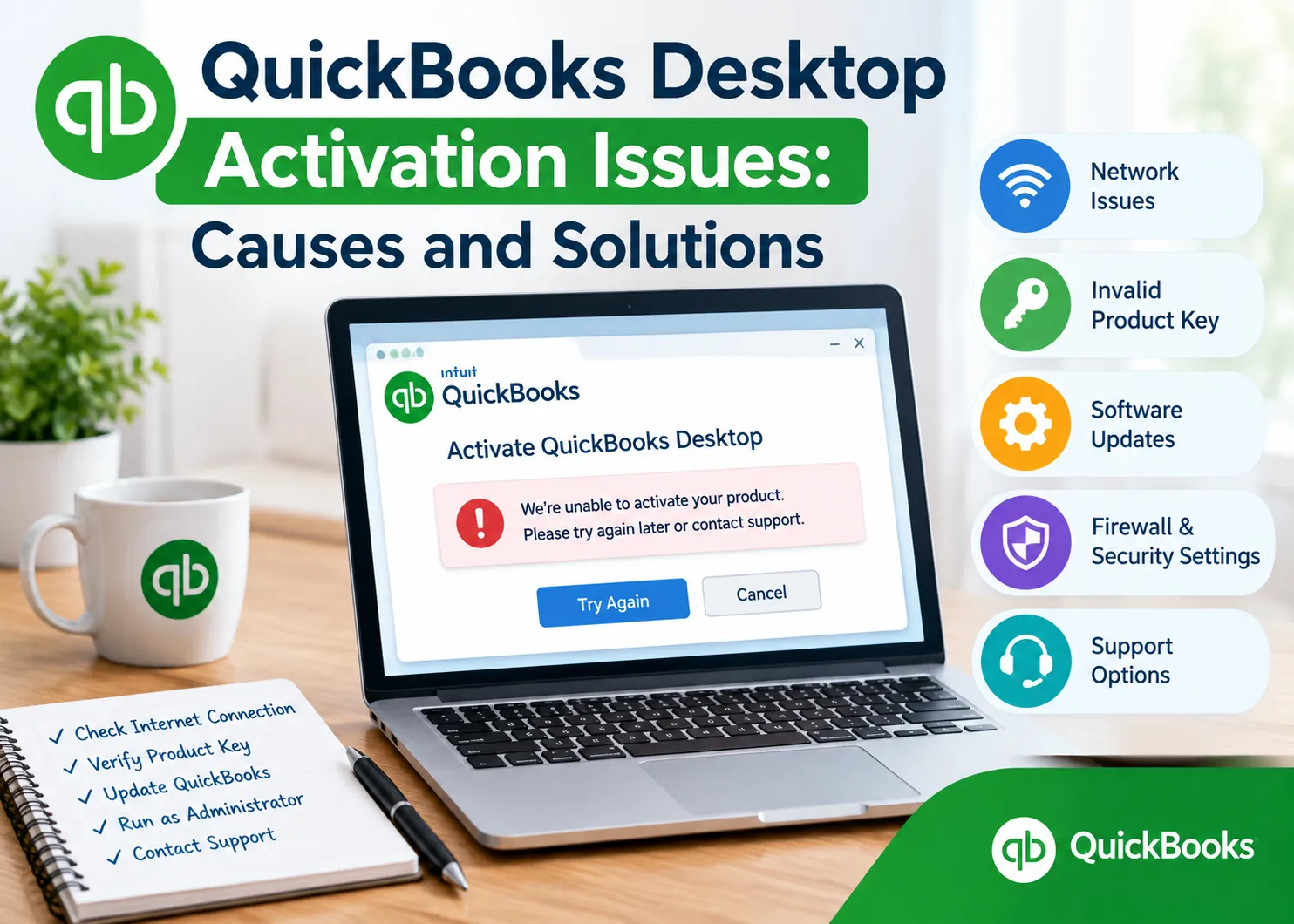

QuickBooks Desktop is a popular accounting solution used by businesses and professionals to manage financial records, invoices, expenses, payroll, and other essential accounting activities. While the software is designed to provide a dependable experience, users may occasionally encounter activation issues that prevent them from accessing the application or completing the registration process.
Activation problems can be frustrating, especially when accounting work needs to be completed quickly. Fortunately, many activation issues can be resolved by identifying the underlying cause and applying the appropriate troubleshooting steps. Problems may result from incorrect license information, outdated software, network connectivity, damaged installation files, Windows settings, or security restrictions.
This article explains the common causes of QuickBooks Desktop activation issues and provides practical solutions for troubleshooting them.
What Is QuickBooks Desktop Activation?
Activation is the process used to verify that a QuickBooks Desktop installation has valid licensing information. Depending on the product version and setup, the application may need to connect to online services to validate the license and complete registration.
If the activation process cannot be completed successfully, QuickBooks may display an error message, repeatedly request registration, or prevent certain features from working correctly.
Before troubleshooting, users should keep their QuickBooks license number and product number available. Having accurate information can make the activation process much easier.
Common Causes of QuickBooks Desktop Activation Issues
Several factors can interfere with the activation process. Understanding these causes can help users choose the right troubleshooting method.
Incorrect License or Product Number
One of the most common causes is entering incorrect license or product information. Even a small typing mistake can prevent the software from validating the installation.
Users should carefully check every digit and character before submitting the information.
Unstable Internet Connection
Activation may require communication with online services. If the internet connection is slow, unstable, or restricted, QuickBooks may not be able to complete the verification process.
Network interruptions can therefore appear as activation failures even when the software itself is functioning correctly.
Outdated QuickBooks Desktop
Running an outdated version of QuickBooks Desktop can lead to compatibility and functionality problems. Software updates often include improvements and fixes that can address known issues.
Keeping QuickBooks updated can reduce the possibility of encountering problems during activation or registration.
Damaged Program Files
Program files may become damaged because of incomplete updates, interrupted installations, system crashes, or software conflicts. If essential QuickBooks components are corrupted, activation may not work properly.
Repairing the installation can help restore missing or damaged components.
Firewall and Security Restrictions
Windows Firewall or third-party security applications may restrict QuickBooks from communicating with required services. This can prevent the activation process from completing successfully.
Reviewing network permissions can help determine whether security software is responsible for the issue.
Solution 1: Verify Your QuickBooks License Information
The first step is to confirm that the license and product information being entered is correct.
Check the license details associated with your QuickBooks purchase or account. Carefully compare the information with what is being entered during activation.
Avoid guessing the license number. If the information is unavailable, locate the original purchase confirmation or other legitimate records containing the product details.
Once the correct information has been confirmed, restart QuickBooks Desktop and attempt activation again.
Solution 2: Check Your Internet Connection
A stable internet connection is essential when QuickBooks needs to communicate with online services.
Open a web browser and visit a trusted website to verify that the connection is working properly. If the connection is unstable, restart the router or switch to a reliable network.
Users should also check whether a VPN, proxy, corporate network, or other network configuration is interfering with QuickBooks communication.
After confirming that the internet connection is stable, restart QuickBooks Desktop and try the activation process again.
Solution 3: Update QuickBooks Desktop
An outdated QuickBooks installation may cause unexpected errors during activation.
Open QuickBooks Desktop and check for available updates. Install any legitimate updates provided for the installed version.
Once the update process has finished, restart the computer and launch QuickBooks again.
Keeping the application updated can also improve compatibility with the Windows operating system and reduce problems caused by older program components.
Solution 4: Use QuickBooks Tool Hub
QuickBooks Tool Hub provides utilities for troubleshooting several common desktop application problems.
If activation issues are related to damaged program components or installation problems, the appropriate Tool Hub utility may help repair the installation.
Install the legitimate version of QuickBooks Tool Hub, open it, and select the troubleshooting option that matches the problem. Follow the instructions displayed by the utility and allow the process to finish.
After completing the repair, restart QuickBooks Desktop and check whether activation works normally.
Solution 5: Repair the QuickBooks Installation
Windows includes repair options that can sometimes correct damaged application files without requiring a complete reinstallation.
Close QuickBooks Desktop before beginning the process. Open Windows settings or Control Panel and locate the installed QuickBooks Desktop application.
Select the available repair or modify option and follow the instructions on the screen.
Once the repair has completed, restart the computer and launch QuickBooks Desktop.
If damaged installation files were responsible for the activation issue, repairing the application may restore normal functionality.
Solution 6: Review Firewall and Security Settings
Security software can occasionally block QuickBooks from accessing necessary online services.
Check Windows Firewall and any third-party security applications installed on the computer. Make sure QuickBooks Desktop is allowed to communicate through the network when required.
If the computer belongs to a company or organization, network restrictions may be managed by an administrator. In that situation, users should contact the appropriate IT administrator rather than changing security settings without authorization.
Security protections should not be permanently disabled just to complete activation.
Solution 7: Correct Windows Date and Time Settings
Incorrect date, time, or time-zone settings can sometimes interfere with secure online communication.
Open Windows date and time settings and verify that the information is accurate. Enable automatic time synchronization if it is available.
After correcting the system clock, restart QuickBooks Desktop and attempt activation again.
This simple check can be useful when the software is unable to establish a reliable connection with online services.
Solution 8: Restart the Computer
Restarting the computer is a basic troubleshooting step, but it can resolve temporary conflicts between QuickBooks and other Windows processes.
Close QuickBooks and other unnecessary applications. Restart Windows and wait until the system has fully loaded.
Then open QuickBooks Desktop and try activating the application again.
A restart is especially useful after installing updates, repairing program files, or modifying network settings.
Solution 9: Reinstall QuickBooks Desktop
If the previous troubleshooting methods do not resolve the issue, reinstalling QuickBooks Desktop may be necessary.
Before uninstalling the application, create a secure backup of important company files. Also make sure that the correct license and product information is available.
Remove the existing QuickBooks installation through Windows and restart the computer. Then install a legitimate copy of the appropriate QuickBooks Desktop version.
After installation, enter the correct product information and complete the activation process.
A clean installation can resolve persistent issues caused by corrupted or incomplete program files.
Additional Troubleshooting Tip
If you need to fix QuickBooks Desktop activation error, begin with the simplest checks first, including your license information, internet connection, software version, and installation files.
Taking these steps in order can help identify the underlying problem without making unnecessary changes to the system.
How to Prevent Future Activation Problems
Preventive maintenance can reduce the chances of experiencing repeated activation issues.
Keep QuickBooks Desktop and Windows reasonably updated. Updates can improve software compatibility and address known problems.
Maintain secure backups of important QuickBooks company files. Regular backups provide additional protection if a technical problem requires software repair or reinstallation.
Store license and product information securely so that it is easily available when needed.
Users should also download QuickBooks software and updates only from trusted sources. Unofficial installers may contain modified files and can create additional software or security problems.
Finally, avoid making unnecessary changes to firewall and security settings. If a security application appears to be blocking QuickBooks, identify the specific restriction instead of disabling protection completely.
When to Seek Professional Help
Some activation issues may involve account information, licensing restrictions, advanced Windows configuration, or persistent installation problems.
If standard troubleshooting does not resolve the problem, professional technical assistance may be appropriate.
Before requesting assistance, note the exact error message, QuickBooks Desktop version, Windows version, and troubleshooting steps already attempted. Providing this information can make the diagnostic process more efficient.
Conclusion
QuickBooks Desktop activation issues can interrupt important accounting activities, but many problems can be resolved through a structured troubleshooting process. Verifying license information, checking the internet connection, updating QuickBooks, repairing program files, reviewing firewall settings, and using appropriate troubleshooting utilities are useful steps to begin with.
For persistent problems, reinstalling QuickBooks Desktop or obtaining professional technical assistance may be necessary. Maintaining current software, reliable backups, accurate license information, and secure system settings can also help prevent similar issues in the future.
By identifying the cause before making major changes, users can troubleshoot activation problems more efficiently while reducing the risk of affecting important accounting data.



























Sign in to leave a comment.