

QuickBooks Payroll is an important tool for businesses that need to manage employee payments, payroll calculations, tax information, and other payroll-related tasks. To keep payroll features accurate and functional, QuickBooks Desktop periodically requires payroll updates. These updates can include new tax table information, software improvements, corrections, and compatibility changes.
However, users may sometimes find that a QuickBooks Payroll update is not working. The update may fail to download, become stuck, stop during installation, or display an error message. In some cases, QuickBooks may continue requesting the same update even after the user has attempted to install it.
Payroll update problems can have several causes. Internet connectivity, an inactive subscription, incorrect Windows settings, security software, outdated QuickBooks components, damaged program files, and insufficient permissions can all interfere with the update process.
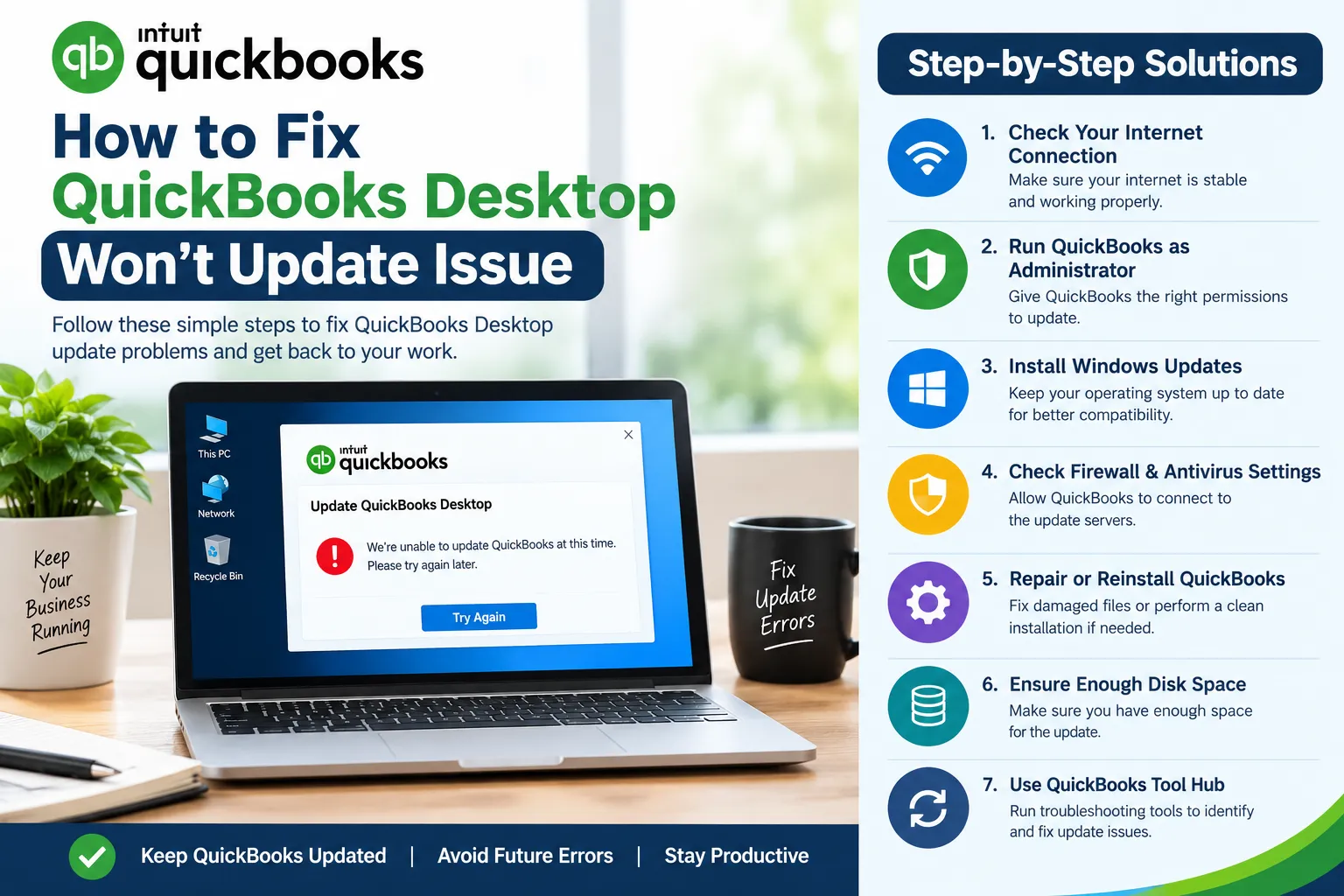
Fortunately, most common problems can be investigated through a structured troubleshooting process. The following sections explain the major causes of QuickBooks Payroll update problems and practical solutions.
Unstable Internet Connection
One of the most common reasons a payroll update fails is an unstable internet connection. QuickBooks needs reliable connectivity to communicate with its online services and download the required update files.
If the connection frequently disconnects or becomes slow, the update may stop before the download is completed.
Start by checking whether other websites are loading normally. If the internet connection is unstable, restart the router and wait until the connection becomes reliable.
Avoid switching between Wi-Fi networks while QuickBooks is downloading an update. A stable connection throughout the process can reduce the possibility of incomplete downloads.
Once the connection is stable, restart QuickBooks Desktop and try the payroll update again.
Inactive or Incorrect Payroll Subscription
QuickBooks Payroll updates are connected to the payroll service associated with the QuickBooks account. If the subscription is inactive, expired, or not correctly recognized, payroll updates may not work as expected.
Open QuickBooks Desktop and review the payroll subscription information. Make sure the correct account and company file are being used.
If the subscription information appears incorrect, sign in again using the appropriate account and allow QuickBooks to refresh the subscription details.
Resolving subscription-related issues before attempting repeated updates can save time and prevent unnecessary troubleshooting.
Outdated QuickBooks Desktop Version
An outdated QuickBooks Desktop installation can sometimes cause compatibility problems with newer payroll updates.
Check the QuickBooks product information to determine which year and release is installed. If QuickBooks itself has pending updates, install them before attempting the payroll update again.
Keeping the main QuickBooks application current can help ensure that payroll components work properly with the installed software version.
Businesses should also keep track of the QuickBooks versions used on different computers to avoid compatibility problems.
Incorrect Windows Date and Time
Windows date, time, and time-zone settings can affect secure communication between QuickBooks and online services.
If the system clock is significantly incorrect, certain online connections may not work as expected.
Open Windows Settings and verify the current date, time, and time zone. Enable automatic time synchronization when available.
After correcting the settings, restart the computer and try the payroll update again.
This is a simple troubleshooting step, but it can eliminate a potential system configuration problem.
Insufficient Windows Permissions
QuickBooks may need appropriate Windows permissions to install or modify update files. If the application does not have sufficient access, the payroll update may fail.
Close QuickBooks Desktop completely. Right-click the QuickBooks Desktop icon and select Run as administrator.
After QuickBooks opens, try checking for the payroll update again.
If the update works successfully with administrator privileges, the problem may have been caused by Windows permission restrictions.
Users working on business-managed computers should consult their IT administrator before changing permission settings.
Firewall or Antivirus Interference
Security software is important for protecting computers from unauthorized activity. However, firewall or antivirus settings can sometimes interfere with legitimate QuickBooks communication.
If QuickBooks cannot connect properly to its required online services, a payroll update may fail or become stuck.
Review the firewall configuration and make sure QuickBooks is allowed to communicate appropriately.
Avoid permanently disabling antivirus or firewall protection. Instead, use approved security settings or ask an IT administrator to review the configuration.
On company networks, security policies may be centrally controlled, so individual users may not be able to change them.
Damaged QuickBooks Program Components
QuickBooks program files can sometimes become damaged or incomplete. This may happen after an interrupted update, unexpected computer shutdown, or failed software installation.
Damaged components can interfere with payroll updates because the update process may be unable to replace or modify certain files.
QuickBooks provides diagnostic and repair utilities that can help identify and repair some program-related issues.
Before performing a repair, close QuickBooks and save any important work. Run the appropriate diagnostic utility and follow its instructions carefully.
After completing the repair, restart Windows and try the payroll update again.
Reset the QuickBooks Update Process
Temporary update information can occasionally become outdated or corrupted. Resetting the update process may help QuickBooks begin the download again.
Open QuickBooks Desktop and access the update settings. Depending on the version, you may have options to check for updates, reset the update, or download the latest update again.
After resetting the update, close and reopen QuickBooks.
Then attempt the payroll update once more.
If the update works after being reset, the original problem may have been caused by temporary update data rather than a serious software issue.
Limited Disk Space
Payroll updates require storage space for downloading, extracting, and installing files. If the Windows drive is nearly full, QuickBooks may not be able to complete the update.
Open Windows storage settings and check the available disk space.
Remove unnecessary temporary files, unused applications, or other files that are no longer needed. After freeing sufficient space, restart the computer and try the update again.
Maintaining adequate storage can also improve overall Windows and QuickBooks performance.
Multiple QuickBooks Installations
Having multiple versions or editions of QuickBooks Desktop installed on the same computer can sometimes create conflicts.
This may happen when users have upgraded QuickBooks over several years without removing older installations.
Review the installed applications in Windows and identify the QuickBooks versions currently installed.
Do not immediately uninstall older versions. Some businesses may still need a particular version for older company files.
If unnecessary duplicate installations are confirmed, carefully removing them may help simplify the software environment and reduce future update conflicts.
Pending Windows Updates
QuickBooks Desktop operates within the Windows environment, so outdated operating system components can sometimes contribute to compatibility problems.
Open Windows Update and check for available updates. Install important updates when appropriate and restart the computer afterward.
Once Windows has restarted, open QuickBooks Desktop and try the payroll update again.
Keeping Windows reasonably current can help maintain compatibility between the operating system and accounting software.
QuickBooks Tool Hub and Diagnostic Tools
QuickBooks Tool Hub provides several troubleshooting utilities for common QuickBooks Desktop problems.
If a payroll update fails because of damaged program components or installation-related problems, an appropriate diagnostic tool may help identify the underlying issue.
Open the Tool Hub and select the utility that matches the type of problem being experienced.
Follow the instructions carefully and restart the computer when requested.
Using the correct diagnostic tool is important because different utilities are designed for different QuickBooks problems.
Check the Error Message
When a payroll update fails, QuickBooks may display an error code or message. This information should not be ignored.
Record the exact error message and note when the problem occurs. For example, determine whether the failure happens during the download, installation, verification, or final update stage.
The specific error information can help narrow down the cause and identify the appropriate troubleshooting method.
Users who repeatedly experience QuickBooks Payroll Update Problems should keep a record of the error message and the troubleshooting steps already attempted. This can make further diagnosis more efficient.
Restart QuickBooks and Windows
Restarting both QuickBooks and Windows is another useful troubleshooting step.
Temporary processes can sometimes interfere with payroll updates. A restart closes many background processes and allows recently repaired components or system changes to load correctly.
Close QuickBooks and restart the computer. Once Windows starts, open QuickBooks before launching unnecessary applications.
Then try the payroll update again.
This approach is particularly useful after installing Windows updates, repairing QuickBooks components, or changing security settings.
Try the Update Again After Troubleshooting
After completing the appropriate troubleshooting steps, return to the payroll update option in QuickBooks Desktop.
Allow the update process to complete without interruption. Avoid switching networks, shutting down the computer, or forcibly closing QuickBooks while the update is running.
If the update completes successfully, verify that the payroll features are working correctly.
If the update continues to fail, note the exact error message and the stage at which the problem occurs.
Create a Backup Before Major Repairs
Before performing extensive troubleshooting, repairing the installation, or reinstalling QuickBooks, create a recent backup of important company files.
A backup provides additional protection if an unexpected problem occurs during the repair process.
Payroll and accounting information can be critical to a business, so maintaining regular backups should be part of normal software management.
Businesses should not wait until an update problem occurs before creating a backup.
Preventing Future Payroll Update Problems
Preventive maintenance can reduce the likelihood of repeated payroll update failures.
Keep QuickBooks Desktop and Windows reasonably updated. Maintain sufficient free disk space and use a reliable internet connection when downloading updates.
Review firewall and security settings periodically and make sure QuickBooks can communicate with required online services.
Keep QuickBooks installations organized and avoid unnecessary duplicate versions.
Most importantly, maintain regular backups of important company data.
These simple practices can make future updates more reliable and reduce interruptions to payroll operations.
When Professional Assistance Is Appropriate
Many QuickBooks Payroll update problems can be resolved with basic troubleshooting. However, some situations may require additional technical assistance.
Professional help may be appropriate if the update continues to fail after checking the internet connection, subscription status, Windows settings, security configuration, and QuickBooks installation.
Additional assistance can also be useful when multiple computers experience the same problem or when the issue involves a complex business network.
Avoid manually deleting QuickBooks program files or changing advanced Windows settings unless you understand their purpose.
Conclusion
QuickBooks Payroll updates are important for maintaining accurate and reliable payroll functionality, but several factors can prevent them from working correctly. Internet problems, subscription issues, outdated software, Windows permissions, incorrect system settings, firewall restrictions, damaged program components, insufficient storage, and multiple installations can all contribute to update failures.
The best approach is to troubleshoot the problem systematically. Start with the internet connection, payroll subscription, QuickBooks version, Windows date and time, and administrator permissions. If the problem continues, review security settings, reset the update process, repair QuickBooks components, use appropriate diagnostic tools, and check the exact error message.
Regular backups, reliable internet connectivity, adequate storage, and proper software maintenance can help prevent future payroll update problems. By following these steps carefully, businesses can keep QuickBooks Payroll functioning properly and reduce interruptions to their everyday payroll and accounting activities.






























Sign in to leave a comment.