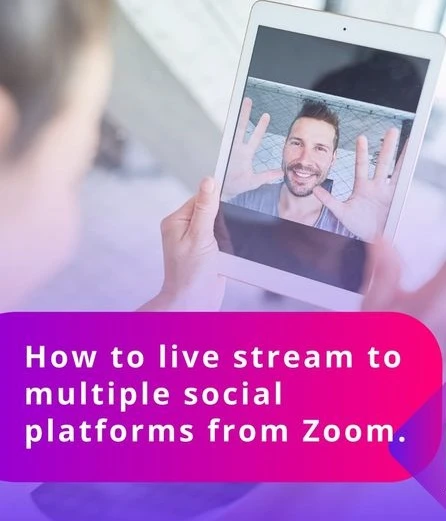

The Zoom meeting app has been around for a while, but it gained unexpected traction during the COVID-19 pandemic, when almost all offices were forced to close.As the corporate world was grappling with the deadly virus, they had to rely on a virtual meeting platform to stay connected and deliver their professional services.
Taking cognizance of the shifting demands of individual creators, brands, and big business organizations, the application had to revamp its offering and add on a plethora of new features. One of them is the multi-stream feature that we are going to cover in detail in this blog.
The Zoom live streaming tool comes with modern and cool features like virtual hand raising, polling, and more. It has been widely used by individuals and organisations across different sectors. Corporate professionals use it for stand-up meetings, important presentations, webinars, etc., whereas teachers and life coaches use it for live online classes. It is also used by influencers, consultants, and fitness instructors to broadcast classes and host workshops on a variety of subjects.
Now that we have understood its use and benefits, let us see how to stream live to multiple platforms using Zoom.
Live Streaming Using Zoom
At present, there are two ways in which you can live stream to multiple platforms on Zoom. The first method requires you to buy a paid Zoom plan. It could be a Pro membership, Business premium, or Enterprise. Alternatively, you can use third-party apps like Styck to stream live to multiple platforms.
Steps to Stream Live to Multiple Platforms Using Pro Zoom Subscription
First, you will have to enable live streaming of your meetings. For this, go to your ‘Zoom profile’ and click on the ‘Settings’ tab. From the menu, click "In Meeting (Advanced)’ and find the ‘Allow live streaming meetings" option. Hit the toggle button to turn it on. Also, do ensure that all the boxes are checked.Now host a meeting in Zoom as you would normally do. When you have launched a meeting, go to the meeting control panel and click on ‘More’. From there, select Live on ‘Custom Live Streaming Service’.Next, you are required to fill in your ‘Streaming URL" and "Streaming Key’. You can find details on the Styck dashboard. Don’t forget to enter the URL of all your connected streaming platforms, such as YouTube, Twitch, Facebook, or any other .When the URLs are added, click the ‘Go Live’ button. Within seconds, Styck will broadcast your live stream on every connected channel.Live Streaming with Styck
In case you don’t want to buy the premium membership of Zoom, you can stream live to multiple platforms using Styck’s multistreaming solution. Styck allows you to broadcast your live programme on different digital platforms simultaneously, such as LinkedIn, Instagram, Facebook, YouTube, and more. You can try out the 30-day free trial pack and see if the features of the platforms cater to your requirements or not. Now you can create an easy-to-use free account on Styck and start multistreaming!
Now that you have all the information about how to stream live to multiple platforms using Zoom, what are you waiting for? Create an account today to begin your multistreaming journey.
Read related blogs:-
How To Stream On Multiple Platforms Simultaneously





















Sign in to leave a comment.