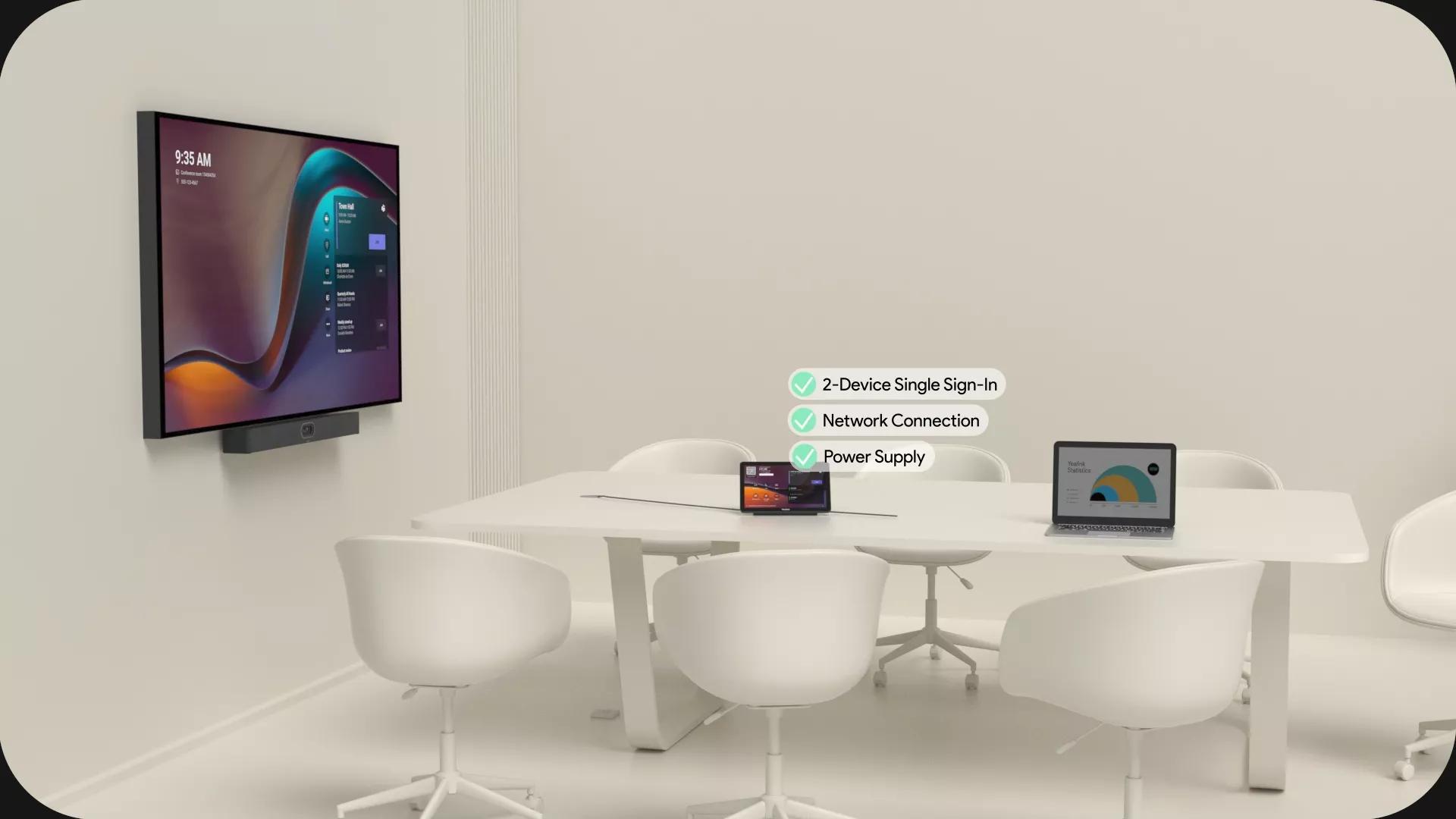

Introduction to Yealink MeetingBars A40
The modern workplace demands effective and reliable communication tools. With hybrid work becoming the norm, businesses need seamless video conferencing solutions. That’s where the Yealink MeetingBars A40 steps in. Known for its ease of use, top-tier performance, and integrated AI technology, the A40 transforms any conference room into a powerful collaboration hub.
Developed under the reputable meetingbars brand, the Yealink MeetingBars A40 delivers high-quality video calls with little to no setup time. Whether you're managing a small team or running global operations, this all-in-one device ensures you stay connected.
Why Video Calls Are Essential for Modern Businesses
Video calls are more than just a convenience—they're a necessity. Organizations use video conferencing for:
- Collaborating with remote teams
- Reducing travel expenses
- Enhancing client communication
- Improving team productivity
Using a high-performance system like the Yealink MeetingBars A40 ensures these meetings are smooth, clear, and productive.
What Makes the Yealink MeetingBars A40 Stand Out
All-in-One Video Bar Technology
Unlike traditional setups that require separate microphones, cameras, and speakers, the Yealink MeetingBars A40 offers an integrated solution. The sleek bar includes:
- A 4K Ultra HD camera
- Integrated speakers
- A noise-canceling microphone array
This all-in-one design reduces clutter and ensures an organized meeting space.
Built-in AI Features for Smarter Meetings
The A40 leverages AI to provide:
- Auto-framing for active speakers
- Face recognition and tracking
- Voice enhancement and sound balancing
With these features, it’s easy to stay focused and professional during every call.
Setup and Installation Guide
Unboxing and What’s Included
Your Yealink MeetingBars A40 package includes:
- Yealink A40 video bar
- Power adapter
- Mounting bracket
- HDMI and USB cables
- Quick start guide
Step-by-Step Installation Process
- Mount the A40 on the wall or place it on a table.
- Connect it to a display via HDMI.
- Plug in the power adapter.
- Connect to your preferred platform (Teams, Zoom) using the remote or touch screen.
- Complete the on-screen setup wizard.
Connecting with Microsoft Teams and Zoom
The A40 comes pre-configured for Microsoft Teams Rooms. Simply log in with your credentials, and you’re ready to go. It also supports Zoom Rooms and SIP/H.323 for broader compatibility.
Optimizing Video Quality During Calls
4K Camera Capabilities
The A40 is equipped with a 4K Ultra HD camera, delivering crisp and professional video. Its wide-angle lens ensures everyone in the room is visible—no need for crowding around a laptop.
Intelligent Framing and Auto-Tracking
The camera’s AI detects and follows the speaker, automatically adjusting the frame. This makes conversations more engaging and keeps attention where it matters.
Improving Audio Clarity and Voice Recognition
Noise Cancellation Features
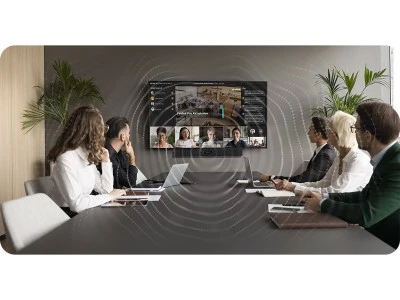
The A40 includes an 8-microphone array that captures voices clearly while eliminating background noise. This is particularly useful in open office environments or echo-prone rooms.
Speaker and Microphone Range Explained
With a pick-up range of up to 6 meters (20 feet) and powerful built-in speakers, every participant can hear and be heard with precision. The system dynamically adjusts audio for consistent volume levels.
Enhancing Team Collaboration with Yealink MeetingBars A40
Whiteboarding and Screen Sharing
Teams can collaborate in real-time using:
- Wireless screen sharing
- Integrated digital whiteboards
- Document annotation tools
Cross-Platform Integration
Whether you’re using Microsoft, Zoom, or other third-party platforms, the A40 offers plug-and-play support with minimal configuration.
Best Practices for Remote Team Communication
Scheduling Efficient Virtual Meetings
Use tools like Microsoft Teams calendar to:
- Send automatic meeting invites
- Sync schedules
- Attach agendas
Reducing Meeting Fatigue
Encourage teams to:
- Keep meetings under 45 minutes
- Use video only when necessary
- Include breaks during long sessions
The A40’s high-quality video reduces visual strain, aiding in longer but productive sessions.
Troubleshooting Common Issues
Connectivity and Network Lag
- Use a wired Ethernet connection when possible
- Ensure a minimum bandwidth of 2 Mbps for HD calls
Camera and Audio Sync Problems
- Update firmware regularly
- Restart the device if lag occurs
- Contact meetingbars support if issues persist
Firmware Updates and Security
Keeping Your Device Secure
The A40 supports:
- Encrypted data transmission
- Secure boot protocols
- Admin-level access control
Updating to the Latest Features
Yealink provides OTA (Over-The-Air) updates. Always keep your system up-to-date for new features and bug fixes.
Cost-Effectiveness and ROI
Reducing Hardware Needs
By replacing separate AV components with a single unit, businesses save:
- Setup costs
- Maintenance fees
- Space and energy usage
Value for Medium to Large Conference Rooms
The A40 is ideal for rooms seating 6 to 12 people. Its scalability makes it a smart investment with long-term returns.
Real-World Use Cases and Testimonials
TechHub Consulting, a 300-employee tech firm, reduced onboarding time by 40% using Yealink MeetingBars A40. Sales teams also report improved client engagement due to clearer audio and professional visuals.
Conclusion
If you're looking to transform your video conferencing experience, the Yealink MeetingBars A40 is your answer. From AI-powered visuals to clear audio and ease of use, this device proves why it's one of the best on the market. Backed by meetingbars, it’s a smart investment for any business prioritizing communication, collaboration, and productivity.
FAQs
1. What is the Yealink MeetingBars A40?
The Yealink MeetingBars A40 is an all-in-one video conferencing solution with built-in AI, 4K camera, and noise-canceling mics for professional video calls.
2. Does the A40 support Zoom and Microsoft Teams?
Yes, it supports both Microsoft Teams Rooms and Zoom Rooms, offering seamless integration for either platform.
3. Is the Yealink MeetingBars A40 suitable for large conference rooms?
Yes, it’s designed for medium to large rooms and supports expansion microphones for even larger spaces.
4. Can I share my screen wirelessly with the A40?
Yes, it supports wireless screen sharing via Miracast and Yealink’s wireless presentation pod (optional).
5. How often should I update the firmware?
You should check for updates every month or enable automatic updates for real-time improvements.
6. Is it secure for enterprise use?
Absolutely. It supports encrypted communication, admin control, and secure firmware updates.
























Sign in to leave a comment.