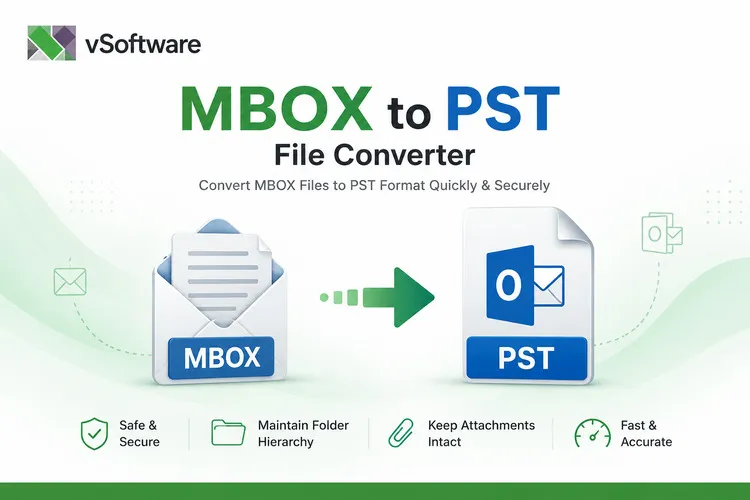

Have you ever come across an MBOX file and wondered how to open it? These files are commonly used for storing email messages, but they can be a bit tricky when you're trying to access them on different operating systems like Windows and Mac. Whether it's important emails from your past or backup data you need, knowing how to handle MBOX files is essential.
In this guide, we’ll explore what MBOX files are and why you might want to open them on both Windows and Mac. We’ll walk through various methods tailored for each platform—from using popular email clients like Microsoft Outlook and Apple Mail to exploring third-party software solutions that make the process seamless. Ready to dive in? Let’s unlock the world of MBOX files together!
What is an MBOX file?
An MBOX file is a popular format used for storing email messages. It serves as a container that holds multiple emails in plain text, making it easy to store and manage large volumes of messages.
Typically, these files are created by various email clients like Mozilla Thunderbird, Apple Mail, and others. They group all the emails from a single folder into one cohesive file. This organization simplifies data transfer and backup processes.
MBOX files are characterized by their simplicity; they contain headers and body content without complex coding. This straightforward structure allows users to easily access their emails with compatible applications.
Understanding what an MBOX file is can empower you to effectively handle your email data across different platforms. Whether you're migrating or simply exploring your archives, grasping this concept lays the groundwork for managing your digital correspondence efficiently.
Reasons for opening MBOX files on Windows and Mac
MBOX files are widely used for storing email messages, making them critical for users who need to access their correspondence. Whether you’re a professional or an individual user, opening these files can be essential.
One primary reason is data migration. Users often switch email clients or operating systems and must access their old emails stored in MBOX format.
Another reason involves recovery efforts. If your email client crashes or if there’s accidental deletion of messages, retrieving those lost emails from MBOX files can prove invaluable.
Additionally, many people want to consolidate multiple accounts into one platform. Opening MBOX files allows them to gather all important communications effortlessly.
With the increasing demand for effective communication tools on both Windows and Mac platforms, understanding how to open these files becomes crucial for smooth workflow management and preserving important information.
Different methods to open MBOX files on Windows:
Windows users have several options for opening MBOX files, making it a flexible platform for email management.
One popular choice is Microsoft Outlook. By converting MBOX files to PST format, users can import emails seamlessly into their Outlook interface. This process might require some extra steps but offers robust features once set up.
Another reliable alternative is Mozilla Thunderbird. It supports MBOX files natively and allows easy access with just a few clicks. Users can simply drag and drop the MBOX file into Thunderbird’s interface.
For those looking for more convenience, third-party software solutions are available as well. Many tools specifically designed as an MBOX File Converter for macOS also support Windows systems, offering quick conversion and access capabilities without technical complications.
These methods cater to varying user needs while ensuring that important email data remains accessible on Windows platforms.
A. Using Microsoft Outlook
Microsoft Outlook is a powerful email client that many users rely on for their daily communication. If you're looking to open MBOX files, it can be done with a few steps.
First, you need to convert the MBOX file into a format that Outlook understands, usually PST. Various tools are available online specifically designed as an MBOX File Converter for macOS or Windows. These converters will help you change your files effortlessly.
Once converted, launch Microsoft Outlook and import the newly created PST file through the Import/Export feature found in the File menu. Follow the prompts carefully to ensure all your emails transfer smoothly.
After importing, you’ll find your messages neatly organized within Outlook’s interface. It allows for easy navigation and efficient management of your emails without any hassle.
B. Using Mozilla Thunderbird
Mozilla Thunderbird is a popular choice for handling MBOX files. This open-source email client supports various formats, making it versatile and user-friendly.
To get started, download and install Thunderbird from the official website. Once installed, launch the application to set up your email account if you haven’t already done so.
Next, you'll want to import your MBOX file. Go to "Tools" in the menu bar, then select "Import." You’ll have options for importing mail or other data types; choose “Mail.”
After that, locate your MBOX file on your computer. Select it and let Thunderbird process the file. Your emails will now be available in the interface.
Navigating through them is straightforward. Use folders or search functions to find specific messages quickly—making managing emails easy with this efficient tool!
C. Using a third-party software
If you're looking for a hassle-free way to open MBOX files, third-party software can be your best bet. These tools are designed specifically to handle MBOX formats with ease.
Many options cater to both Windows and Mac users. They often feature intuitive interfaces that make navigation simple, even for those who aren't tech-savvy. Just install the software, select your MBOX file, and watch as it effortlessly extracts your emails.
Additionally, some applications provide extra functionalities like converting MBOX files into other formats or enabling batch processing. This means you can manage multiple files simultaneously without breaking a sweat.
The key is finding reputable software that fits your needs. A quick search will yield various choices; just ensure you read reviews before making a decision. Most importantly, look for programs that guarantee data security and integrity during the opening process.
Different methods to open MBOX files on Mac:
Opening MBOX files on a Mac can be straightforward if you know the right tools. One popular option is Apple Mail, which comes pre-installed on macOS. Simply import the MBOX file through the "File" menu and navigate to “Import Mailboxes.”
Mozilla Thunderbird is another excellent choice. This free email client supports MBOX files directly. After installing Thunderbird, you can add your MBOX file via its “ImportExportTools” extension for seamless access.
For those looking for more advanced features, third-party software solutions are available too. Programs like BitRecover's MBOX Converter offer user-friendly interfaces and additional functionalities that enhance the experience of opening and managing these files.
Each method has its strengths, catering to different needs and preferences among users wanting to work with their emails efficiently.
A. Using Apple Mail
To open MBOX files on a Mac, Apple Mail is one of the most straightforward options available. This built-in application seamlessly integrates with macOS and provides an intuitive interface.
First, you need to ensure that the MBOX file is accessible on your system. Save it in a location where you can easily find it, such as your Desktop or Downloads folder.
Next, launch Apple Mail. In the menu bar at the top of your screen, click on “File,” then select “Import Mailboxes.” A new window will appear prompting you to choose how you'd like to import your files.
Select "Files in mbox format," then browse for your saved MBOX file. Once chosen, click "Continue." Your emails will be imported into Apple Mail and stored under “Import” in the sidebar.
With just a few clicks, you'll have access to all those important messages right within Apple’s native email client!
B. Using Mozilla Thunderbird
Mozilla Thunderbird is a popular choice for opening MBOX files due to its versatility and robust feature set. It's an open-source email client that supports various platforms, including Windows and Mac.
To get started, download and install Thunderbird from the official website. Once installed, launch the application.
Next, you’ll need to add your MBOX files into Thunderbird’s environment. This can be done by using the ImportExportTools NG extension available in the Add-ons section of Thunderbird. After installing this extension, navigate to “Import mbox file” under its options.
Select your MBOX file location, and with just a few clicks, you'll have access to all your emails neatly organized within Thunderbird's interface. The user-friendly design makes it easy to read or manage your messages seamlessly.
C. Using a third-party software
When it comes to opening MBOX files, third-party software can be a game changer. These tools often provide user-friendly interfaces that simplify the process significantly.
Many options are available for both Windows and Mac users. Programs like MBOX File Converter for macOS stand out by offering advanced features tailored specifically for this file format. They allow you to convert MBOX files into multiple formats, making your emails more accessible.
Installation is generally straightforward. Just download the software from a reputable source, follow the installation prompts, and you're ready to go.
Once installed, navigating through the tool usually involves importing your MBOX files with just a few clicks. This eliminates complicated setups or configurations typically associated with traditional email clients.
Using dedicated software not only speeds up access but also enhances functionality while ensuring data integrity throughout the process.
Steps to open an MBOX
Opening an MBOX file can seem daunting, but with the right guidance, it becomes a straightforward task. Here are the essential steps to get you started on both Windows and Mac.
For Windows users:
1. **Choose Your Software**: Decide whether you'll use Microsoft Outlook, Mozilla Thunderbird, or a third-party tool.
2. **Install Required Applications**: If you opt for Thunderbird or Outlook, ensure they are installed and updated to the latest version.
3. **Import MBOX File**:
- For Microsoft Outlook: You may need to convert your MBOX files into PST format using an appropriate converter before importing them.
- For Mozilla Thunderbird: Simply go to Tools > Import > Mail and select "Mbox Files."
4. **Open the File**: Once imported, your emails should be accessible just like any other mail in your inbox.
For Mac users:
1. **Select Your Application**: Choose between Apple Mail, Mozilla Thunderbird, or specialized third-party software.
2. **Download Necessary Apps**: Make sure that Apple Mail is set up correctly or that Thunderbird is if you're going that route.
3. **Importing Process**:
- In Apple Mail: Open Finder and navigate to where your MBOX file is saved; then drag-and-drop it directly into the mail window.
- In Firefox-based applications like Thunderbird: Use Tools > Import > Select “Mail” followed by “Mbox Files.”
4. **Access Your Emails**: After successful importation, navigate through your inbox as usual.
Following these steps will allow you to access all those important emails stored within MBOX files effortlessly on either operating system! Remember that utilizing an efficient MBOX File Converter for macOS can simplify this process even further by ensuring compatibility across various email platforms while retaining data integrity throughout conversions and imports.
With these methods at hand, working with your MBOX files should now feel much less intimidating!





























Sign in to leave a comment.