

Many products can’t be priced with a simple fixed amount. Items like fabric, wallpaper, flooring, glass panels, banners, and custom wood pieces are sold based on measurements such as length, width, area, volume, or weight. For these products, manual pricing often leads to confusion, delays, and errors. This is where a Shopify price calculator becomes essential for automating accurate, real-time pricing based on customer input.
A Shopify price calculator allows merchants to add measurement fields directly to product pages. Customers can enter their required dimensions, and the price updates instantly using predefined formulas. This removes the need for back-and-forth communication and provides a smooth buying experience.
Why Dimension-Based Pricing Matters
When you sell made-to-order or measurement-based products, every order is unique. One customer may need 2 meters of fabric, while another needs 5. One buyer may require a 3×4 ft banner, while another needs 6×8 ft. Fixed pricing simply doesn’t work in these scenarios.
By using a formula-based calculator, you can price products according to exact requirements. For example:
- Length × Width = Area price
- Weight × Unit cost = Final price
- Volume × Rate = Total cost
This ensures customers pay only for what they need, and you maintain pricing accuracy.
Adding Input Fields for Customer Dimensions
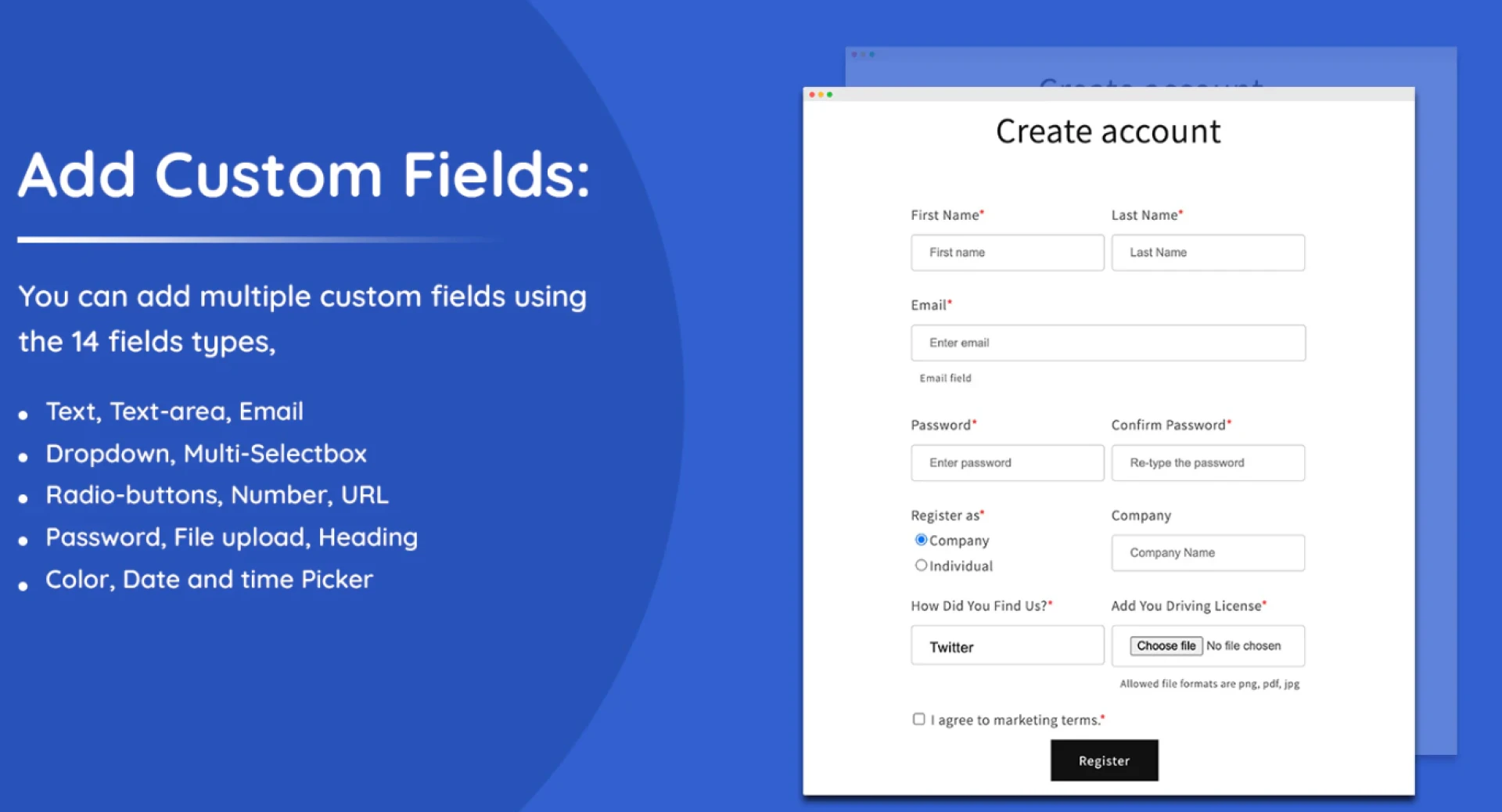
A Shopify price calculator lets you add multiple input fields such as:
- Length
- Width
- Height
- Weight
- Quantity (including decimal values)
These fields are placed on the product page so customers can provide the necessary measurements before adding the item to the cart. You can also choose from different field types to match your product’s needs.
Using Formulas to Automate Pricing
The real power of the calculator lies in its formula logic. Instead of setting a static price, you create a pricing formula. For instance, if you sell tiles at a rate per square foot, the formula could be:
Length × Width × Price per unit
As soon as the customer enters their dimensions, the calculator applies the formula and displays the final price instantly. This dynamic pricing approach reduces errors and increases transparency.
Setting Rules and Conditions
Not all pricing rules are the same. Sometimes, you may want to apply different formulas based on specific conditions. For example:
- Apply a discount if the area exceeds a certain size
- Use a different rate for bulk measurements
- Add extra charges for minimum order sizes
With conditional rules, the formula can automatically change depending on the values entered by the customer.
Applying the Calculator to Products or Collections
You can enable the Shopify price calculator on specific products or entire collections. This is especially helpful for stores selling multiple measurement-based items such as carpets, blinds, printing materials, or construction supplies.
Rounding and Final Price Adjustments
For practical pricing, you may want to round up the calculated value. For example, if the total comes to 2.3 units, you can round it to 3 units for billing. This ensures fair pricing and avoids fractional complications.
Improving Customer Experience and Sales
When customers can see the exact price based on their input, they feel more confident about their purchase. There’s no need to request quotes or wait for manual responses. Everything happens instantly on the product page, leading to faster decisions and higher conversions.
Using a Shopify price calculator not only simplifies pricing for merchants but also creates a seamless and professional shopping experience for customers.






























Sign in to leave a comment.